Overview #
This guide explains how to add, modify, and delete email forwarding for your domain from the client portal.
Automatically forward emails sent to your domain to an existing email address.
Edit and save the existing forwarding destination address.
Clear the target row and save to remove the forwarding setting.
What is Email Forwarding? #
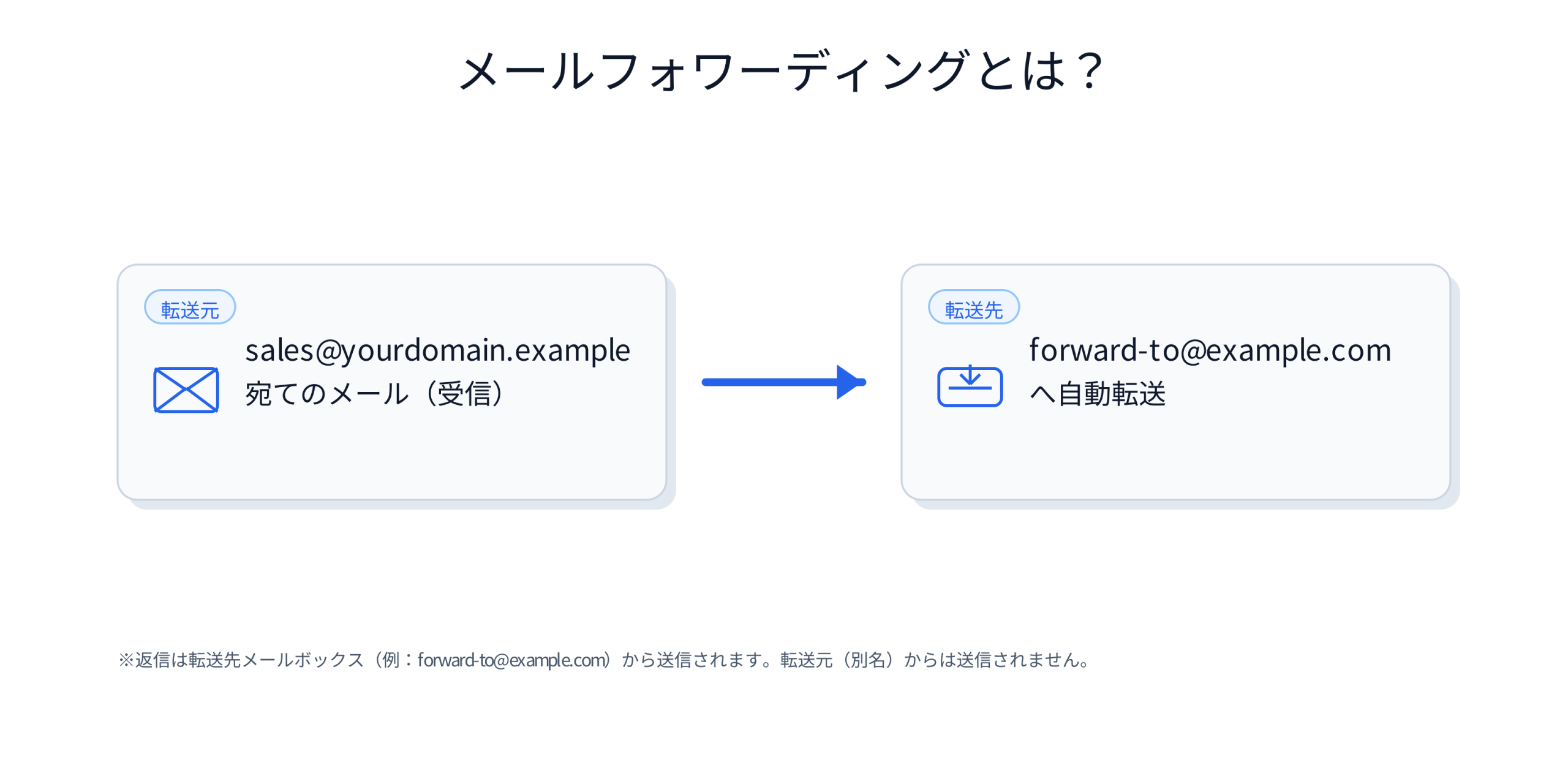
Email forwarding is a feature that automatically forwards emails sent to your domain (for example: sales@yourdomain.example) to an existing mailbox (for example: Gmail).
- Forwarding is a feature that “forwards received emails” and does not create a mailbox (inbox) itself.
- Replies are basically sent from the forwarding destination email address (not from the domain address).
Prerequisites #
- You can log in to the client portal
- The target domain is active (Active)
- The target domain uses default nameservers
- An existing email address to use as the forwarding destination (for example: Gmail / Microsoft 365 / corporate email, etc.) is prepared
The email forwarding feature requires that the target domain uses default nameservers. If you are using custom nameservers, the screen may not be displayed or settings may not be saved.
Operating Instructions #
1Open the Email Forwarding screen #
- Log in to the client portal and open the details screen for the target domain.
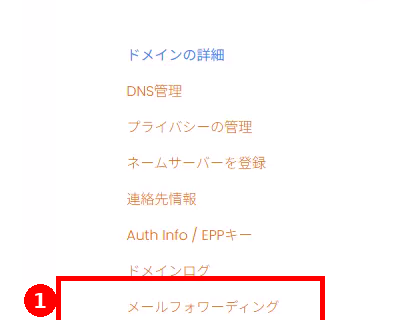
- From the domain menu, click “Email Forwarding”.
2Add a forwarding destination #
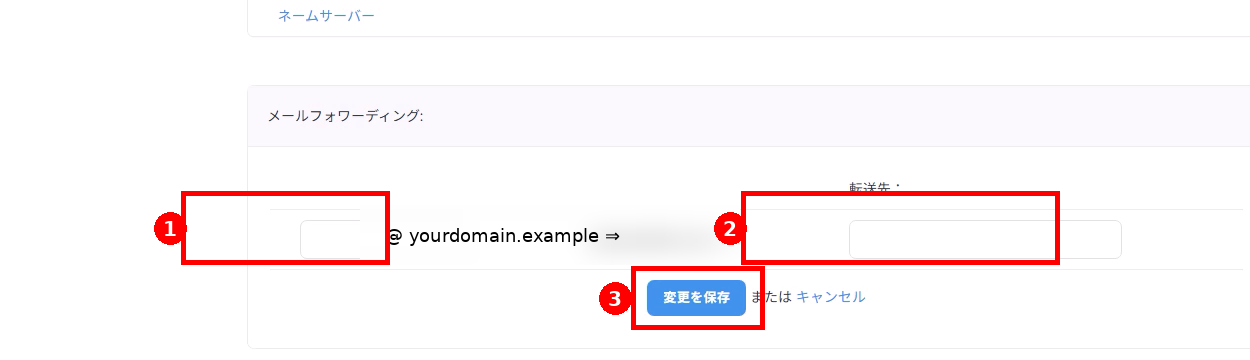
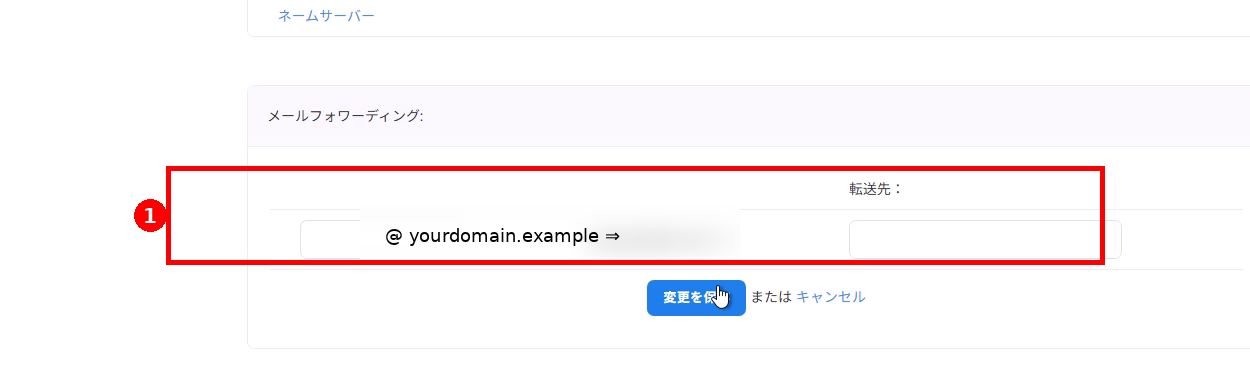
- In the email forwarding input field, enter the mailbox name (the part before @).
Example: If you enter “sales”, it becomes an address like sales@yourdomain.example. - In the Forwarding Destination field, enter the email address where you want to forward (for example: forward-to@example.com).
- Click “Save Changes”.
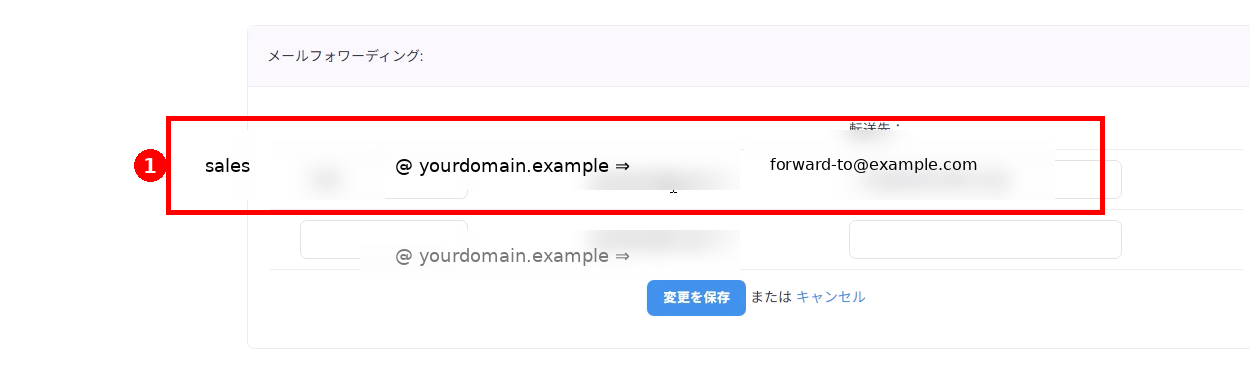
- After saving, confirm that the forwarding setting appears in the list.
3Modify a forwarding destination #
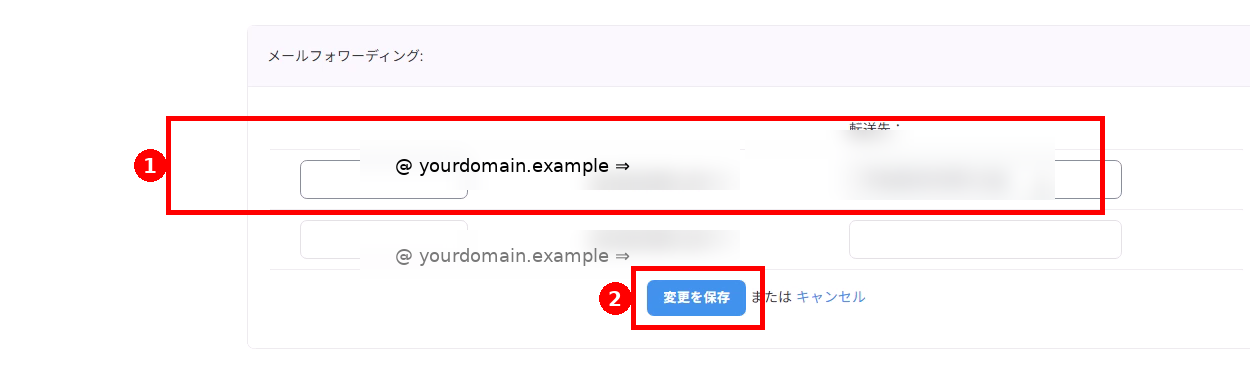
- Edit the forwarding destination email address in the target row displayed in the list.
- Click “Save Changes”.
- After saving, confirm that the changes are reflected.
Changes are made by editing the existing row → saving. There is no transition to a separate screen.
4Delete a forwarding destination #
- For the forwarding setting you want to delete, clear both the mailbox name (the part before @) and the forwarding destination fields.
- Click “Save Changes”.
- Confirm that the target forwarding setting is removed from the list (or only empty rows remain).
Important Notes #
Email forwarding is a feature to forward received emails. It is different from services that provide domain mailboxes (email hosting / POP, etc.).
Forwarded emails may not reach the inbox due to spam filtering on the destination email service (such as Gmail). If you do not receive emails, check your spam folder as well.
Multiple forwarding and limits depend on registrar and domain configuration restrictions.
Troubleshooting #
Email Forwarding is not displayed / cannot be saved #
- Verify that the target domain is managed by eNom and that its status is active (Active).
- Verify that the domain’s nameservers are set to eNom’s nameservers (this may be required by eNom’s specifications).
Reference: Example default nameservers: dns1.name-services.com / dns2.name-services.com / dns3.name-services.com / dns4.name-services.com / dns5.name-services.com - Verify the format of the email address you entered (@, domain name, full-width / half-width characters, etc.).
Forwarded emails are not being received #
- Verify that the forwarding destination email address is correct.
- Check the spam folder / quarantine folder at the forwarding destination.
- If urgent or the issue is not resolved, open a support ticket (please include the target domain name and configuration details).