ISO 上傳/掛載

ISO 上傳/掛載

1 min read

Client Portal Guide

Client Portal: ISO Upload and Boot from ISO Operating Guide #

This guide explains how to upload ISO images on the client portal and mount the ISO (Boot from ISO) on your VPS to start it up.

Notice: This guide has been created using generative AI and other tools. The positions of annotations (arrows, boxes, numbers, etc.) in the screenshots may be slightly offset from the actual screen. These are intended to help you understand the procedures. When performing operations, please prioritize the screen display and the content of the instructions.

Prerequisites #

  • You are logged into the client portal
  • You can open the target VPS (service details screen)
  • You have the ISO file to upload ready on your local PC
Warning: Executing “Boot from ISO” will restart the server. This may impact services in operation, so please ensure you have a maintenance window scheduled before proceeding.

Upload ISO #

1. Open the ISO List #

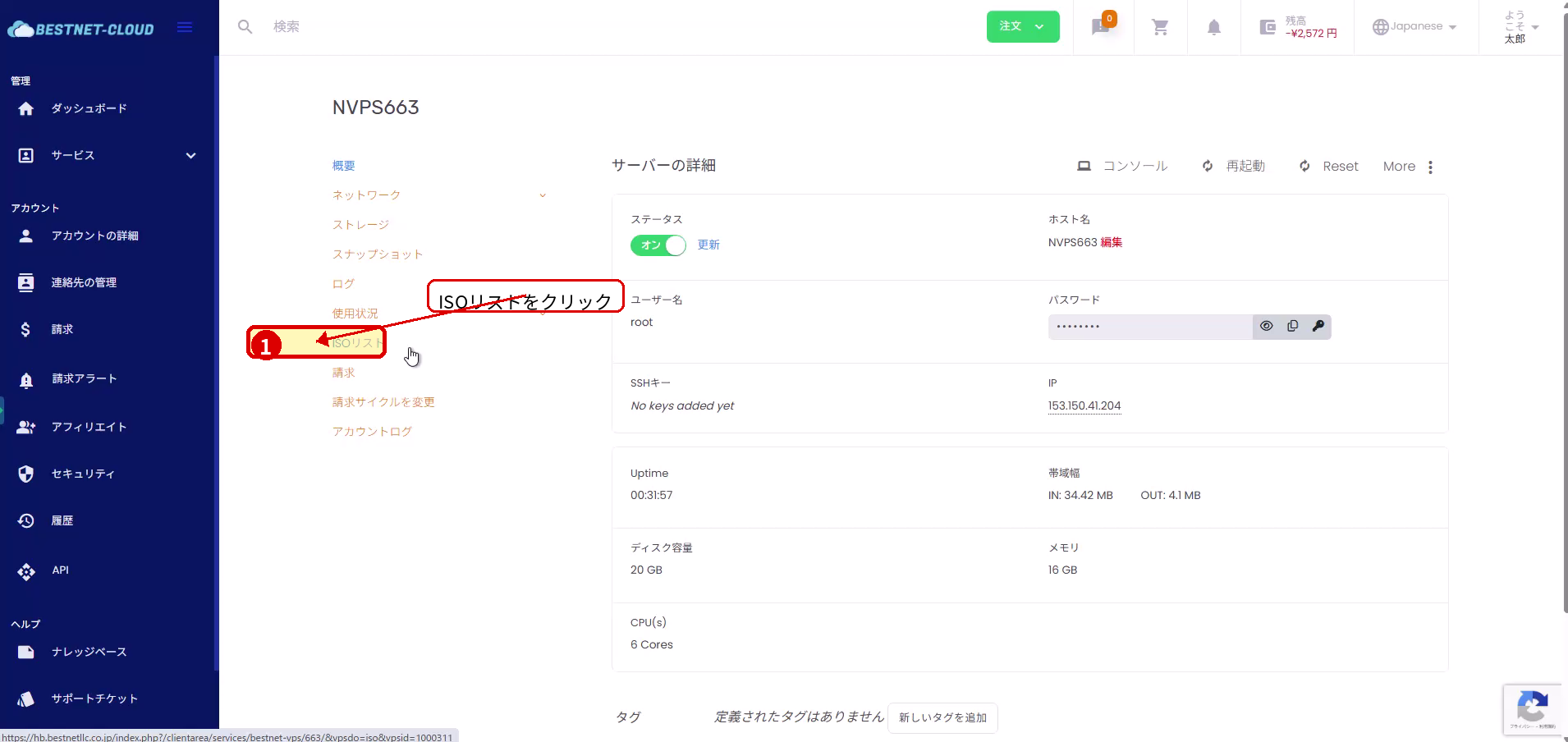
  1. From the service menu of the target VPS, click “ISO List”.
Screen showing opening ISO List from the service menu
Open the ISO List from the service menu.

2. Open the Upload Dialog #

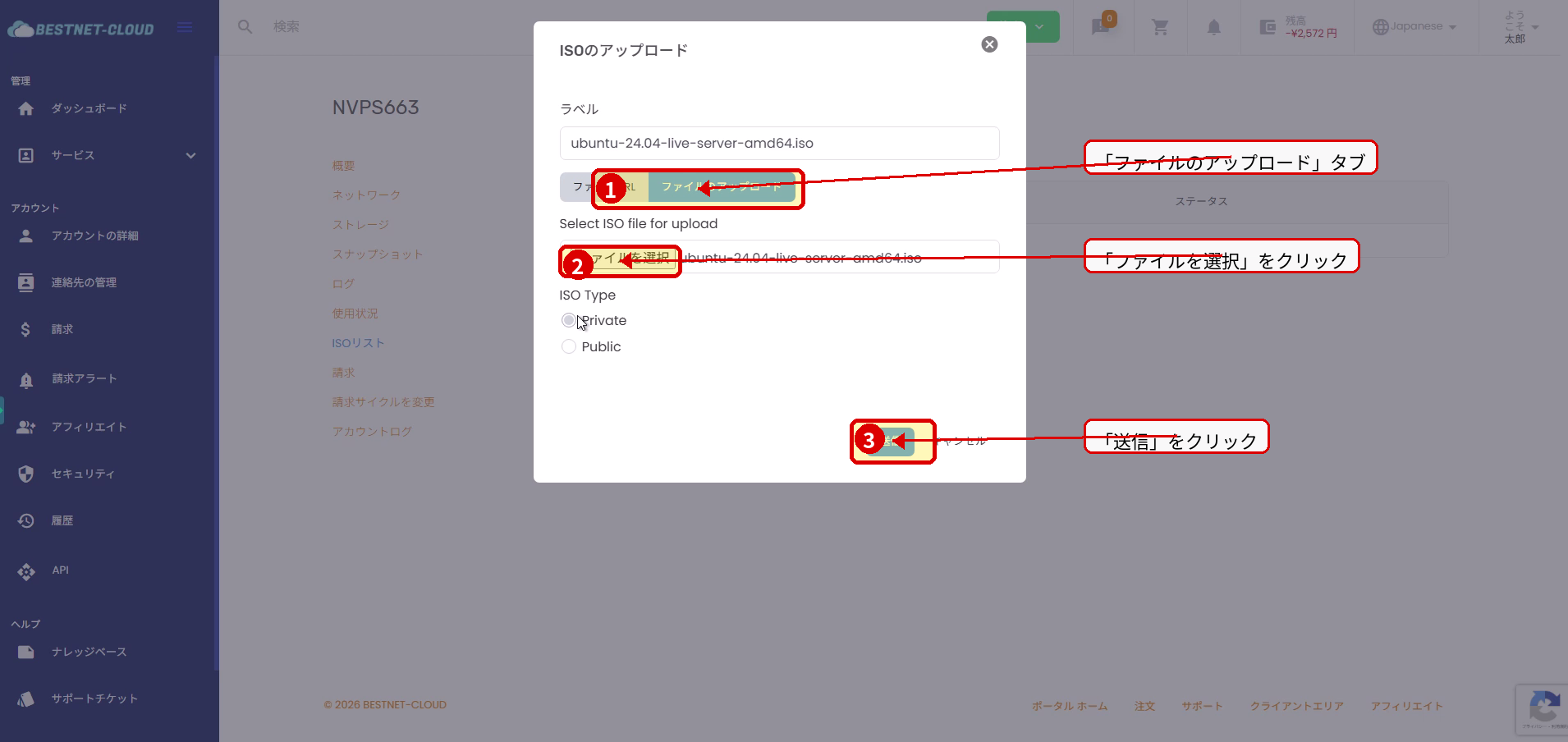
  1. On the ISO List screen, click “Upload ISO”.
  2. In the dialog, select the “File Upload” tab and click “Choose File”.
Screen showing file selection in the ISO upload dialog
Open the upload dialog and prepare to select the ISO file.

3. Select ISO File and Start Upload #

  1. In the file selection dialog, select the ISO file you want to upload and click “Open”.
  2. When you return to the portal upload dialog, click “Submit” to start the upload.

4. Wait for Upload and Import to Complete #

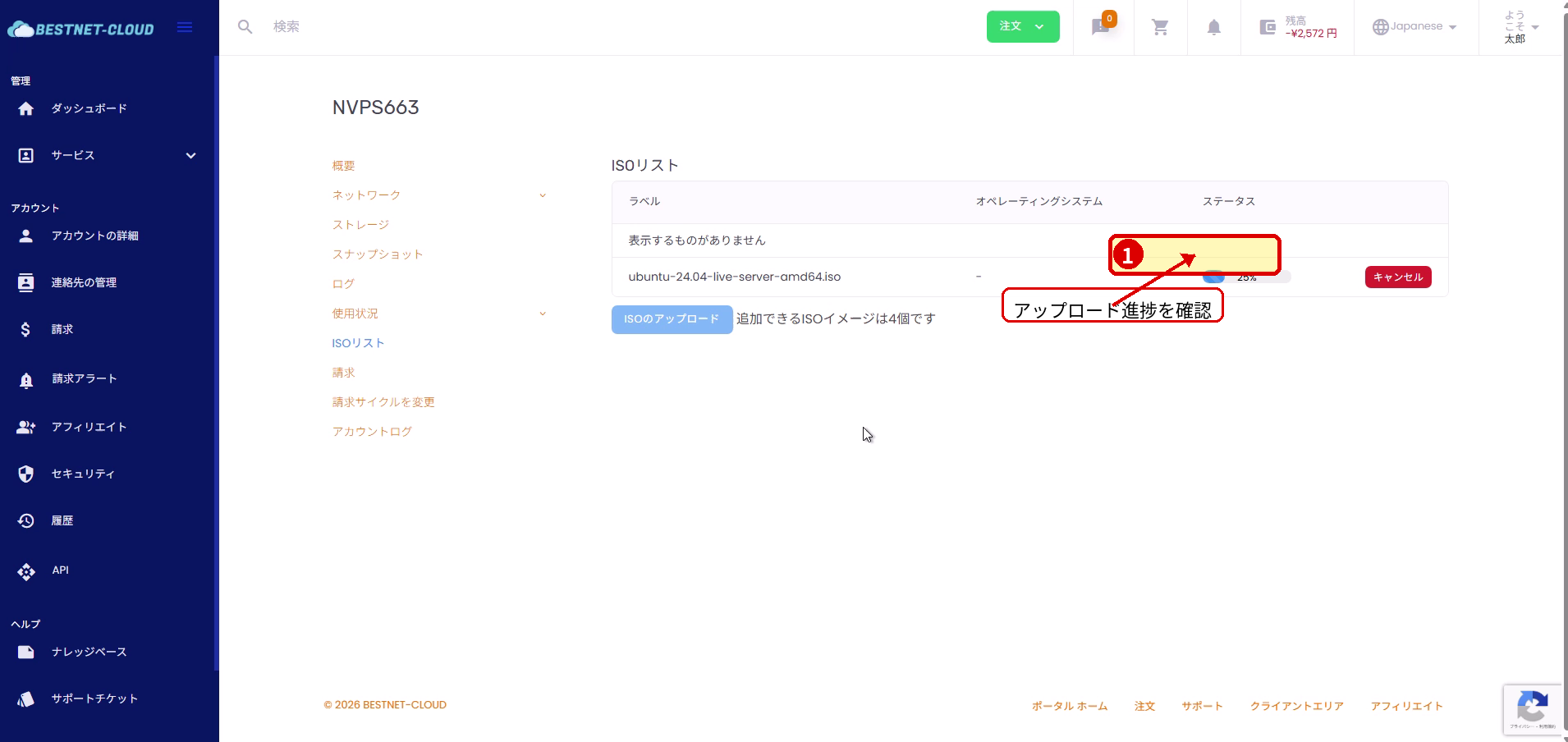
  1. The progress (%) will be displayed in the ISO List. Wait until it completes.
  2. After the upload is complete, the server may perform an import process. Wait until the status changes to Ready.
Screen showing ISO upload progress and status
After upload completes, wait until the status becomes Ready.

Boot from ISO (Mount) #

1. Execute Boot from ISO #

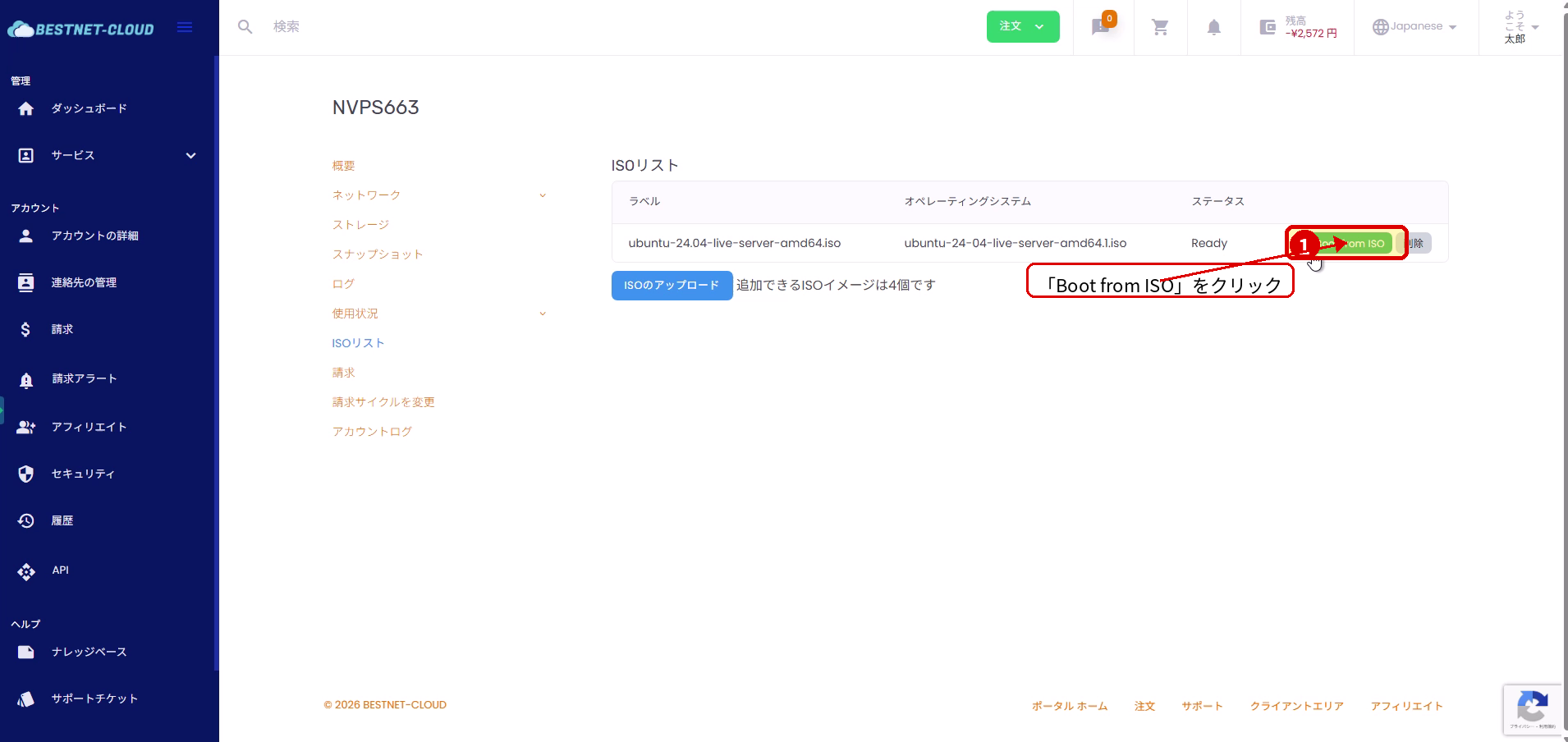
  1. Once the status of the target ISO in the ISO List becomes Ready, click “Boot from ISO”.
Screen showing Boot from ISO execution for an ISO in Ready state
Confirm that the target ISO is Ready and execute Boot from ISO.

2. Press OK on the Restart Confirmation Dialog #

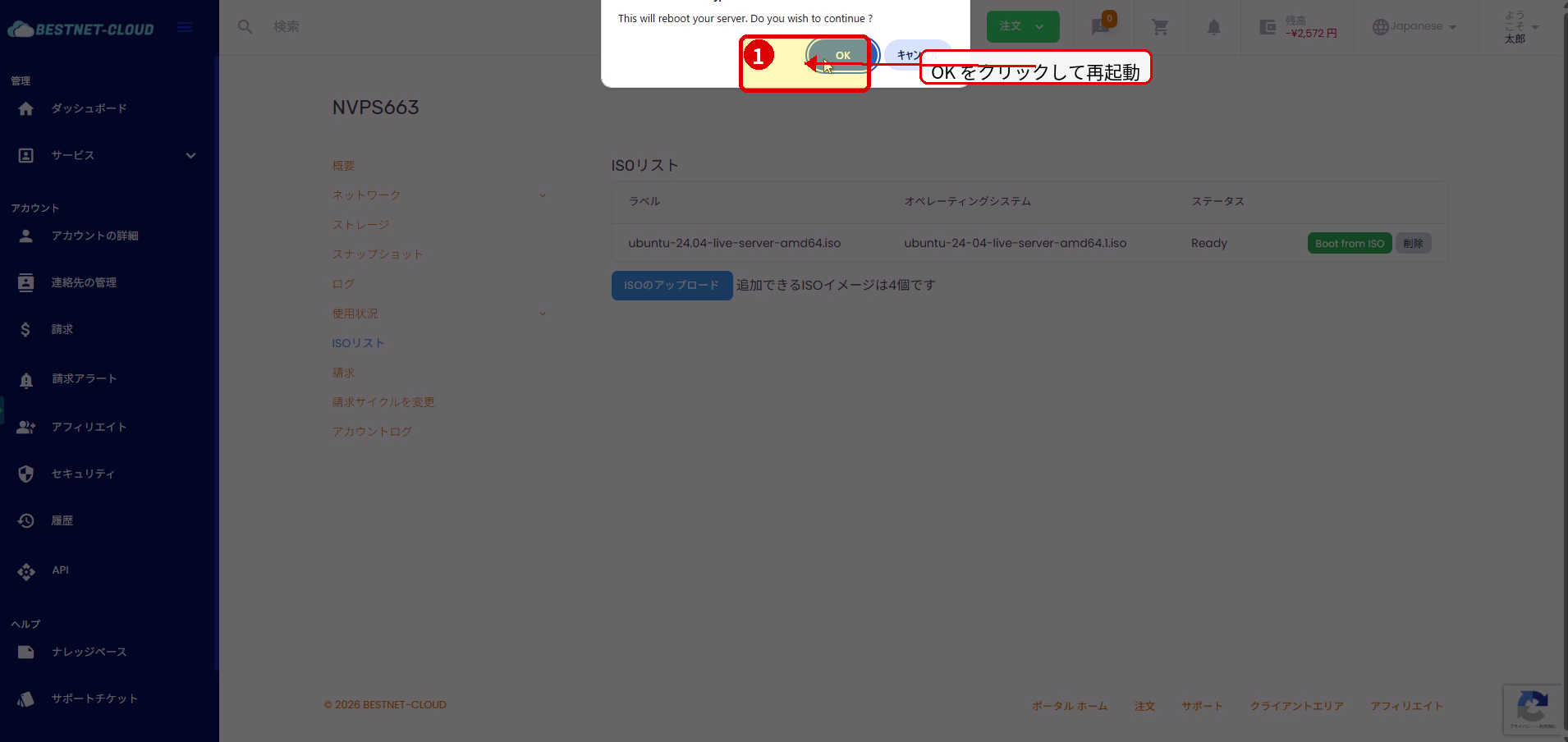
  1. When the confirmation “This will reboot your server…” is displayed, click OK.
Restart confirmation dialog when executing Boot from ISO
Confirm the restart confirmation message and click OK.

3. Wait for Server Restart to Complete #

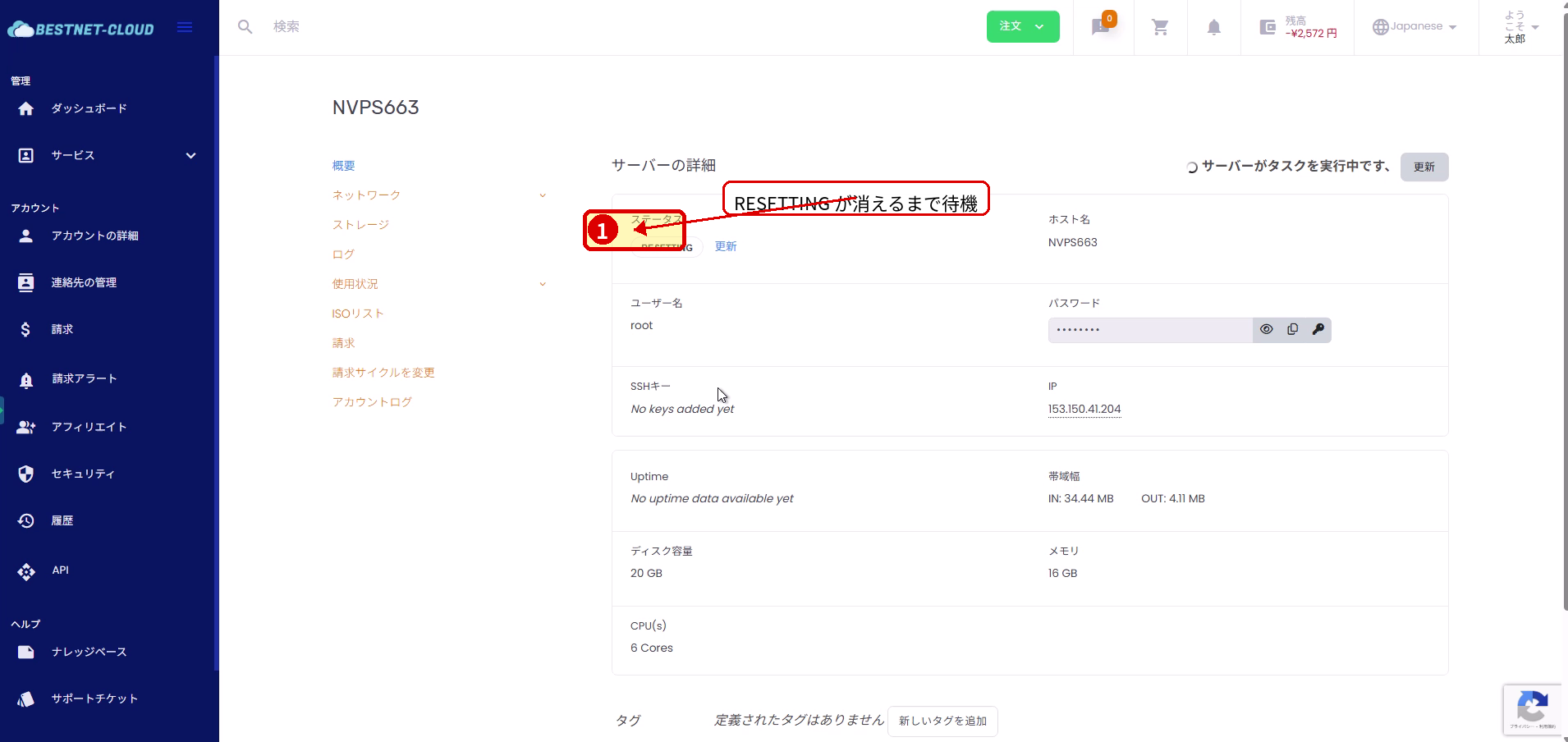
  1. You will return to the service details (overview) and the status will show RESETTING or similar.
  2. Wait for the task to complete and the status to return to normal.
Service details screen showing server in RESETTING state
While the server is restarting, wait for the process to complete.

4. (Optional) Open Console to Verify ISO Boot #

  • If you want to confirm that the server is booting from the ISO, open the console from “Console” at the top of the service details screen.
  • Continue tasks such as OS installation from the console.

Unmount ISO (Detach) #

1. Execute Detach_ISO from the More Menu #

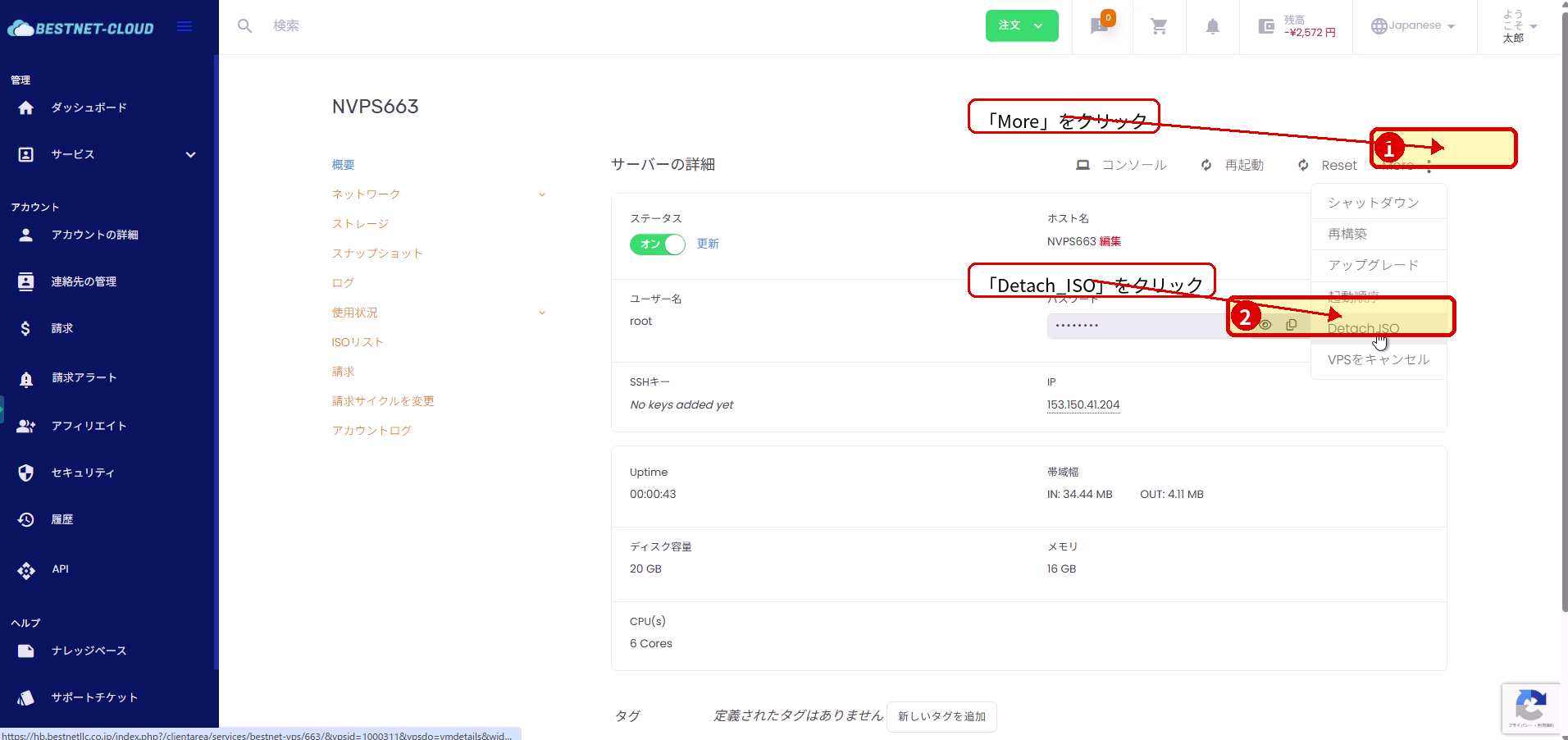
  1. After OS installation is complete or when the ISO is no longer needed, open More from the top right of the service details screen.
  2. Click Detach_ISO from the menu.
Screen showing Detach_ISO execution from the More menu
When the ISO is no longer needed, execute Detach_ISO from the More menu.

2. Confirm Detach Completion Message #

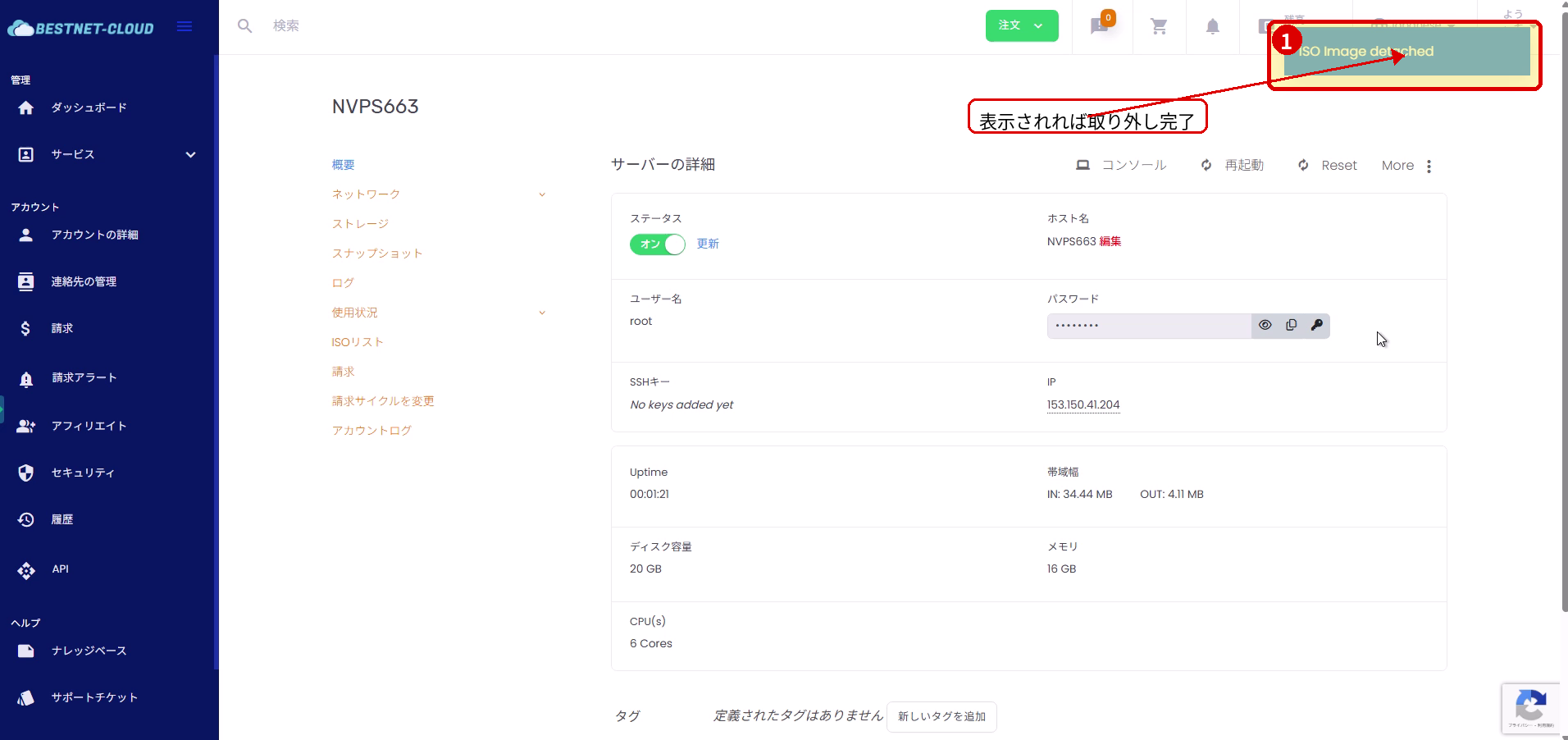
  1. A message such as ISO Image detached will appear in the top right corner, indicating the detach is complete.
Screen showing the ISO Image detached completion message
Confirm that the completion message is displayed.

Troubleshooting #

Upload does not progress or fails #

  • Refresh your browser and try again.
  • Check your connection status, ISO file size, and file extension.
  • If the issue persists, try using a different browser.

Status does not become Ready #

  • The import process may take time. Wait a moment and then refresh the display.

ISO does not boot #

  • After executing Boot from ISO, check the boot screen from the console.
  • If necessary, execute Boot from ISO again.

ISO remains after completing the task #

  • Execute More → Detach_ISO and confirm the ISO Image detached message is displayed.
Updated on 2026年6月9日

What are your feelings

  • Happy
  • Normal
  • Sad