
私有網路設定指南
本指南說明如何透過客戶入口網站訂購私有網路(Private IP / Subnet),並將私有 IP 指派給 BESTNET-CLOUD 與 BESTNET-VPS 中的伺服器。
總覽 #
本指南說明如何透過客戶入口網站訂購私有網路 (Private IP / Subnet),並將私有 IP 指派給 BESTNET-CLOUD 與 BESTNET-VPS 中的伺服器。
事前準備 #
- 必須已登入客戶入口網站
- 在使用私有網路(Private IP / Subnet)之前,必須先「訂購」Private-IP 產品
訂購私有網路(Private IP) #
1BESTNET-CLOUD:訂購 Private IP(Subnet) #
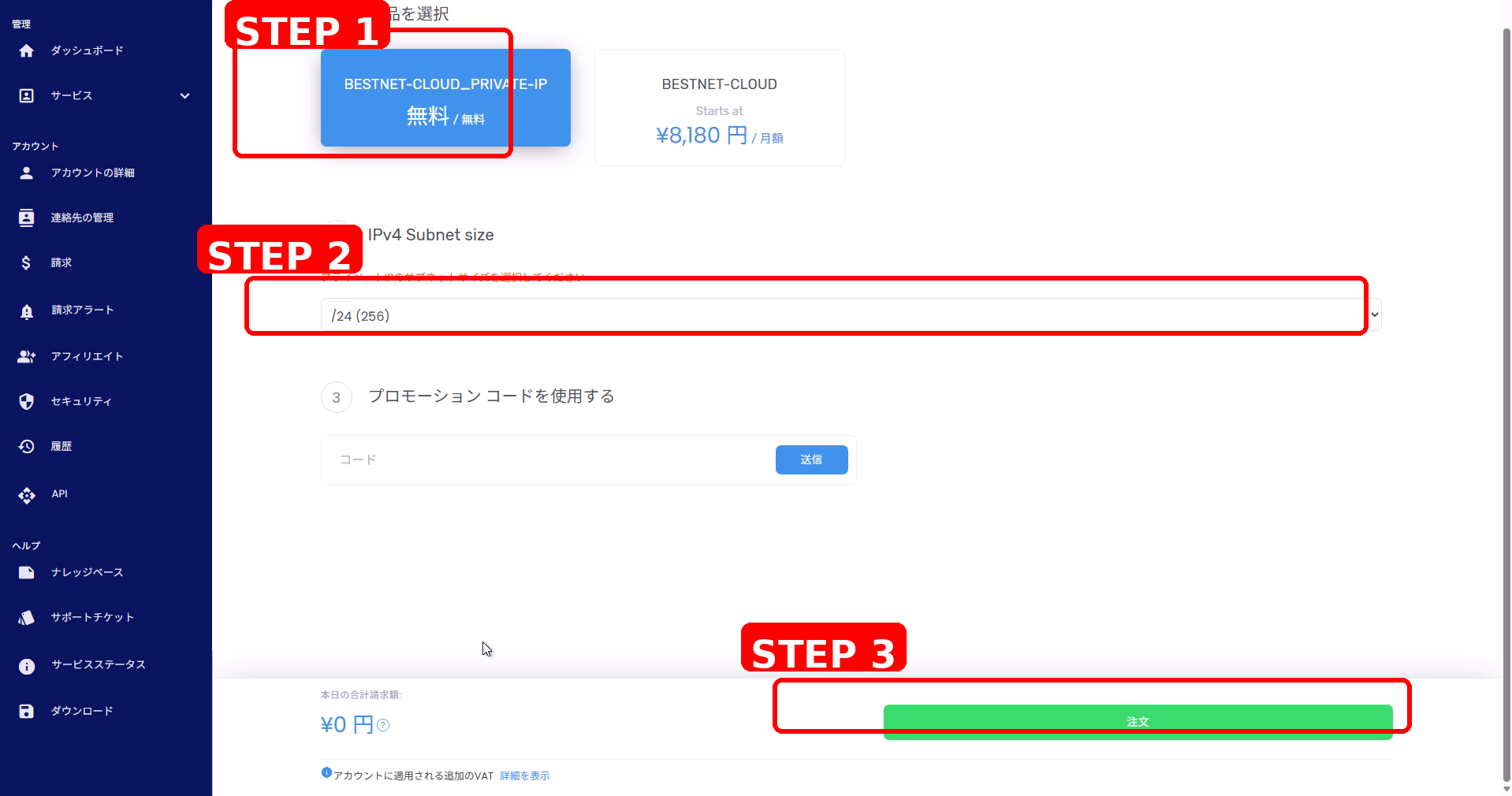
- 從畫面上方的「訂購」開啟訂購畫面。
- 從產品清單中選擇BESTNET-CLOUD_PRIVATE-IP。
- 在IPv4 Subnet size中選擇所需的大小(例如:/24)。
- 點選畫面下方的訂購。
2BESTNET-VPS:訂購 Private IP(Subnet) #
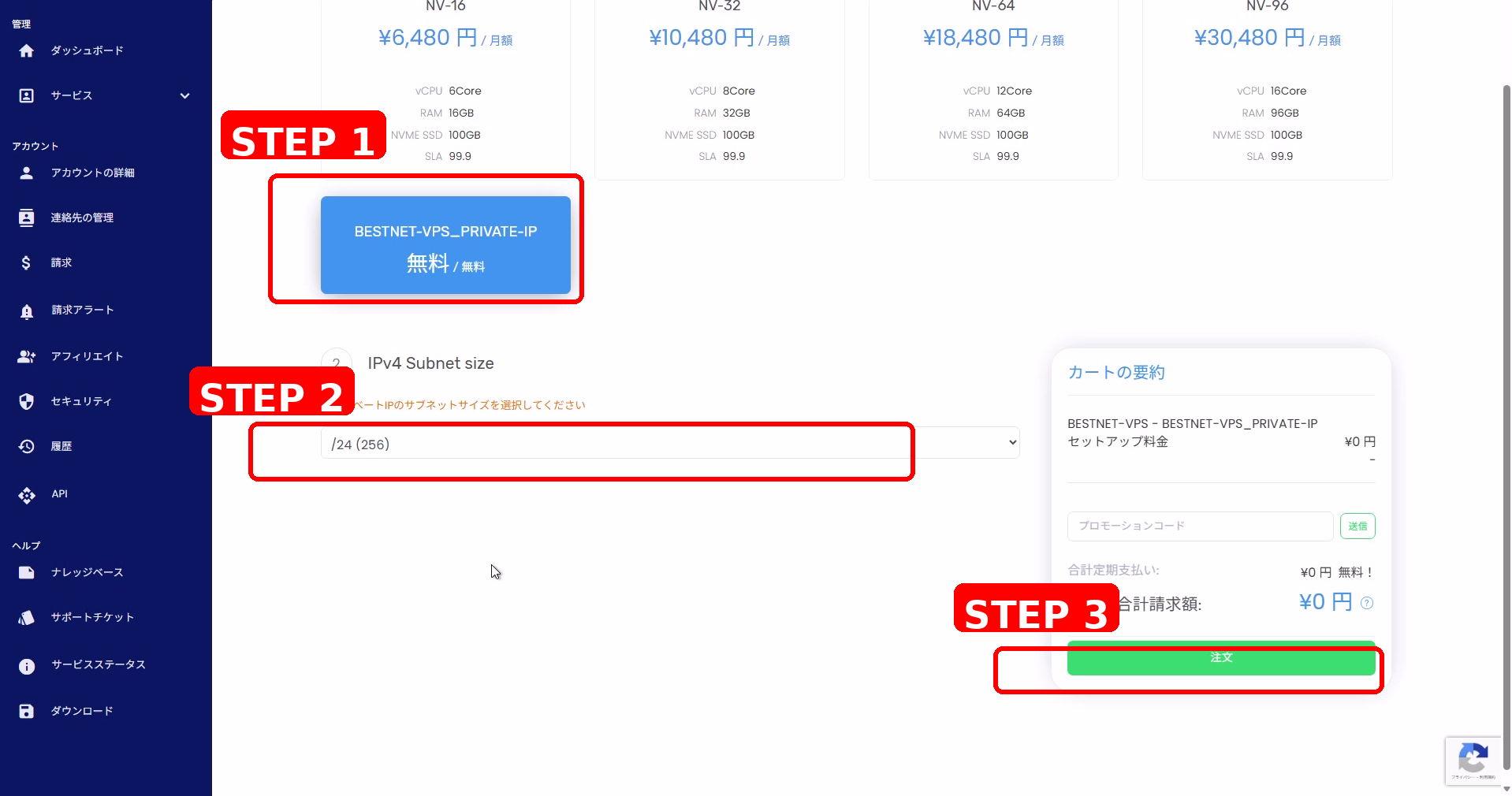
- 從畫面上方的「訂購」開啟訂購畫面。
- 從產品清單中選擇BESTNET-VPS_PRIVATE-IP。
- 在IPv4 Subnet size中選擇所需的大小(例如:/24)。
- 點選畫面右側(或下方)的訂購。
將私有 IP 指派給現有伺服器 #
3BESTNET-CLOUD:將私有 IP 指派給現有伺服器 #
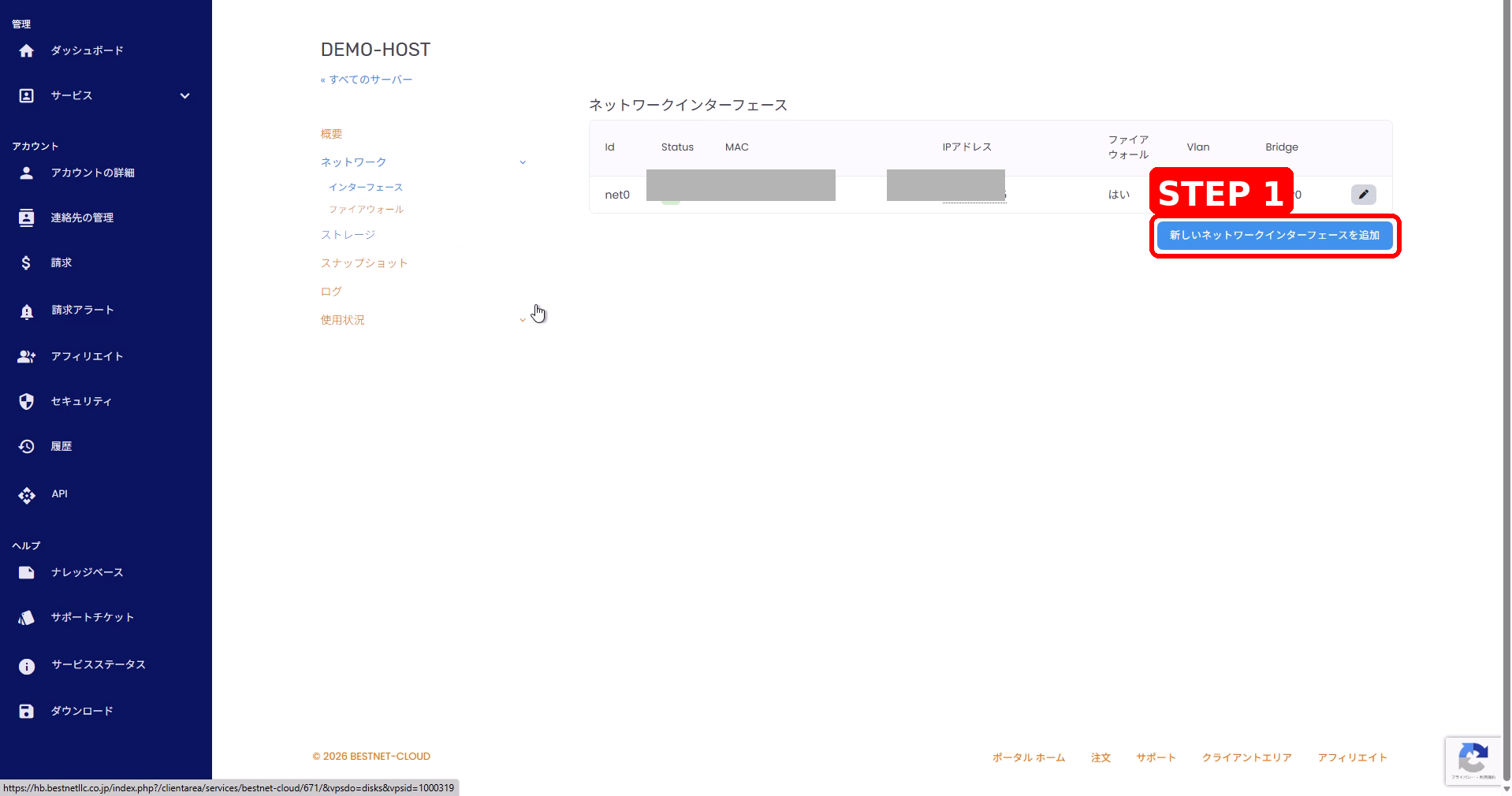
- 開啟目標伺服器,並從左側選單開啟網路 > 介面(Network > Interfaces)。
- 點選新增網路介面(Add New Network Interface)。
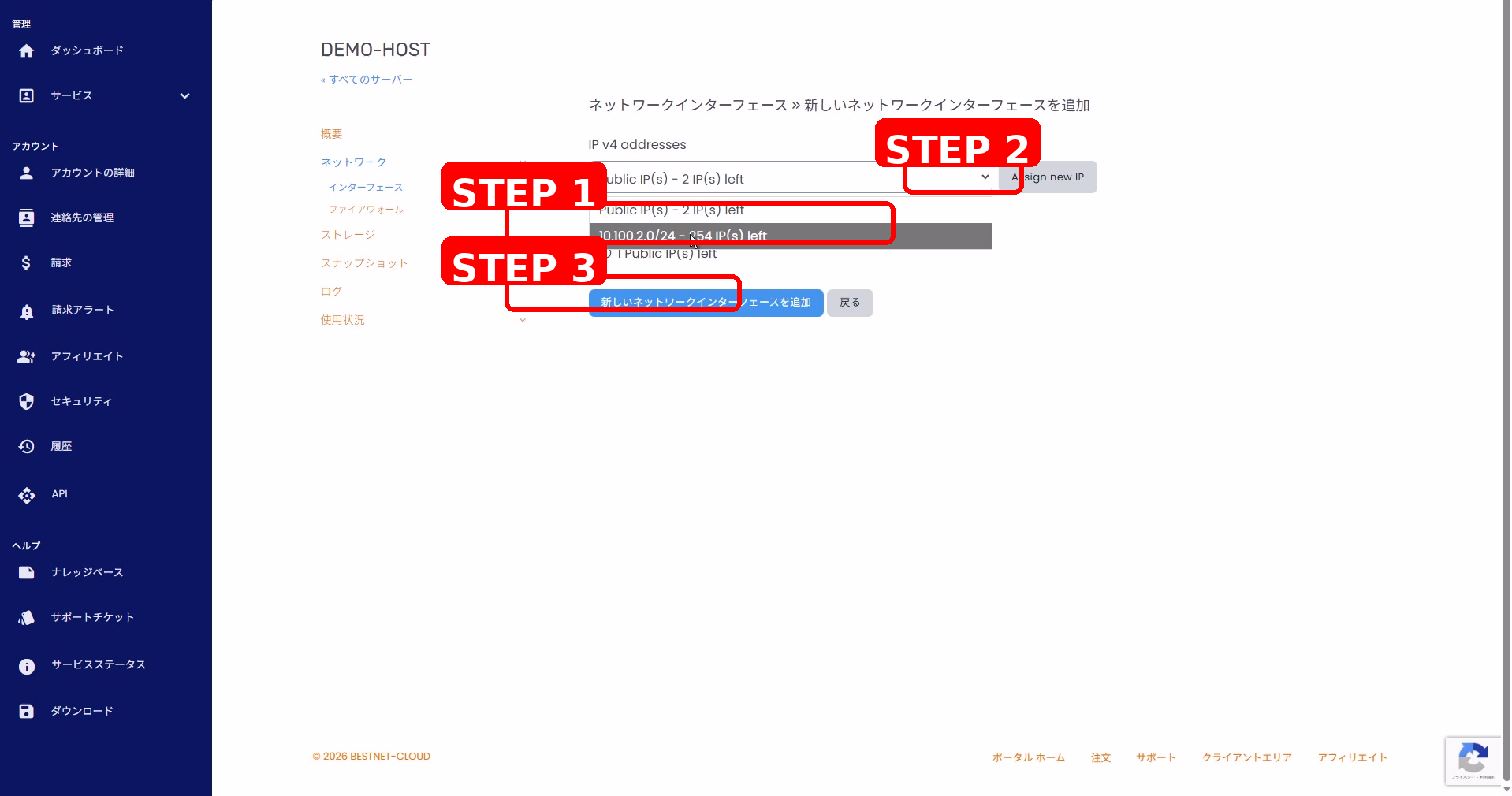
- 從IPv4 addresses下拉選單中,選擇要指派的私有子網路(例如:10.100.2.0/24)。
- 點選Assign new IP以保留一個 IP。
- 點選Add New Network Interface套用變更。
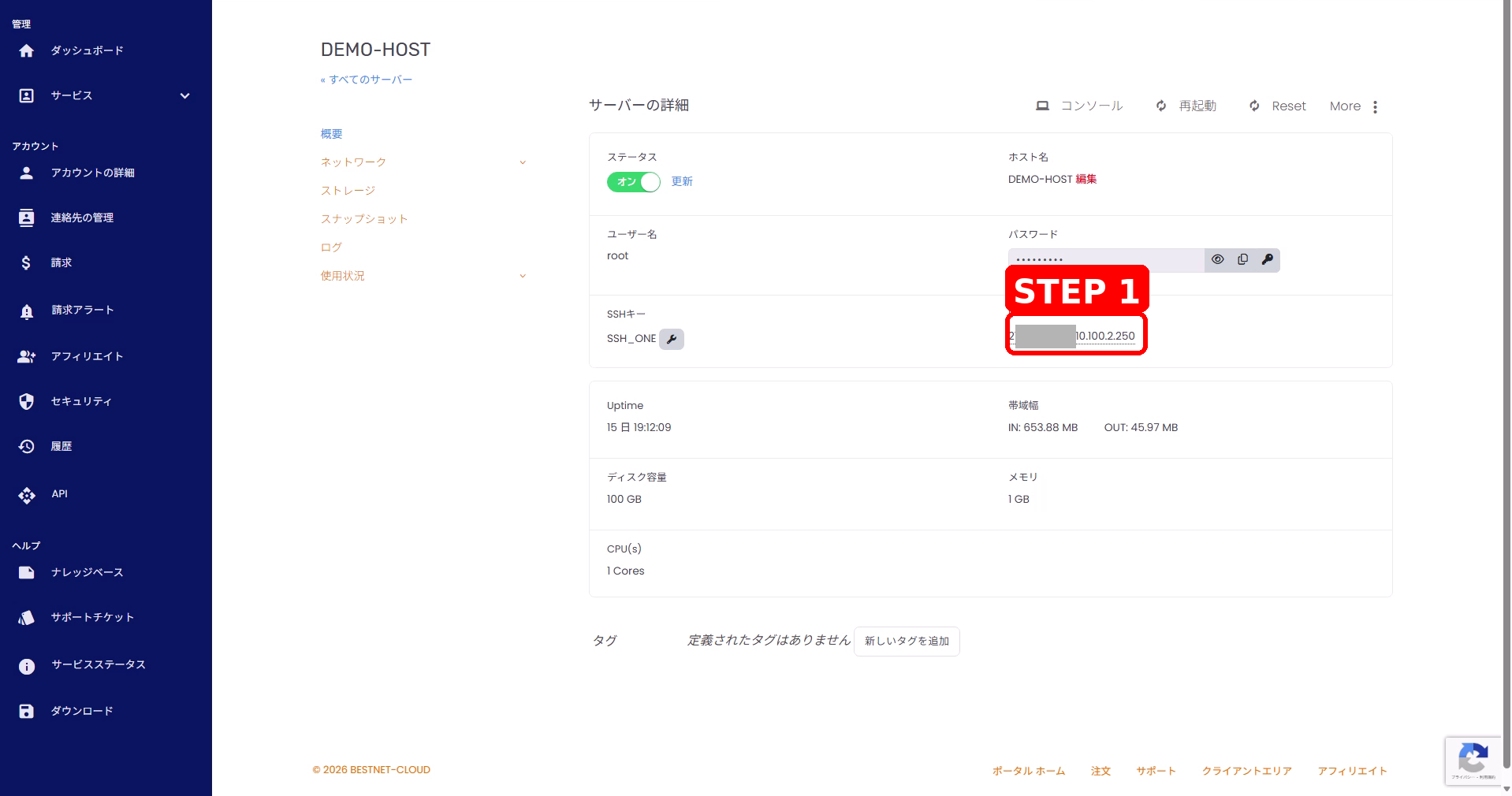
- 確認伺服器詳細資訊畫面的 IP 欄位中已新增私有 IP。
4BESTNET-VPS:將私有 IP 指派給現有伺服器 #
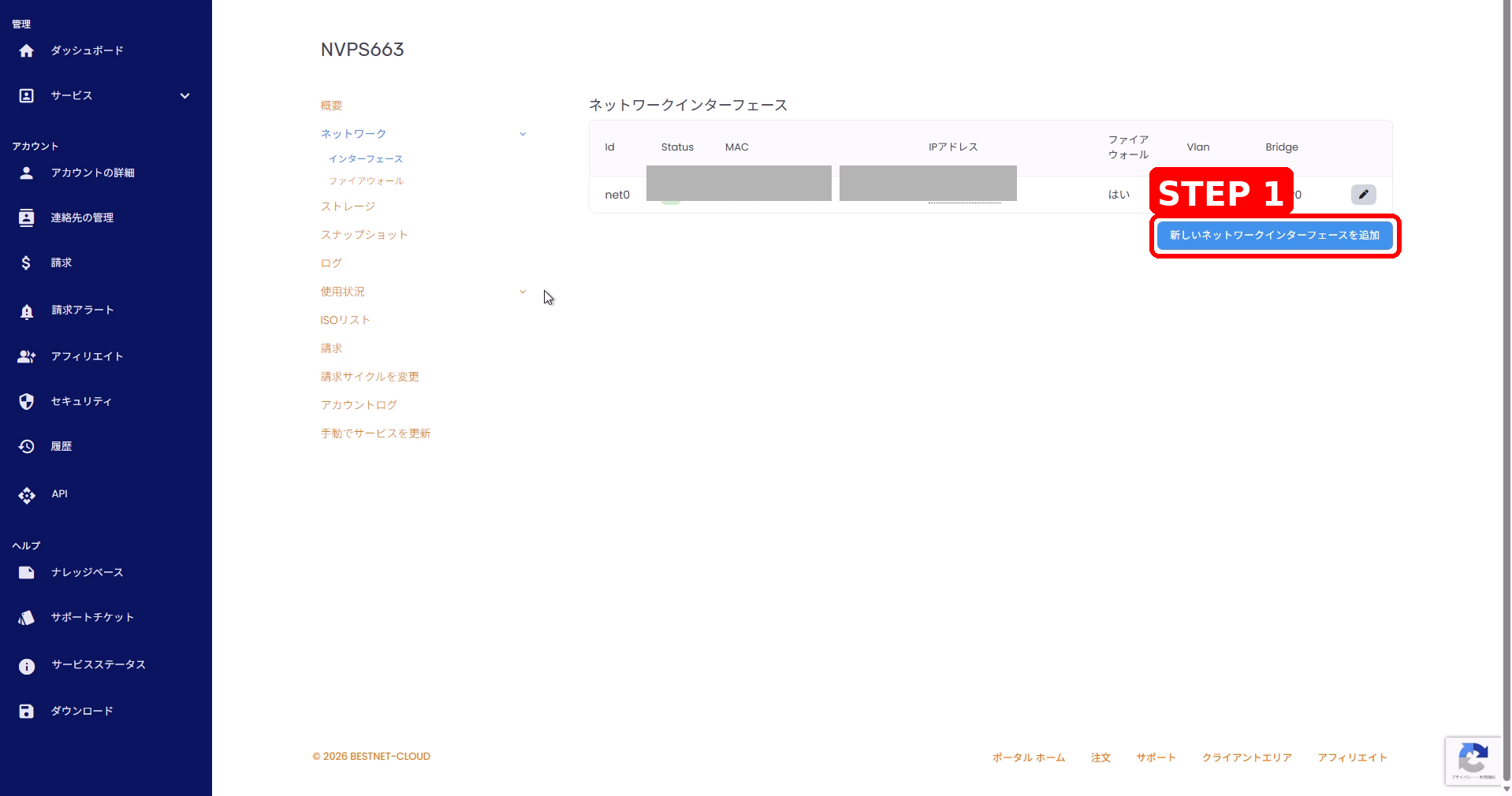
- 開啟目標 VPS,並從左側選單開啟網路 > 介面(Network > Interfaces)。
- 點選新增網路介面(Add New Network Interface)。
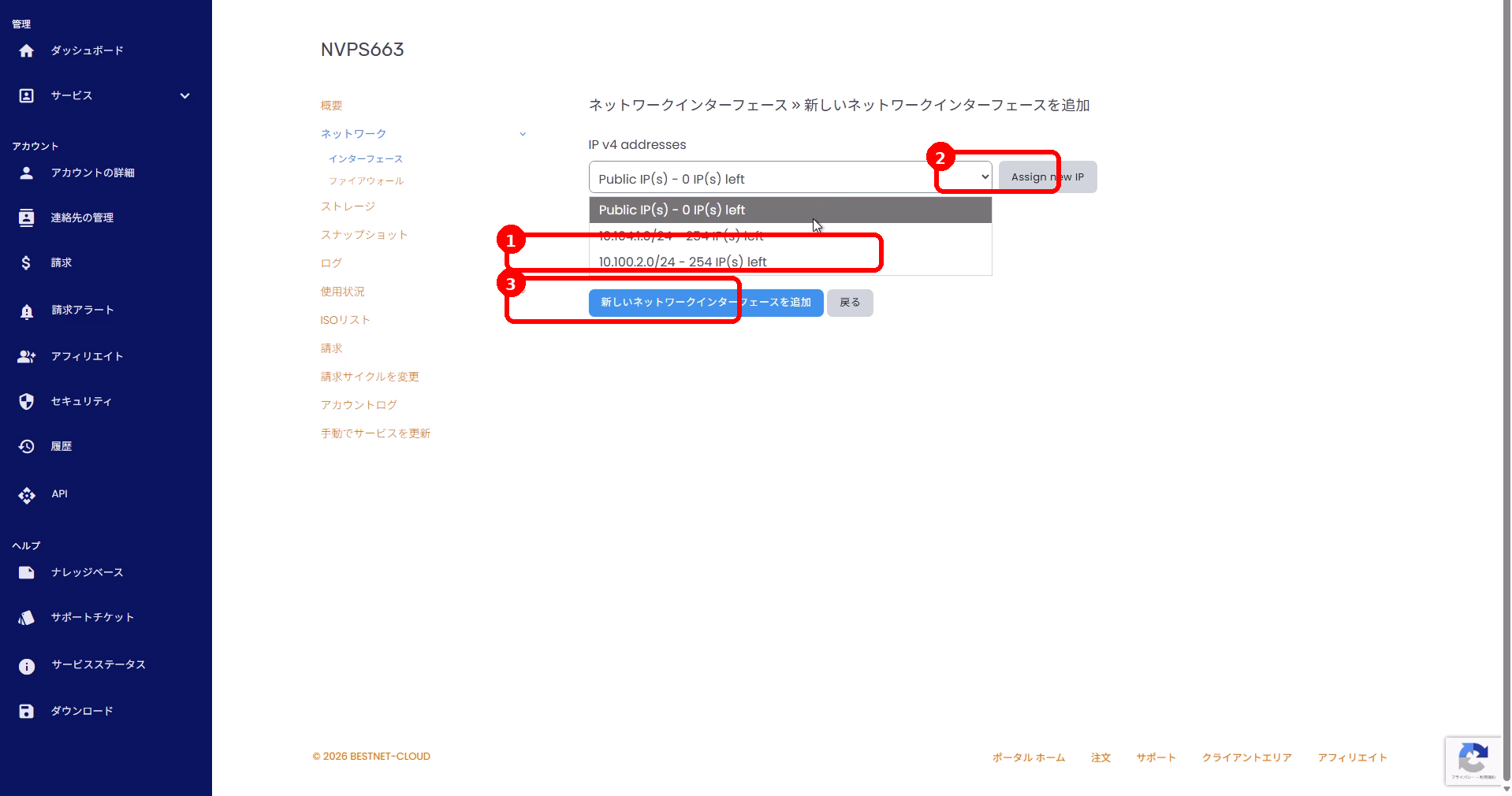
- 從IPv4 addresses下拉選單中,選擇要指派的私有子網路。
- 點選Assign new IP以保留一個 IP。
- 點選Add New Network Interface套用變更。
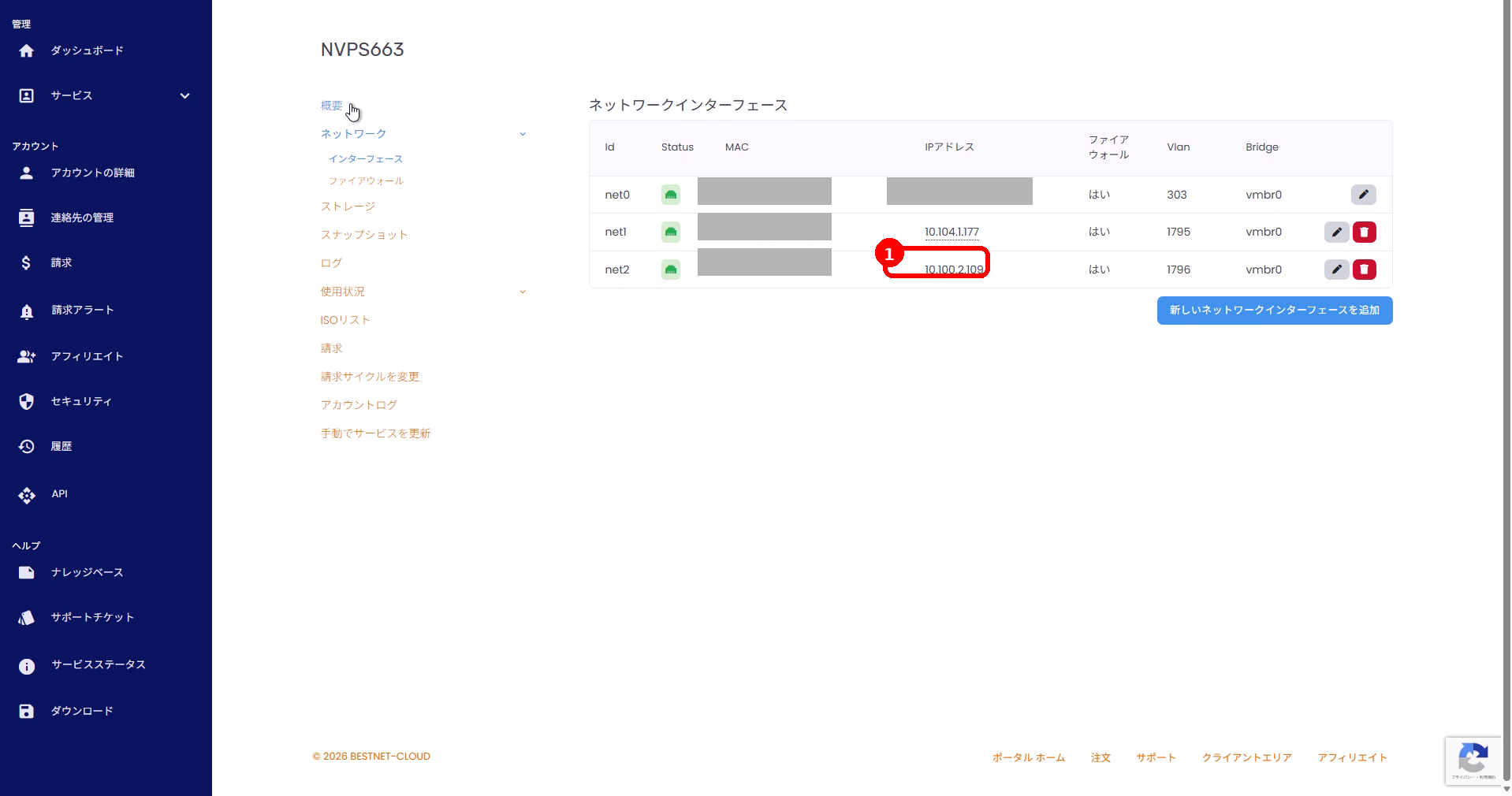
- 確認私有 IP 已顯示於介面清單中。
在 BESTNET-CLOUD 與 BESTNET-VPS 之間共用同一私有網路 #
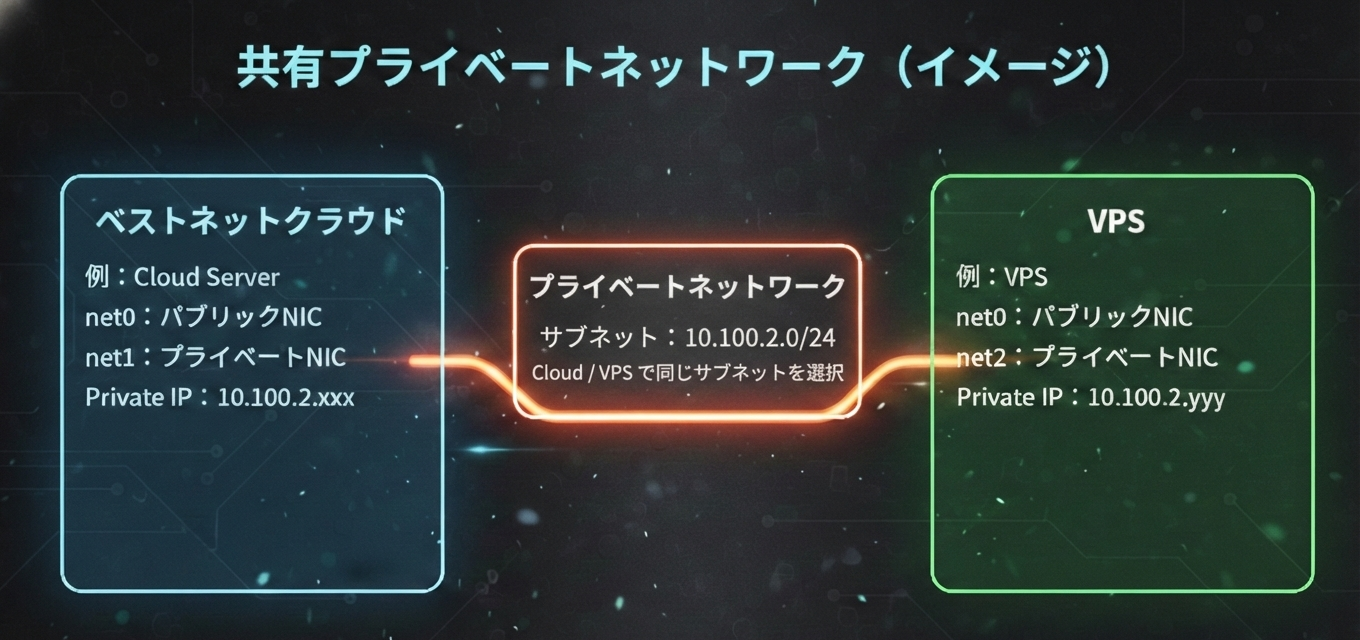
若要使用共用的私有網路,請在 BESTNET-CLOUD 端與 BESTNET-VPS 端皆選擇相同的私有子網路(例如:10.100.2.0/24)並新增介面。
設定重點
Cloud 端
- 開啟「網路 > 介面」
- 選擇如
10.100.2.0/24這樣相同的子網路
VPS 端
- 開啟「網路 > 介面」
- 選擇如
10.100.2.0/24這樣相同的子網路
新增帶有私有 IP 的伺服器(概念性做法) #
- 從 BESTNET-CLOUD 執行個體清單中,使用新增伺服器(Add New Server)建立伺服器。
- 建立伺服器後,依照與「將私有 IP 指派給現有伺服器」相同的流程,指派私有子網路。
無論是現有伺服器或新建立的伺服器,加入私有網路的做法皆相同。 選擇您要使用的子網路,並將其加入網路介面即可。


