
概述 #
本指南說明如何透過本公司客戶入口網站(Client Area)管理不由本公司管理的外部網域(在其他公司註冊商註冊的網域)的 DNS 記錄。
關鍵是在客戶入口網站中建立區域(DNS 管理的對象網域),事先遷移並建立必要的 DNS 記錄,然後在外部註冊商端將名稱伺服器(NS)切換到本公司的 DNS 伺服器。
在 Client Area 的 DNS SERVICE 中為目標網域建立區域。
從目前的 DNS 匯入設定或手動註冊。
在外部註冊商端將名稱伺服器替換為本公司的 DNS 伺服器。
重要事項(請先閱讀:如何防止意外) #
- 切換 NS 的瞬間,權威 DNS 就會切換到本公司的 DNS。如果切換時新區域沒有所有必要記錄,網站 / 電子郵件 / 各種驗證將立即受到影響。
- 特別是電子郵件相關記錄(MX / SPF / DKIM / DMARC)、驗證 TXT(Google / Microsoft / 各種 SaaS / SSL 自動續訂等)、CAA 和 SRV 在遷移時經常被遺忘。
- 如果網域已啟用 DNSSEC,可能需要更新 / 刪除 DS 記錄(見下文)。
免責聲明和支援資訊 #
- 本指南總結了典型的操作範例。根據您的網域設定和外部服務(電子郵件、各種 SaaS、SSL 自動續訂等),所需的 DNS 記錄和遷移步驟可能有所不同。
- 對於因遵循本指南而產生的任何間接或後果性損害(機會損失、業務中斷、電子郵件傳遞失敗等),本公司概不負責。
- 如果您有疑問 / 難以判斷影響範圍 / 已啟用 DNSSEC / 要遷移包括電子郵件,請在開始作業前從本公司客戶入口網站開立支援工單(我們將根據您的情況提供確認項目的指導)。
前提條件(準備) #
- 您可以登入本公司客戶入口網站
- 您的帳戶包含 DNS SERVICE(DNS 管理服務)
- 您有權限在目標網域的註冊商(例如:お名前.com / Cloudflare Registrar 等)變更名稱伺服器
- 您可以存取目前的 DNS 設定(目前的 DNS 管理畫面或區域檔案 / 記錄清單)
- 您想要新增或變更的 DNS 記錄資訊(例如:A 記錄 IP、MX 主機名稱、TXT 值等)
切換前檢查清單(建議:切換 NS 前務必執行) #
- 記錄目前的 DNS 記錄清單(A / AAAA / CNAME / MX / TXT / CAA / SRV / NS 委派等)
- 確認電子郵件相關 TXT 記錄:SPF(
v=spf1)、DKIM(selector._domainkey)、DMARC(_dmarc) - 確認驗證和自動化 TXT 記錄:
_acme-challenge、Google / Microsoft / 各種 SaaS 驗證 TXT 等 - 檢查 DNSSEC(如已啟用,請參閱「DNSSEC 注意事項」)
- 如果您有預定的切換日期:若可能,請事先縮短 TTL(例如:300–600 秒)
※TTL 縮短應先在「目前 DNS 端」進行,可能需要時間反映。
操作步驟 #
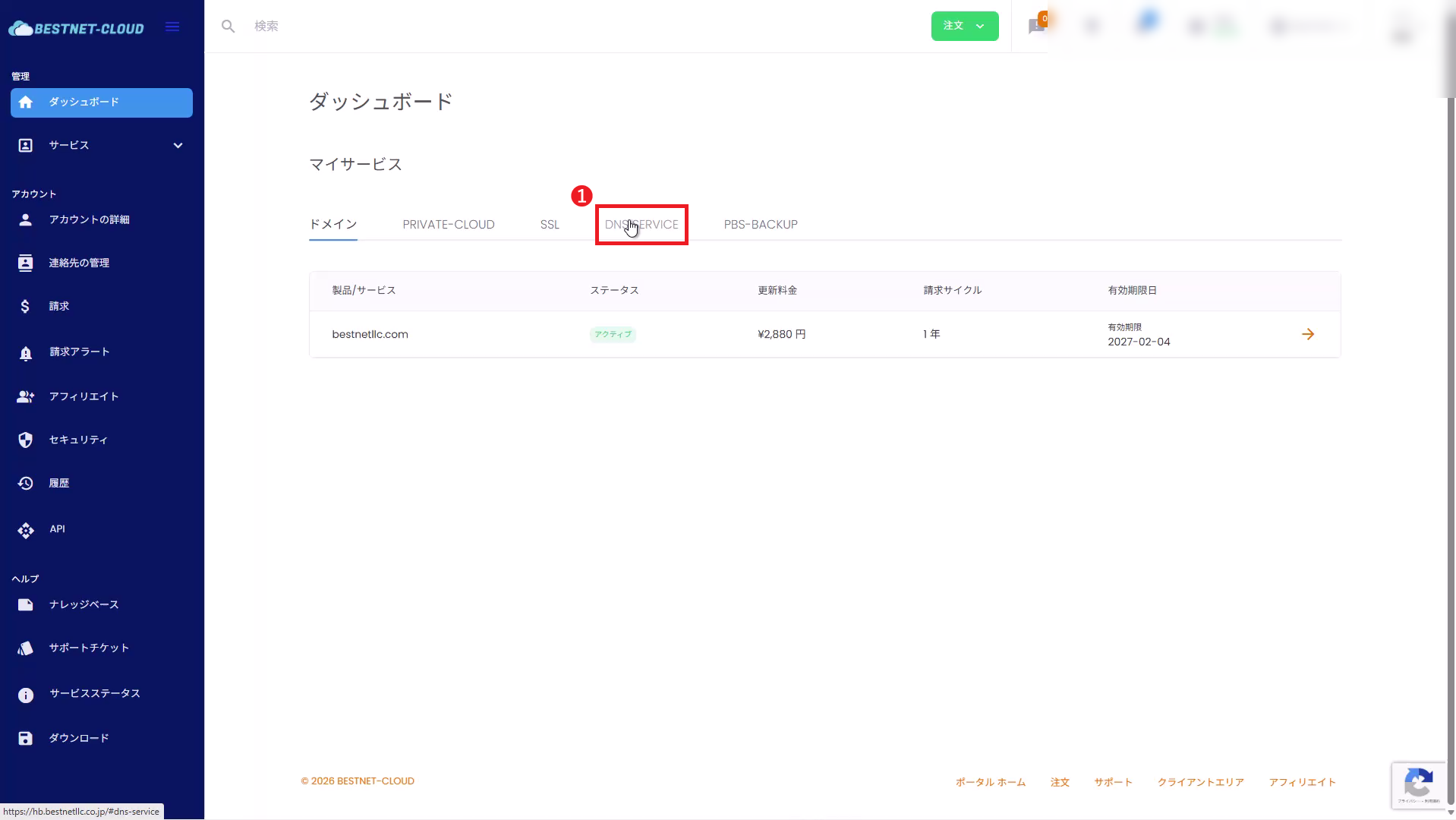
1開啟 DNS SERVICE #
從左側選單開啟 DNS SERVICE。
2Add a DNS Zone (External Domain) #
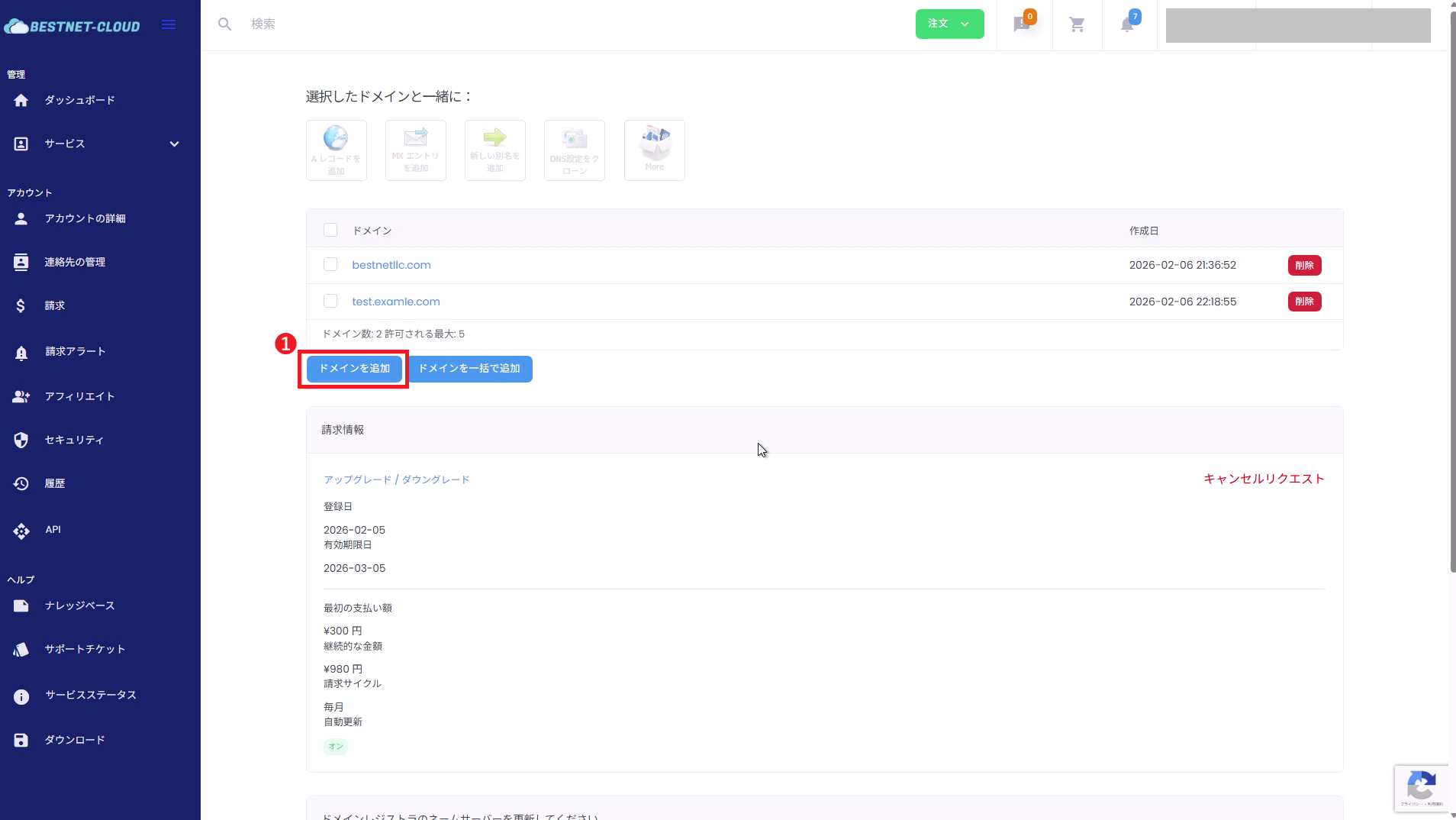
2-1. Click “Add Domain”
On the DNS SERVICE management screen, click Add Domain.
2-2. Enter domain name and submit
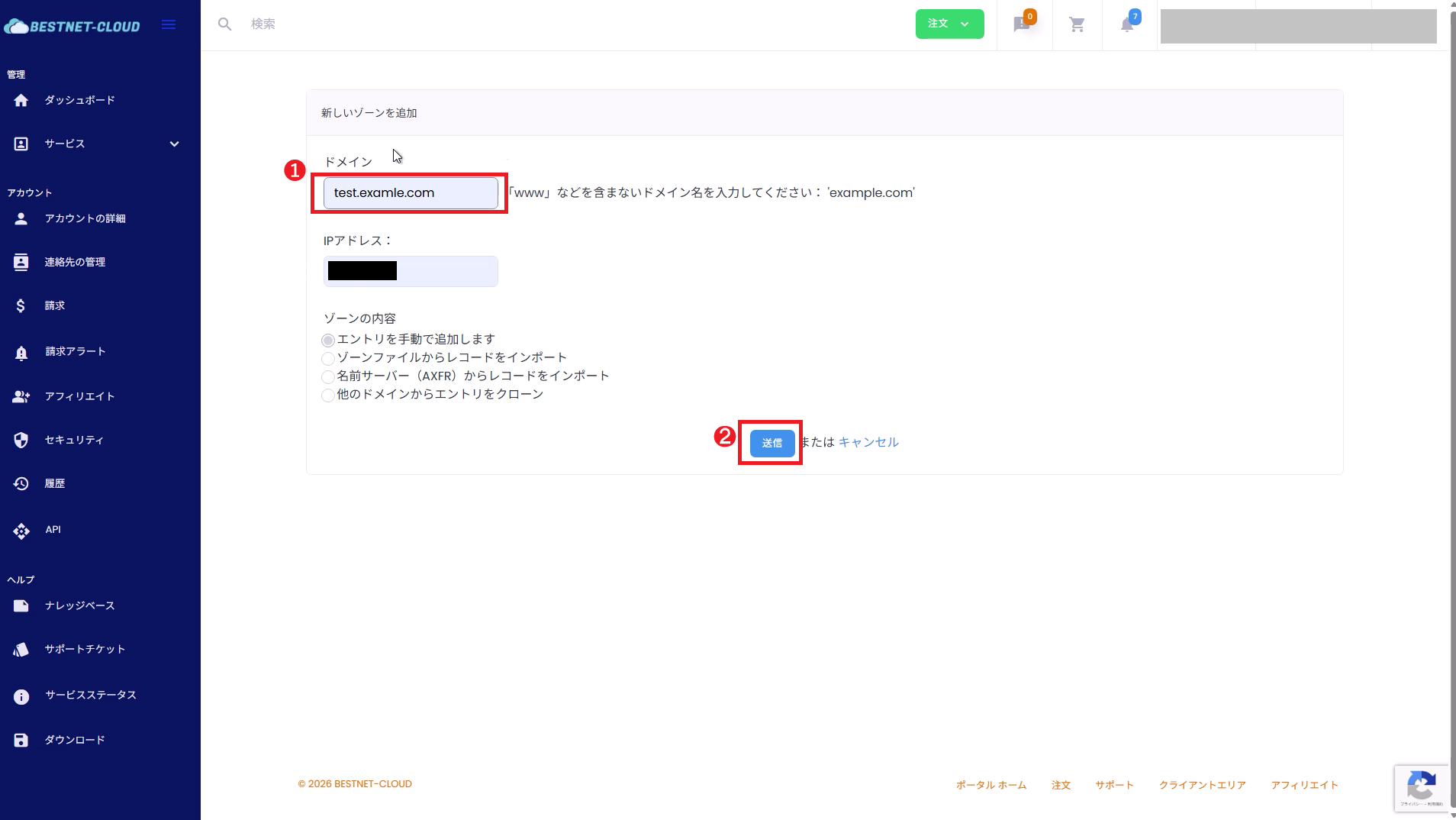
On the “Add New Zone” screen, enter the target domain.
- Domain: Enter the root domain without www, like
example.com - IP Address: Leaving it blank is generally recommended (it is safer to explicitly add necessary records later)
※If you enter it here during operations, follow the screen specifications regarding whether “A record is created automatically / not created”. - Zone Content: If you have an existing DNS, it is safer to choose Import (zone file / AXFR, etc.) if possible. If you are doing a manual migration, select “I will add entries manually”.
After entering the information, click Submit.
3(Recommended) Import Current DNS Settings / Migrate Manually #
Before switching NS, migrate the records that exist in your current DNS to our DNS service.
This is the key point to prevent accidents.
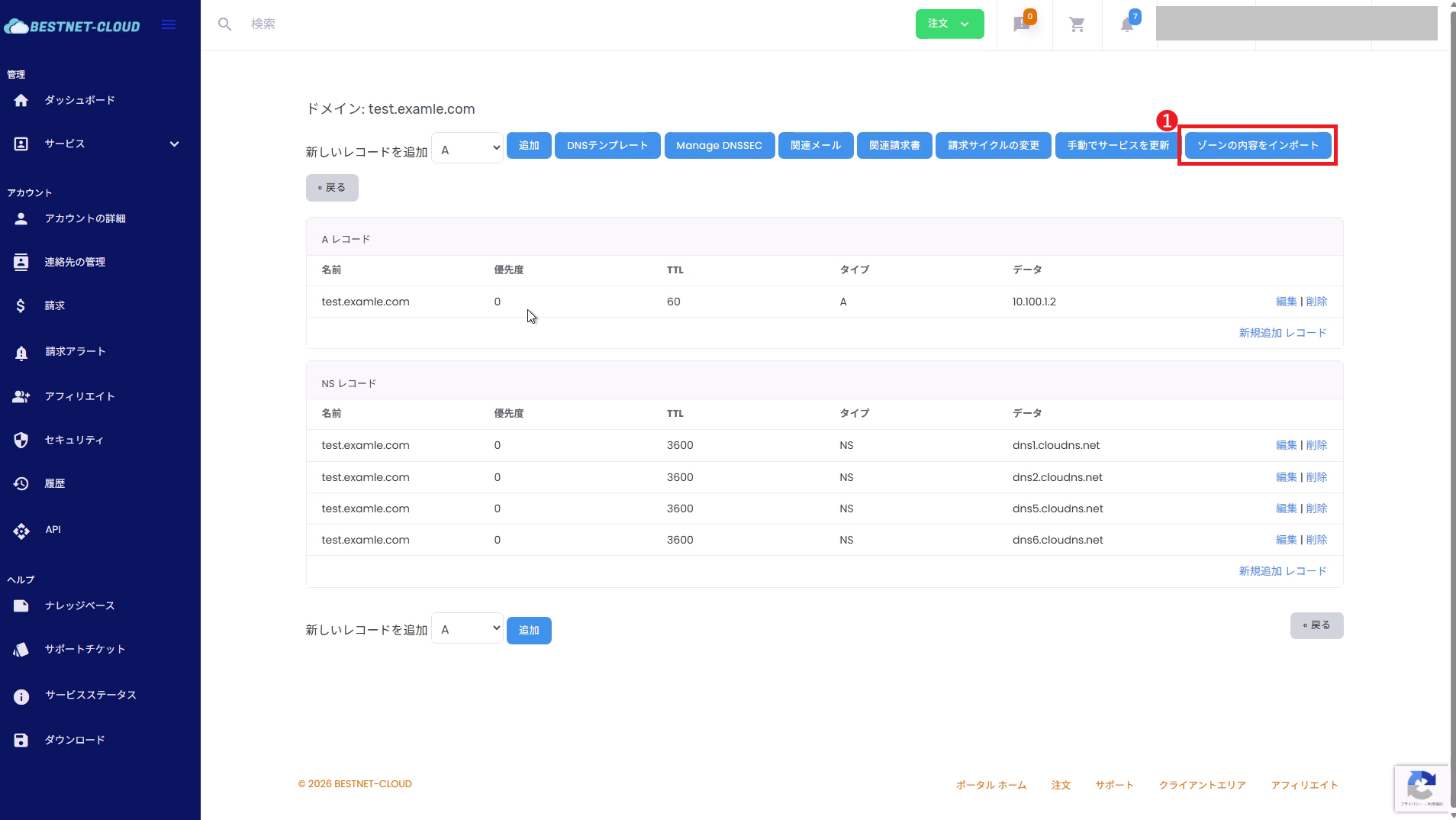
- If possible, use “Import Zone Content” (zone file / AXFR, etc.).
- If import is not possible, create records manually while viewing the current DNS record list.
- MX, SPF (TXT), DKIM (TXT), DMARC (TXT)
- Authentication TXT (Google / Microsoft / various SaaS)
_acme-challenge(TXT) for SSL auto-renewal, etc.- CAA, SRV, subdomain delegation (NS)
4Add and Adjust DNS Records (Example: A Record) #
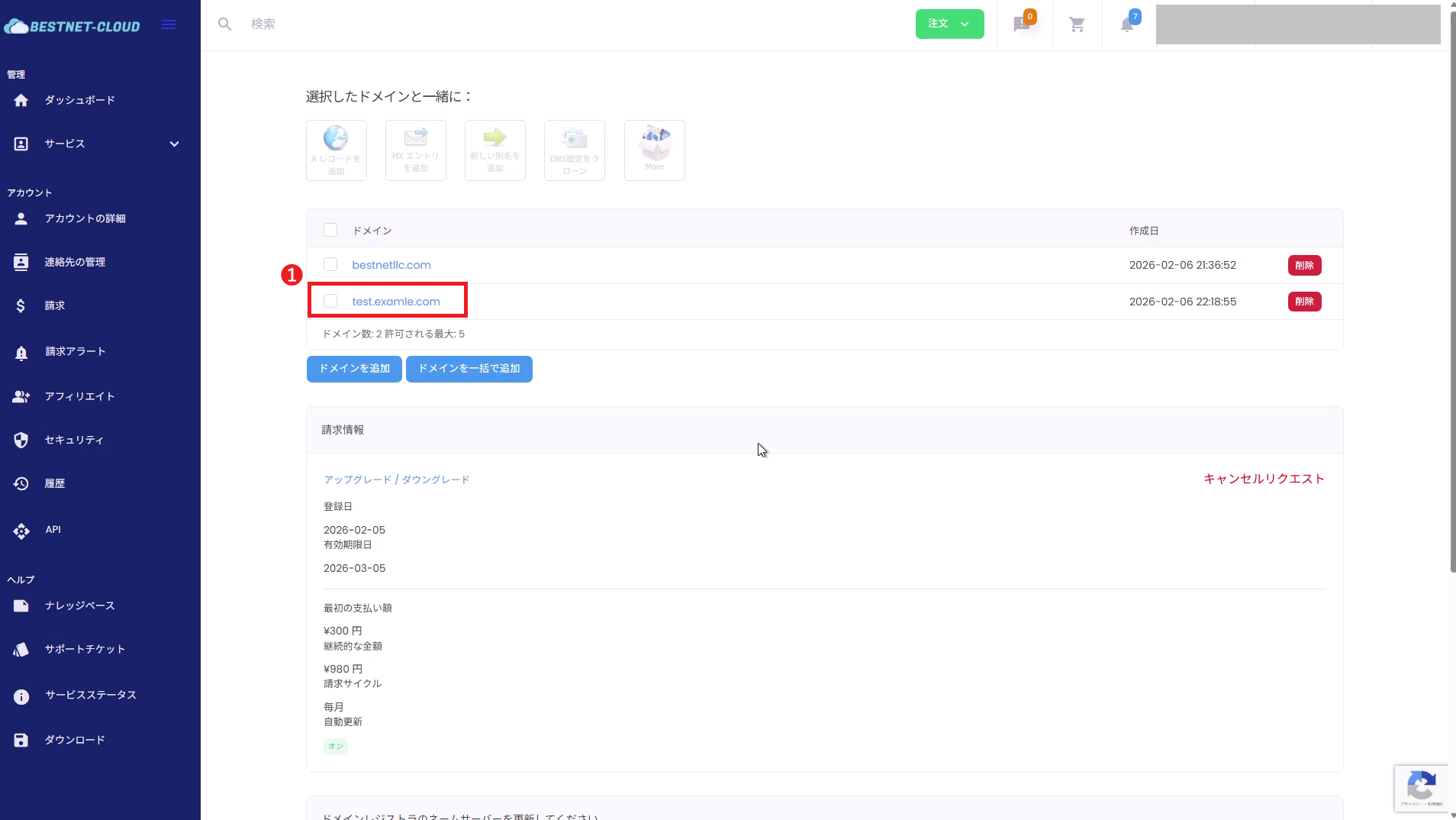
4-1. Open the target domain (zone)
Click the domain name you want to edit from the domain list to open the zone details.
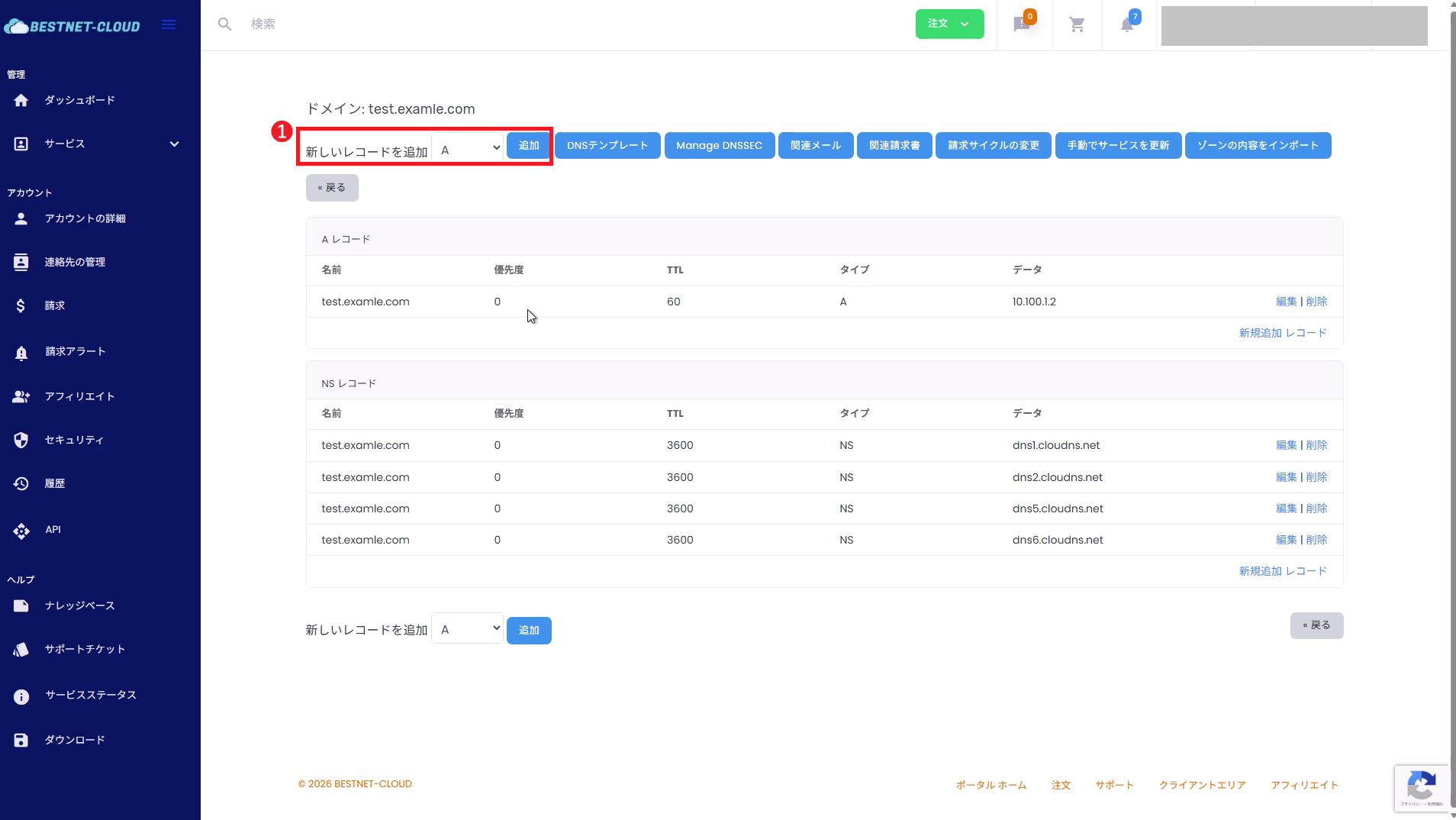
4-2. Select record type and click “Add”
In “Add New Record” at the top of the zone details, select the record type you want to add (A / CNAME / MX / TXT, etc.) and click Add.
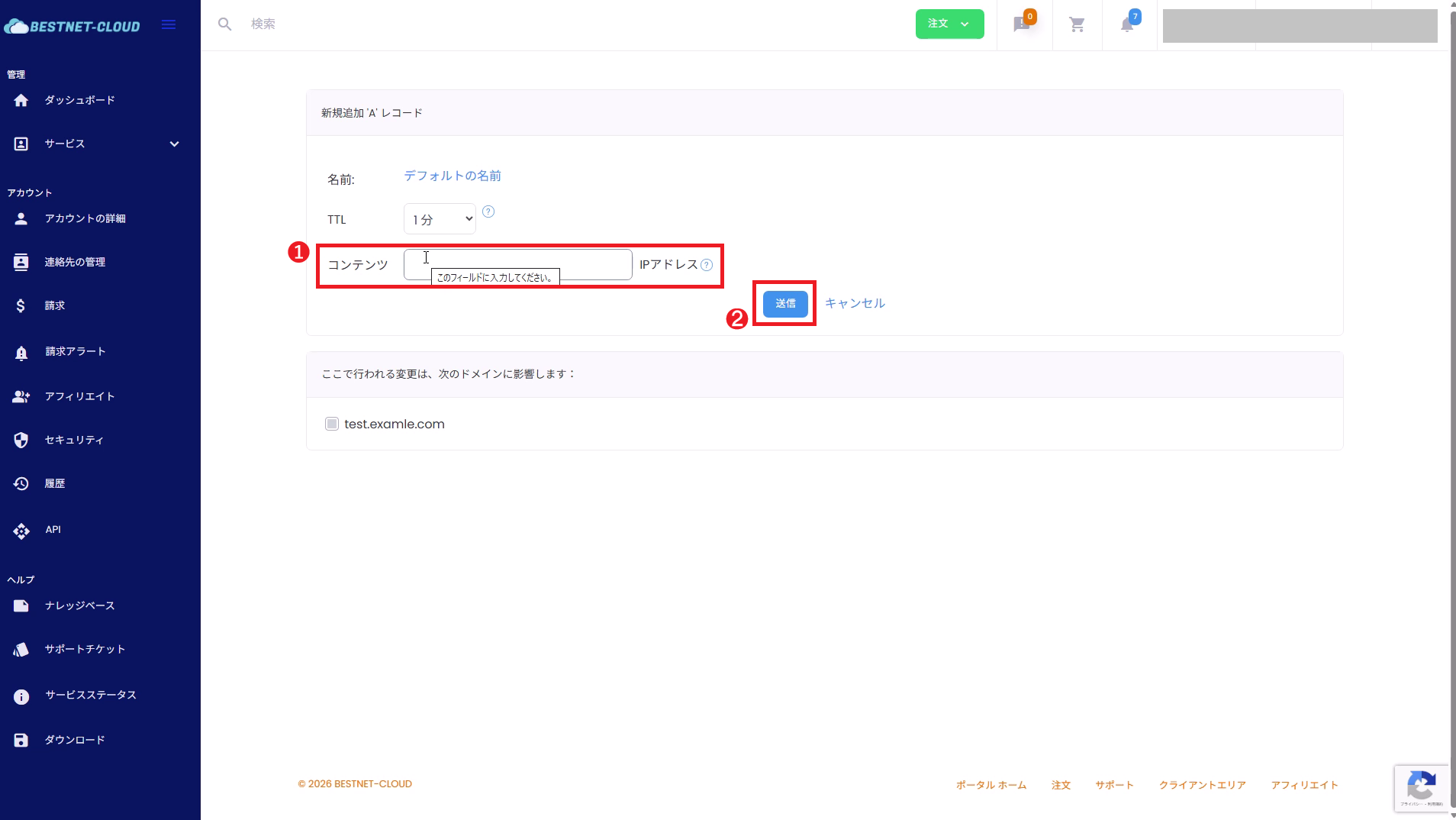
4-3. Enter values and submit
As an example, for an A record, mainly the following is configured:
- Name: In many cases, when it corresponds to the root (@), it is often kept as “Default name”. For subdomains, specify something like
www(follow the screen specifications for input). - TTL: The default value is usually fine. Adjust as needed during the switching process, such as using shorter values.
- Content (IP Address): Enter the IP you want to assign.
After entering the information, click Submit.
5Switch Nameservers at External Registrar (Important) #
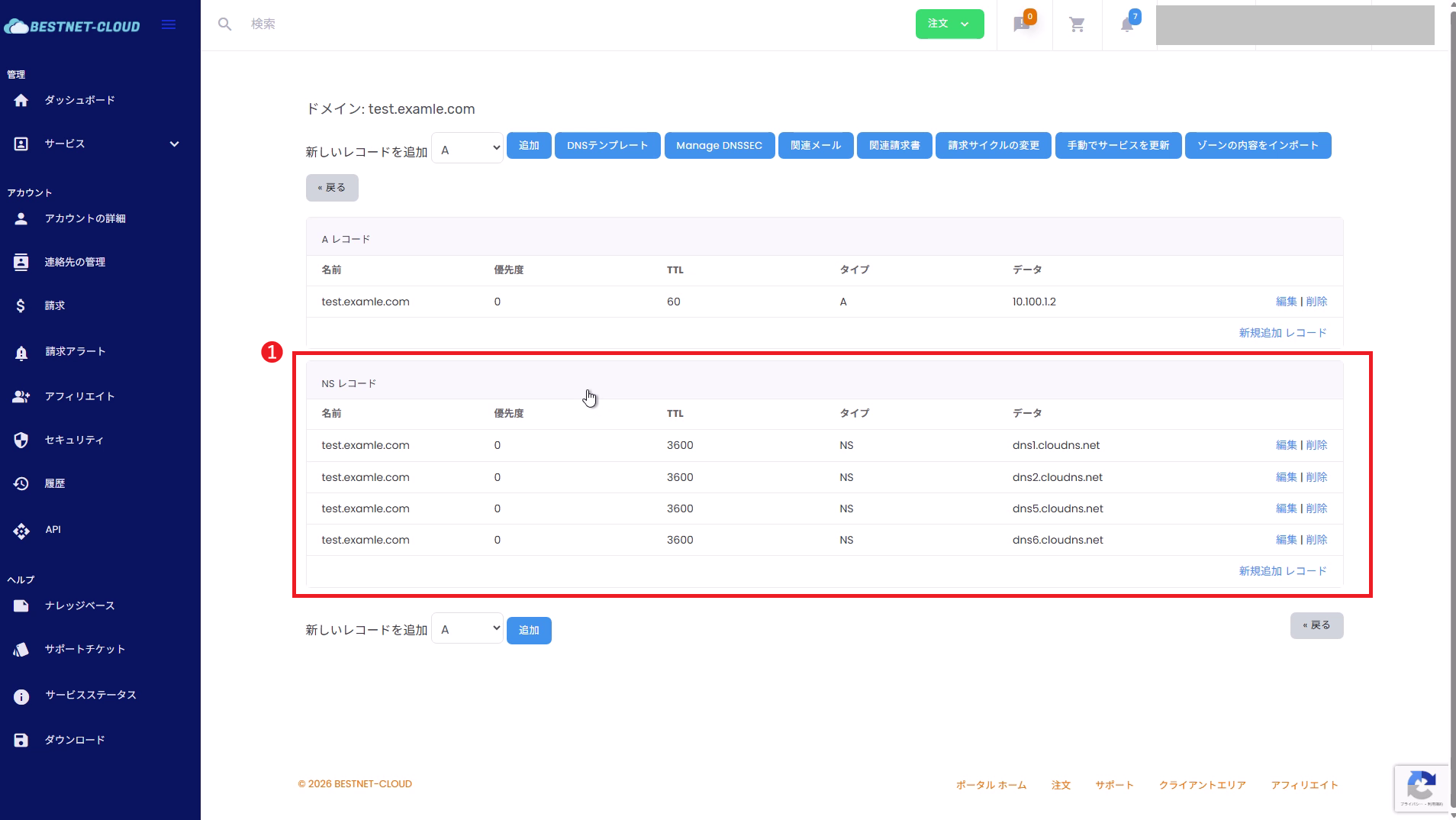
To manage an external domain with our DNS service, you must “replace” the nameservers (NS) at the domain’s registrar with our DNS server’s specified values.
- Check the NS (nameserver list) on the zone details screen in the client portal.
- Replace all nameservers on the domain at the external registrar’s management screen with the NS values above.
※Most registrars use “replace” rather than “add”.
If you do not switch nameservers, records added on our DNS service side will not be referenced from outside.
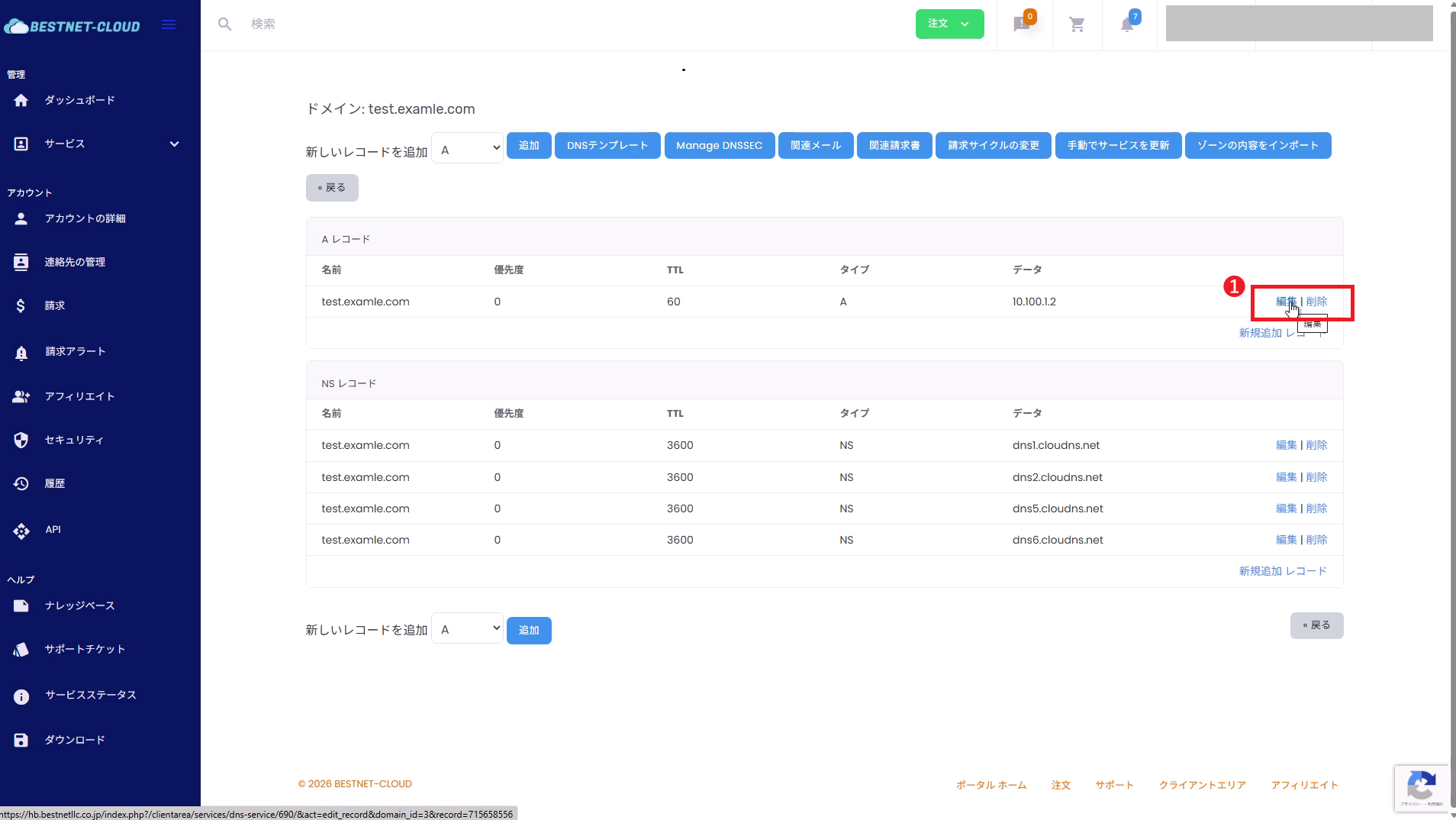
6Edit and Delete DNS Records #
From the record list in the zone details, click Edit / Delete for the target row.
DNSSEC Precautions (If Applicable) #
- If DNSSEC is enabled on the target domain, DS record mismatches at the time of NS switching may cause name resolution to fail.
- If there is a DS record setting on the registrar side, DS deletion / update is required following the switching procedure.
- The required actions vary depending on the operational policy (continue DNSSEC / temporarily disable it). If the decision is difficult, please open a support ticket from our client portal before starting the work.
Verification (Operation Check) #
- 新增的記錄會顯示在客戶入口網站的區域詳細資訊清單中
- 切換名稱伺服器後,可以從外部進行名稱解析(權威 NS 為我們的 NS)
外部驗證範例(建議)
dig NS example.comdig A example.comdig A www.example.comdig MX example.comdig +trace example.com注意: 名稱伺服器變更和 DNS 傳播可能需要時間。 TTL、註冊商反映時間和快取狀態也會影響過程。
疑難排解 #
- 檢查註冊商端的 NS 是否與客戶入口網站區域詳細資訊中顯示的 NS 值相符。
- 檢查是否啟用了 DNSSEC 且 DS 記錄仍然存在(請參閱 DNSSEC 注意事項)。
- 可能存在多個相同名稱的記錄(例如:多個 A 記錄、多個 TXT 記錄)。
- 檢查 CNAME 是否與其他記錄衝突(原則上,CNAME 和 A / MX / TXT 等不能與相同名稱共存)。
- 使用
dig或類似工具從外部驗證,確認傳回的值。
- TTL 可能過長 / 快取可能仍然存在。請等待並重新驗證。
- 建議在切換過程中縮短 TTL,完成後再恢復為適當的 TTL。
- 檢查遷移期間是否遺漏了 MX / SPF / DKIM / DMARC (TXT)。
- 特別是 DKIM 通常會有像
selector._domainkey這樣的子網域 TXT 記錄,很容易被遺忘。
需要協助(開啟支援工單) #
如果您在切換後有疑問或遇到未解決的問題, 請從我們的客戶入口網站開啟支援工單。
提交時,以下資訊將有助於我們更快確認:
- 目標網域名稱
- 註冊商名稱(例如:お名前.com 等)
- 客戶入口網站上區域畫面的截圖(NS 清單/相關記錄清單)
- 外部驗證結果(例如:
dig NS example.com/dig +trace example.com結果) - 發生的症狀(網站無法顯示/郵件未送達等)及發生時間


