Overview #
This guide explains how to upgrade resources (such as RAM and disk capacity) for your contracted VPS. This procedure describes the workflow for executing Upgrade from the More menu on the service details screen.
Prerequisites #
- You must be able to log in to the client portal
- The target VPS (service) must be “Active”
- A payment method (bank transfer / credit card, etc.) must be available
Operation Steps #
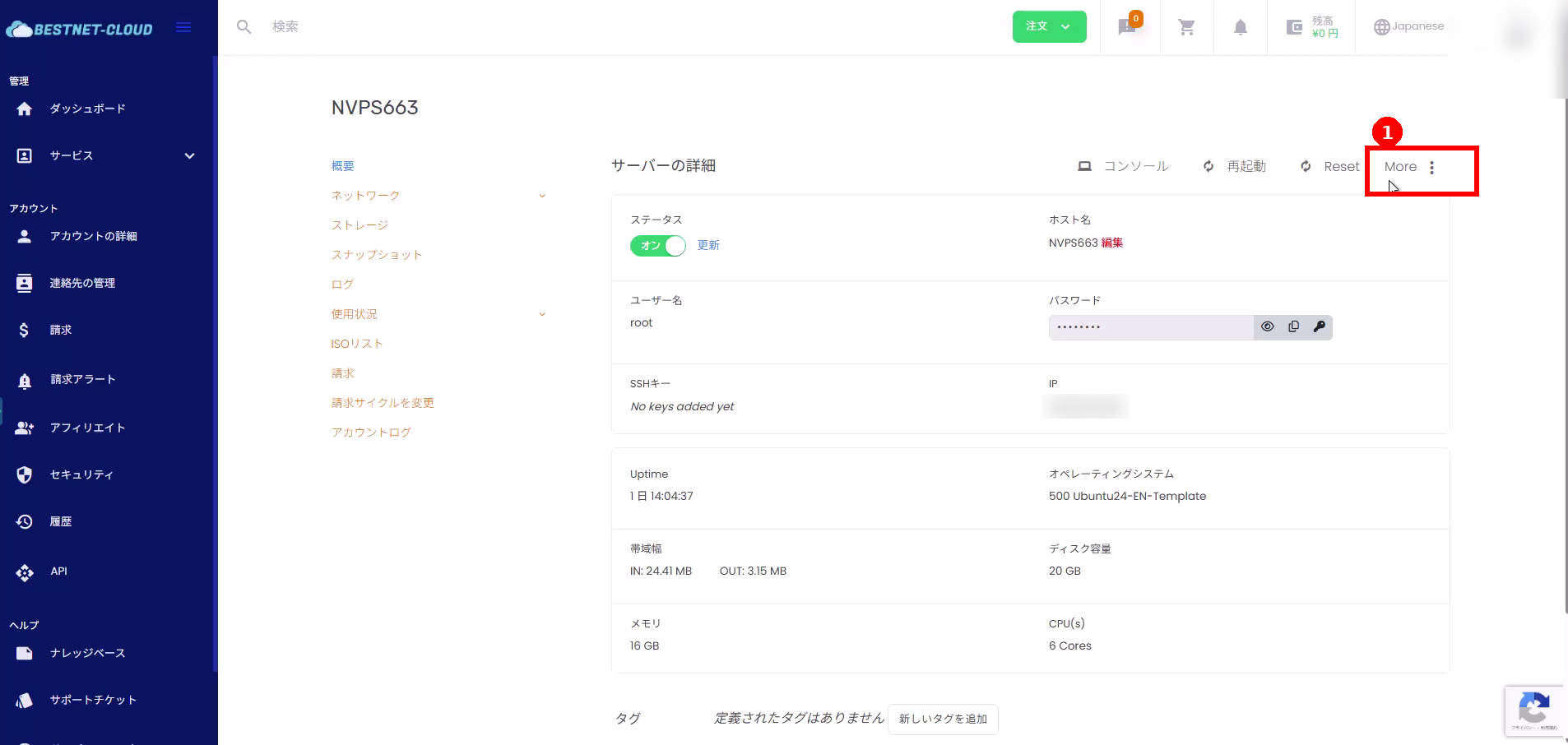
1. Open the VPS details screen and display the More menu #
- From Services in the left menu, open the details screen for the target VPS.
- Click More in the upper right corner of the screen.
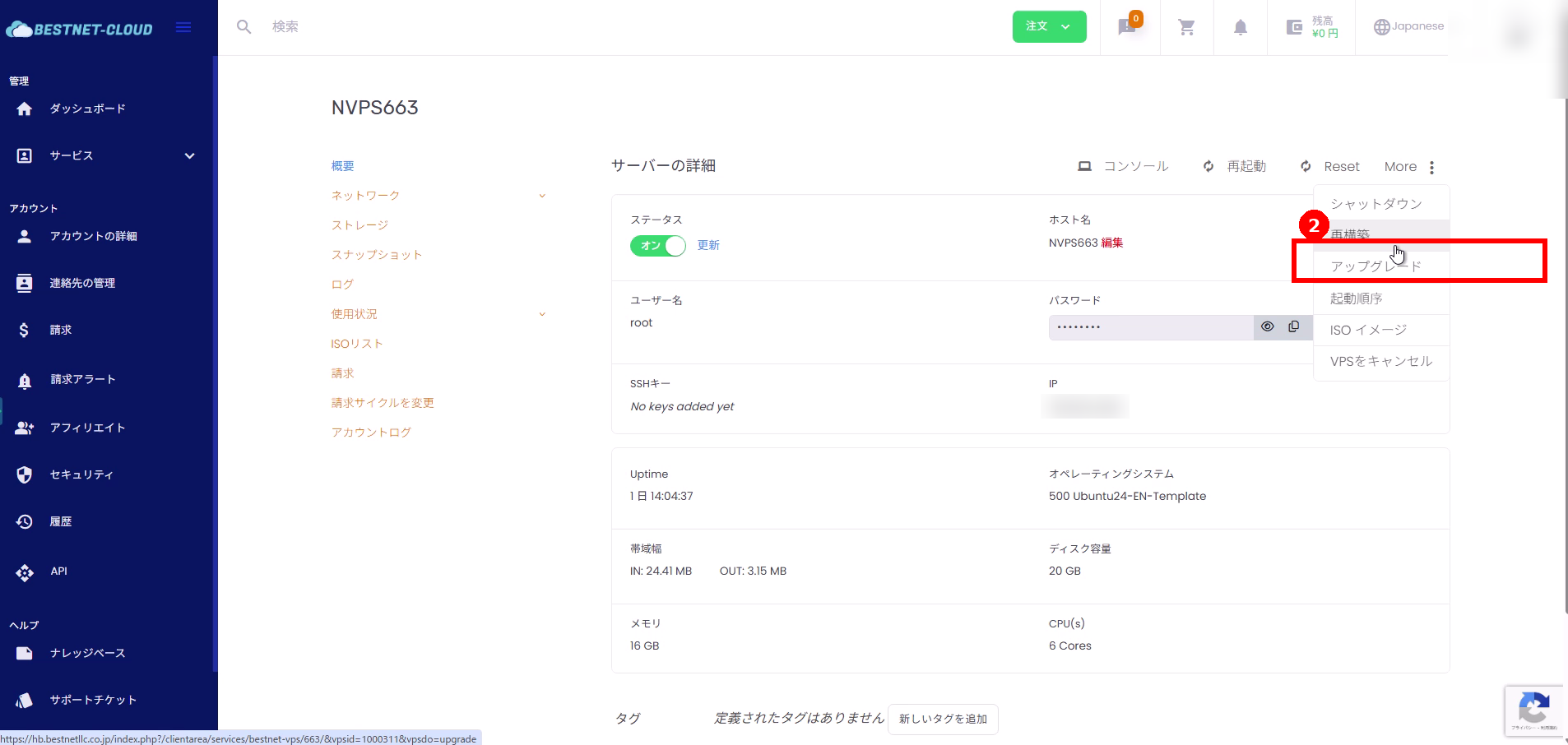
2. Select “Upgrade” #
- Click Upgrade from the More menu.
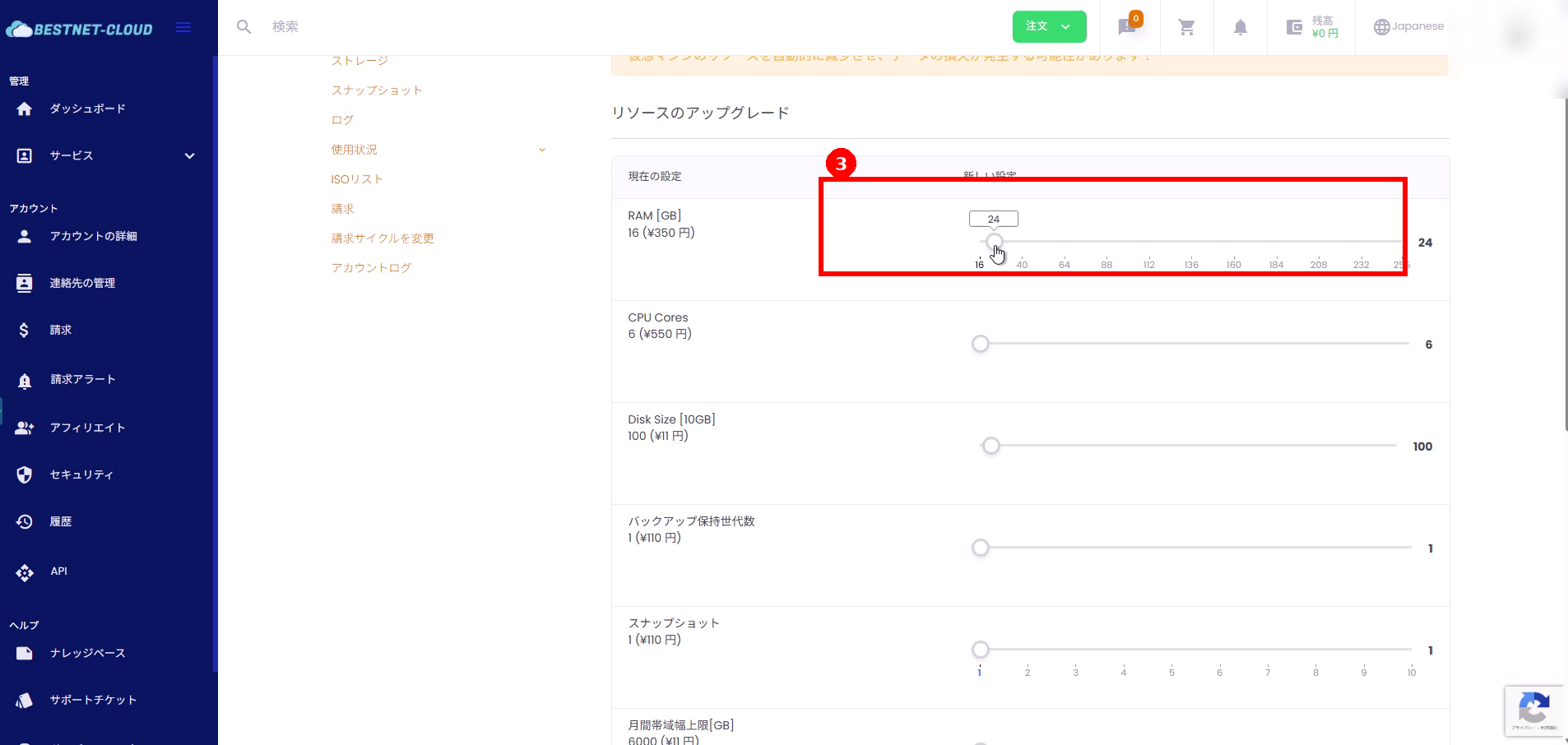
3. Select the resources to upgrade #
The “Resource Upgrade” screen will open. Adjust the slider for the item you wish to upgrade.
- RAM [GB]: For example, increase from 16 to 24
- Disk Size: Increase as needed
- Other options such as backup retention generations, snapshots, additional IPs, etc. can be selected according to your environment
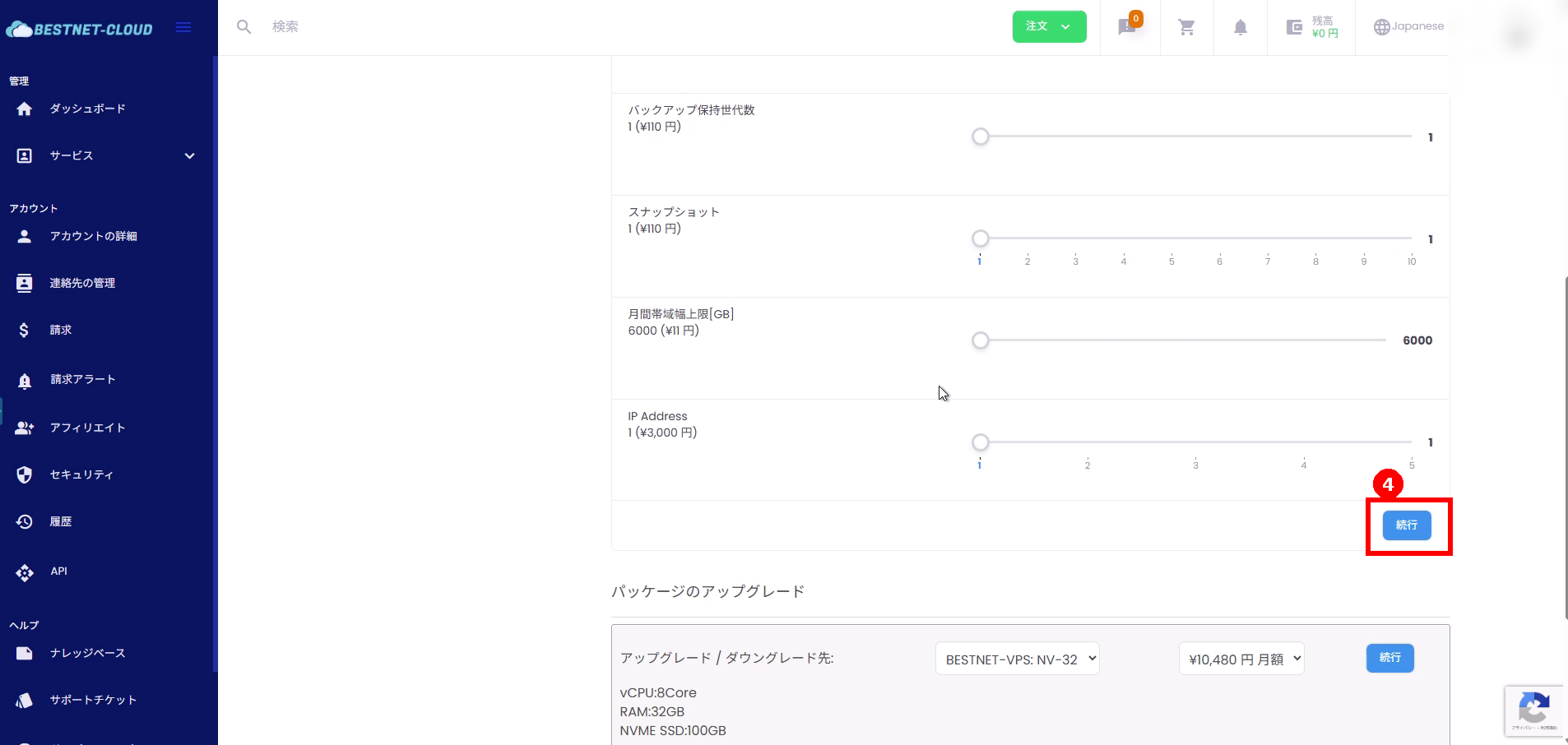
4. Click “Continue” #
- Click Continue at the bottom of the page (or on the right side of the relevant section).
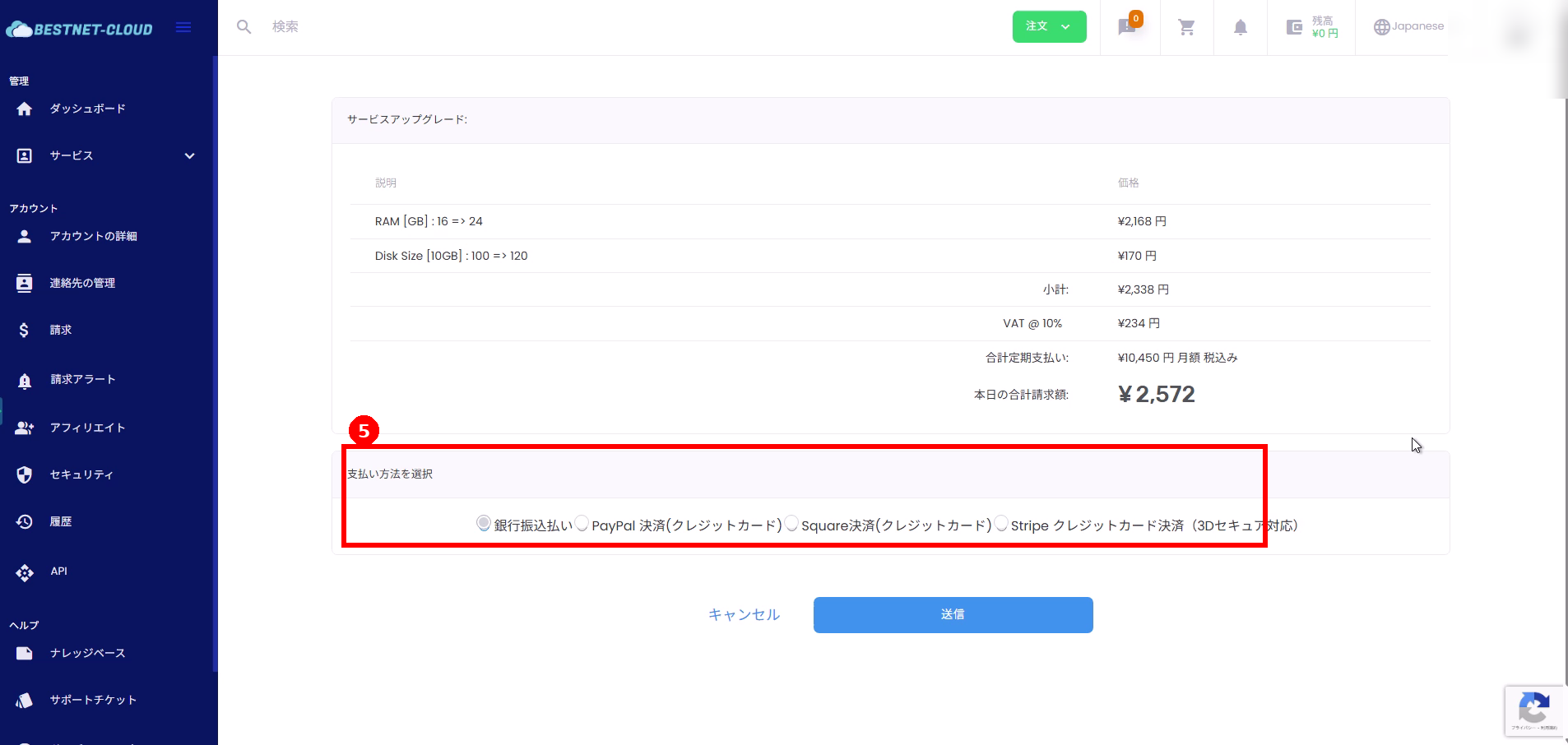
5. Select payment method #
The upgrade details and billing amount will be displayed. Select the payment method you wish to use.
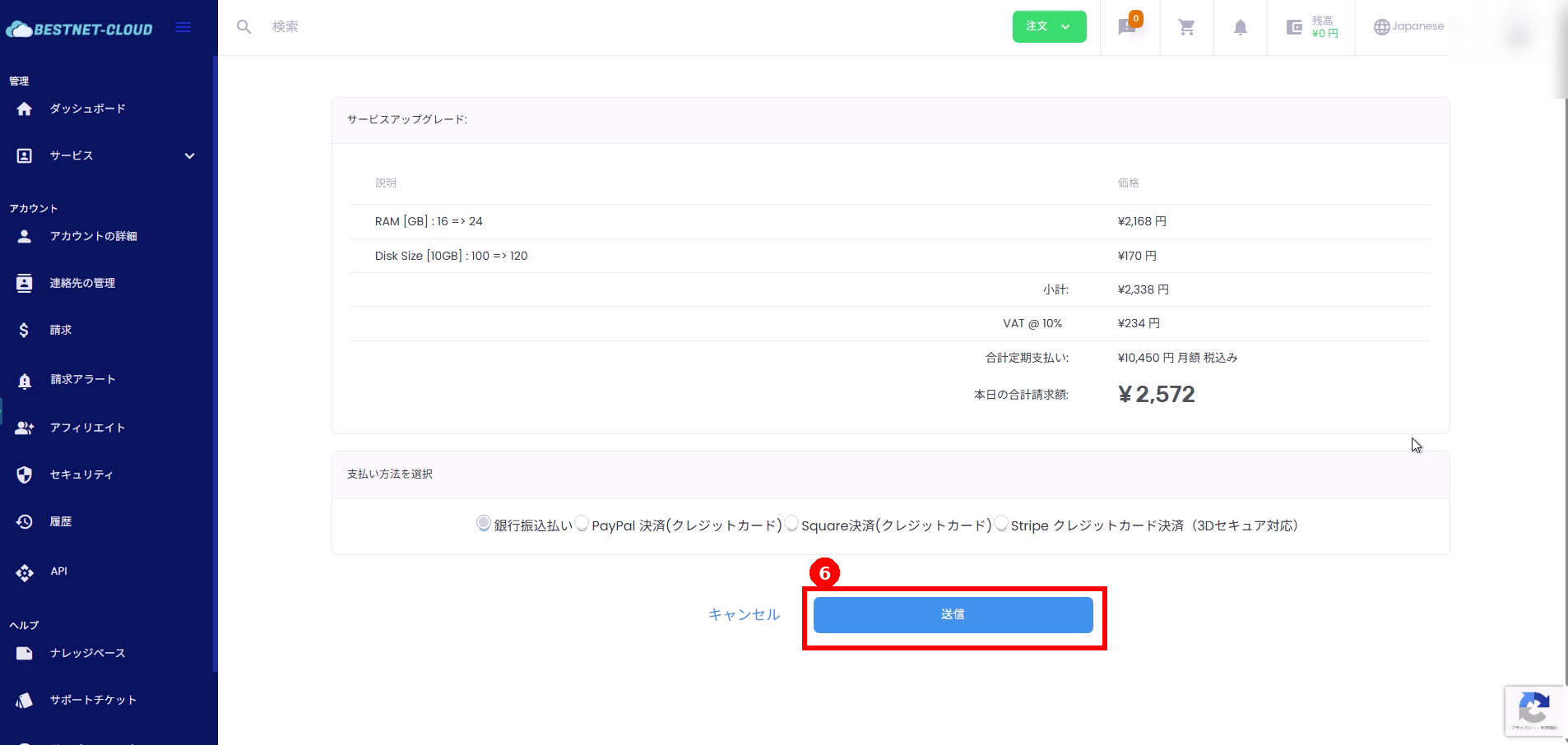
6. Click “Submit” to finalize the upgrade order #
- If everything looks correct, click Submit.
- The upgrade order will be created and an invoice will be issued.
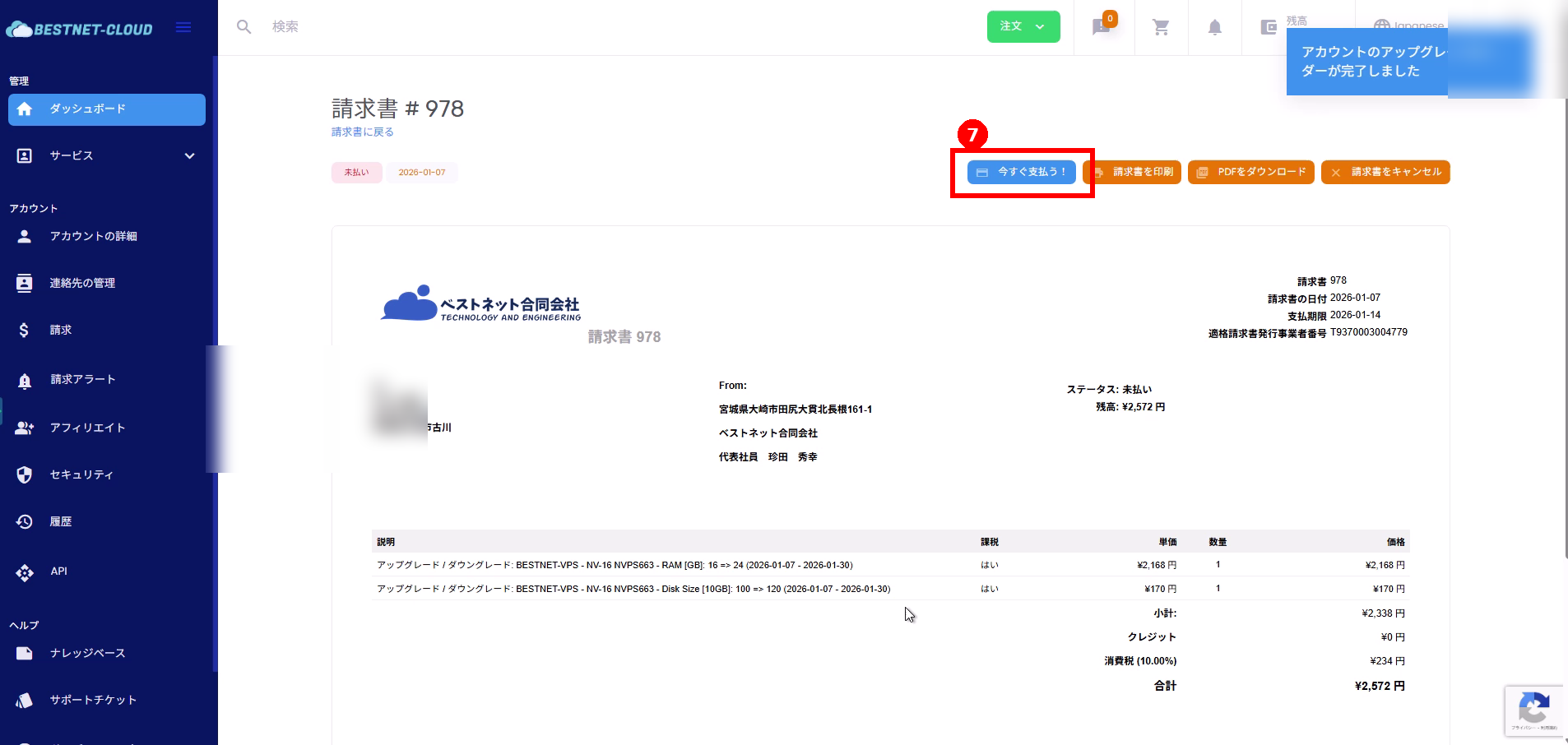
7. Pay the invoice and verify the changes #
- On the issued invoice screen, click Pay Now!
- After payment is complete, return to the target VPS details screen and verify that the resources (RAM / disk, etc.) have been updated.
Important Notes #
- Depending on the upgrade content, a restart of the VPS may be required for the changes to take effect.
- When increasing disk capacity, additional partition / filesystem expansion work may be required on the OS side.
- The billing amount may be calculated as a prorated difference based on the remaining contract period. Please confirm the amount displayed on the screen.
Frequently Asked Questions #
What should I do if I want to cancel without paying the invoice? #
Unpaid invoices can be canceled from Cancel Invoice on the invoice screen in some cases. If the button is not displayed or cancellation is not possible, please contact us via a support ticket.
What is the difference between “Resource Upgrade” and “Package Upgrade”? #
Resource Upgrade adjusts individual resources such as RAM and disk.
Package Upgrade switches to a pre-configured plan (package).
Please select according to your needs.