客户门户安全设置

客户门户安全设置

1 min read

Security Settings Guide

This guide provides instructions for configuring security-related settings (Multi-Factor Authentication, Allowed IP Access) in the client portal.

Overview #

In the client portal, you can enhance account security by configuring Multi-Factor Authentication (MFA) and Allowed IP Access.

Prerequisites #

  • An account with client portal login access
  • To configure Multi-Factor Authentication, you will need one of the following:
    • A smartphone with an authentication app (such as Google Authenticator / Authy)
    • Access to your registered email address (if using Email MFA)

1. Open the Security Settings Screen #

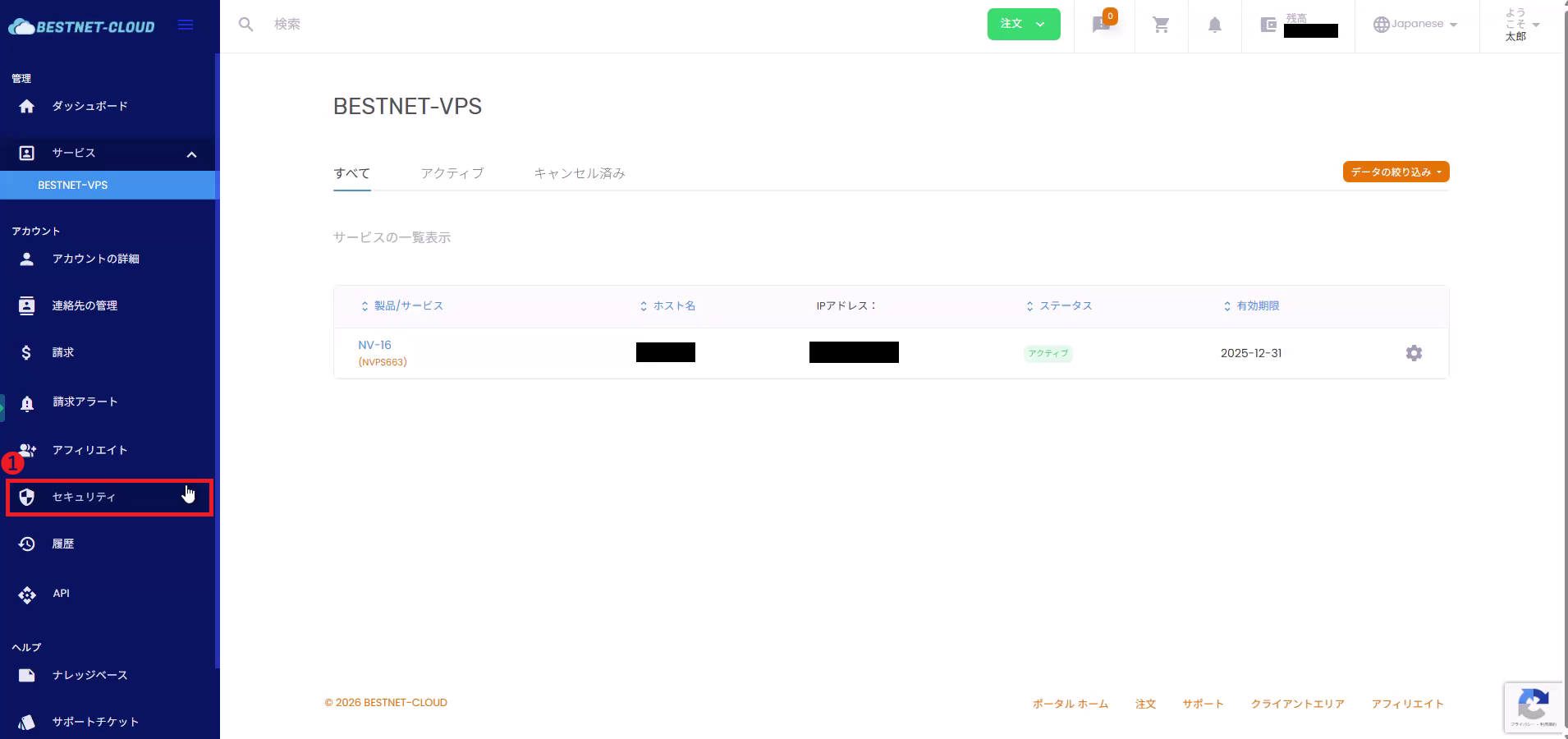
1Open “Security” from the left menu #

  1. Log in to the client portal.
  2. Click “Security” in the left menu.
Opening Security from the left menu

2. Configure Multi-Factor Authentication #

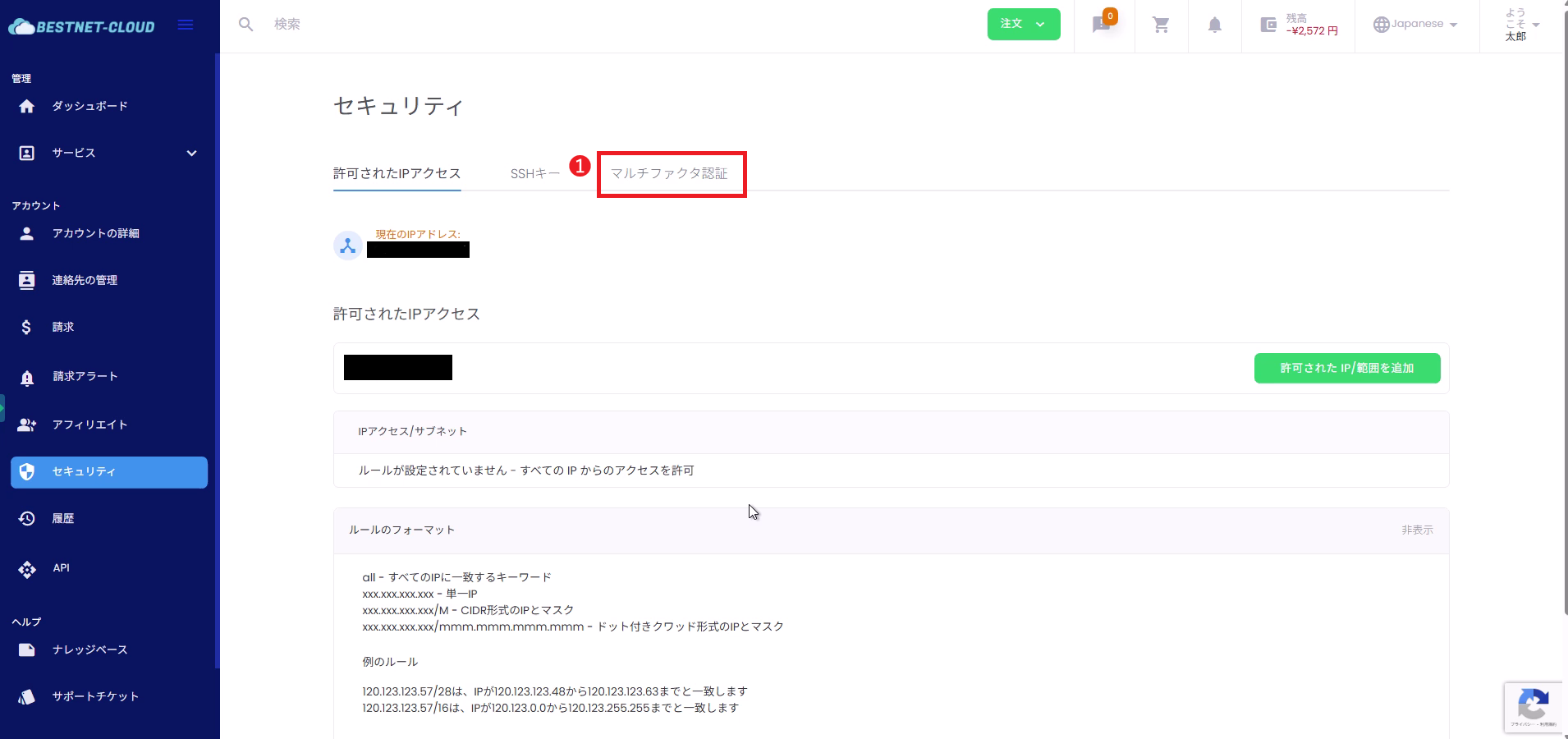
2Open the “Multi-Factor Authentication” tab #

From the tabs at the top of the Security screen, select “Multi-Factor Authentication”.

List of tabs in the Security screen

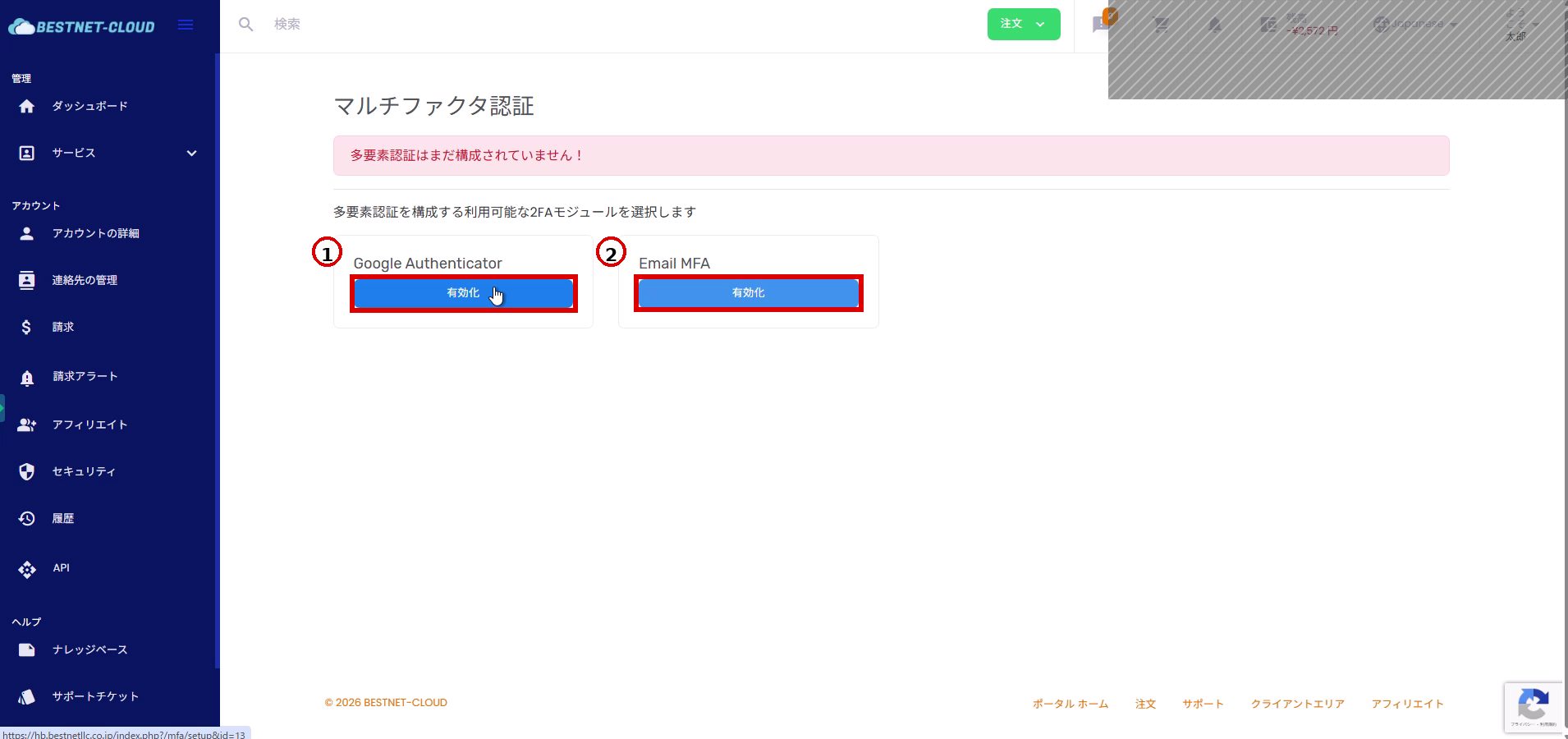
On the “Multi-Factor Authentication” screen, available methods (such as Google Authenticator / Email MFA) will be displayed.

List of available Multi-Factor Authentication methods

2.1Enable Google Authenticator #

  1. Click “Enable” in the “Google Authenticator” section.
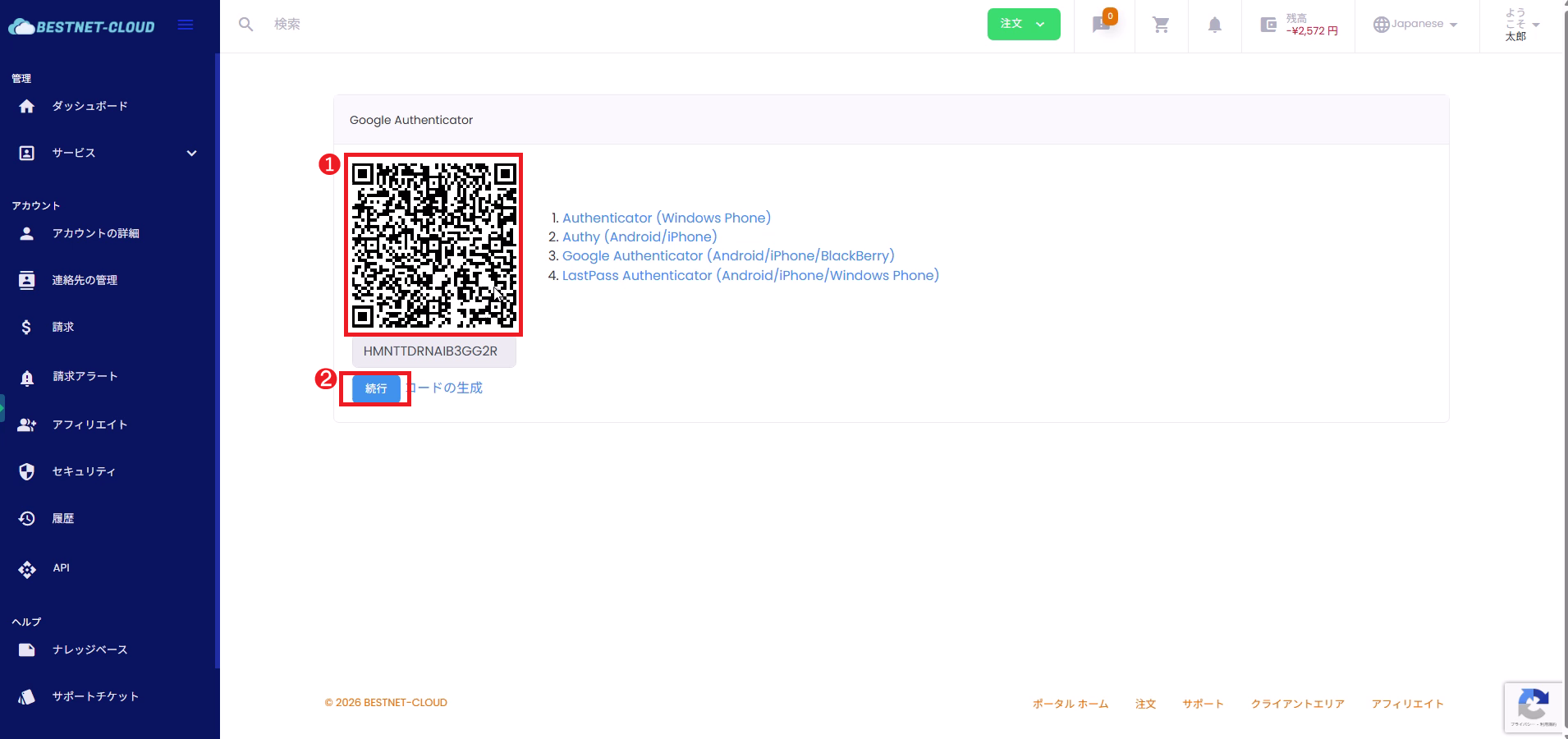
  2. Scan the displayed QR code with your authentication app (or manually enter the secret key).
  3. Click “Continue” on the screen.
  4. If a confirmation code entry screen appears, enter the one-time code displayed in your authentication app and complete the process (follow the on-screen instructions).
Google Authenticator setup screen

2.2Enable Email MFA #

  1. Click “Enable” in the “Email MFA” section.
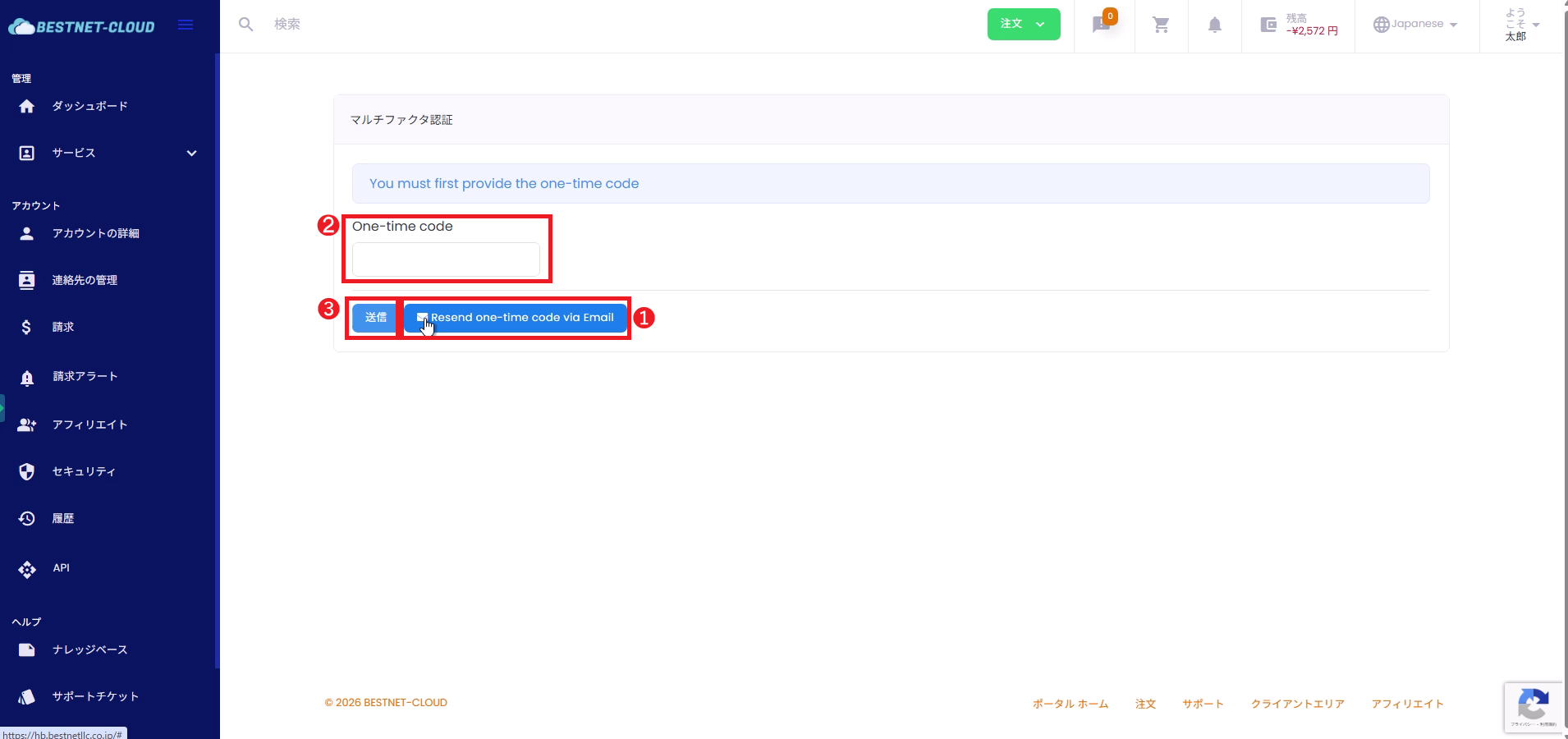
  2. Click “Send one-time code via Email” (or “Resend”) to receive a confirmation code via email.
  3. Enter the confirmation code you received in “One-time code” and click “Submit”.
Email MFA confirmation code sending screen

3. Configure Allowed IP Access (IP Restriction) #

3.1Add Allowed IP/Range #

“Allowed IP Access” is a feature that restricts login to specific source IP addresses (or ranges). It is effective when access sources can be limited, such as corporate fixed-line connections.

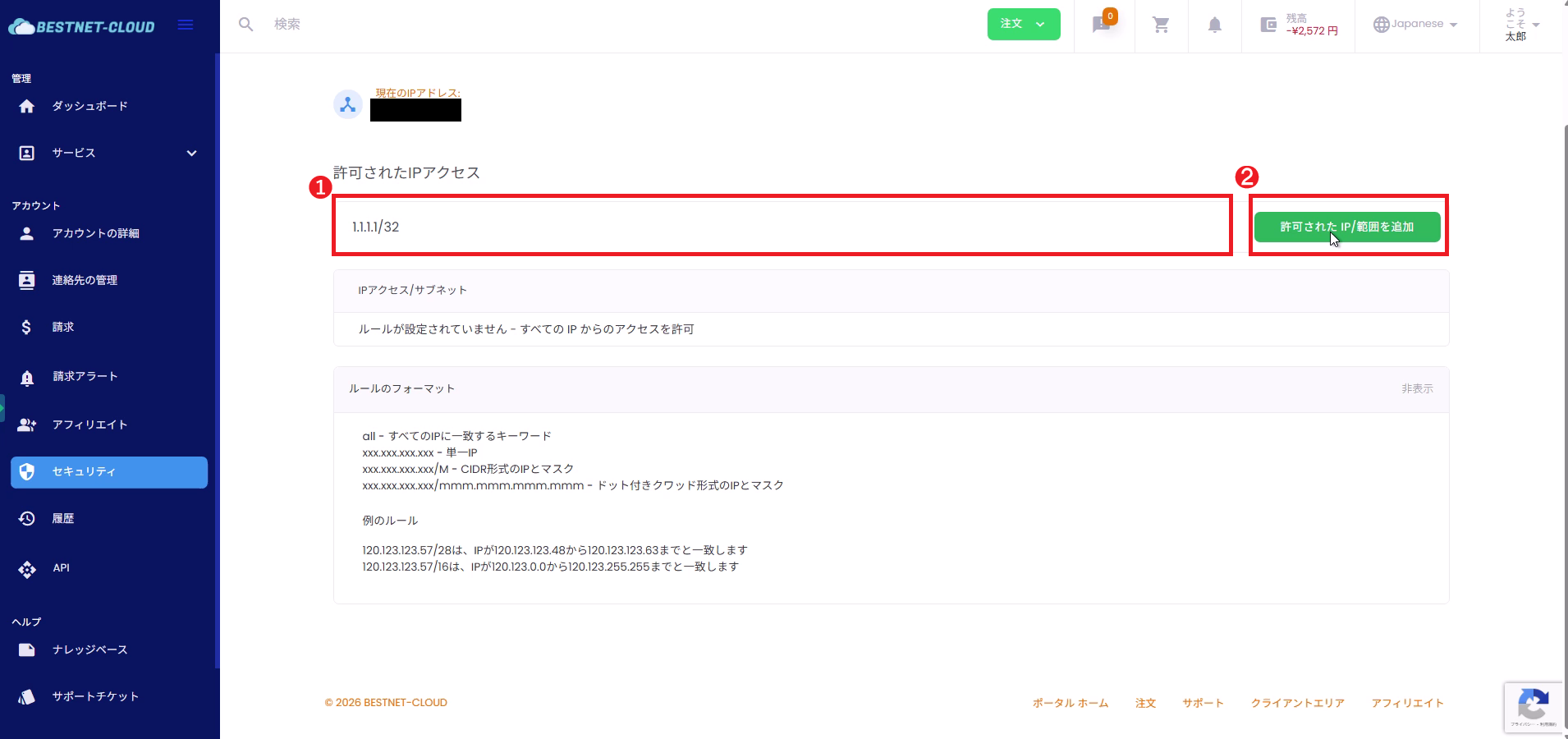
  1. Open the “Allowed IP Access” tab in the Security screen.
  2. Enter the IP address (or range) you wish to allow in the input field.
  3. Click “Add Allowed IP/Range”.
  4. Verify that the rule has been added to the list.
Screen for adding rules in Allowed IP Access

3.2Important: Always Allow Your Current IP #

Warning

As a result of setting allowed IPs, if your current IP address is not included in the allow list, you may be unable to log in in the future.

Check the “Current IP Address” displayed on the screen and ensure that the IPs used in your operations (such as fixed-line connection IPs or VPN exit IPs) are included in the allow list.

3.3Rule Format (Input Examples) #

Enter according to the format examples displayed on the screen (representative examples).

  • all: Matches all IPs (no restriction)
  • xxx.xxx.xxx.xxx: Single IP address
  • xxx.xxx.xxx.xxx/m: CIDR format (example: 203.0.113.10/32)
  • xxx.xxx.xxx.xxx/mmm.mmm.mmm.mmm: IP address and mask in dotted-quad format

4. Verify Configuration Changes in History #

4.1Check Logs (Activity History) #

After making changes, you can check logs and sent emails from the “History” section in the portal.

  1. Click “History” in the left menu.
  2. Open “Logs” from the tabs at the top.
  3. Verify that security-related operations such as IP restriction additions and deletions are recorded.
Verifying security-related operations in the History logs screen

4.2Check Email (Sent Email History) #

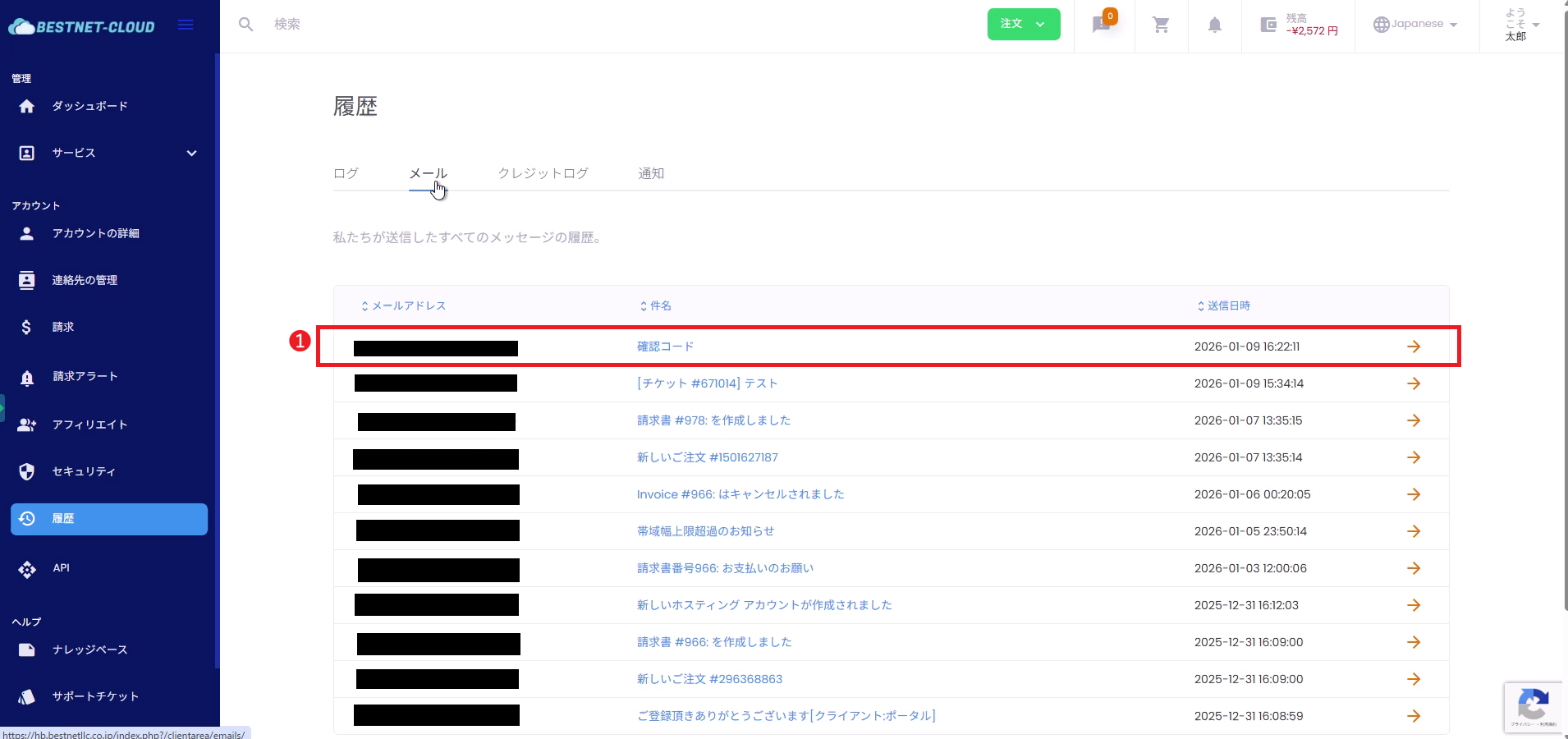
  1. Open “Email” from the tabs at the top of the “History” screen.
  2. Verify that emails such as Email MFA confirmation codes (subject: “Confirmation Code”) have been sent.
Verifying sent email history in the History email screen

5. Troubleshooting #

5.1 Unable to log in after setting IP restriction #

  • Verify that your current global IP (fixed-line connection / VPN exit IP) is included in the allow list.
  • If you are currently logged in, you can delete the relevant rule from the trash icon.
  • If you cannot log in, contact your administrator or support team to request the removal of IP restrictions.

5.2 Not receiving Email MFA confirmation code #

  • Check your spam/junk email folder.
  • Use “Send one-time code via Email” (Resend).
  • Verify that your registered email address is current (check Account Information).
Updated on 2026年6月9日

What are your feelings

  • Happy
  • Normal
  • Sad