
Private Network Configuration Guide
यह guide बताती है कि client portal के जरिए private network (Private IP / Subnet) कैसे order करें और BESTNET-CLOUD तथा BESTNET-VPS में servers को private IPs कैसे assign करें।
Overview #
यह guide बताती है कि client portal के जरिए private network (Private IP / Subnet) कैसे order करें और BESTNET-CLOUD तथा BESTNET-VPS में servers को private IPs कैसे assign करें।
Prerequisites #
- आपको client portal में login होना चाहिए
- Private network (Private IP / Subnet) इस्तेमाल करने से पहले, आपको सबसे पहले Private-IP product “order” करना होगा
Private Network (Private IP) Order करना #
1BESTNET-CLOUD: एक Private IP (Subnet) Order करें #
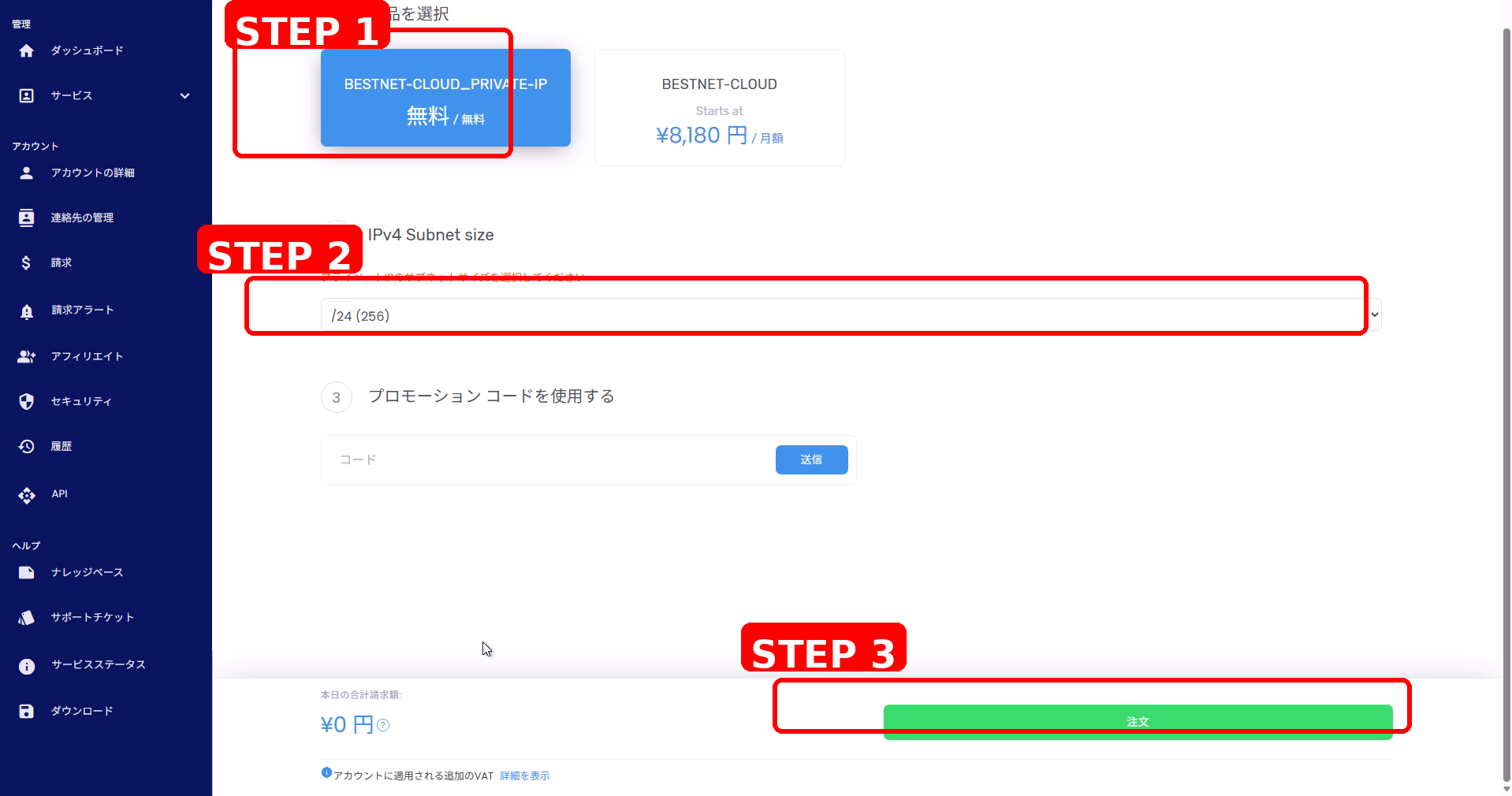
- screen के top पर “Order” से order screen खोलें।
- product list से BESTNET-CLOUD_PRIVATE-IP select करें।
- आवश्यक size (जैसे, /24) को IPv4 Subnet size में select करें।
- screen के bottom पर Order पर click करें।
2BESTNET-VPS: एक Private IP (Subnet) Order करें #
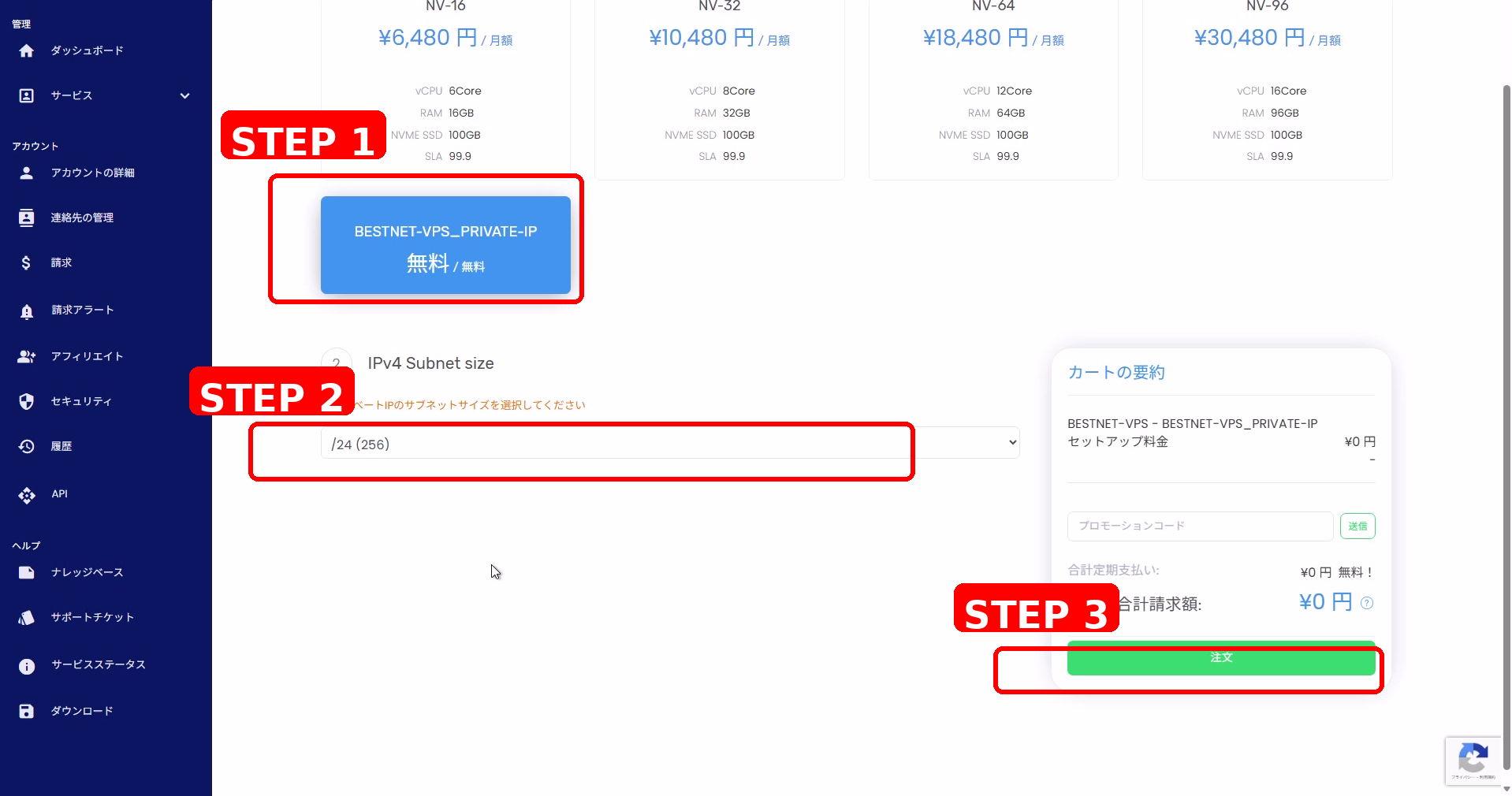
- screen के top पर “Order” से order screen खोलें।
- product list से BESTNET-VPS_PRIVATE-IP select करें।
- आवश्यक size (जैसे, /24) को IPv4 Subnet size में select करें।
- screen के right side (या bottom) पर Order पर click करें।
मौजूदा Servers को Private IPs Assign करना #
3BESTNET-CLOUD: एक मौजूदा Server को Private IP Assign करें #
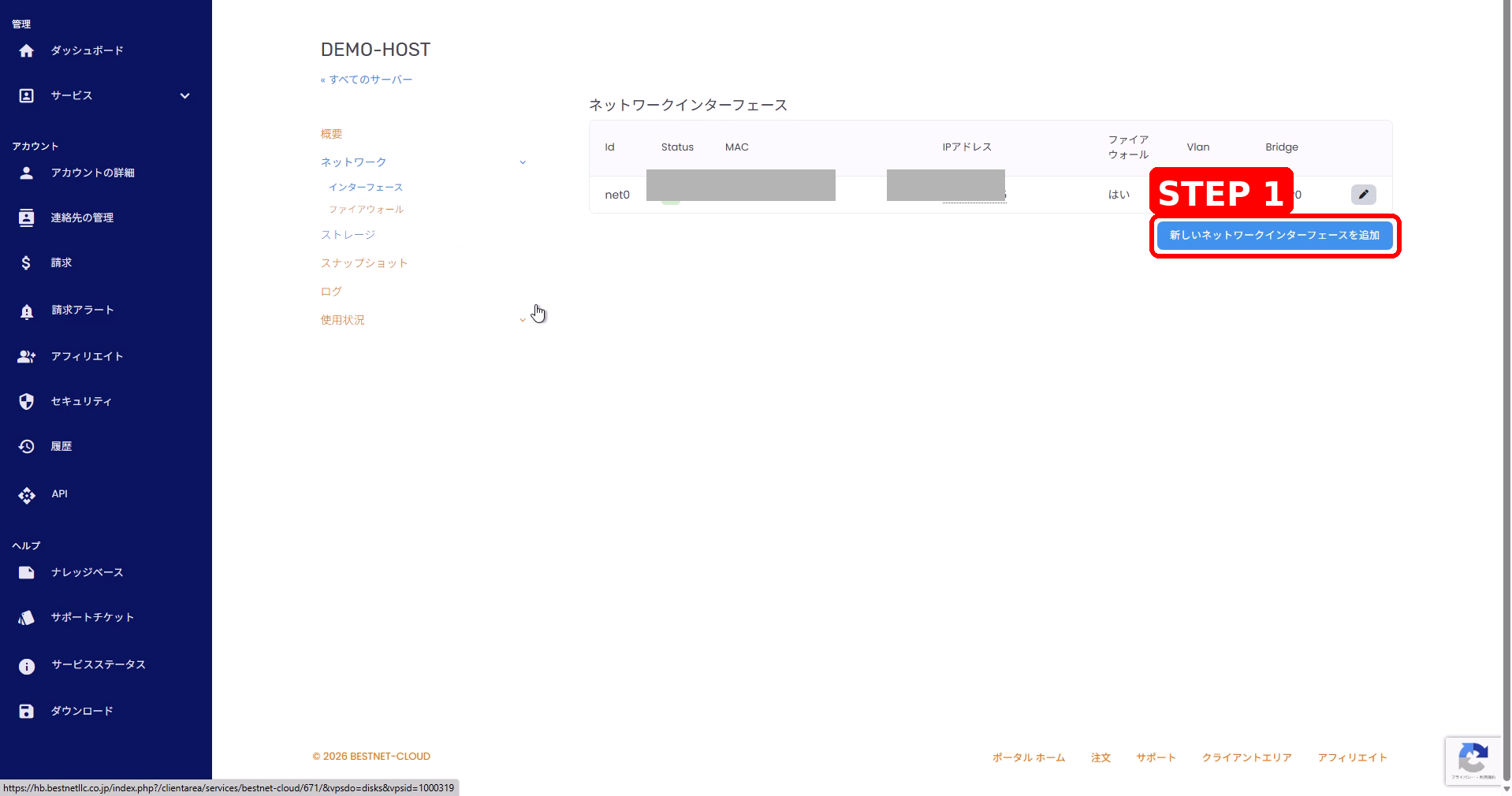
- target server खोलें और left menu से Network > Interfaces खोलें।
- यहां Add New Network Interface पर click करें।
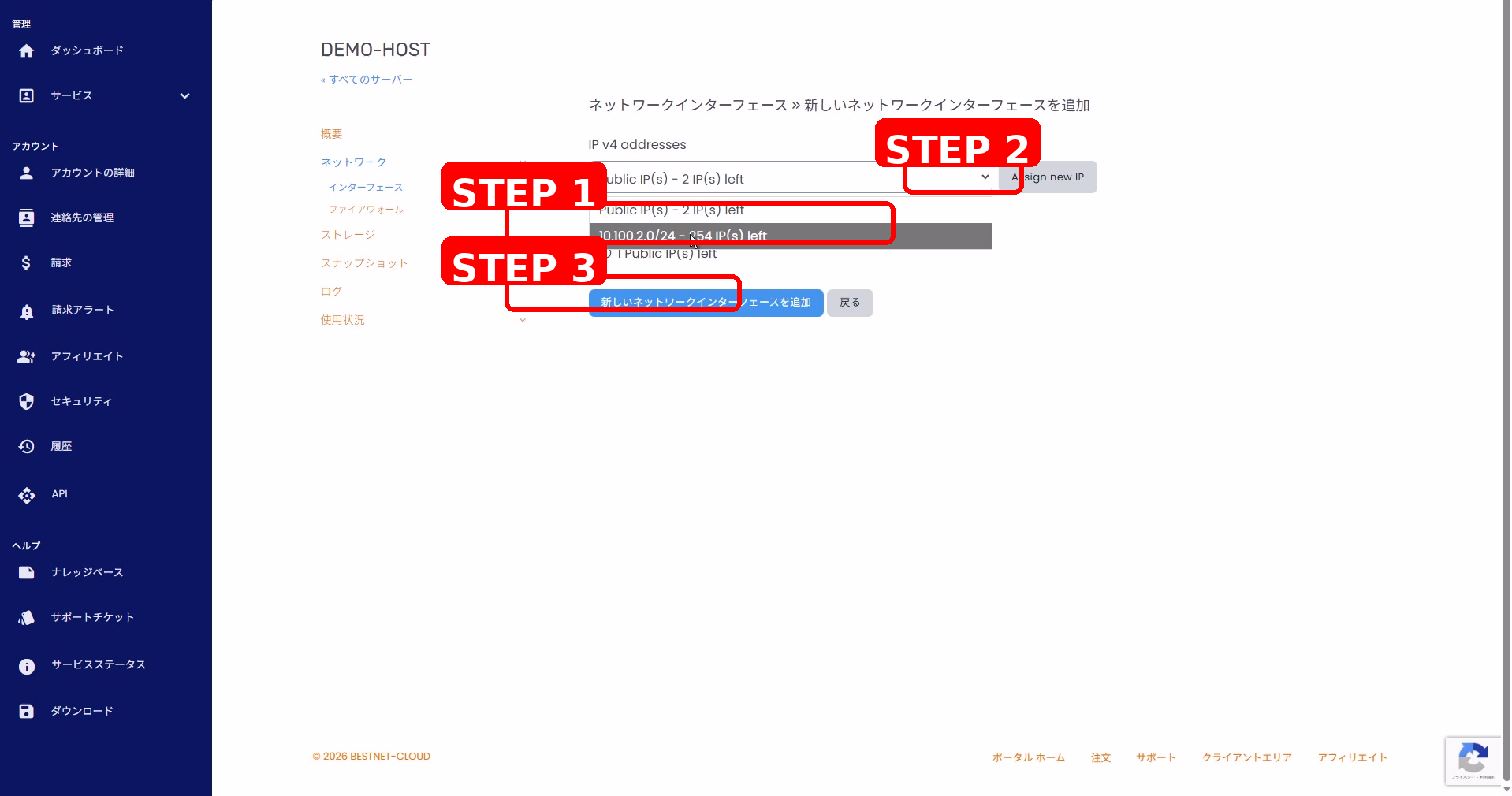
- इस IPv4 addresses dropdown से, जिस private subnet को assign करना है उसे select करें (जैसे, 10.100.2.0/24)।
- एक IP reserve करने के लिए Assign new IP पर click करें।
- changes apply करने के लिए Add New Network Interface पर click करें।
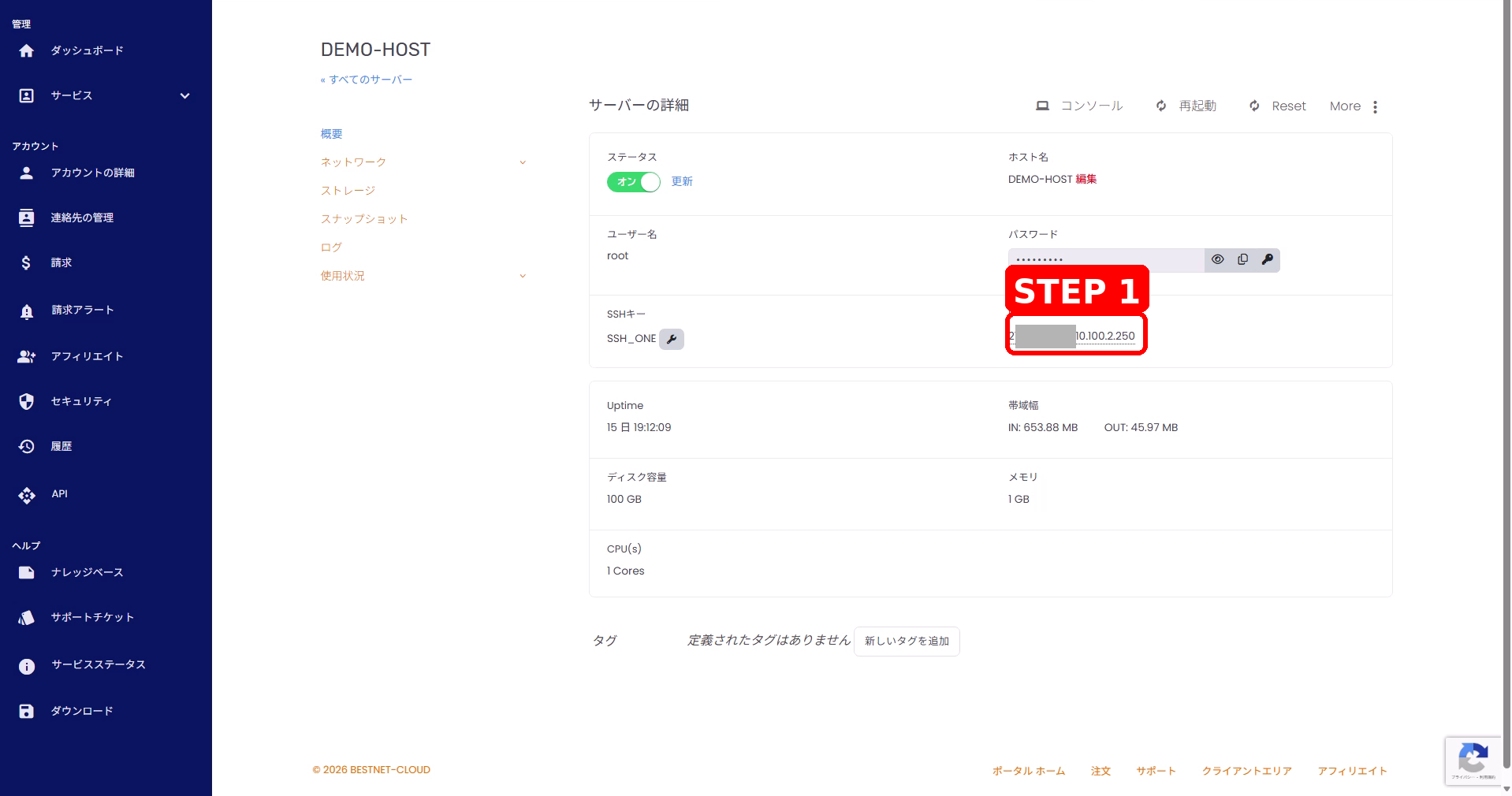
- verify करें कि server details screen के IP field में private IP add हो गया है।
4BESTNET-VPS: एक मौजूदा Server को Private IP Assign करें #
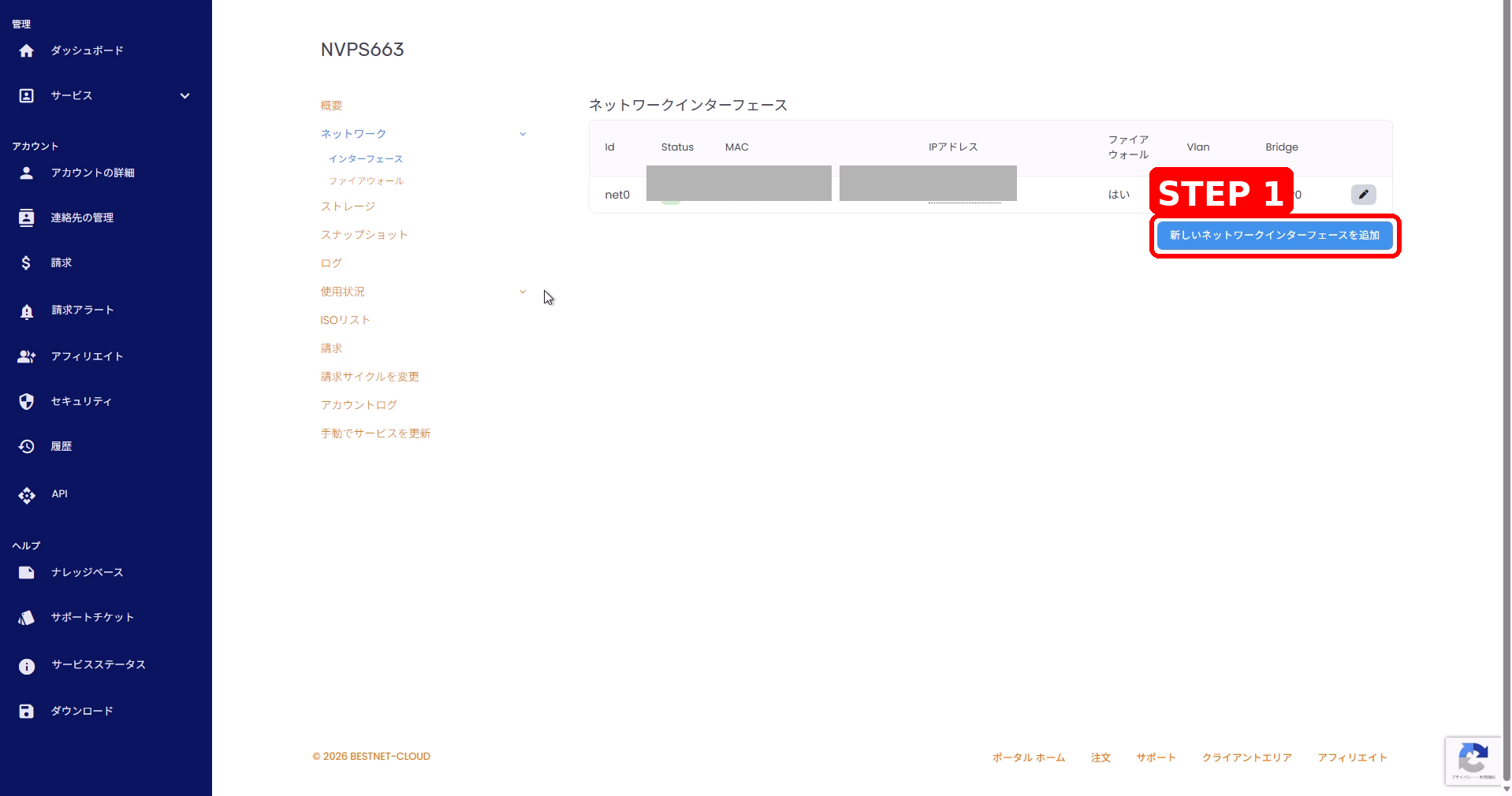
- target VPS खोलें और left menu से Network > Interfaces खोलें।
- यहां Add New Network Interface पर click करें।
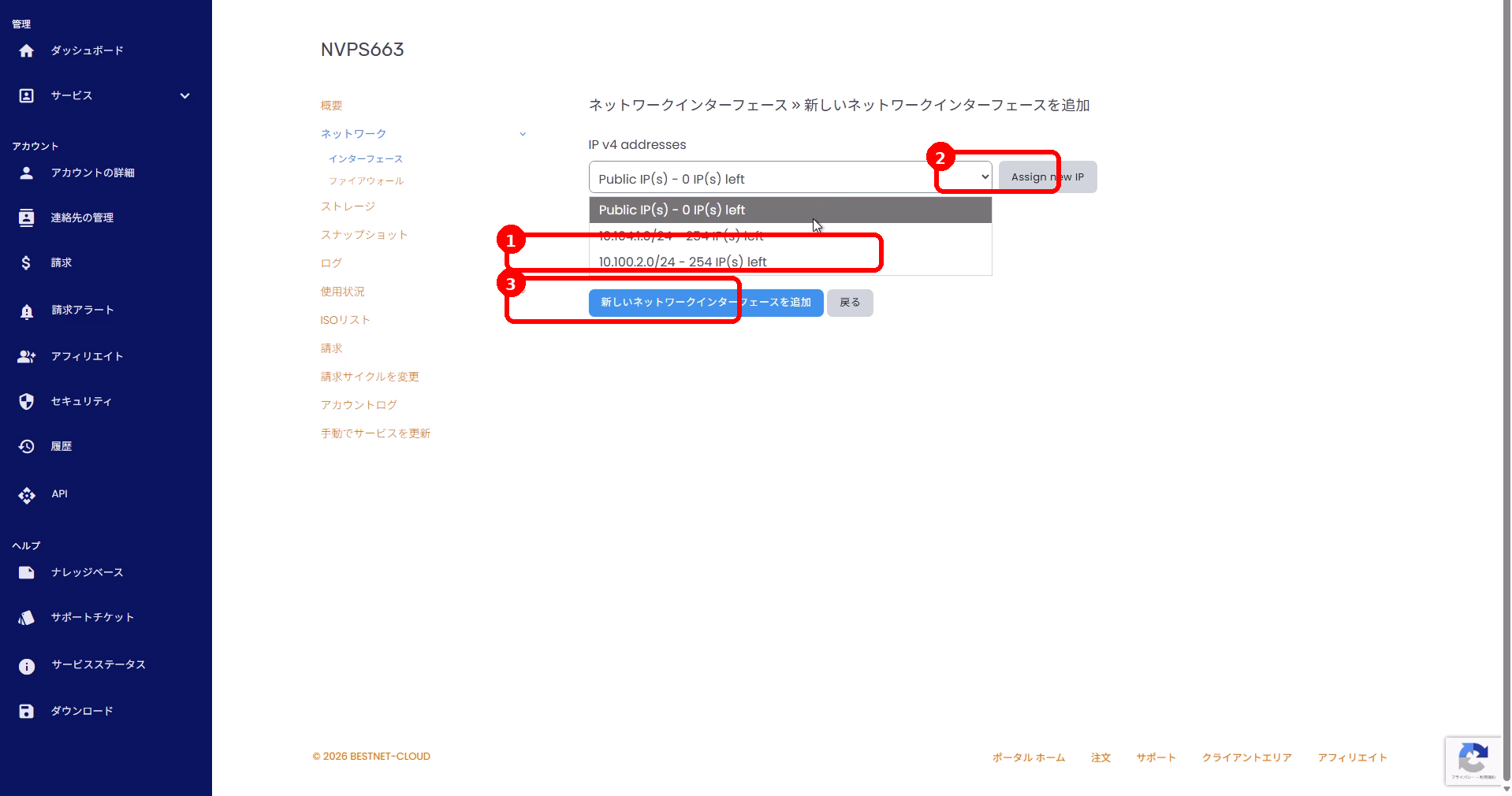
- इस IPv4 addresses dropdown से, जिस private subnet को assign करना है उसे select करें।
- एक IP reserve करने के लिए Assign new IP पर click करें।
- changes apply करने के लिए Add New Network Interface पर click करें।
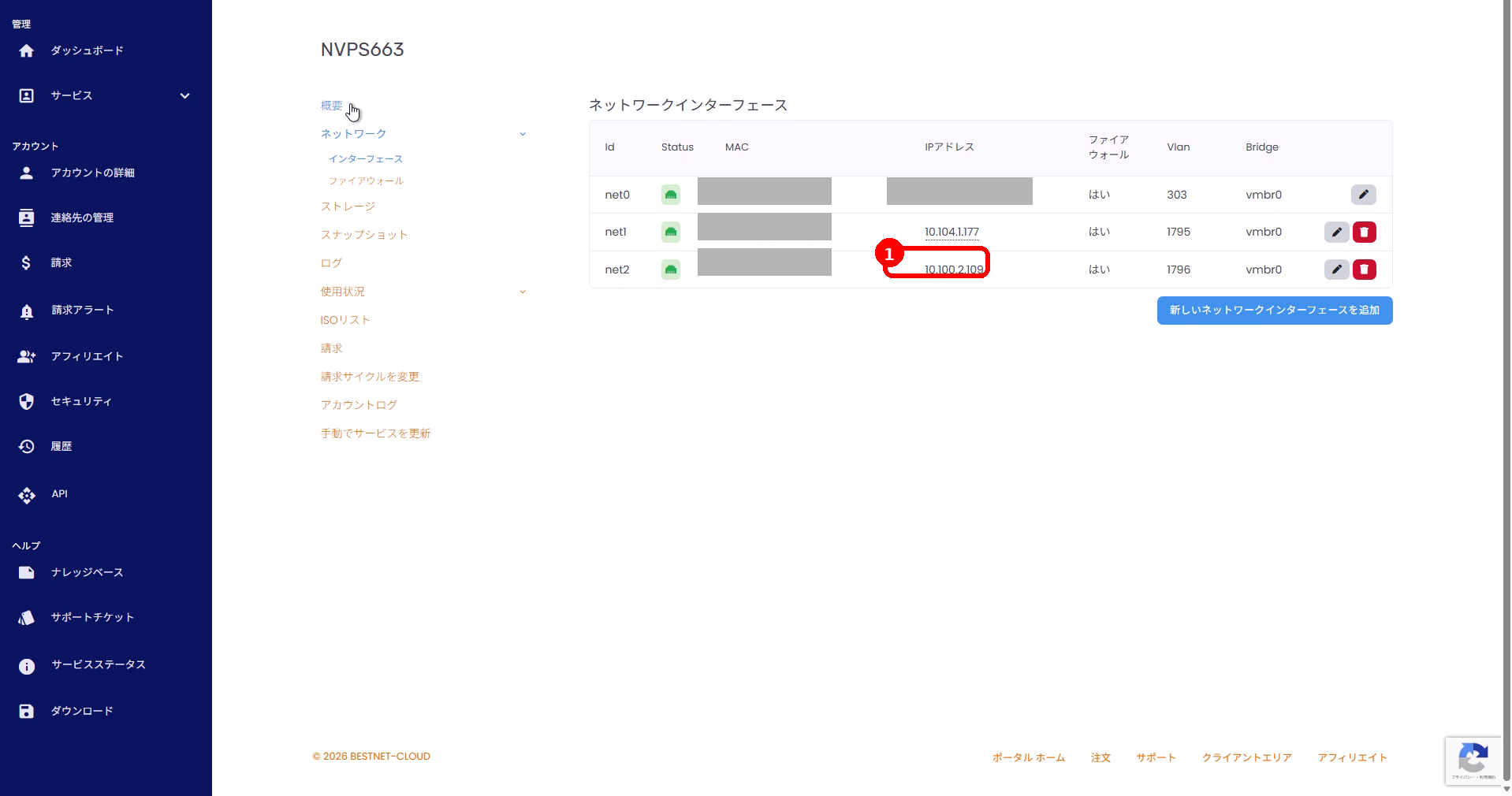
- verify करें कि interfaces list में private IP add हो गया है।
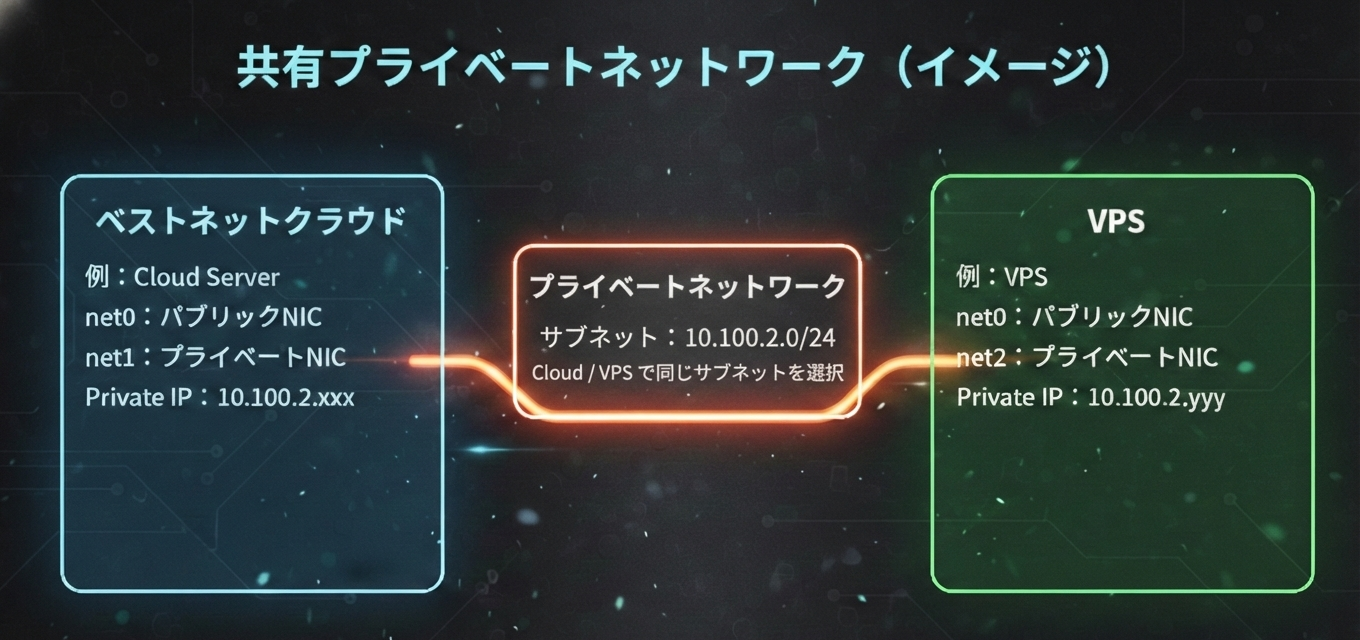
BESTNET-CLOUD और BESTNET-VPS के बीच एक Common Private Network इस्तेमाल करना #
एक common private network इस्तेमाल करने के लिए, BESTNET-CLOUD side और BESTNET-VPS side दोनों पर same private subnet (जैसे, 10.100.2.0/24) select करें और interfaces add करें।
Configuration के मुख्य Points
Cloud साइड
- Network > Interfaces खोलें
- same subnet select करें, जैसे
10.100.2.0/24
VPS साइड
- Network > Interfaces खोलें
- same subnet select करें, जैसे
10.100.2.0/24
Private IP के साथ एक New Server Add करना (Conceptual Approach) #
- BESTNET-CLOUD instances list से, Add New Server इस्तेमाल करके एक server create करें।
- server creation के बाद, private subnet assign करने के लिए “मौजूदा Servers को Private IPs Assign करना” जैसी वही procedure follow करें।
private network से जुड़ने का approach मौजूदा या नए बनाए गए servers दोनों के लिए same है। जिस subnet को इस्तेमाल करना है उसे select करें और उसे network interface में add करें।


