
client portal Guide
This guide explains how to change (scale) the CPU cores and memory (RAM) of a cloud virtual machine (instance) from the client portal. Since an operation equivalent to a restart occurs after scaling, please perform it during a planned downtime window.
Notice: This procedure guide is created using generative AI and other tools, so annotations (arrows, boxes, numbers, etc.) in the screenshots may be slightly misaligned with the actual screen display.
Since the purpose is to understand the procedure intent, please prioritize the screen display and text content when performing operations.
Important: This procedure assumes that the cloud instance has sufficient resource capacity. If the instance is short on resources, please first refer to Cloud Resource Upgrade to add resources on the instance side.
Overview #
This procedure describes how to change (scale) the CPU cores and memory (RAM) of a cloud virtual machine (instance) from the client portal.
After scaling is executed, the server enters a task execution state (e.g., RESETTING), and an operation equivalent to a restart/reset occurs. Please perform this work during a planned downtime window.
Prerequisites #
- You are logged in to the client portal
- The target instance has sufficient resource capacity (refer to the link above if insufficient)
- The target server will restart during scaling, so it is a time window where the impact is acceptable
ScaleSteps to Scale CPU and Memory #
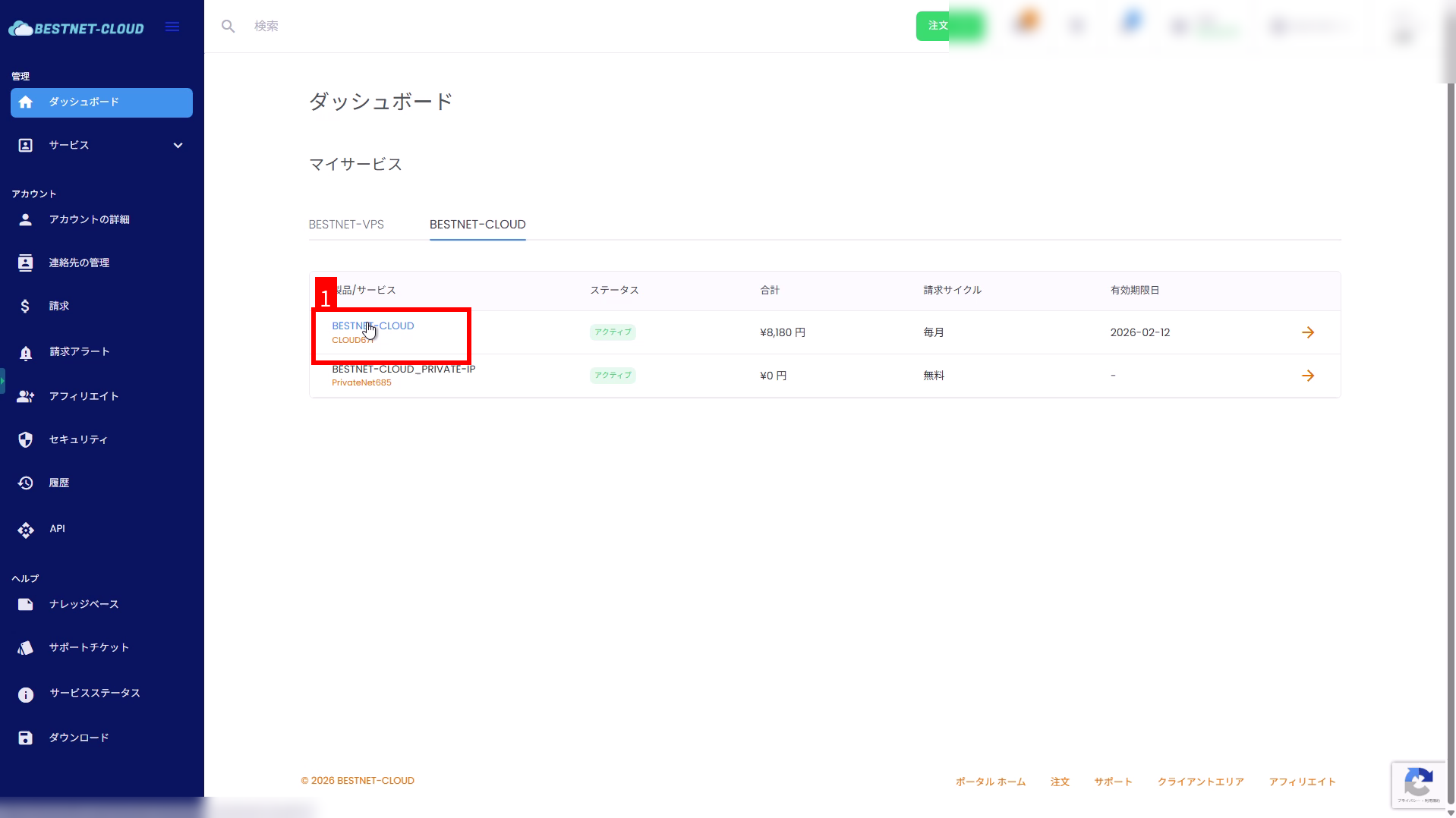
1. Open “BESTNET-CLOUD” from the dashboard #
From My Services on the dashboard, click BESTNET-CLOUD to open the service screen.
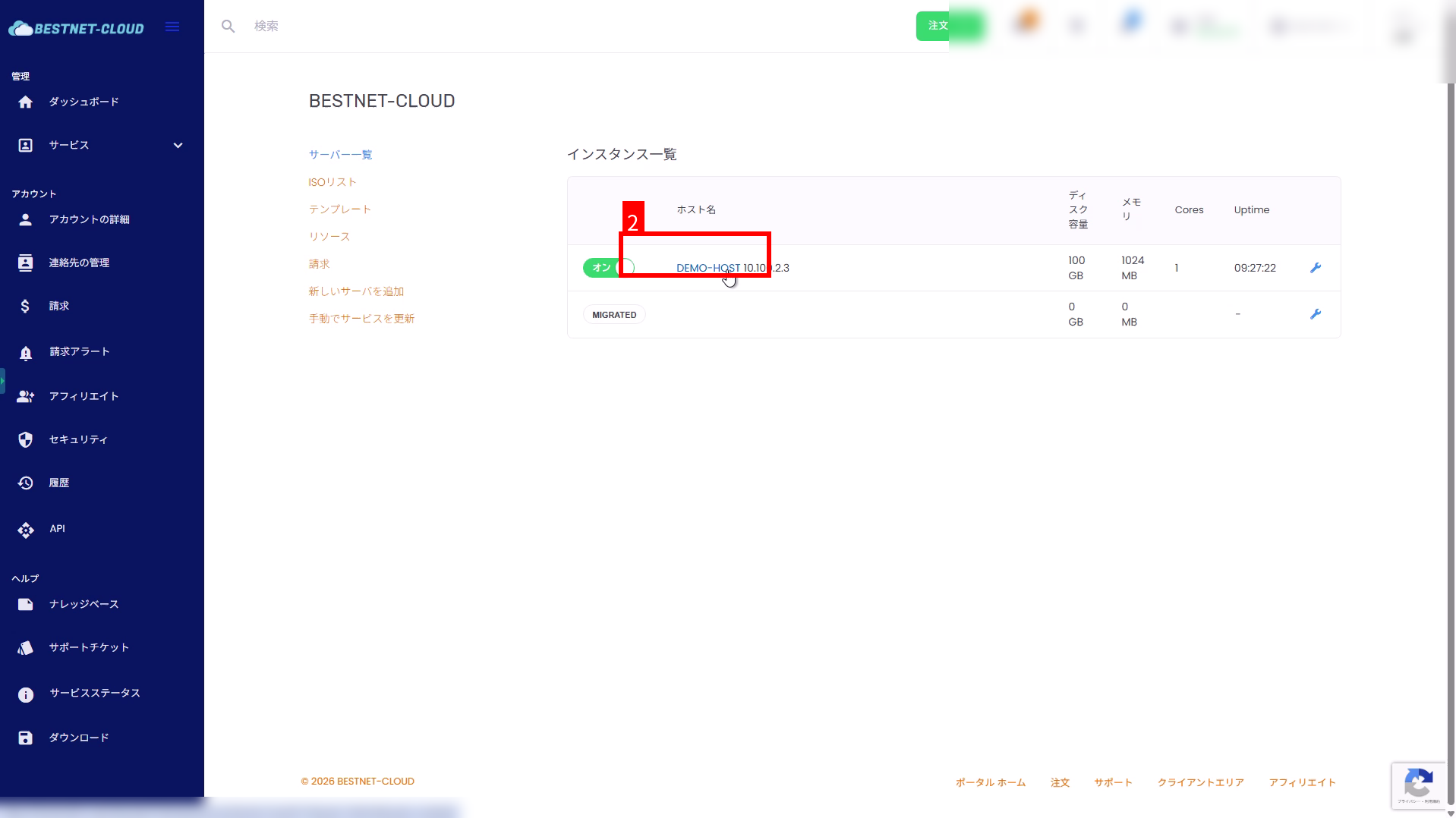
2. Select the target VM from the instance list #
In the instance list on the service screen, click the hostname of the VM you want to scale (e.g., DEMO-HOST).
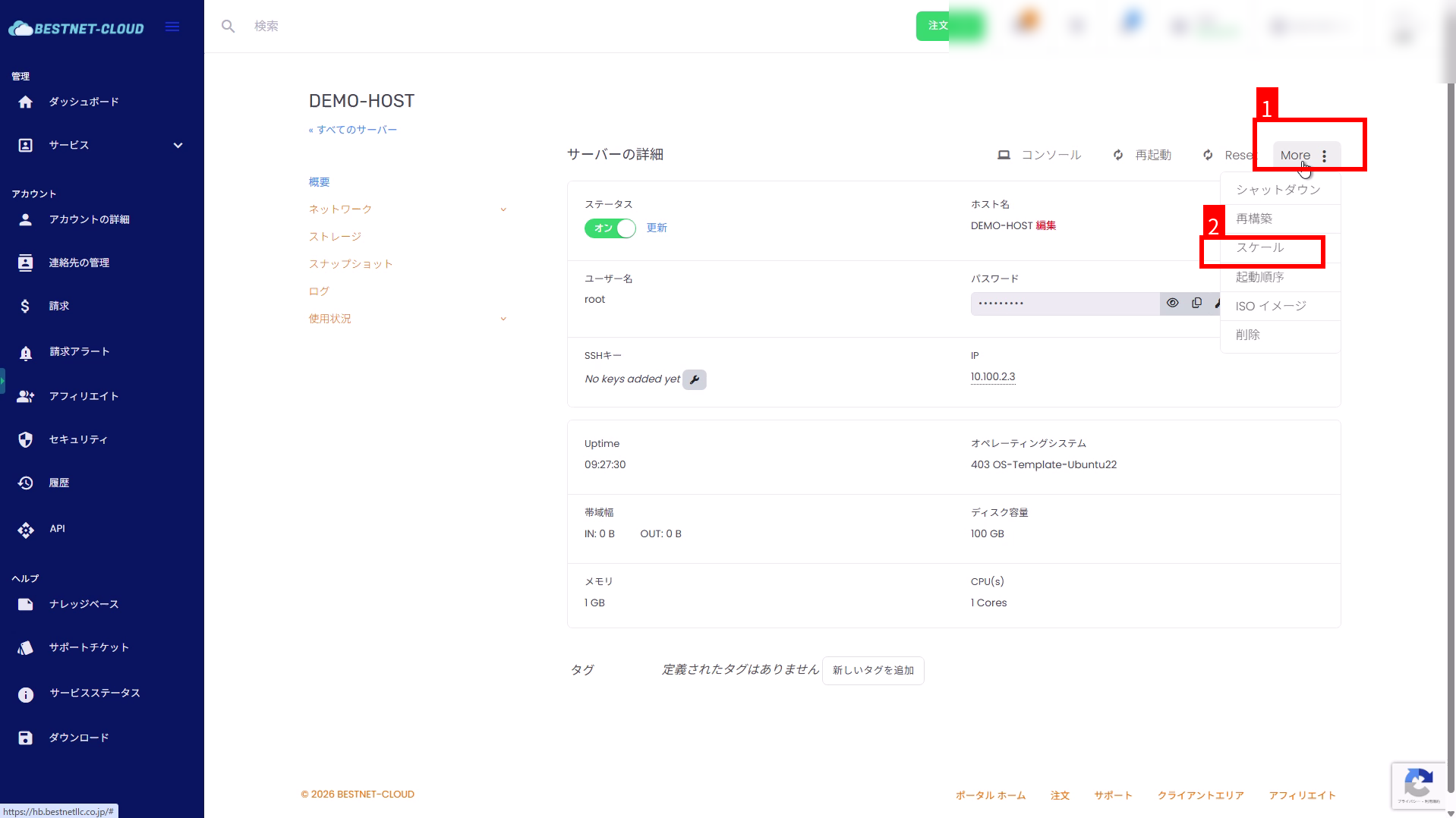
3. Open “More” → “Scale” in server details #
Click More in the upper right of the server details screen, and select Scale from the menu.
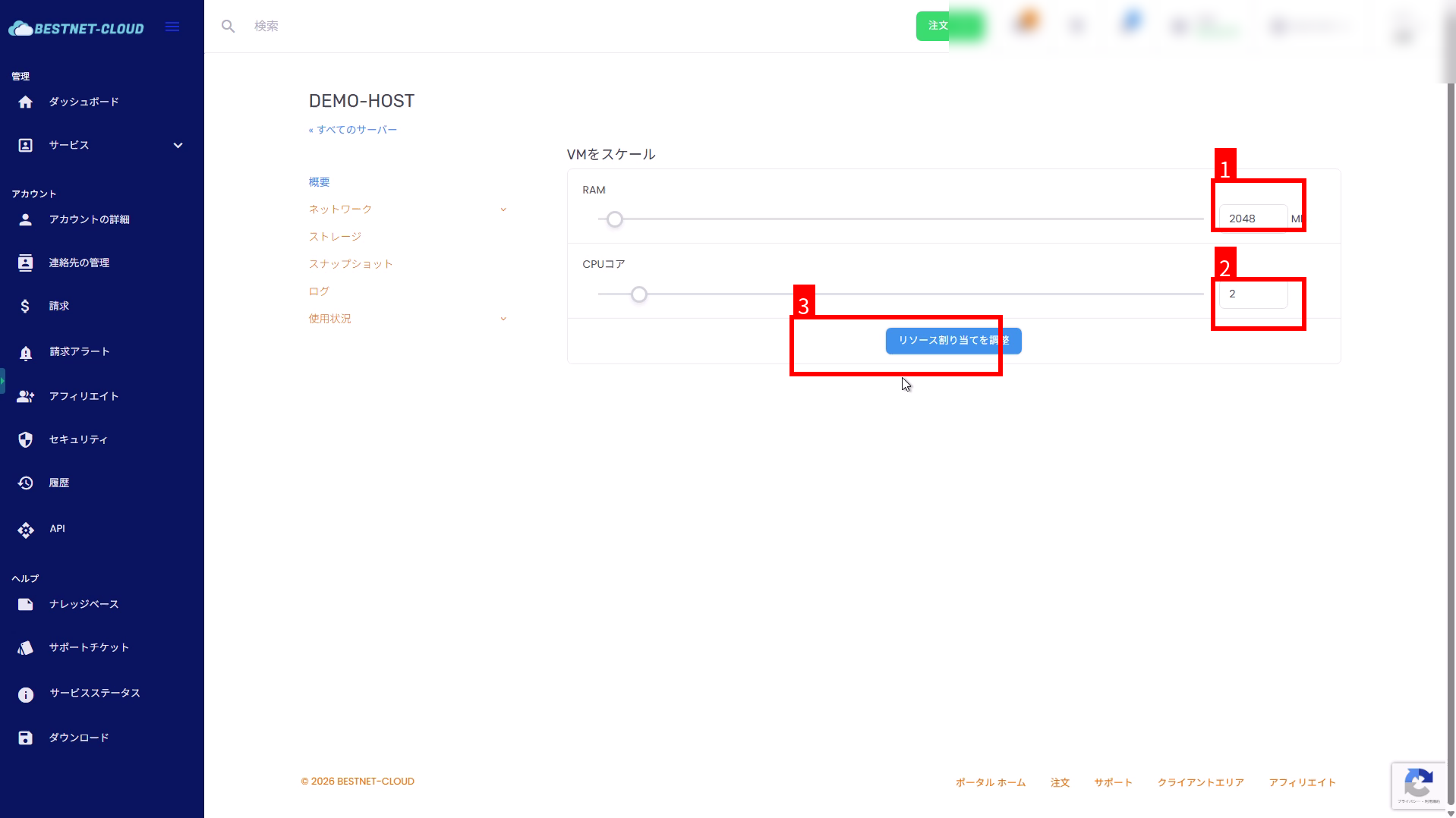
4. Configure CPU/RAM in “Scale VM” and execute #
On the Scale VM screen, set the desired RAM and CPU cores, then click Adjust Resource Allocation.
- Enter values directly in the input fields, or adjust using the sliders
- Example: RAM
2048MB, CPU cores2
5. Confirm task execution (RESETTING) and wait for completion #
After execution, “Server is performing a task” is displayed at the top of the screen, and the status becomes RESETTING. Please wait until it completes.
- If the state does not change, click Refresh to reload the status
- Console connections may be disconnected during scaling
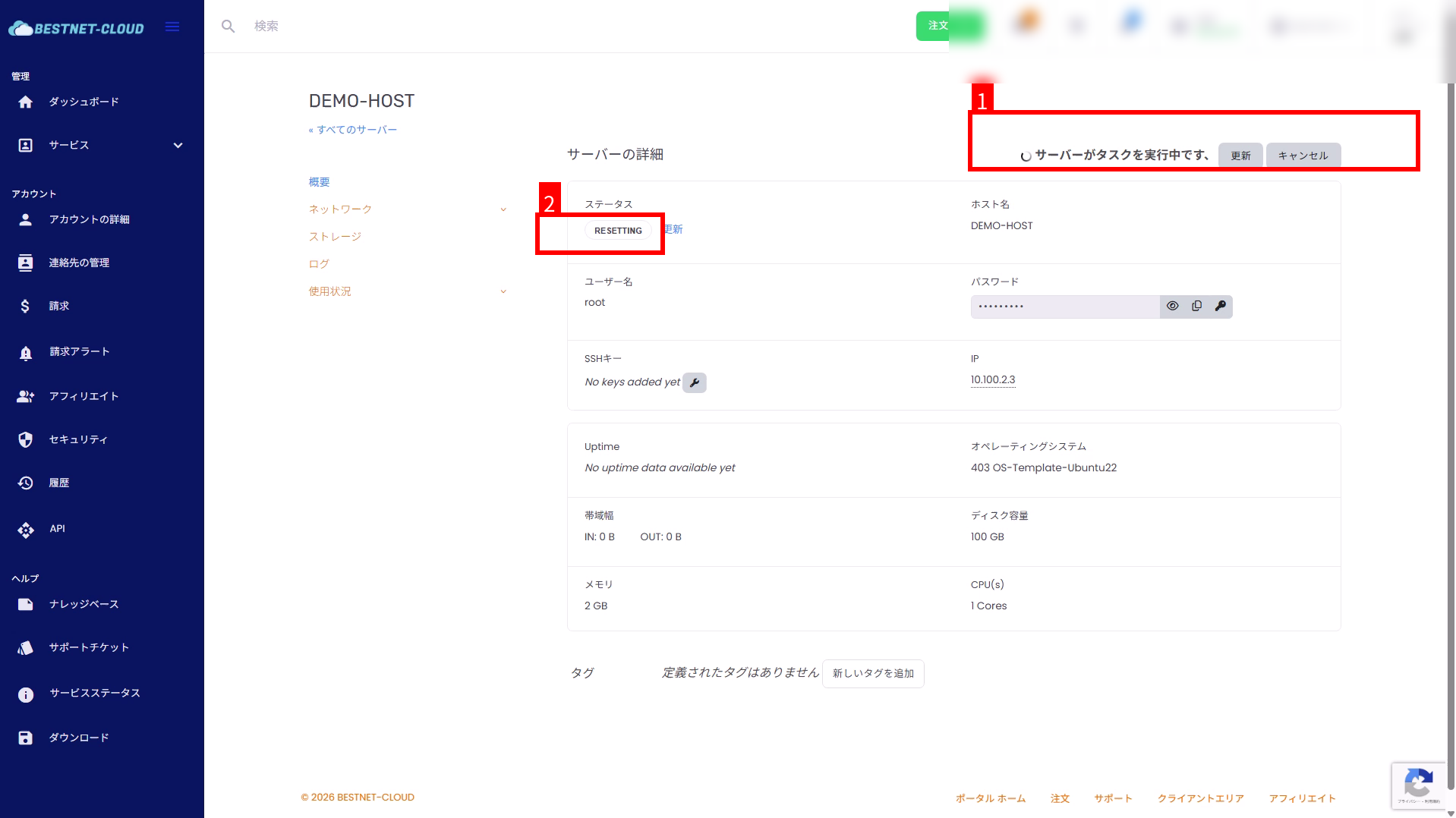
RESETTING, wait until it completes.6. Verify the updated CPU/RAM #
When the task completes, the status returns to normal (On). Confirm that the Memory and CPU(s) in the server details reflect the desired values.
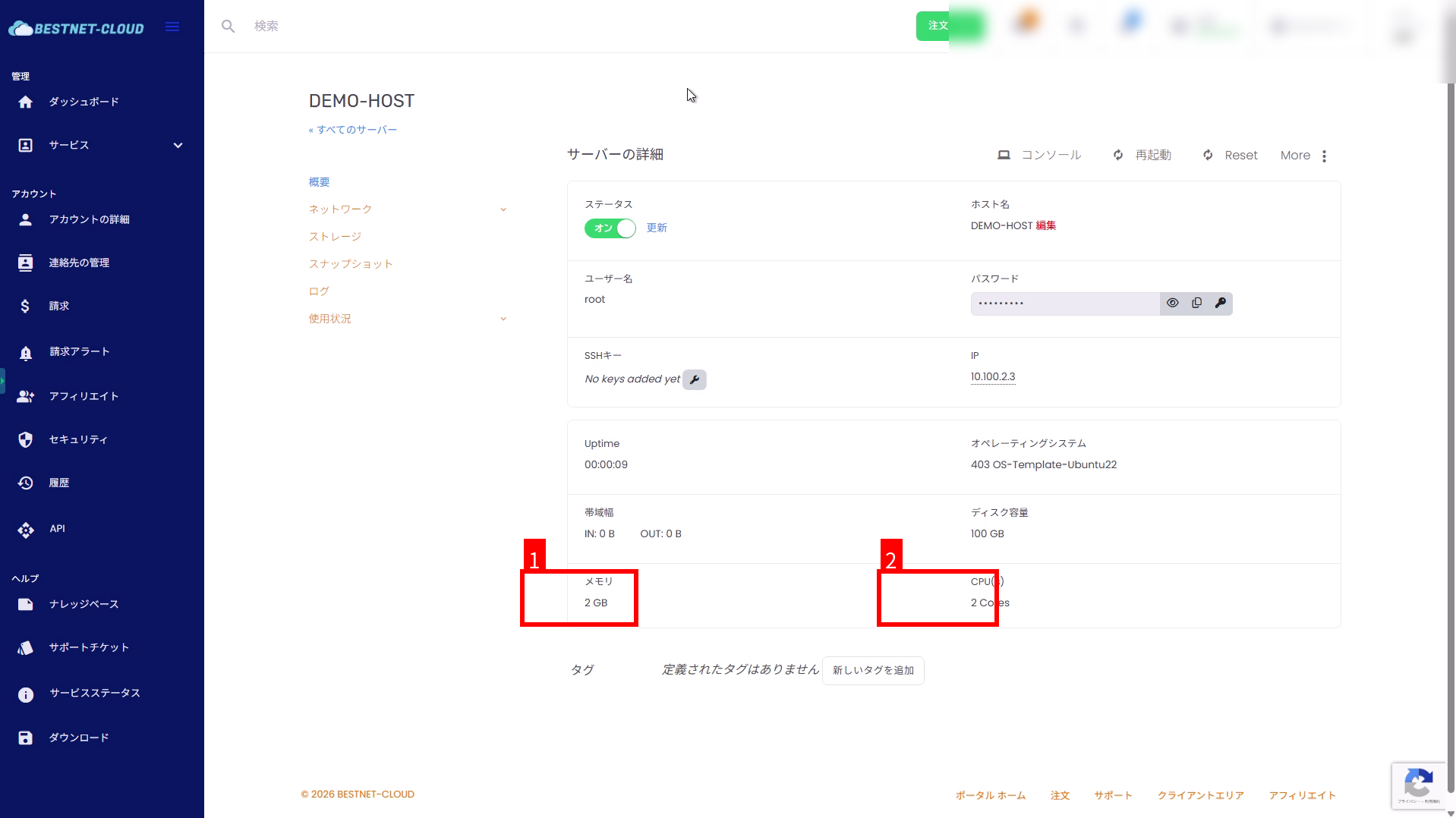
Additional Notes #
Performing on production systems #
- Impact: A reset/restart occurs after scaling, so for production systems please perform it during a planned downtime
- OS-level check: If necessary, log in to the guest OS and confirm that the CPU/memory is recognized correctly
If changes don’t apply or it fails #
- If the state does not change after refreshing or an error is displayed, please contact us via a support ticket
- If it remains in
RESETTINGfor a long time without completing, please contact us in the same way