
client portal Guide
client portal: Network Settings Change Guide #
This guide explains how to review and add network interfaces (NICs), as well as assign IP addresses and change connection states, from the BESTNET-CLOUD server management screen.
Prerequisites #
- You can log in to the client portal
- You have access permission to the target server (instance)
- The number of IPs and subnets that can be assigned depends on your contract plan and stock availability
Opening the network interface screen #
1. Open the management screen of the target server #
- In the portal, open the details of your cloud / VPS service, and from the instance list open the management screen of the target server.
- In the server menu on the left, click “Network” to expand it, then select “Interfaces”.
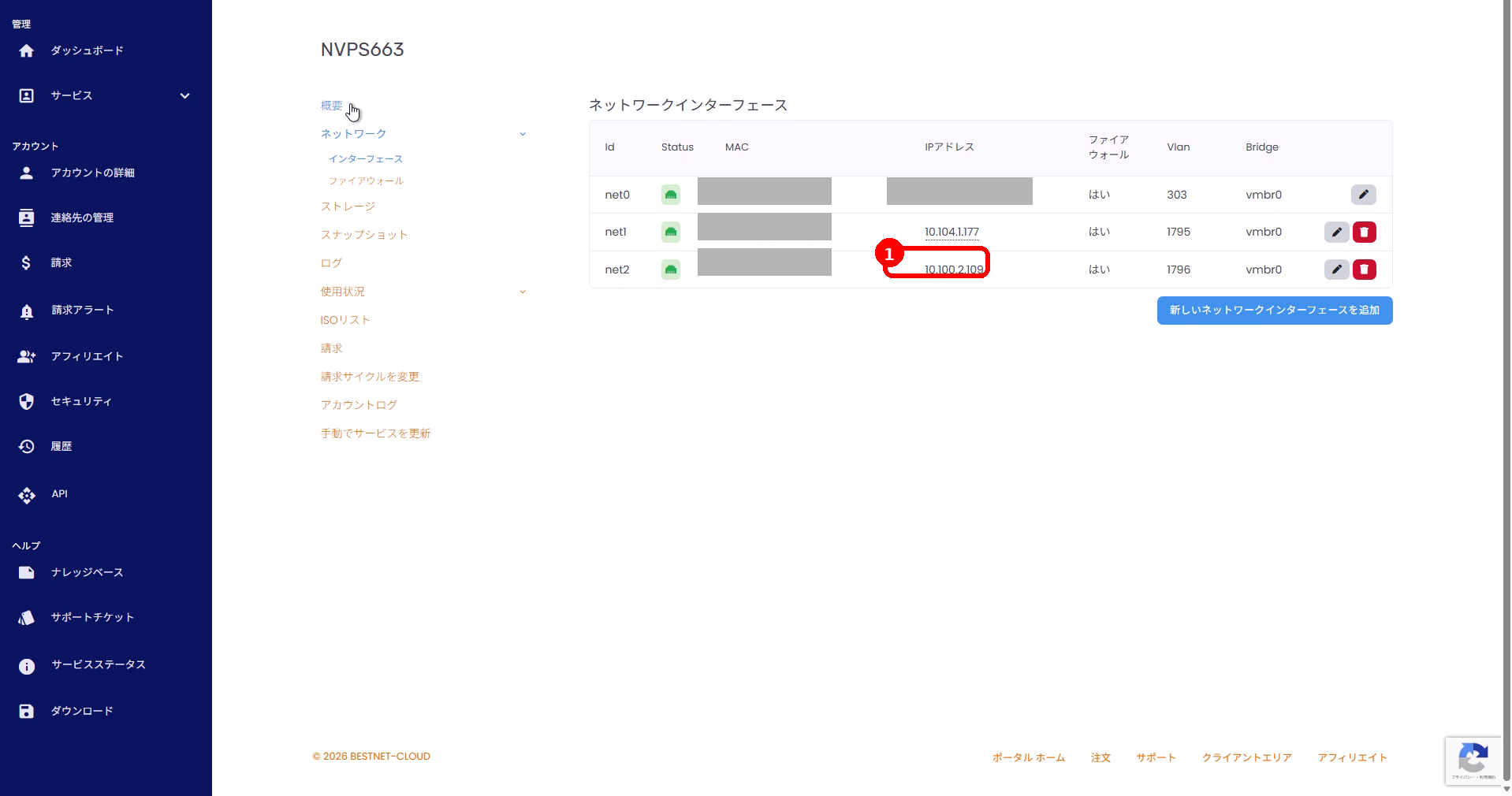
2. Review the interface list #
The current network interfaces are shown in a list. The meaning of each column is as follows.
| Column | Description |
|---|---|
| Id | Interface name (e.g. net0, net1 …) |
| Status | Connection state (Connected / Disconnected) |
| MAC | MAC address |
| IP address | Assigned IP address |
| Firewall | Whether the firewall is applied |
| Vlan / Bridge | Network identifier on the infrastructure side (VLAN / bridge) |
Adding a new interface (IP) #
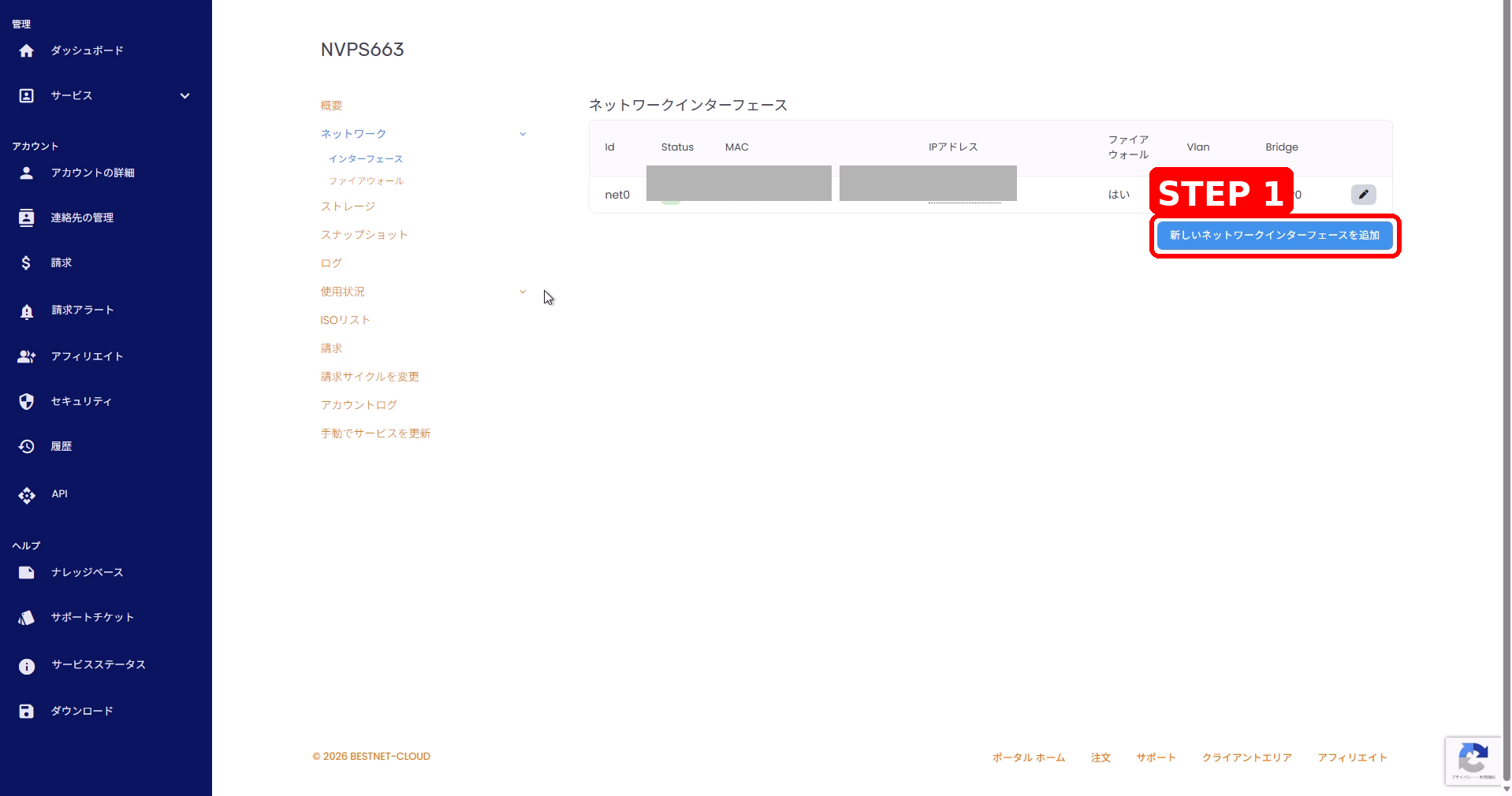
1. Click “Add new network interface” #
- Click “Add new network interface” at the bottom right of the interface list.
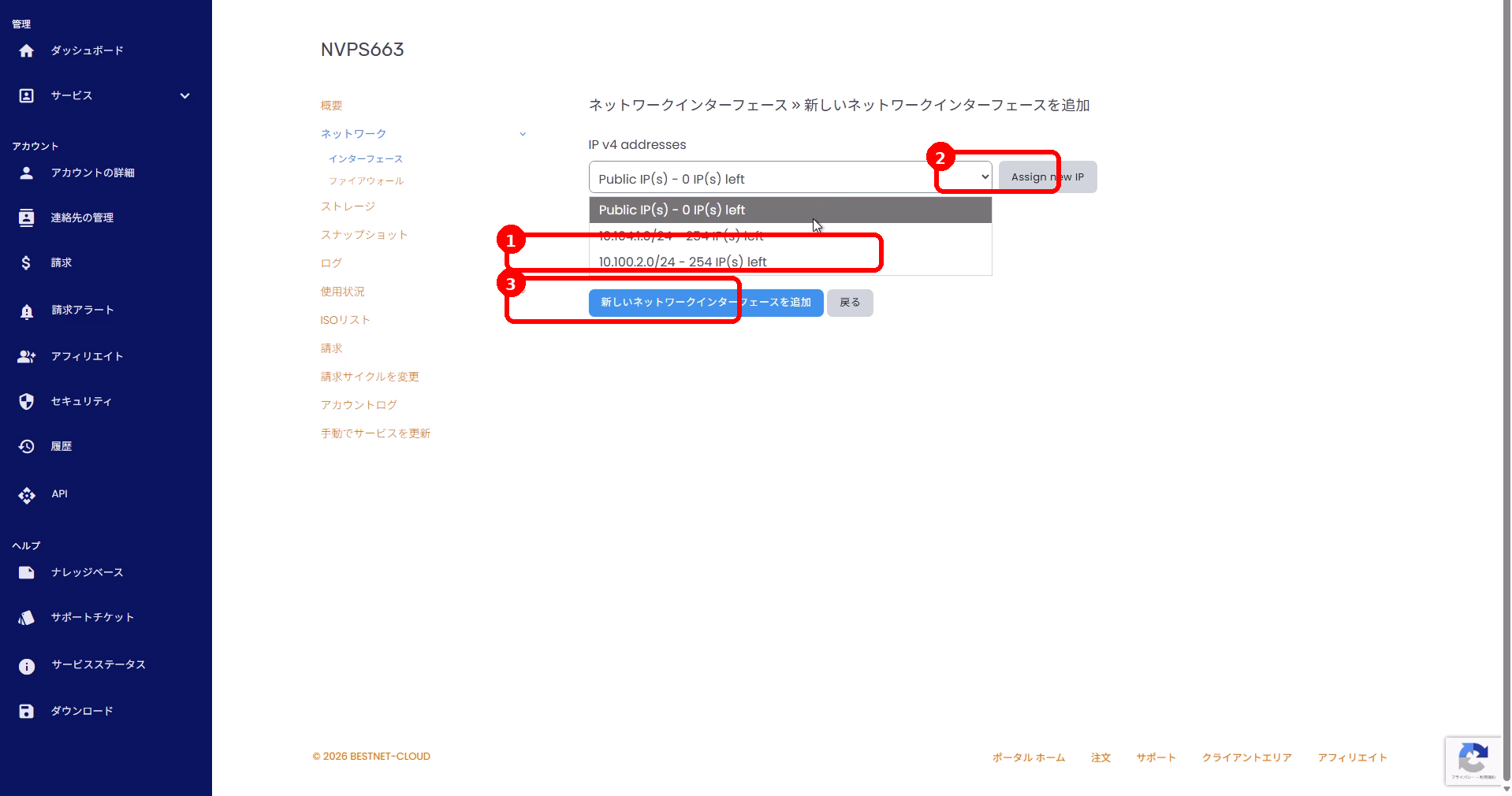
2. Select a subnet (IP pool) and add it #
- From the IP v4 addresses dropdown, select the subnet (IP pool) to assign.
- To allocate a new IP, click “Assign new IP”.
- Check the contents and click “Add new network interface” (to cancel, click “Back”).
3. Confirm the added interface #
- Confirm that the new interface (e.g. net1, net2 …) and the assigned IP appear in the list.
Changing the settings of an existing interface #
1. Open the edit view of the target interface #
- In the list, click the pencil (edit) icon on the target row.
2. Change the connection state and IP #
- Status: Toggle between
ConnectedandDisconnected. - IP v4 addresses: Select a pool, then select the IP to assign. You can also allocate a new IP with “Assign new IP”.
- IP v6 addresses can be configured in the same way.
- Click “Save changes” to confirm.
About Firewall Settings #
Packet filtering (firewall) can be configured from “Network” → “Firewall” in the server menu. Whether the firewall is applied to each interface can be checked in the “Firewall” column of the interface list.
Notes #
IP stock and limits
The IPs and subnets you can add have an upper limit that depends on your contract plan and stock availability. If you run short, please consult support.
VLAN / Bridge
VLAN and bridge are identifiers managed on the infrastructure side. They are not subject to customer-side changes.
Time until changes take effect
Changes may take time to take effect. Please refresh the screen to check the state.
Troubleshooting #
Cannot add a new IP
Check the remaining count of the IP pool (… IP(s) left) and whether you have reached your contract limit.
Cannot communicate with the added IP
Check whether Status is Connected, the Firewall Settings, and the OS-side IP and routing settings.
Changes are not reflected
Changes may be processed asynchronously. Wait a few minutes and reload; if there is no improvement, please contact support.


