
Domain Registration Guide
This guide explains how to apply for (register) a new domain from the client portal. Screenshots are examples.
Overview #
This procedure explains how to apply for (register) a new domain from the client portal. When placing your order, please enter names, addresses, company names, and other information used in the order form and domain registration details in English (alphanumeric characters).
Prerequisites #
- You are logged in to the client portal
- You have decided on the domain name you want to register (e.g.,
example.com) - Contact information (name, address, company name, etc.) for order (checkout) should be prepared for entry in English (alphanumeric characters)
Important
Registrant information (WHOIS / Registrant) entered in “Client Information” and “Domain Contacts” on the order form must be written in English (Roman characters / alphanumeric characters).
Registering in Japanese may result in registration errors due to registrar requirements.
Input Example
- Name:
Taro Suzuki - Address:
1-1-1 Otemachi, Chiyoda-ku - City:
Tokyo/ State:Tokyo/ Postal Code:100-0004 - Country:
Japan
Domain Registration Procedure #
1Open the Domain Search Screen #
From the “Domains” menu in the client portal, open “Bulk Domain Search”.
2Enter the Desired Domain Name and Search #
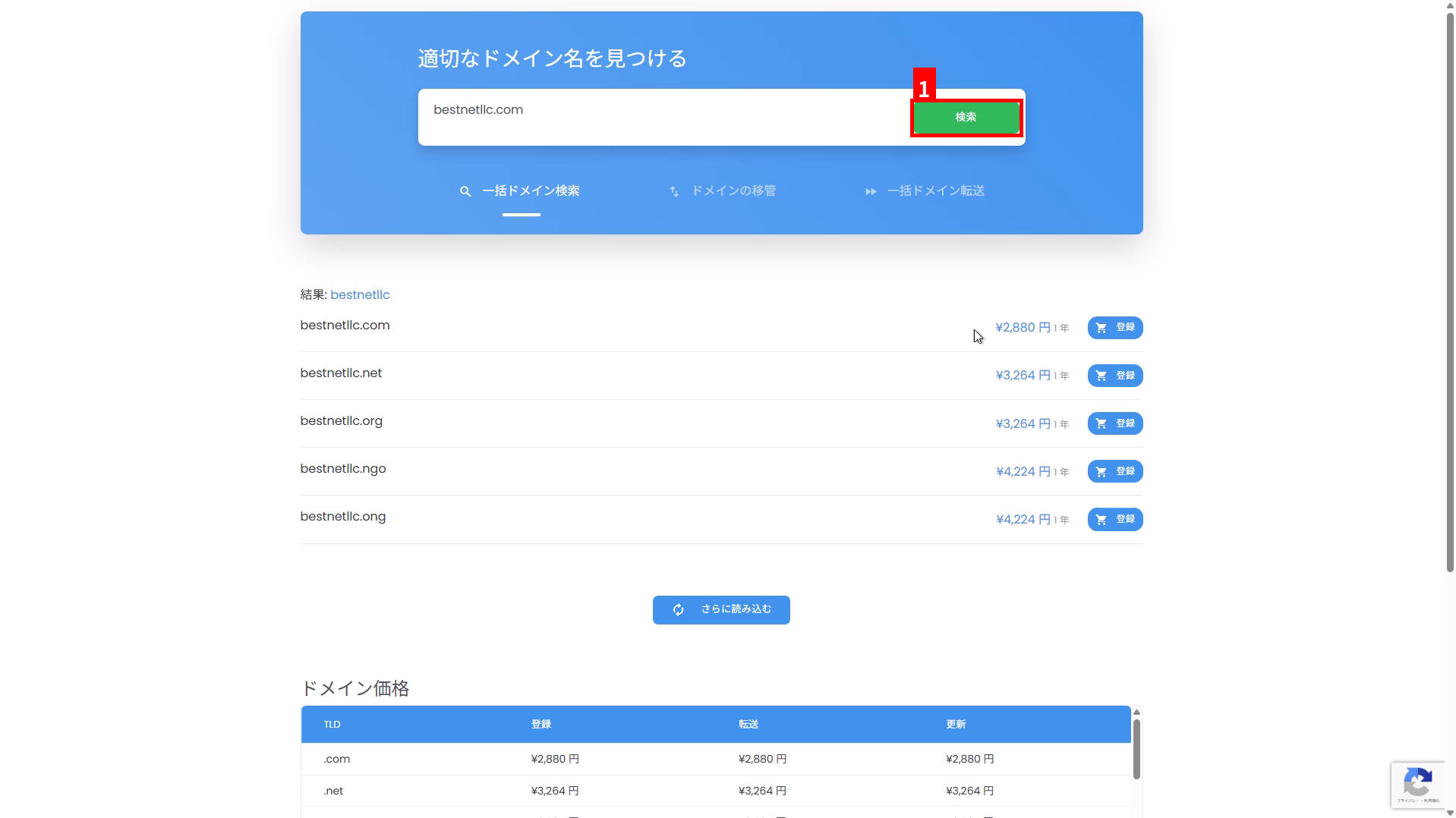
- Enter the domain name you want to register (e.g.,
example.com) in the search field. - Click “Search” (①).
3Select the Desired TLD from Search Results and Click “Register” #
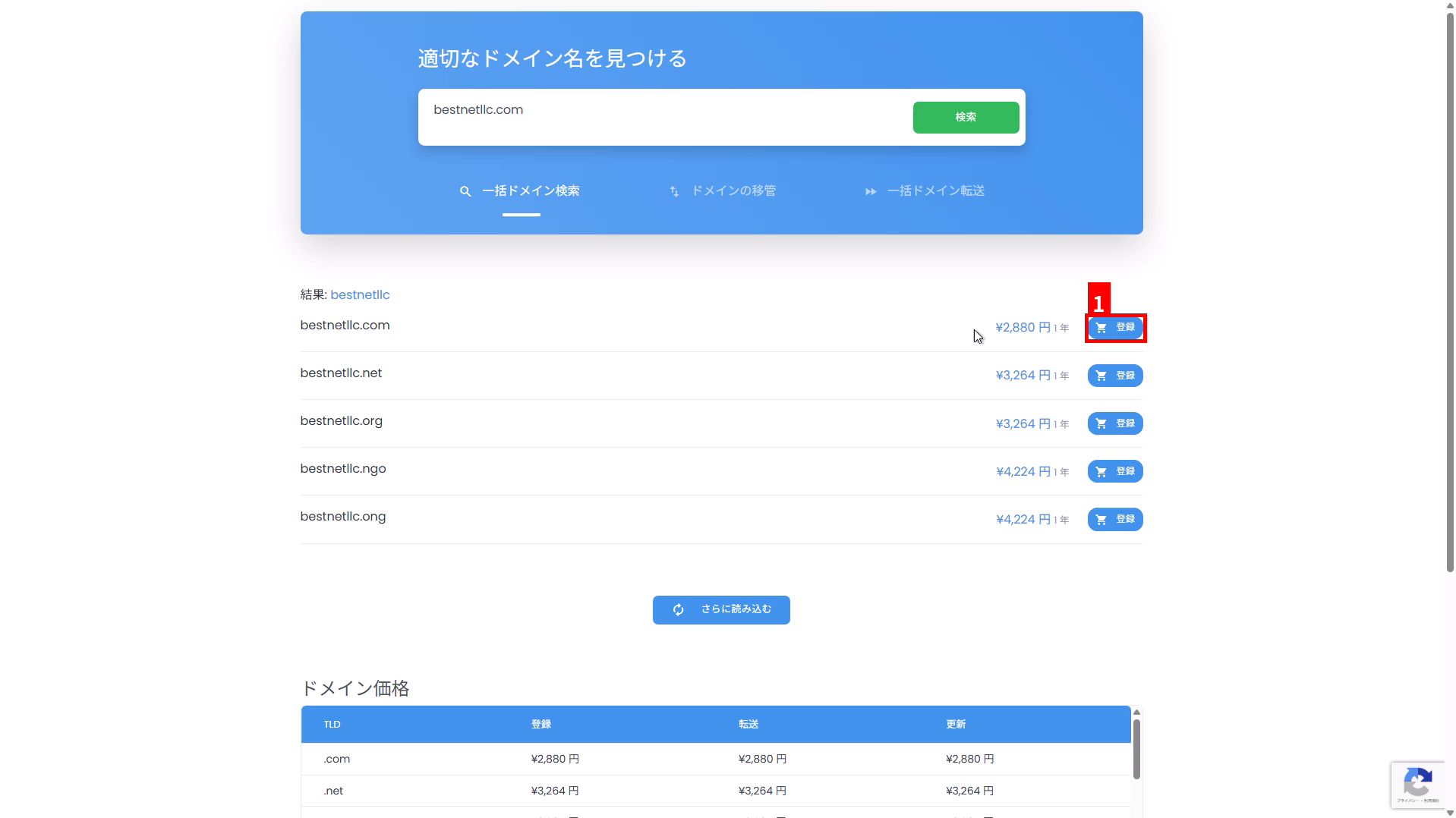
- From the candidates displayed in the search results, select the domain (TLD) you want to register.
- Click “Register” on the corresponding row (①).
4Click “Order Selected Domains” #
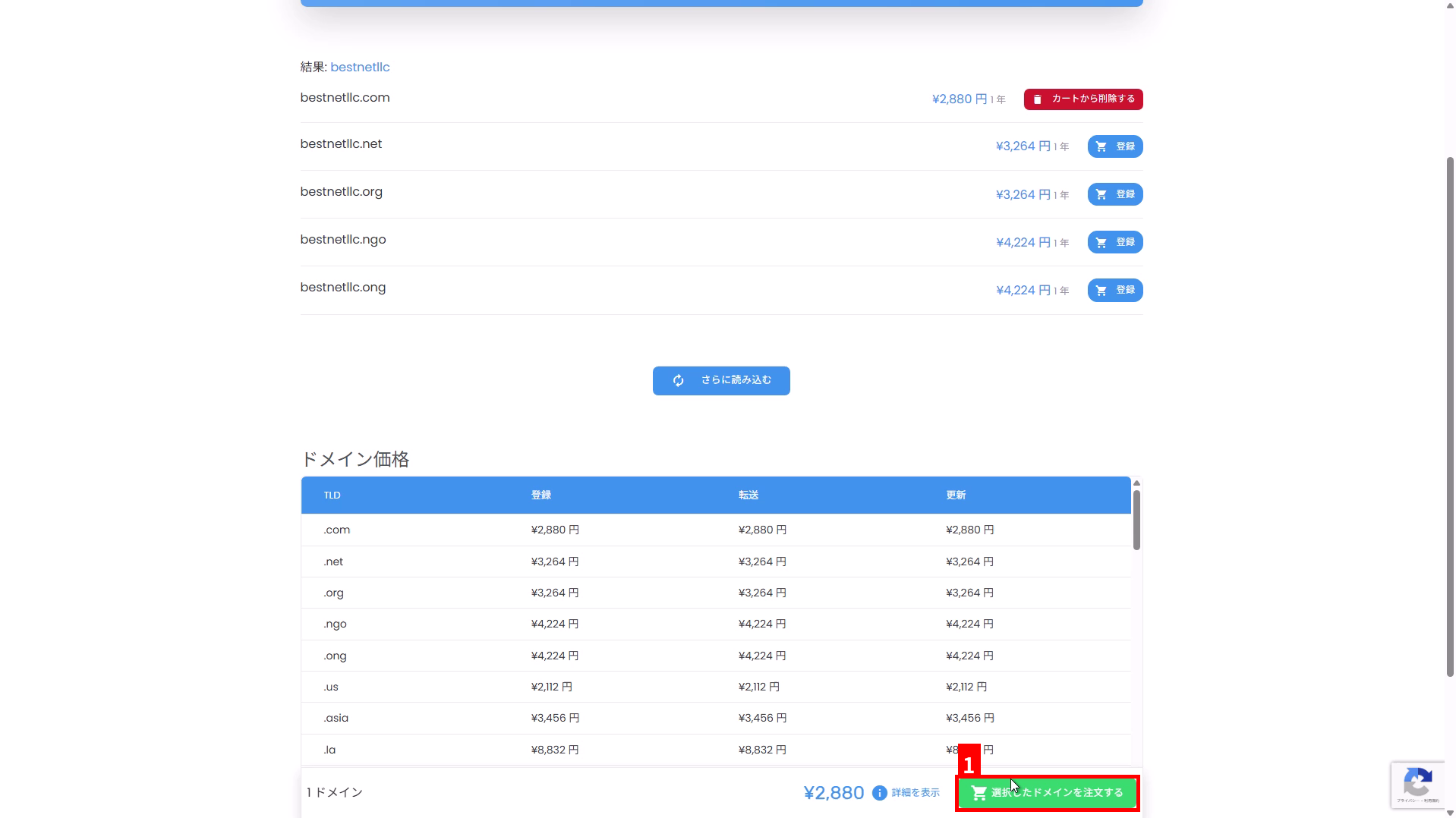
Click “Order Selected Domains” displayed at the bottom right of the screen (①).
5Review and Configure Domain Settings #
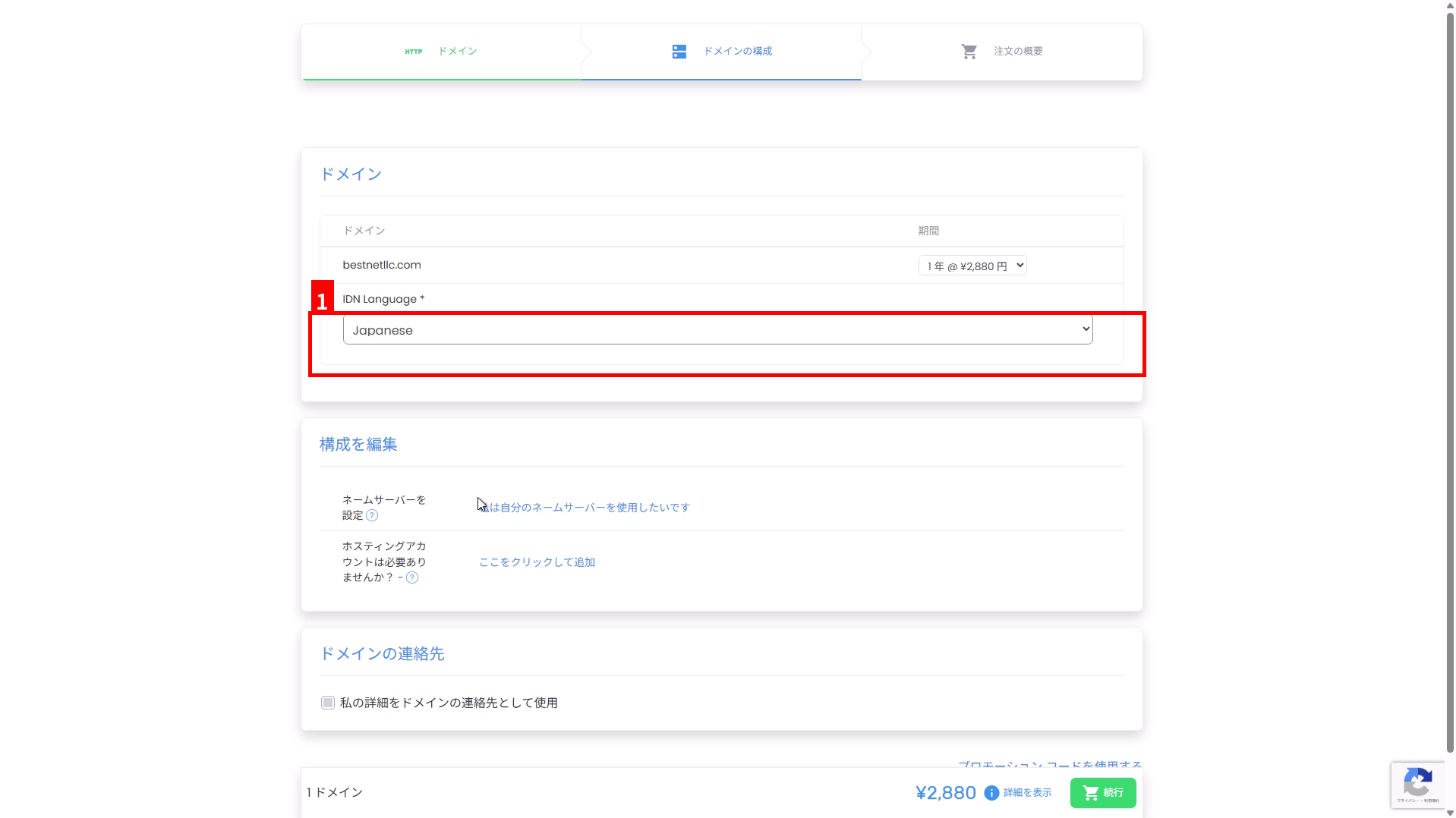
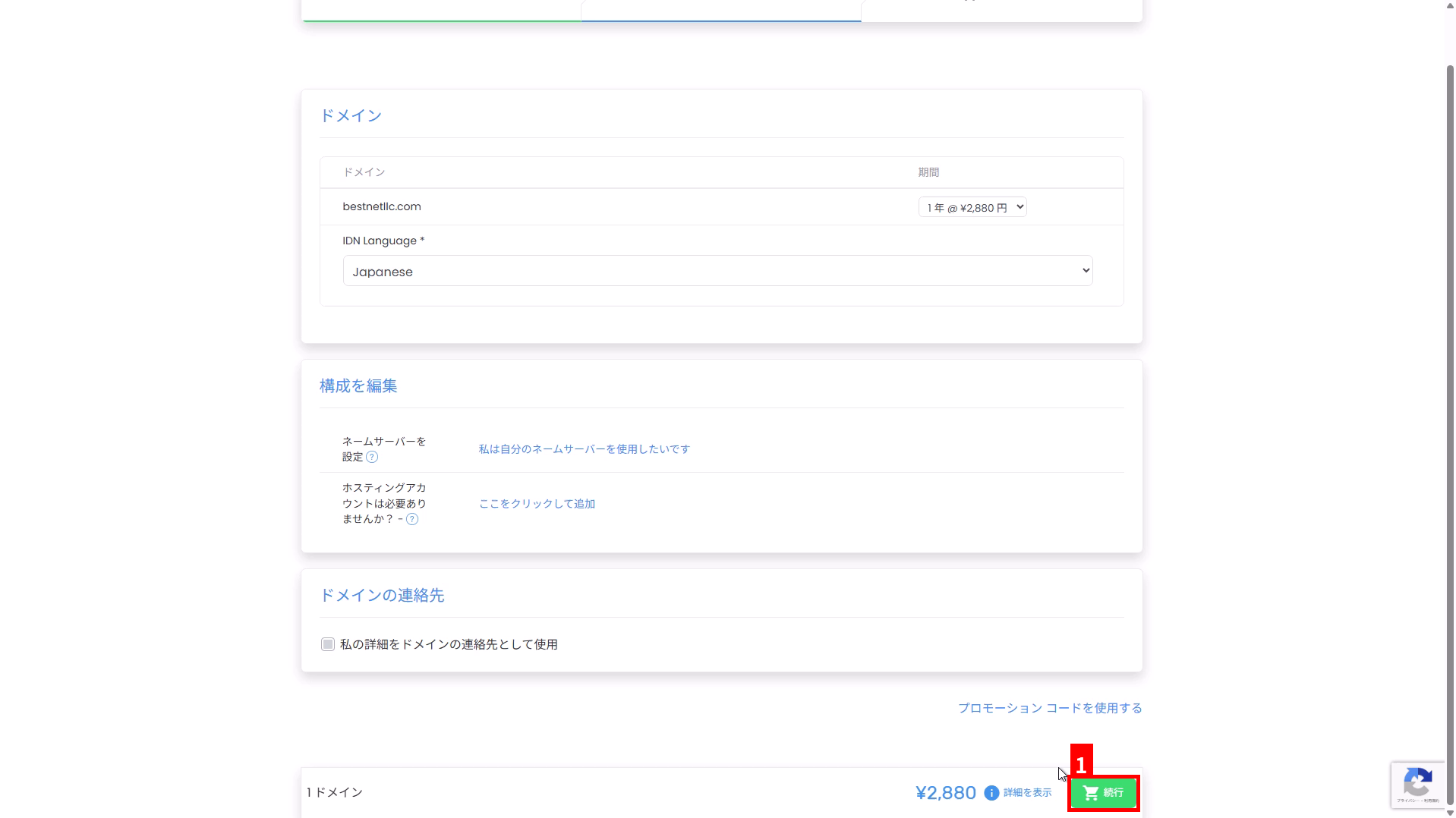
On the “Configure Domain” screen, review the registration period, IDN settings, nameservers, contact information, and other details.
- Period: Select the desired registration period, such as 1 year.
- IDN Language: If handling IDN such as Japanese domains (e.g.,
例え.テスト), select the target language (①). If registering only alphanumeric domains, typically no change is required. - Nameservers: If using custom nameservers, configure them under “I want to use my own nameservers.”
- Domain Contacts: Even when using “Use my details for the domain contact,” please confirm that names, addresses, company names, and other registration information are in English (alphanumeric characters).
6Click “Continue” to proceed to the order summary #
Once the configuration is complete, click “Continue” at the bottom right of the screen (①).
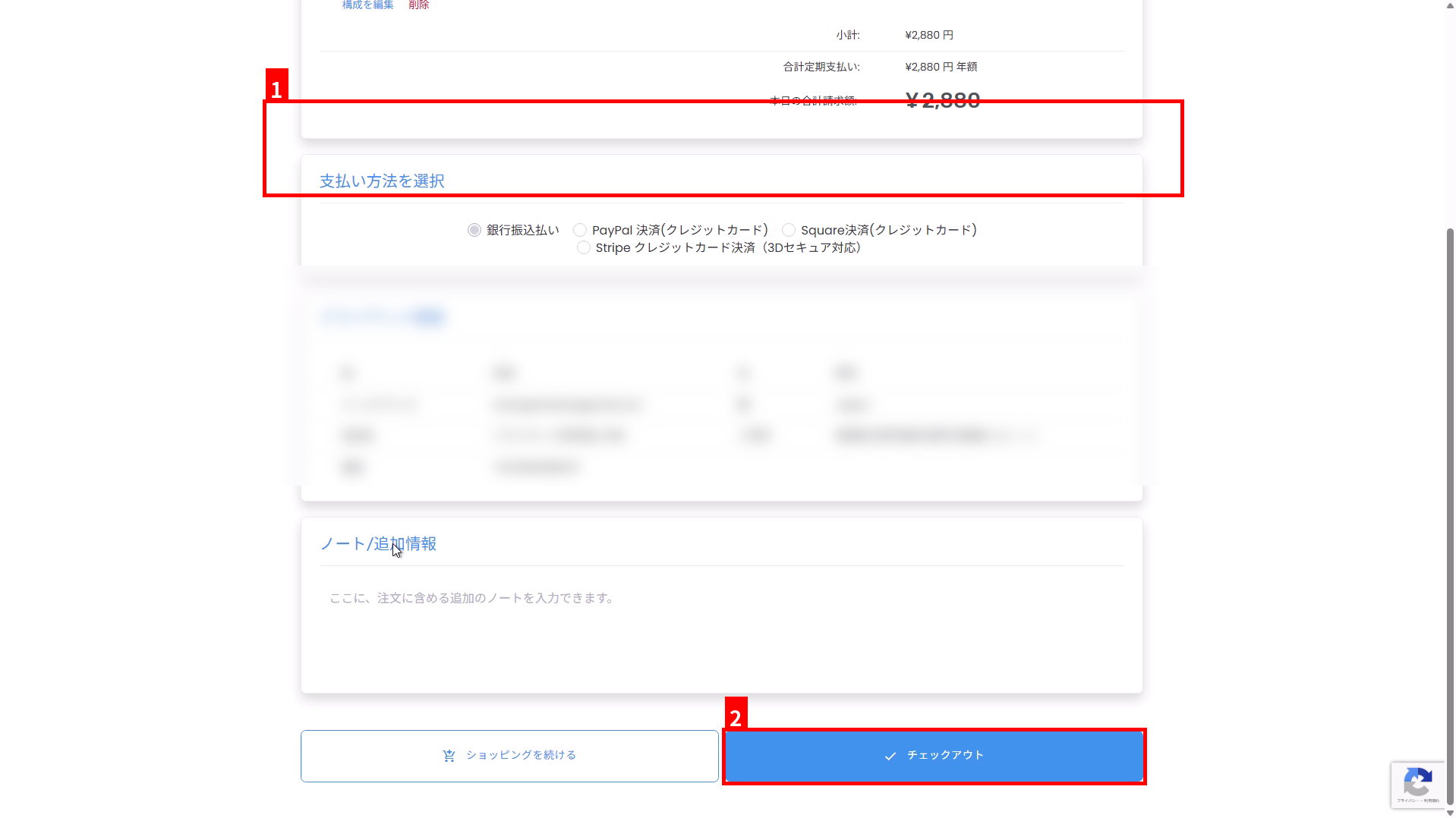
7Confirm the payment method and client information, then execute “Checkout” #
- In “Select Payment Method,” choose your desired payment method (①).
- Verify that the name, address, and other details displayed in “Client Information” are in English (alphanumeric characters). If they appear in Japanese, please update your account information (contact information) to English before checking out.
- Click “Checkout” at the bottom of the screen (②).
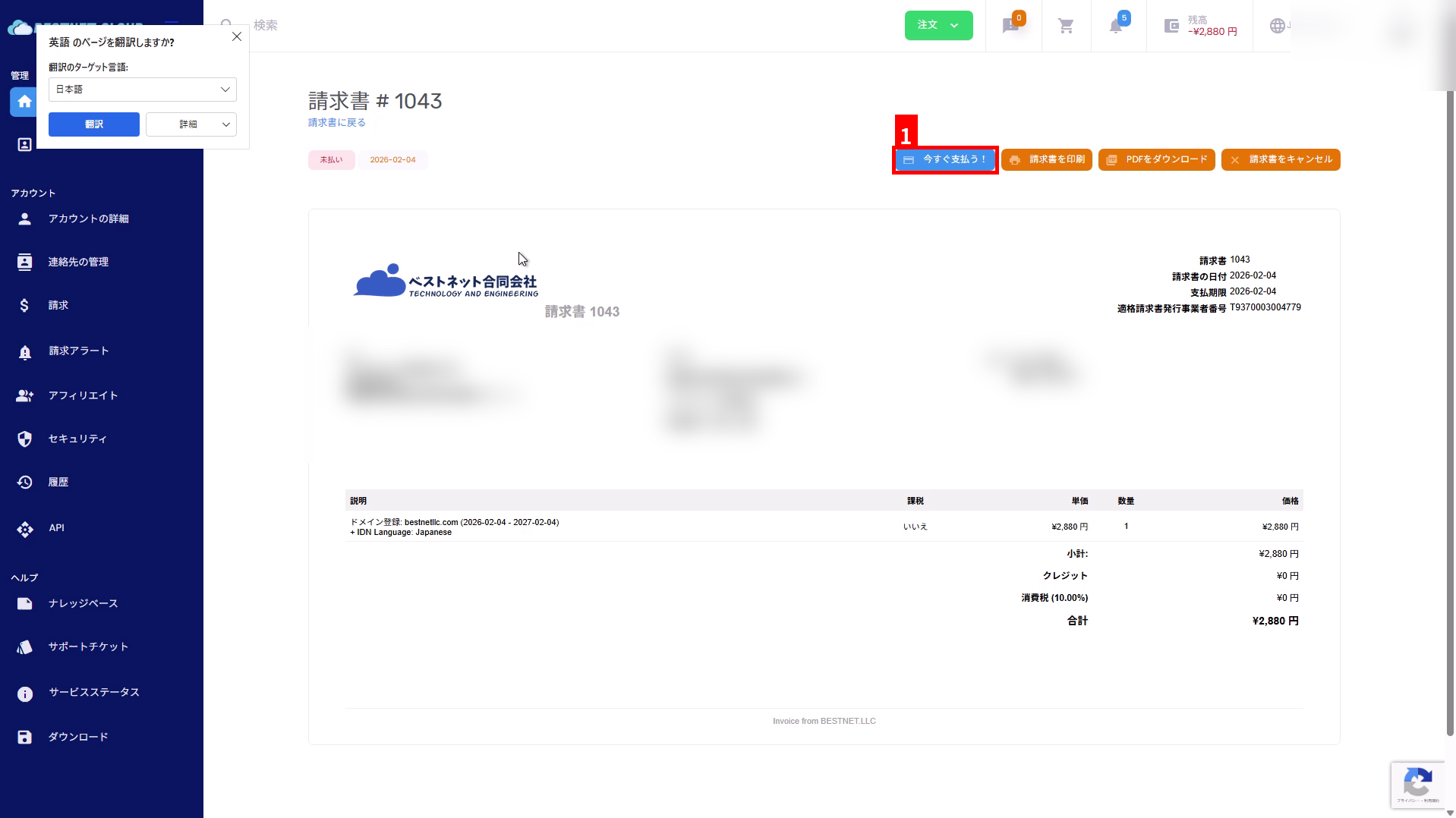
Payment (Invoice) Confirmation #
8Review the invoice and click “Pay Now!” #
After checkout, an invoice will be issued. On the invoice screen, click “Pay Now!” (①).
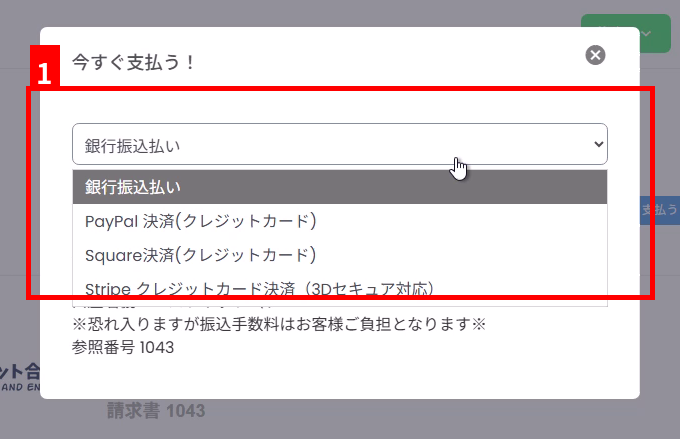
9Select a payment method and complete payment following the instructions #
Select a payment method in the modal that appears (①). For bank transfer, check the bank account information and reference number displayed on the screen, and transfer the payment to the specified account.
Post-Order Confirmation #
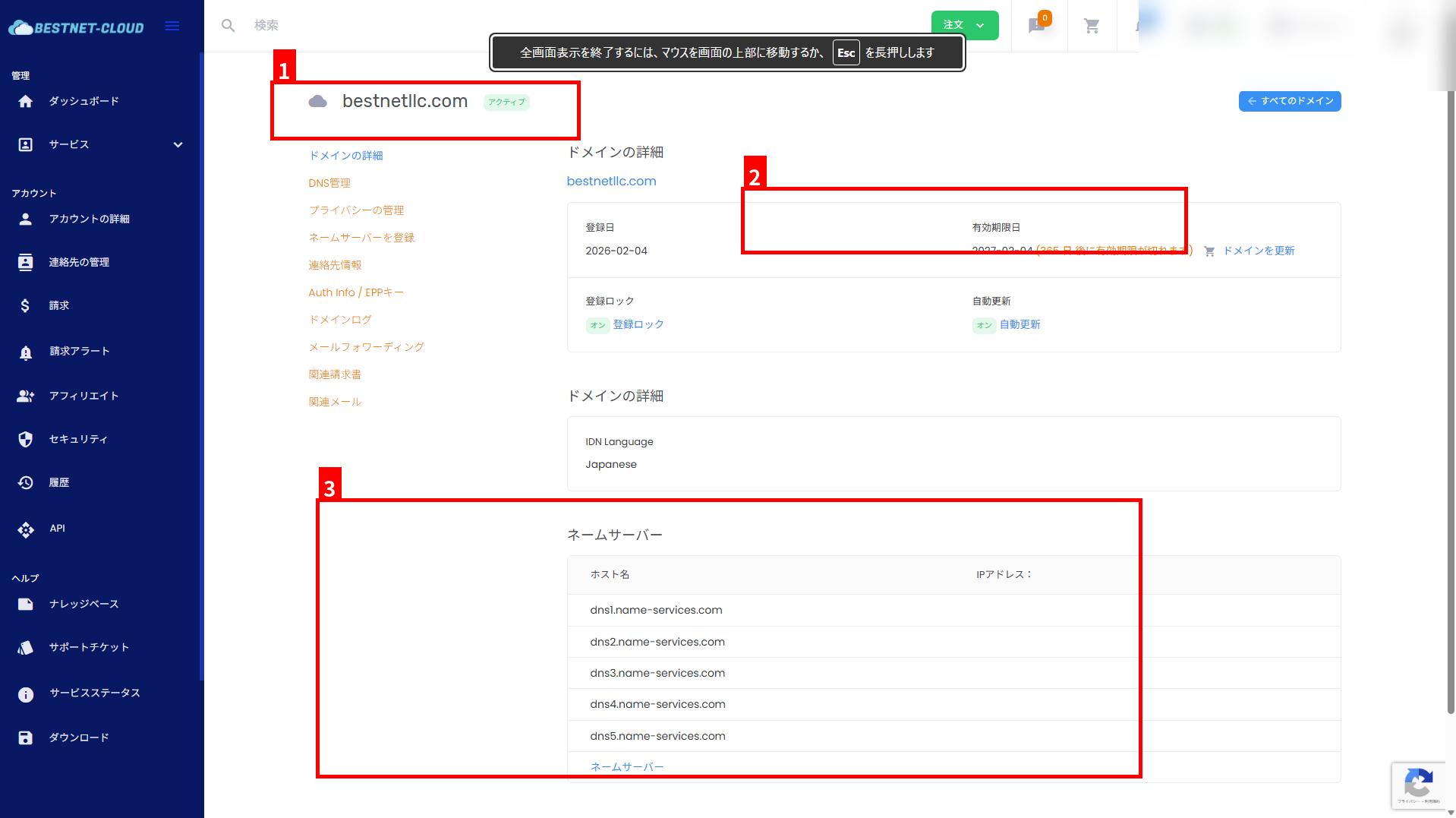
10Confirm that the domain is active #
After payment and processing are complete, check the status, expiration date, and nameserver settings in the domain management screen.
- Check the domain name and status (e.g., Active) (①).
- Verify the expiration date (renewal deadline) (②).
- Confirm that the nameserver settings are as expected (③).
Common Precautions #
- Contact information must be in English: If the registrant information contains Japanese characters, registration may fail due to registrar requirements. Always verify the English notation before placing an order.
- Status not updated until payment is completed: For bank transfers, there may be a delay in processing until payment is confirmed.
- Already registered domains: Domains that are already registered cannot be acquired. Please consider an alternative TLD or domain name.


