
Important: This procedure assumes that the cloud instance has sufficient resource capacity. If the cloud instance is short on resources, please refer to the following article to add resources in advance.
Cloud Resource Upgrade
Overview #
This procedure describes how to change (scale) the CPU cores and memory (RAM) of a cloud virtual machine (instance) from the client portal.
After scaling is executed, the server will enter a task execution state (e.g., RESETTING), and an operation equivalent to a restart/reset will occur. Please perform this work during a planned downtime window.
Prerequisites #
- Logged into the client portal
- The target instance has sufficient resource capacity (refer to the link at the top if insufficient)
- It is a time period that can accommodate the impact, as the target server will restart during scaling
Procedure #
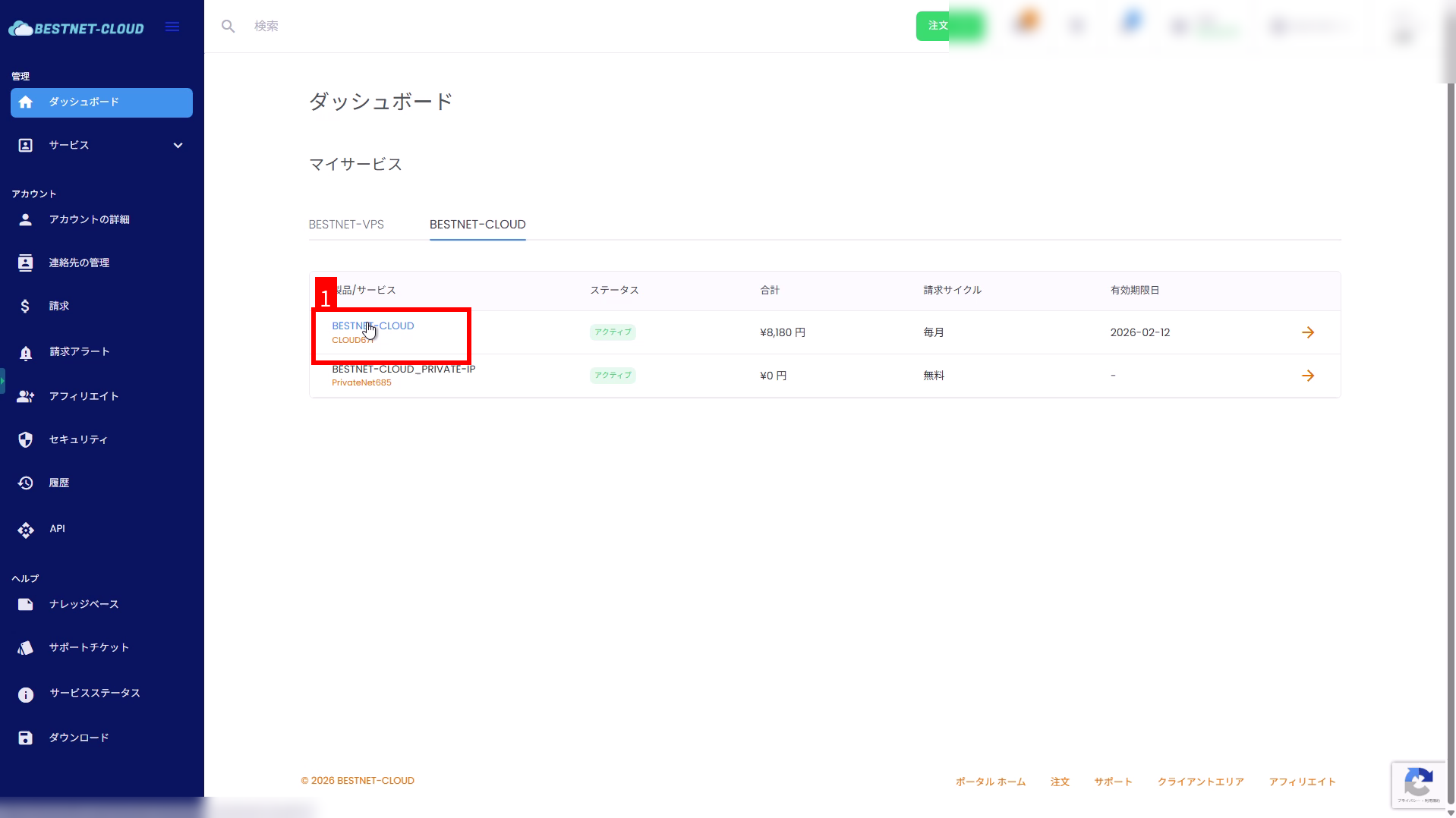
1. Open “BESTNET-CLOUD” from the dashboard #
From My Services on the dashboard, click BESTNET-CLOUD to open the service screen.
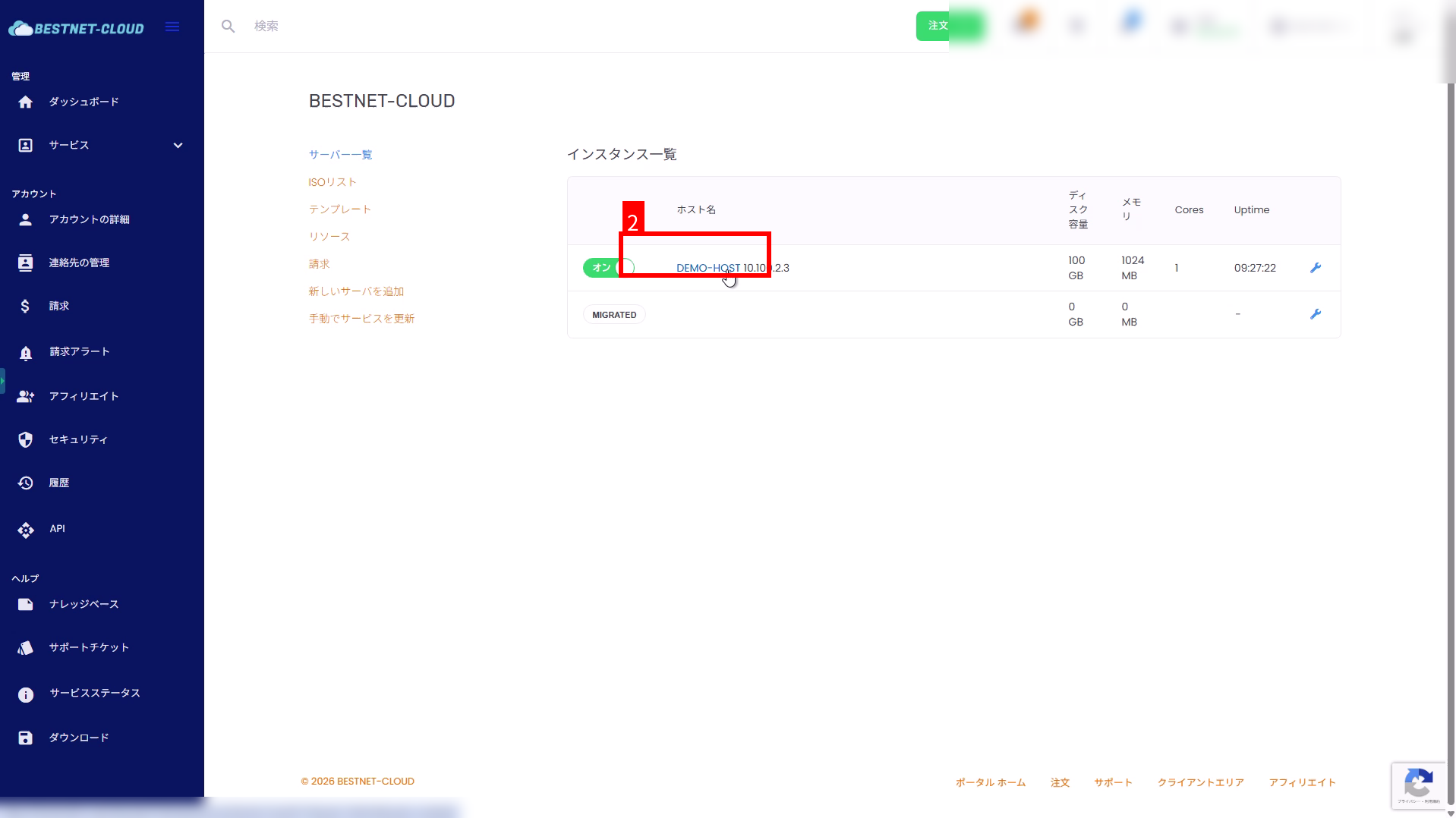
2. Select the target VM from the instance list #
In the instance list on the service screen, click the hostname of the VM you want to scale (e.g., DEMO-HOST).
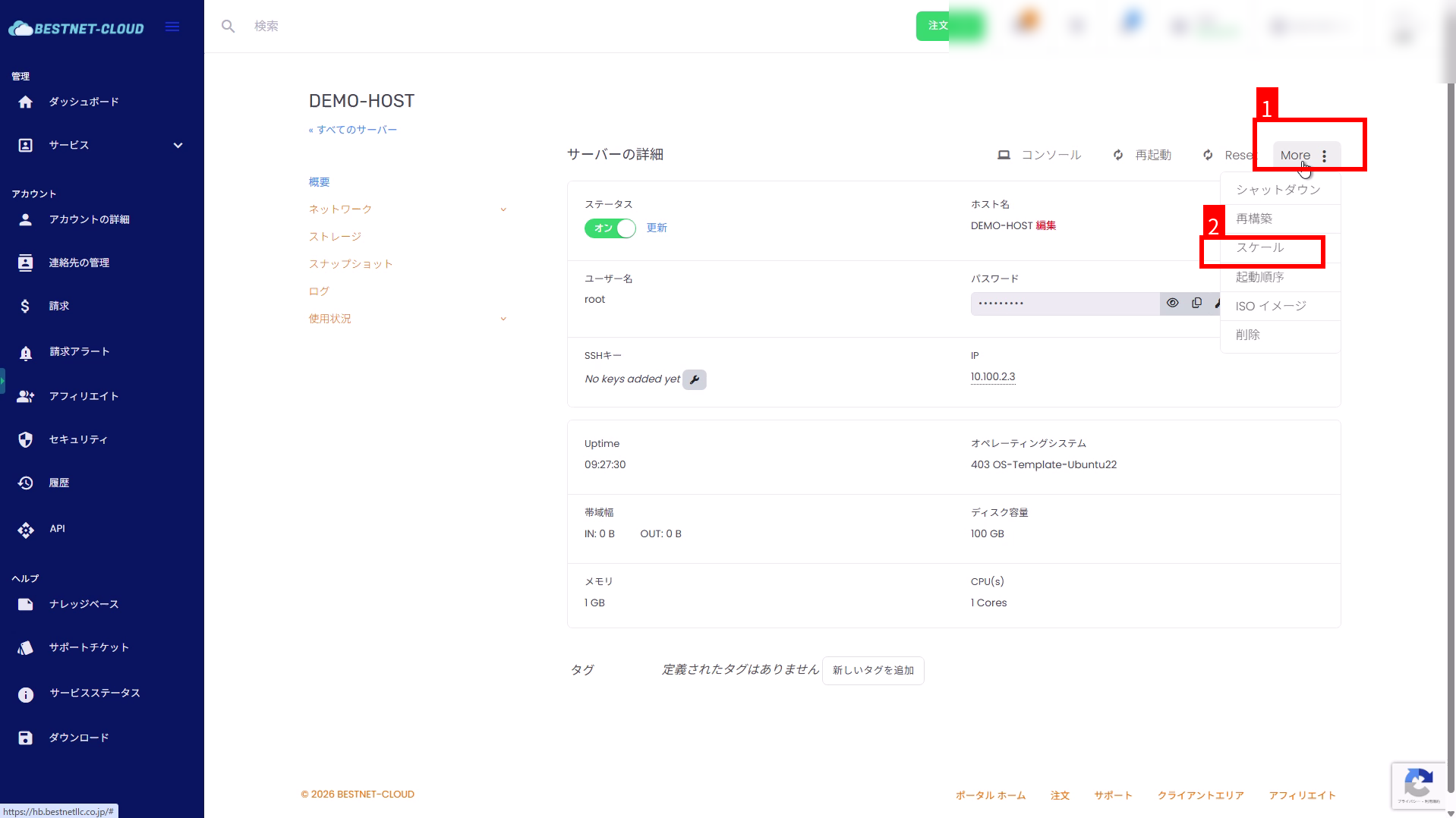
3. Open “More” → “Scale” in server details #
Click More in the upper right of the server details screen, and select Scale from the menu.
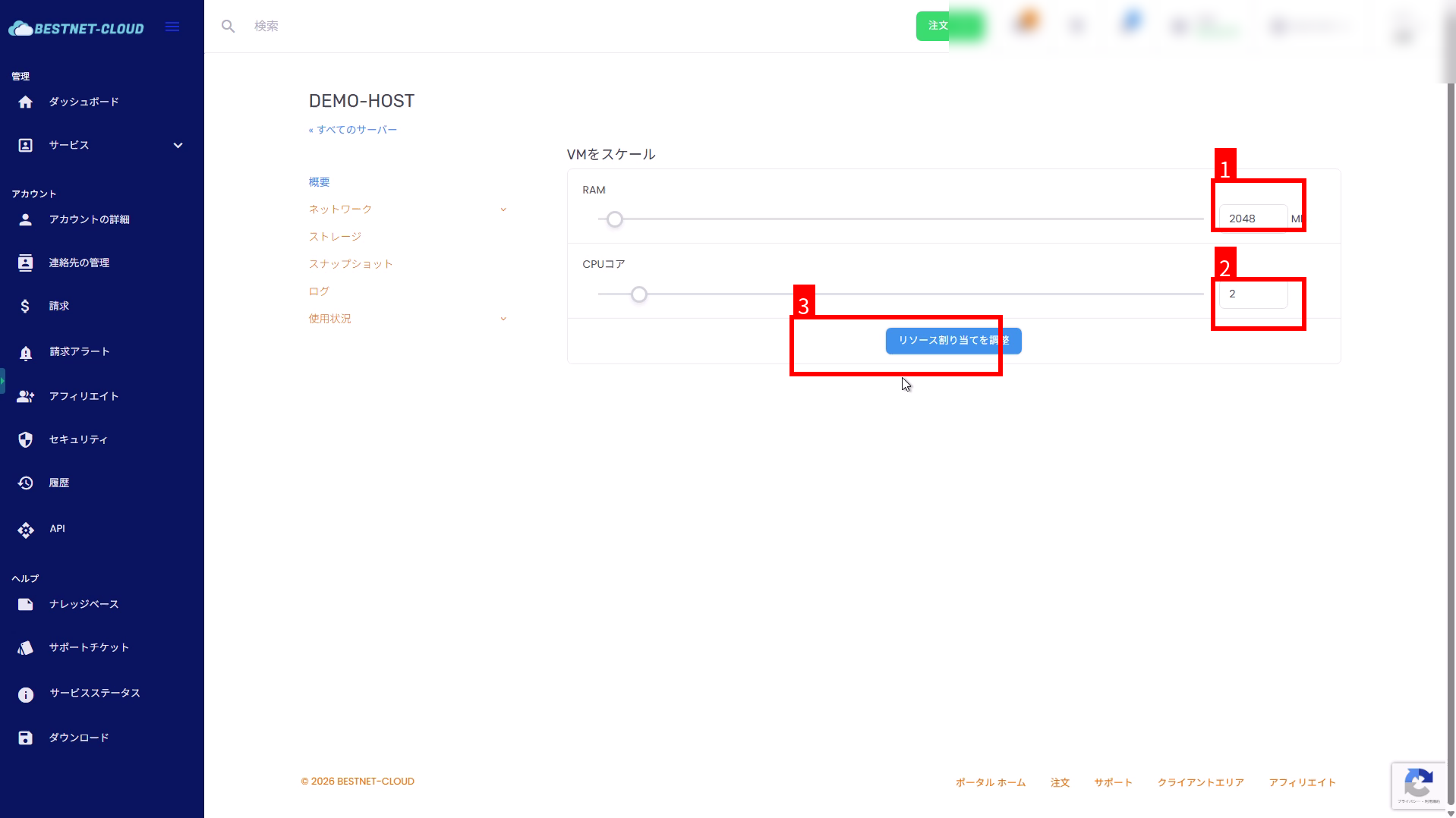
4. Configure CPU/RAM in “Scale VM” and execute #
On the Scale VM screen, set the desired RAM and CPU cores, then click Adjust Resource Allocation.
- Enter values directly in the input fields or adjust using the sliders.
- Example: RAM
2048MB, CPU cores2
5. Confirm task execution (RESETTING) and wait for completion #
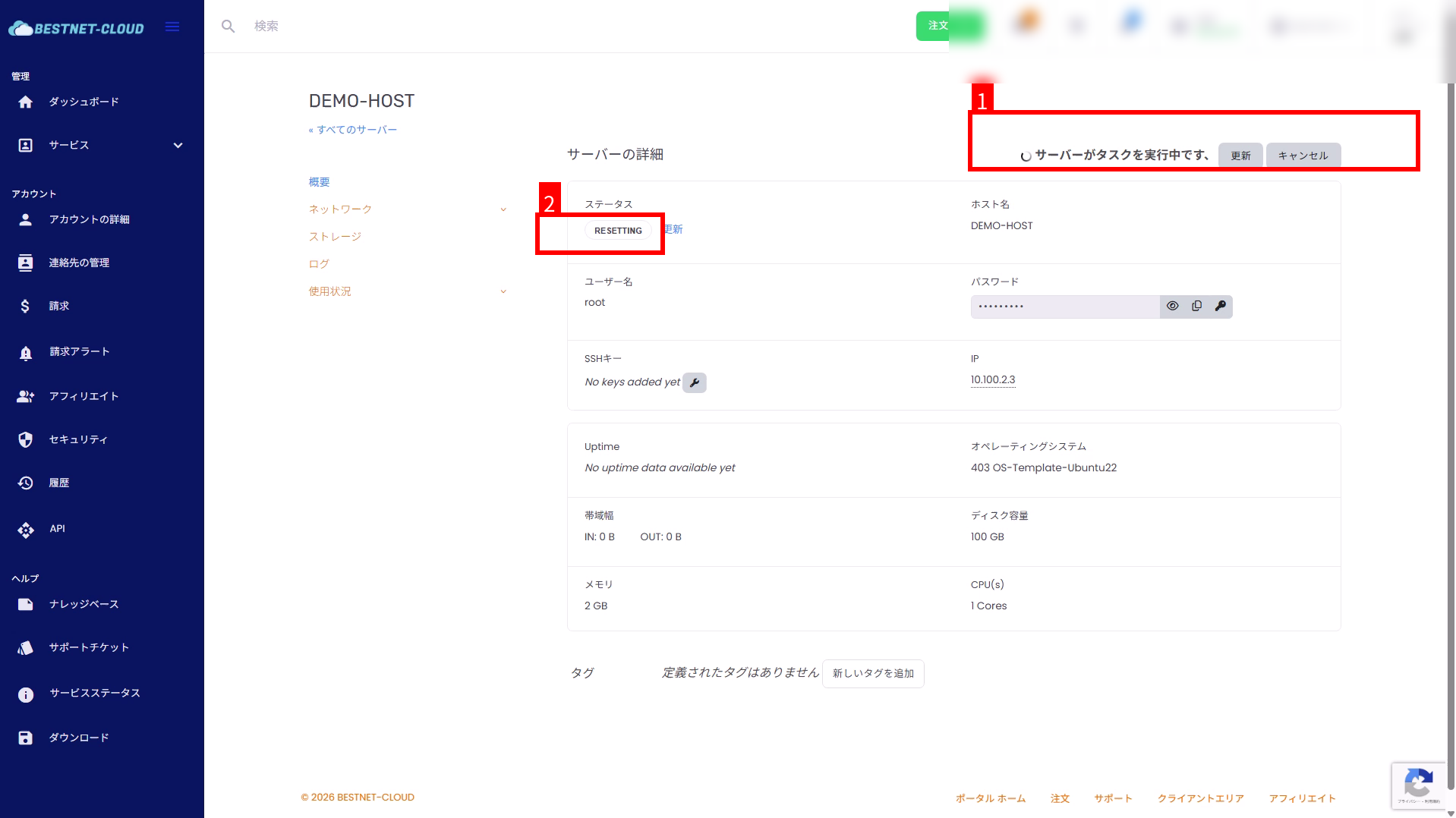
After execution, “Server is performing a task” will be displayed at the top of the screen, and the status will become RESETTING. Please wait until completion.
- If the state does not change, click Refresh to reload the status.
- Console connections may be disconnected during scaling.
6. Verify the updated CPU/RAM #
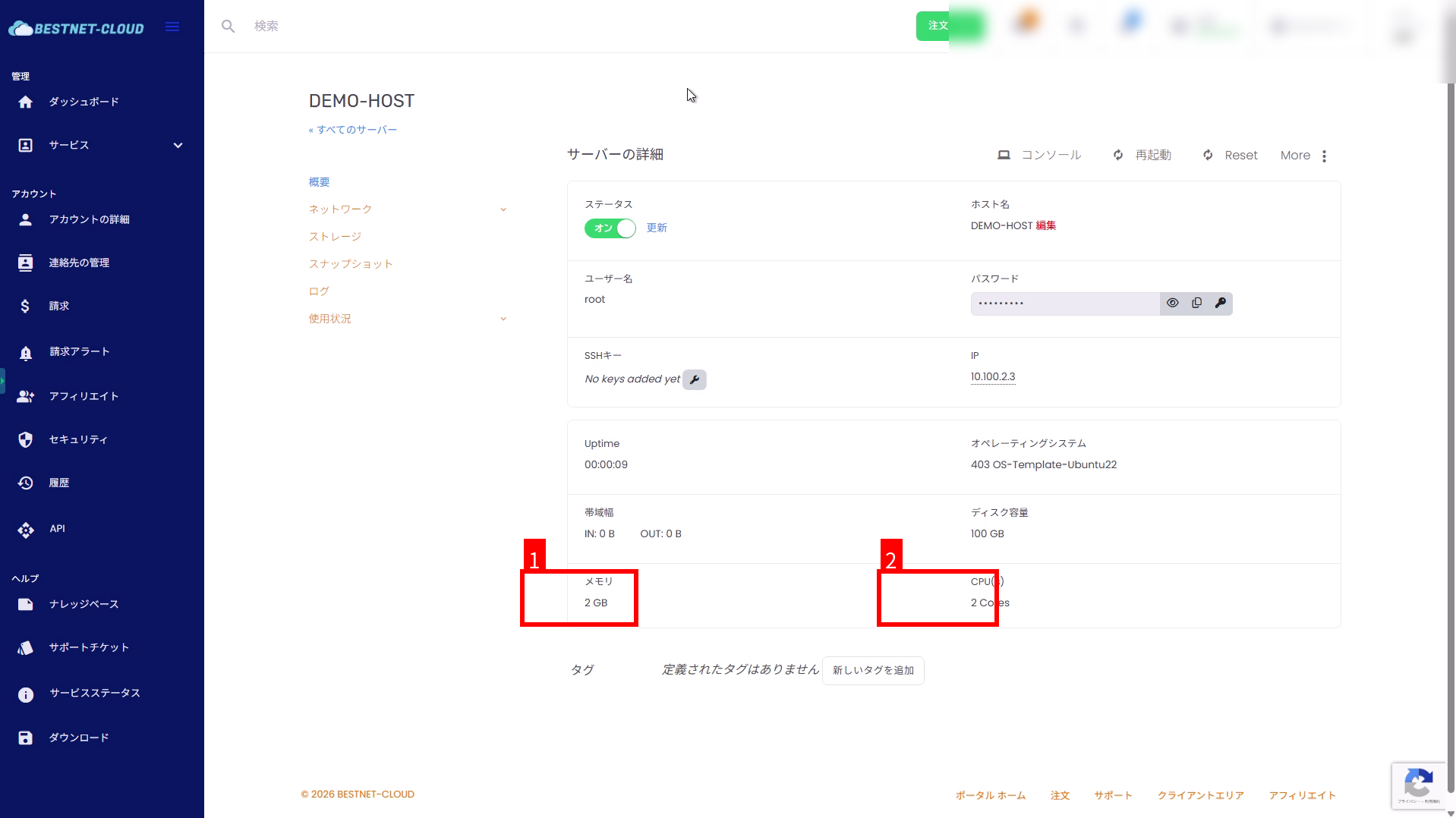
When the task is complete, the status will return to normal (On). Confirm that the Memory and CPU(s) in the server details reflect the desired values.
Additional Notes #
- Impact: A reset/restart will occur after scaling is executed, so please perform this during a planned downtime for production systems.
- OS-level verification: If necessary, log in to the guest OS to confirm that the CPU/memory is recognized.
- In case of failure or prolonged completion: If the state does not change after refreshing or if an error is displayed, please contact us via a support ticket.


