
Overview #
This procedure describes how to create a template based on an existing instance in the client portal, and confirm that the status becomes Ready.
Please note: This procedure manual has been created using generative AI and similar tools. Annotations (arrows, frames, numbers, etc.) in the screen captures may appear slightly offset from the actual screen. When operating, please prioritize the screen display and text content.
Prerequisites #
- You are logged into the client portal
- At least one instance (Source) exists to use as the template base
Note: During template creation, the source instance may temporarily enter a templating state.
Step 1: Open the Template Screen #
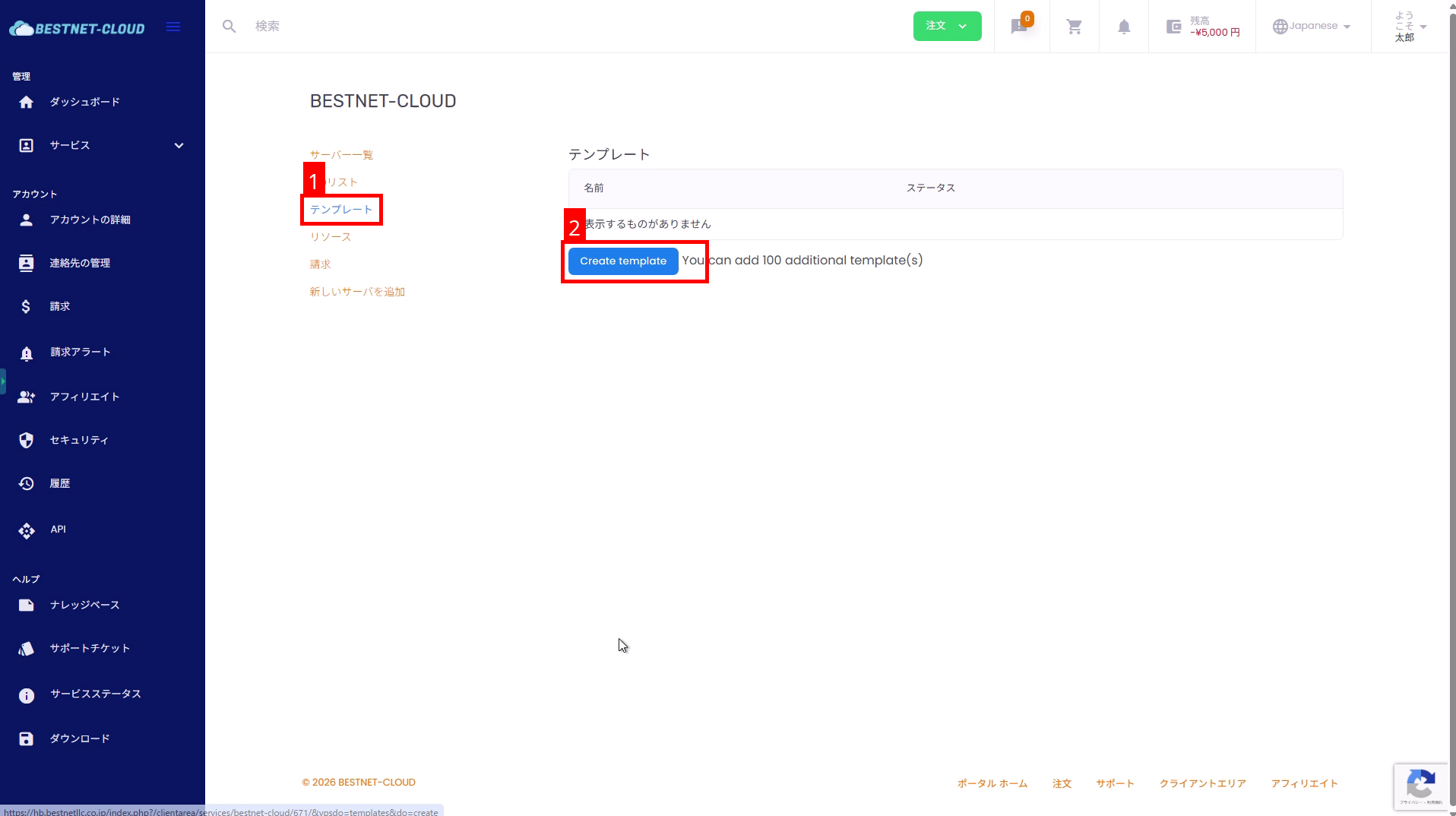
- Open the target service screen (e.g., BESTNET-CLOUD).
- From the left side menu (service menu), open Templates (① in the image).
- Click Create template (② in the image).
Step 2: Enter Template Information #
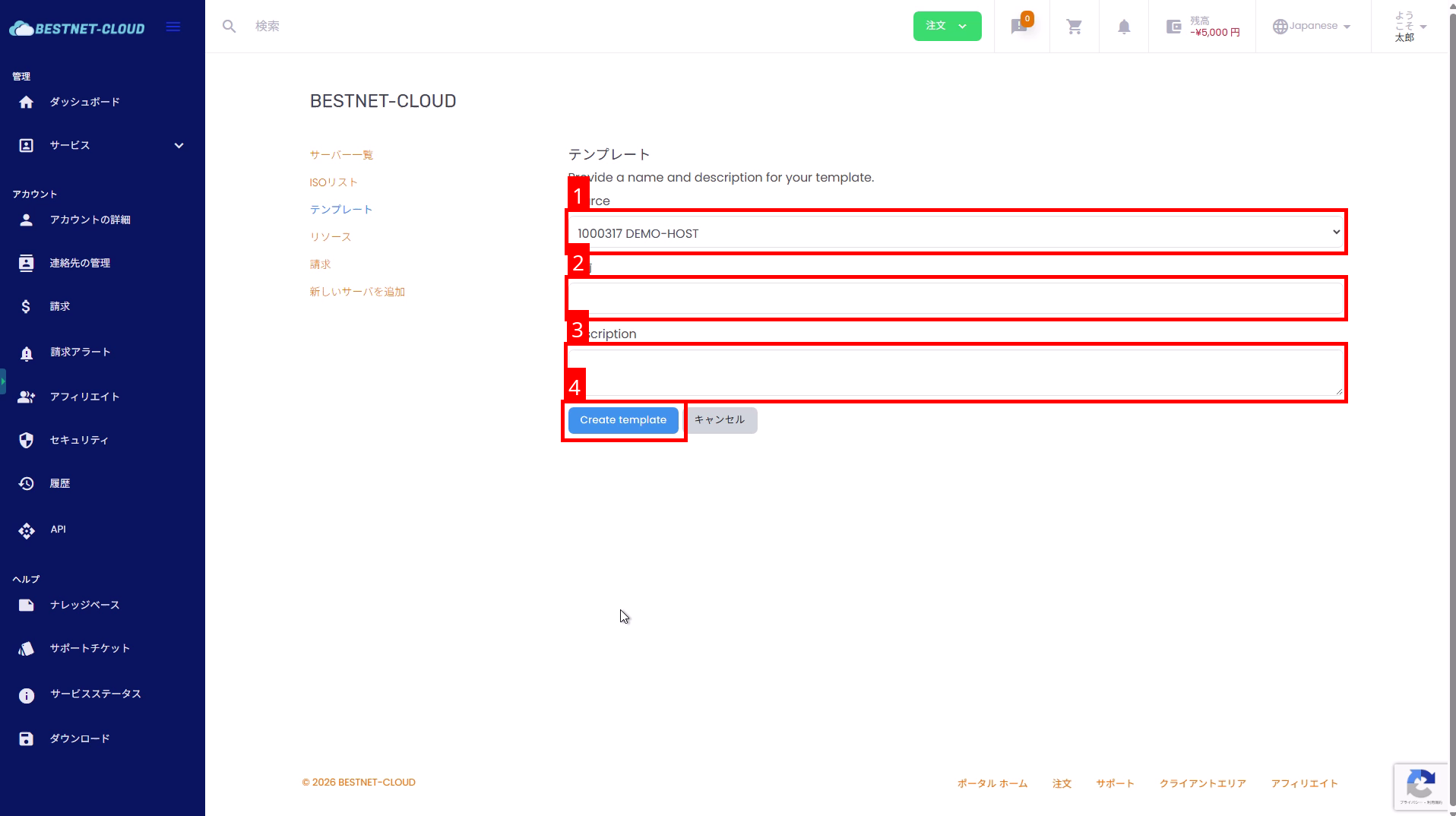
- Select the Source (template source) (① in the image).
- Enter the template name in Name (② in the image).
- Enter a description in Description (optional) (③ in the image).
- Click Create template to start creation (④ in the image).
Step 3: Confirm the Status Becomes Pending #
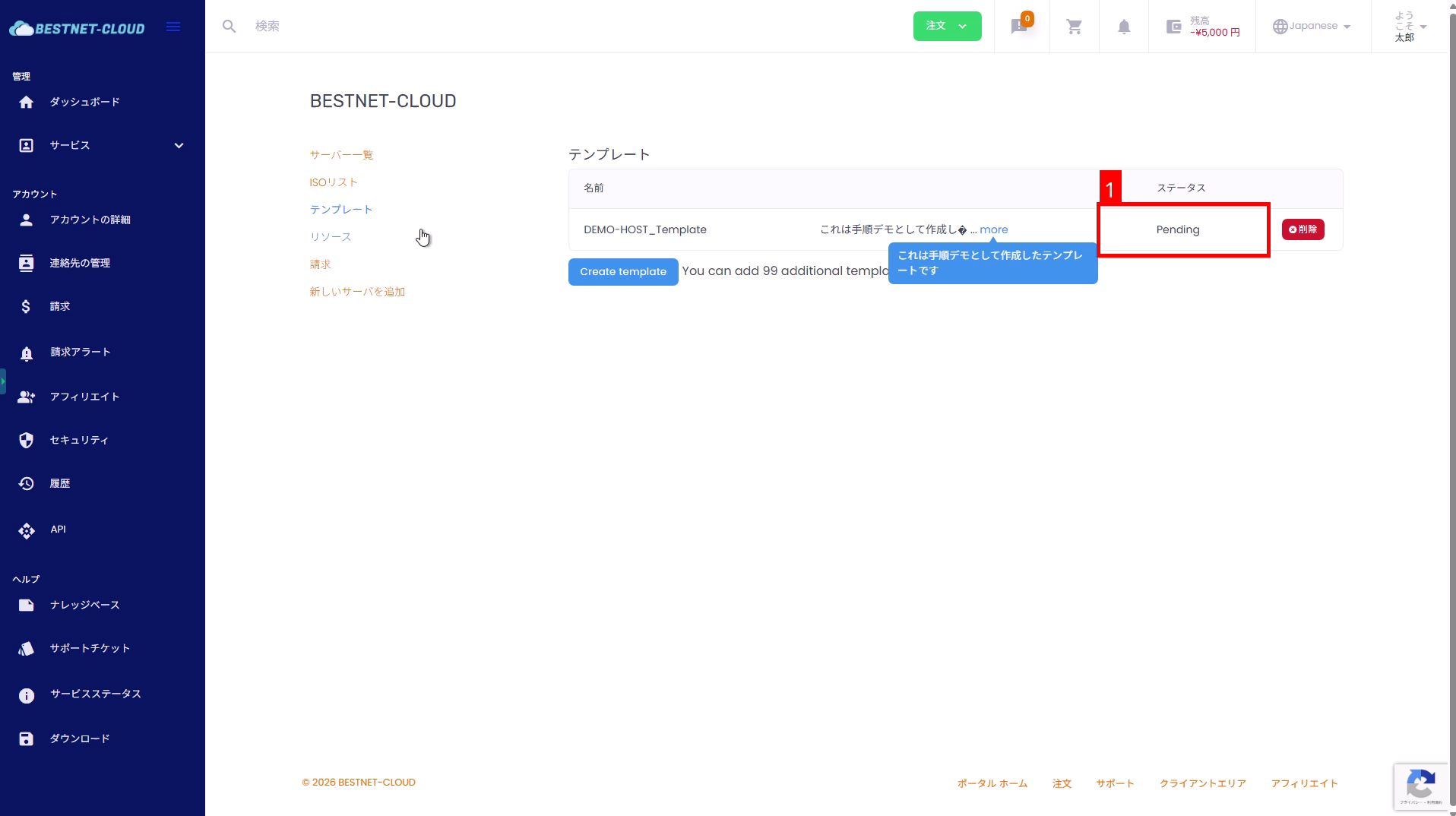
Once creation begins, a new row is added to the template list and the status becomes Pending (creation in progress).
- While the status is Pending, wait for the process to complete.
- If the status does not update, reload the page to check again.
Step 4: Confirm the Status Becomes Ready #
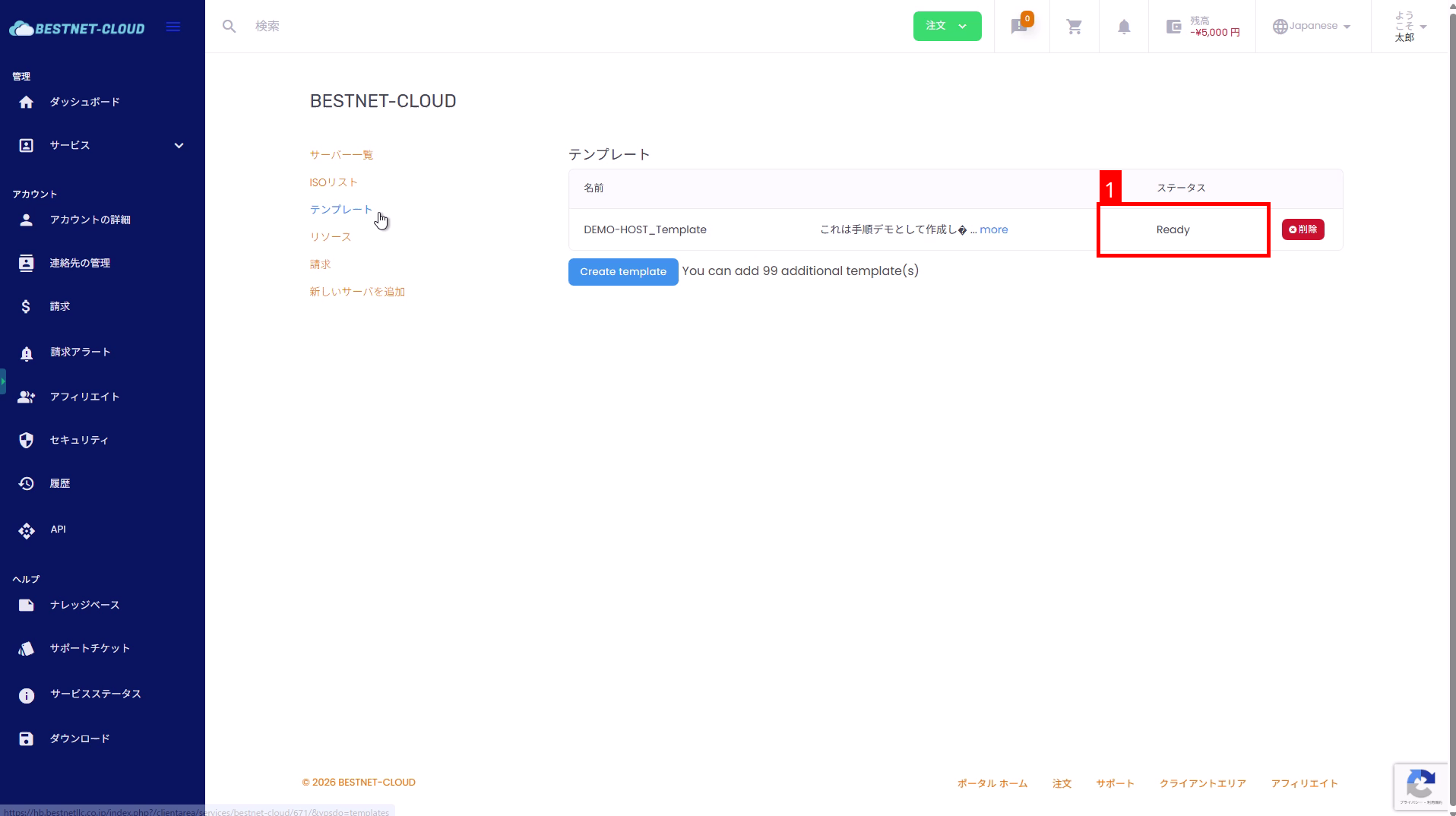
When the process completes, the template status changes to Ready. Once it becomes Ready, template creation is complete.
Supplementary: Deleting Unwanted Templates #
If you need to delete a template created by mistake, you can delete it from the Delete button on the target template row.
Troubleshooting #
- Status remains Pending for an extended period: Reload the page, and if there is no change after waiting a while, please contact support.
-
Template name operations:
For easier identification later, we recommend using a naming convention that includes
the purpose or source instance name (e.g.,
web-ubuntu-2026-01).


