
Domain Management Guide
This procedure explains how to enable or disable WHOIS Protection (WHOIS Privacy) for your domain in the client portal.
Overview #
When WHOIS Protection (Privacy) is enabled, the registrant information (name, address, email, etc.) displayed in WHOIS data is replaced with (or hidden by) the registrar’s privacy information, helping to prevent the disclosure of personal information.
Prerequisites #
- You must be logged into the client portal
- You must be able to open the “Domain Details” screen for the target domain
- WHOIS Protection (Privacy) option must be available for the target domain (availability may vary depending on the TLD or contract terms)
Operation Steps #
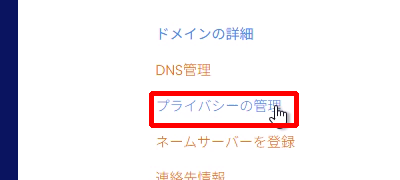
1 Open “Privacy Management” from the “Domain Details” screen #
Open the “Domain Details” screen for the target domain, and click “Privacy Management” in the left menu.
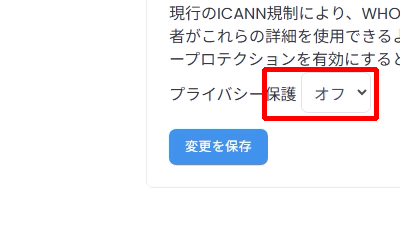
2 Check the current value of “Privacy Protection” #
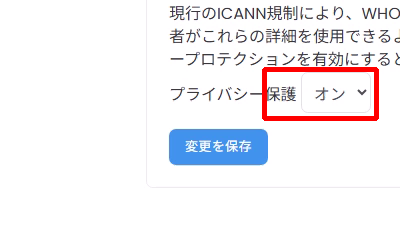
Check the current setting (e.g., Off) in the “Privacy Protection” dropdown at the bottom of the screen.
3 Select “On” or “Off” from the dropdown #
Click the dropdown and select your desired state (On or Off) from the displayed options.
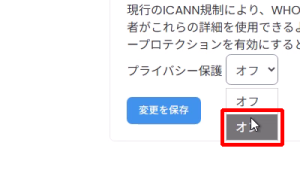
Note: The red box shows an example of selecting “On”.
4 Click “Save Changes” to apply the settings #
After changing the setting, click “Save Changes”.
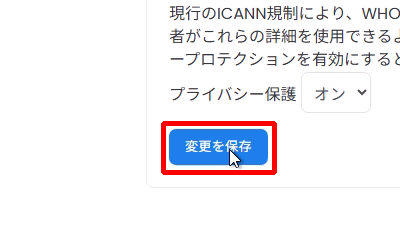
Warning: After clicking, the screen may enter a loading state (spinner display). Please wait for it to complete before closing the page.
5 Confirm that the settings have been applied #
After saving, verify that the Privacy Protection display shows your desired state (e.g., On).
Additional Notes #
- There may be a time lag before the changes are reflected in the WHOIS display due to the registrar’s processing status.
- Depending on the TLD (e.g., .jp / .com, etc.) or the registrar’s specifications, privacy protection may not be available or may behave differently.
Troubleshooting #
Cannot find “Privacy Management” #
- The WHOIS Protection option may not be available for the target domain.
- Operations may be restricted depending on the domain status (expired, undergoing transfer, etc.).
The setting did not change even after saving #
- Try reloading the page to see if the display is updated.
- If the issue persists after some time, please open a ticket (it will be faster if you provide the target domain name, operation date/time, and desired setting “On or Off”).


