
OV SSL Issuance Guide
This guide outlines the process of purchasing an OV SSL certificate from the client portal, approving Domain Control Validation (DCV), and confirming the issuance status.
Important
When applying for OV SSL, you must enter contact information in English (half-width alphanumeric characters). Including Japanese characters (full-width) may result in an error.
OV SSL Issuance Flow #
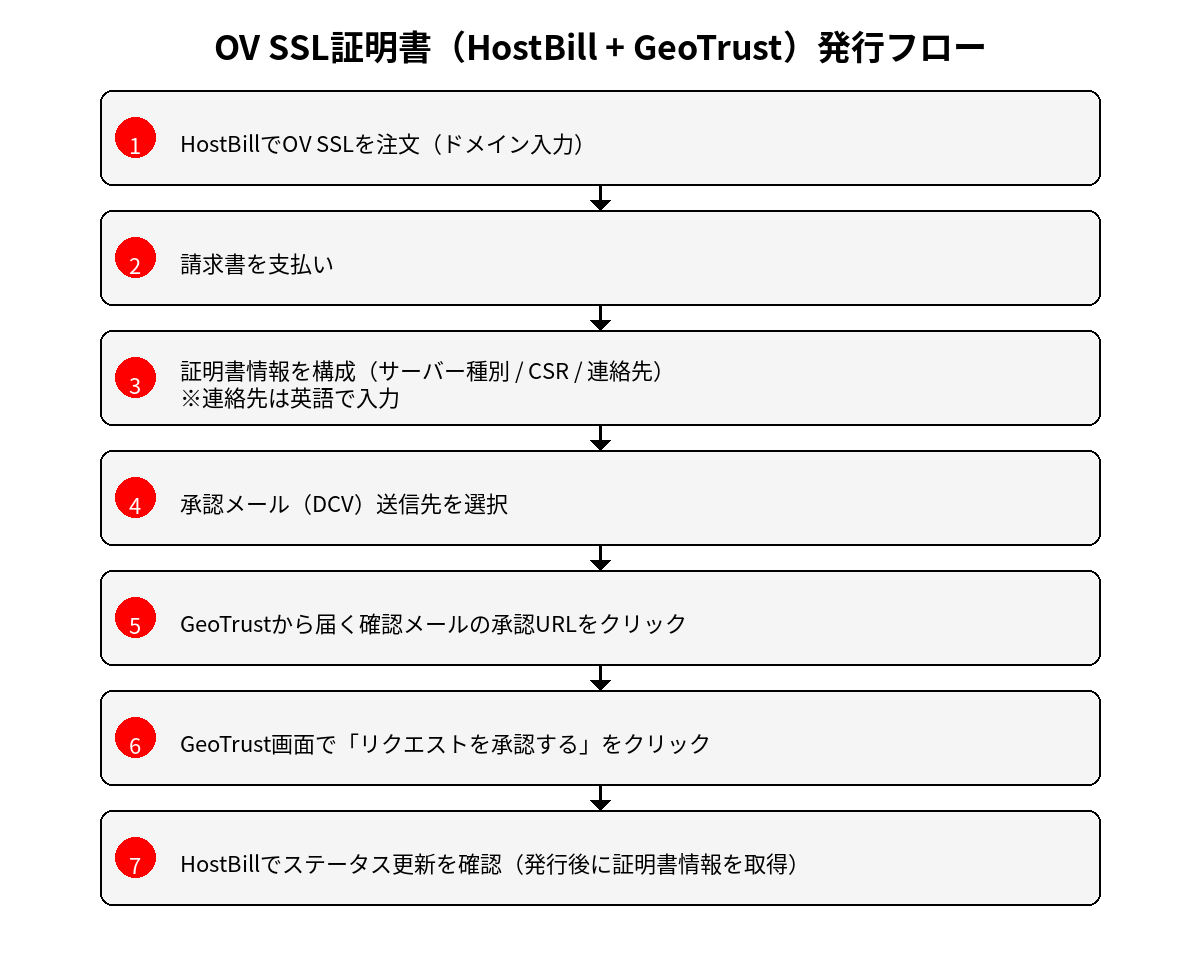
Prerequisites #
- Target domain (e.g.,
example.com) - CSR (Certificate Signing Request) (created on the server)
- Contact information (in English): name, department, title, address, phone number, email address, etc.
- Ability to receive DCV email (e.g.,
admin@/administrator@/hostmaster@/postmaster@/webmaster@)
Step 1: Order OV SSL #
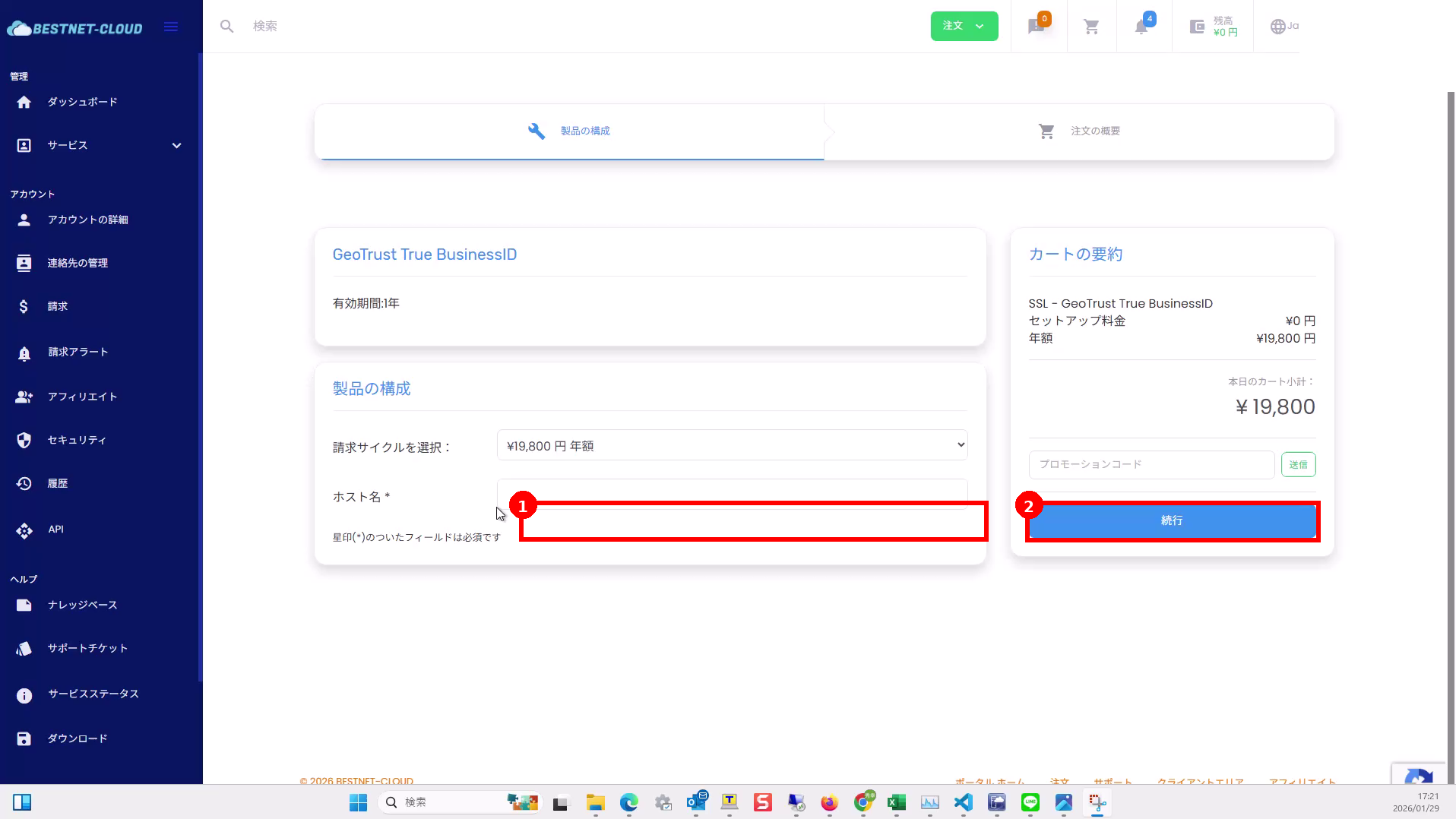
1-1Enter domain (hostname) on the order screen and proceed #
- Select the OV SSL product (e.g., GeoTrust True BusinessID) in the client portal and open the order screen.
- Enter the target domain in Hostname.
- Click Continue on the right side.
1-2Pay the invoice #
- An invoice will be issued.
- Click Pay Now! and follow the instructions to complete payment.
Step 2: Configure Certificate Information (CSR and Contact Details) #
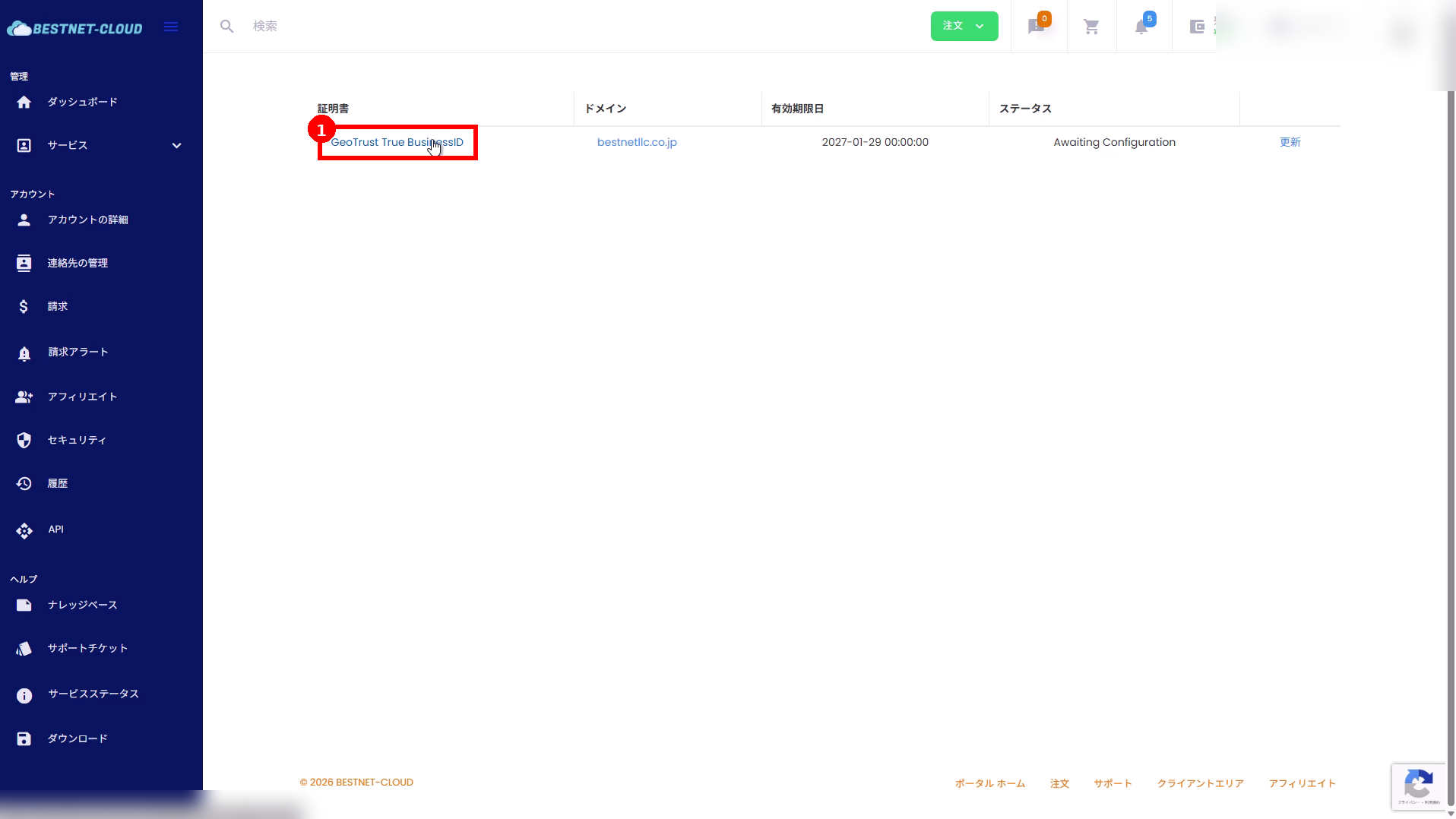
2-1Open the target certificate from the SSL list #
- After payment, the target certificate will appear in the SSL list (certificate list) in the client portal.
- Click the certificate name (e.g., GeoTrust True BusinessID) to open the details.
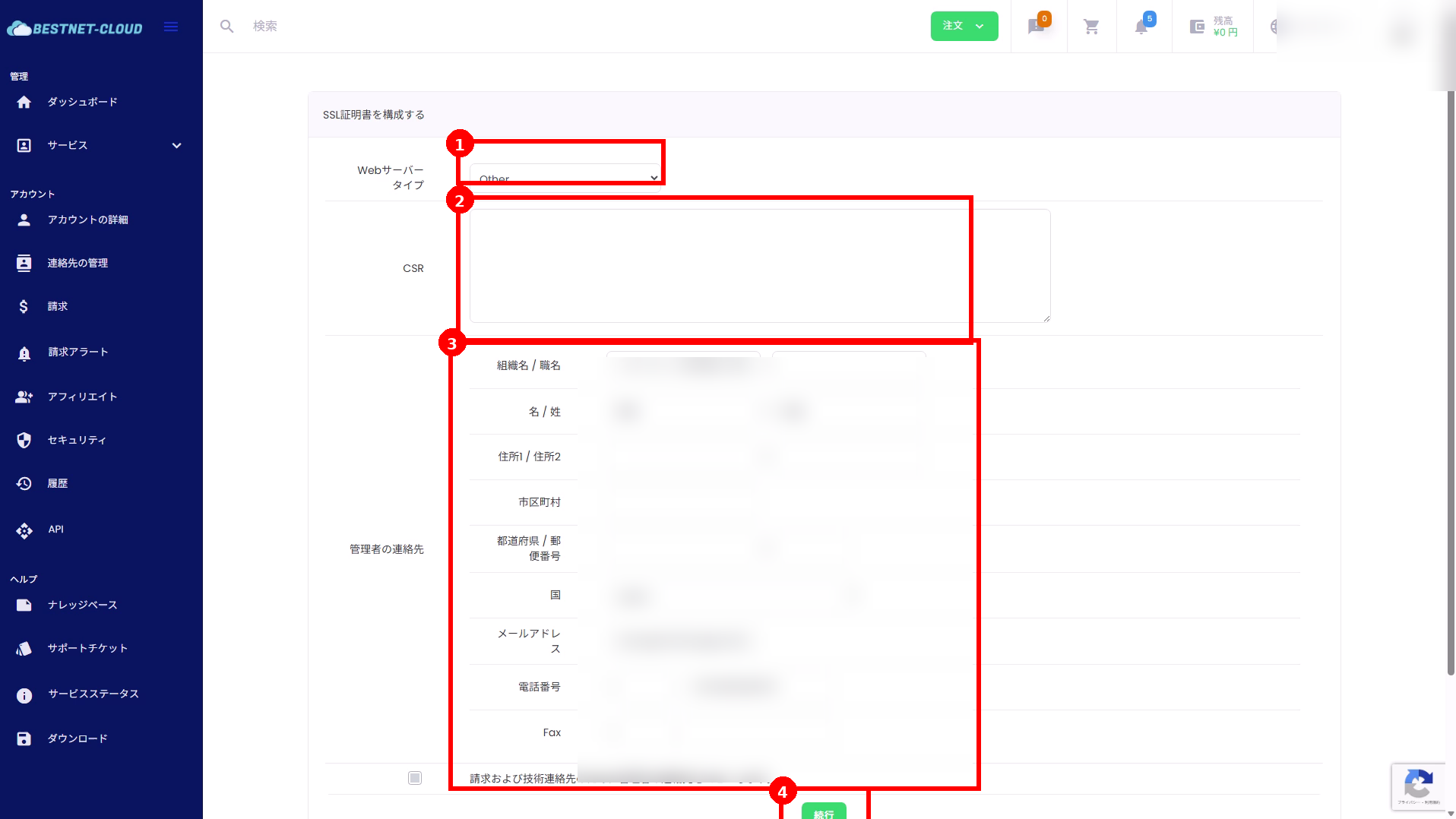
2-2Enter web server type, CSR, and administrator contact information and proceed #
- Select the Web Server Type (e.g., Other / Apache / Nginx, etc., based on your environment).
- Paste the CSR.
- Enter the administrator contact information. Please enter it in English (half-width) (name, address, title, etc.).
- After entering the information, click Continue.
2-3If you receive an error when entering contact information #
An error may occur if Japanese characters (full-width) are included, if a title is not entered, or if there are format issues. Check the displayed message, enter information in English, and ensure all required fields are completed before resubmitting.
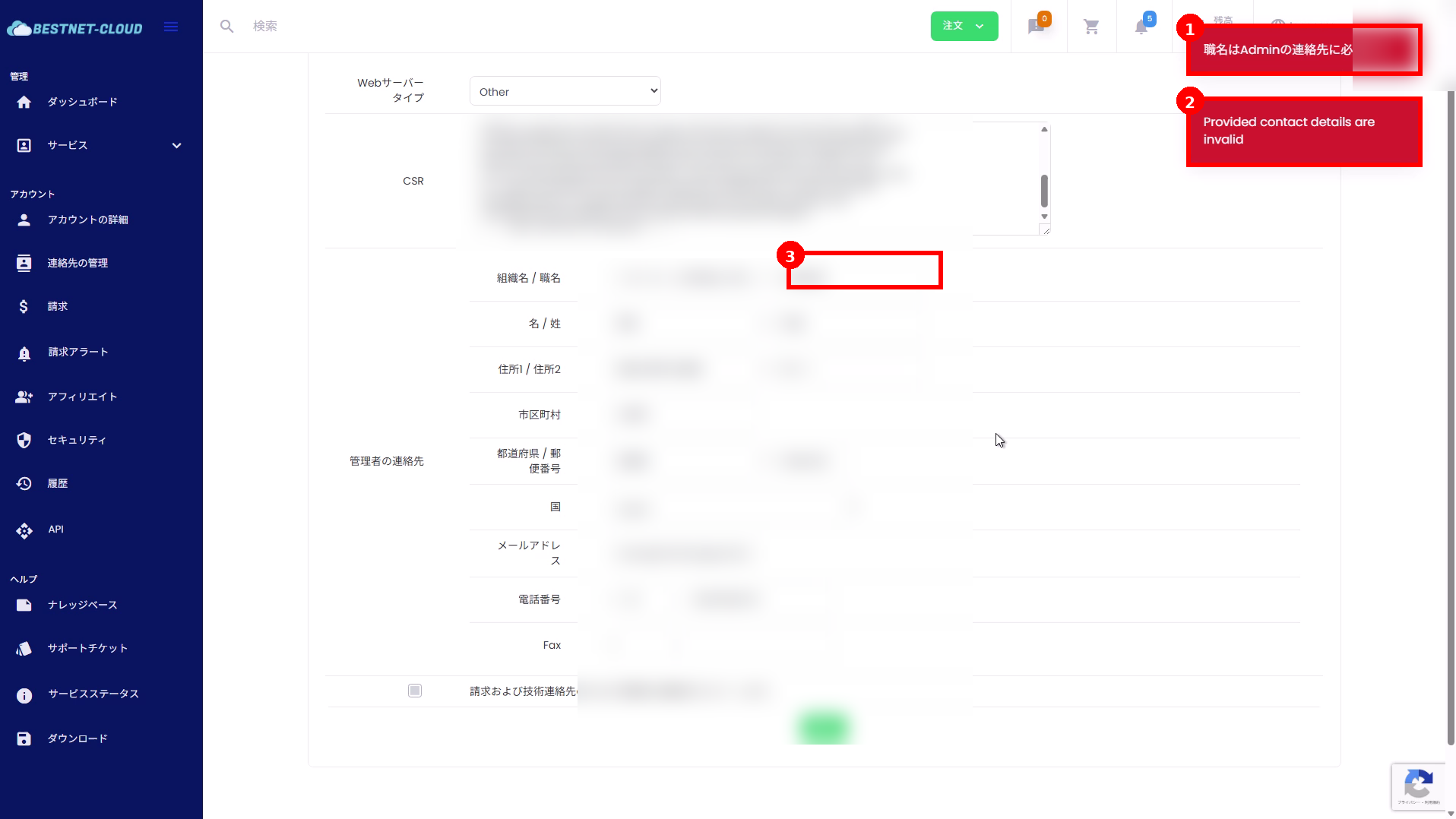
Step 3: Approve Domain Control Validation (DCV) #
3-1Select the destination email address for the DCV approval email and send #
- Following the on-screen instructions, select the destination email address for the approval email (DCV).
- A confirmation email will be sent from the certificate provider (GeoTrust) to the selected email address.
- Click Send Configuration Details (or equivalent send button).
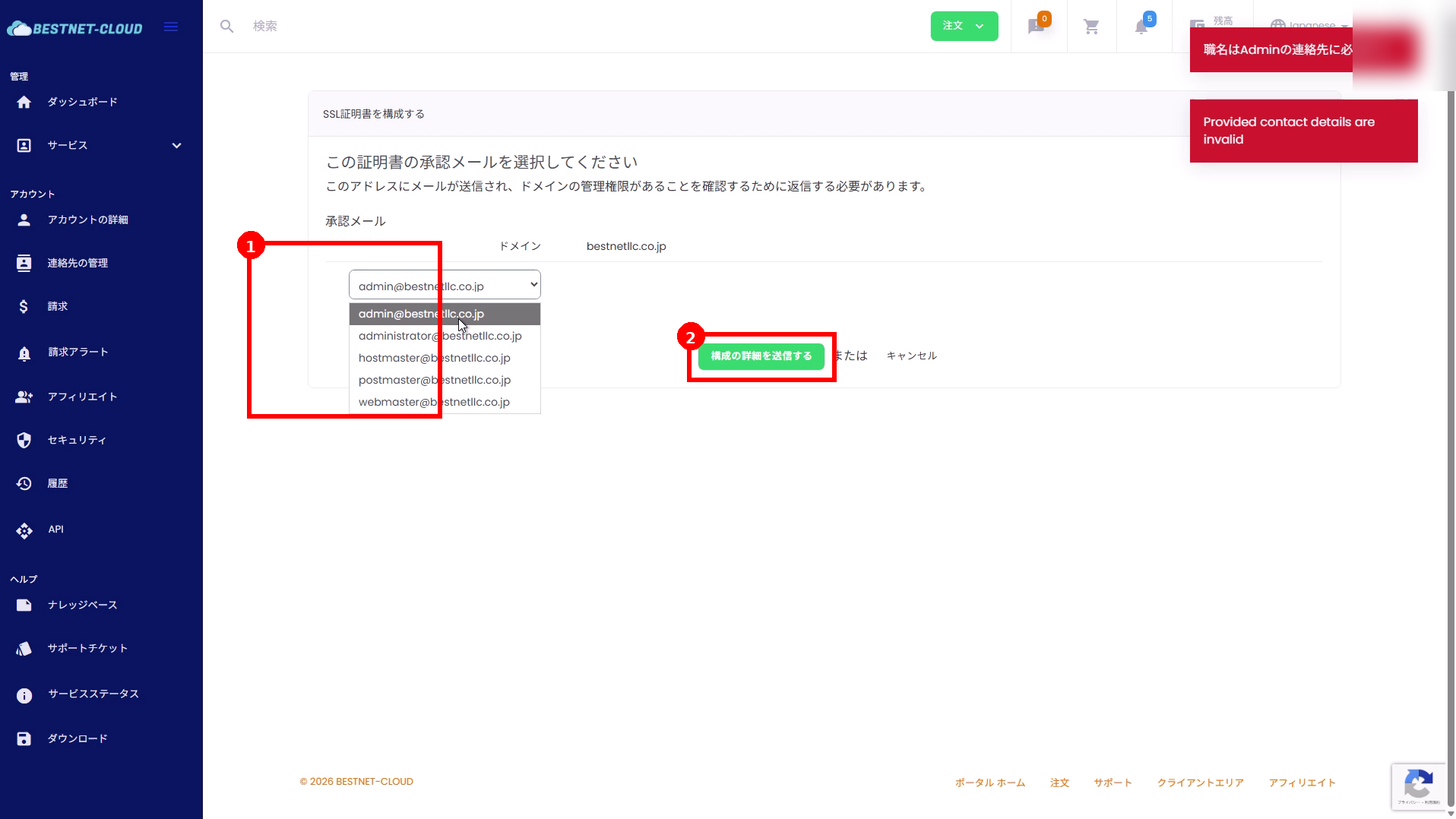
3-2Click the approval URL in the confirmation email from GeoTrust #
A confirmation email from GeoTrust will be sent to the selected email address with instructions to add/verify the domain. Click the approval URL in the email.
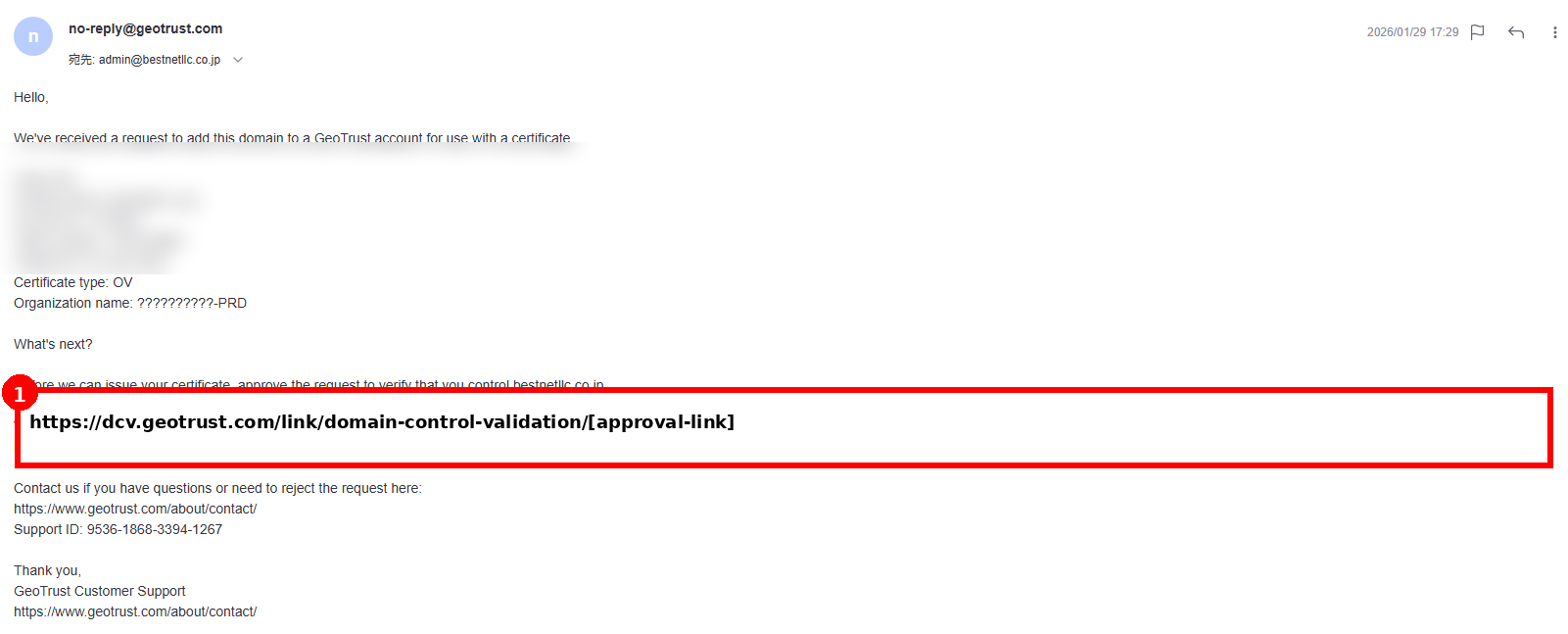
3-3Approve the request on the GeoTrust screen #
- When you open the approval URL, the GeoTrust domain control validation (DCV) approval screen will appear.
- Review the information and click Approve Request.
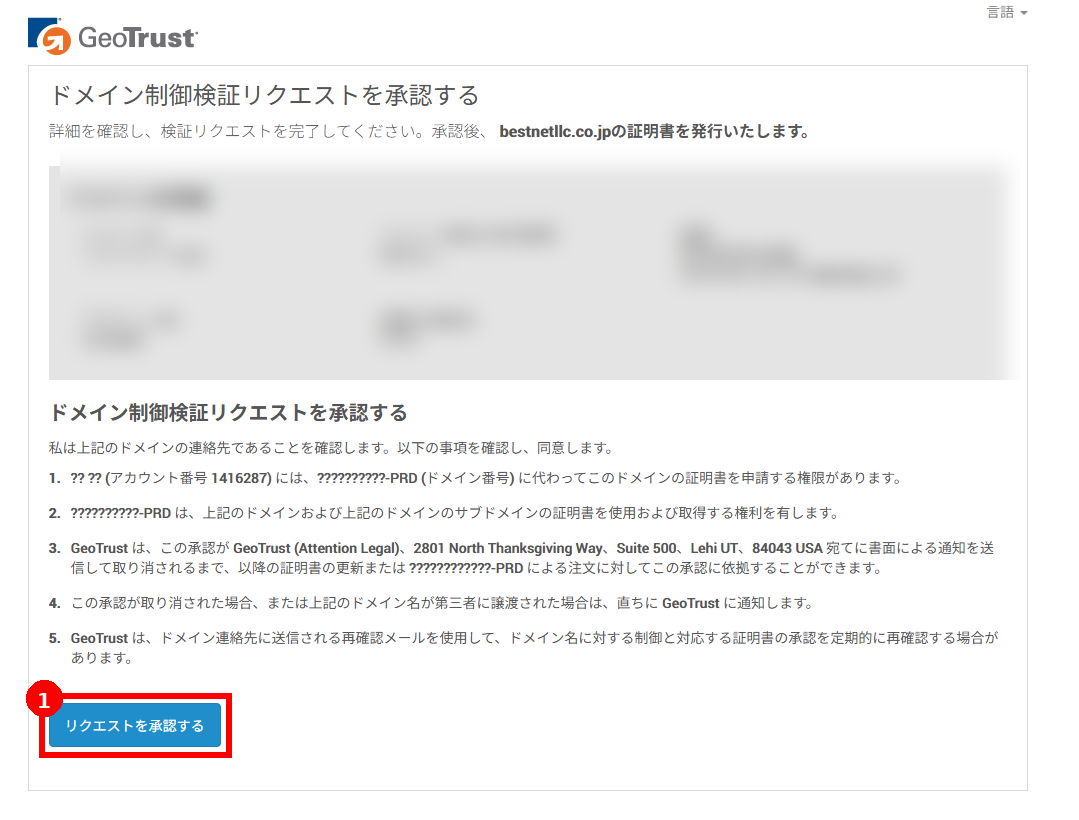
Step 4: Confirm Issuance Status in the Client Portal #
4-1Confirm status and approval email in certificate details #
In the certificate details screen, you can view the status (e.g., Processing) and the destination of the approval email (DCV). After DCV approval, the status will be updated as review and issuance progress.
4-2Obtain certificate information after issuance (supplementary note) #
- After issuance, the status in the same certificate details screen will be updated, and certificate information (CRT / CA Bundle, etc.) will be displayed and available for download.
- If it is not displayed, try refreshing the page or wait a few minutes and check again.
Frequently Asked Questions and Troubleshooting #
Q1. I receive an error message such as “Provided contact details are invalid” #
- Check that contact information (name, address, company name, title, etc.) does not contain Japanese characters (full-width), and change them to English.
- A title may be required in some cases. Verify that all required fields are completed.
Q2. I did not receive the approval email (DCV) #
- Check the email reception settings (spam mail, filters) for the selected destination email address.
- Verify that you can switch to an alternative approval email address (
admin@/hostmaster@, etc.) and resend.
Q3. The approval URL has expired #
- The email may contain information about the validity period of the link. If it has expired, please open a support ticket.


