
Domain Registration Guide
This guide explains the procedure for registering a new domain through the client portal. The screens shown are examples.
Overview #
This guide explains the procedure for registering a new domain through the client portal. When applying, please enter your name, address, company name, and other information in the order screen and domain registration information in English (alphanumeric characters).
Preparation #
- You are logged in to the client portal
- You have decided on the domain name you want to acquire (e.g.,
example.com) - Prepare to enter contact information (name, address, company name, etc.) during checkout in English (alphanumeric characters)
Important
The registrant information (WHOIS / Registrant) entered in “Client Information” or “Domain Contact” on the order screen must be written in English (Romanized, alphanumeric characters).
If you register with Japanese characters, registration may fail due to registrar requirements.
Input Examples
- Name:
Taro Suzuki - Address:
1-1-1 Otemachi, Chiyoda-ku - City:
Tokyo/ State:Tokyo/ Postal Code:100-0004 - Country:
Japan
Domain Registration Procedure #
1Open the domain search screen #
From the “Domain” menu in the client portal, open “Bulk Domain Search”.
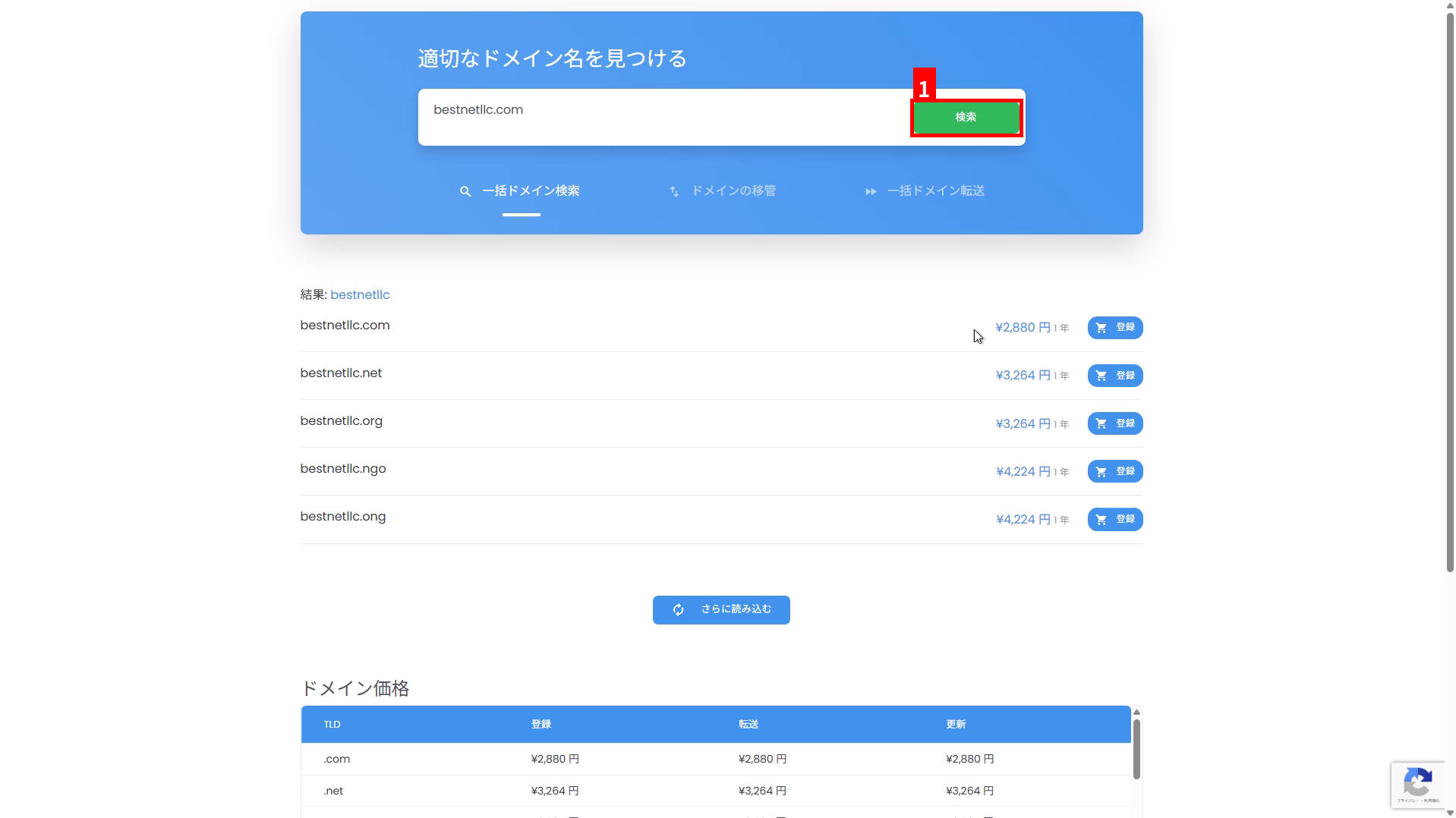
2Enter your desired domain name and search #
- Enter the domain name you want to acquire in the search field (e.g.,
example.com). - Click “Search” (①).
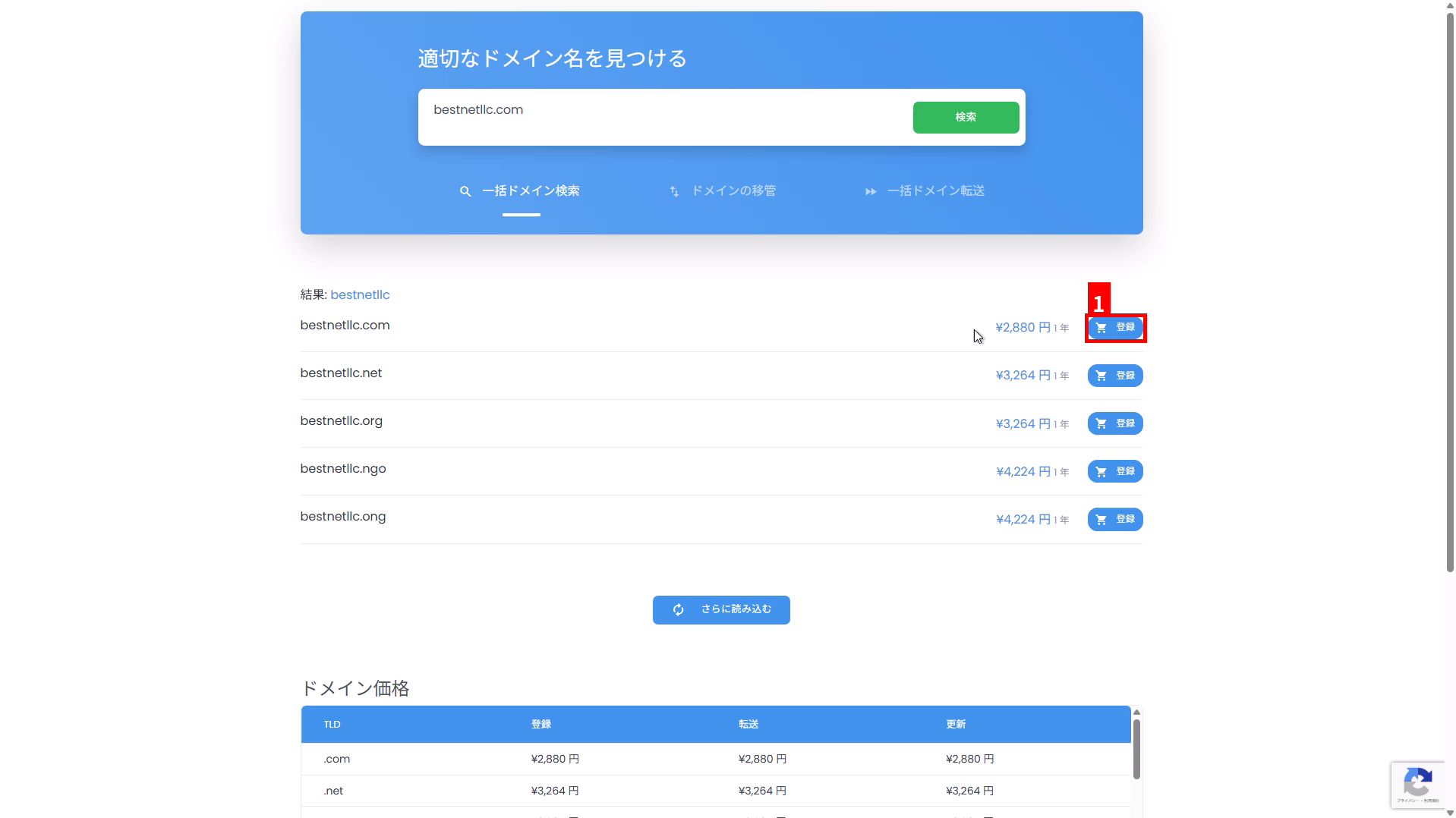
3Select your desired TLD from the search results and click “Register” #
- Select the domain (TLD) you want to acquire from the candidates displayed in the search results.
- Click “Register” in the corresponding row (①).
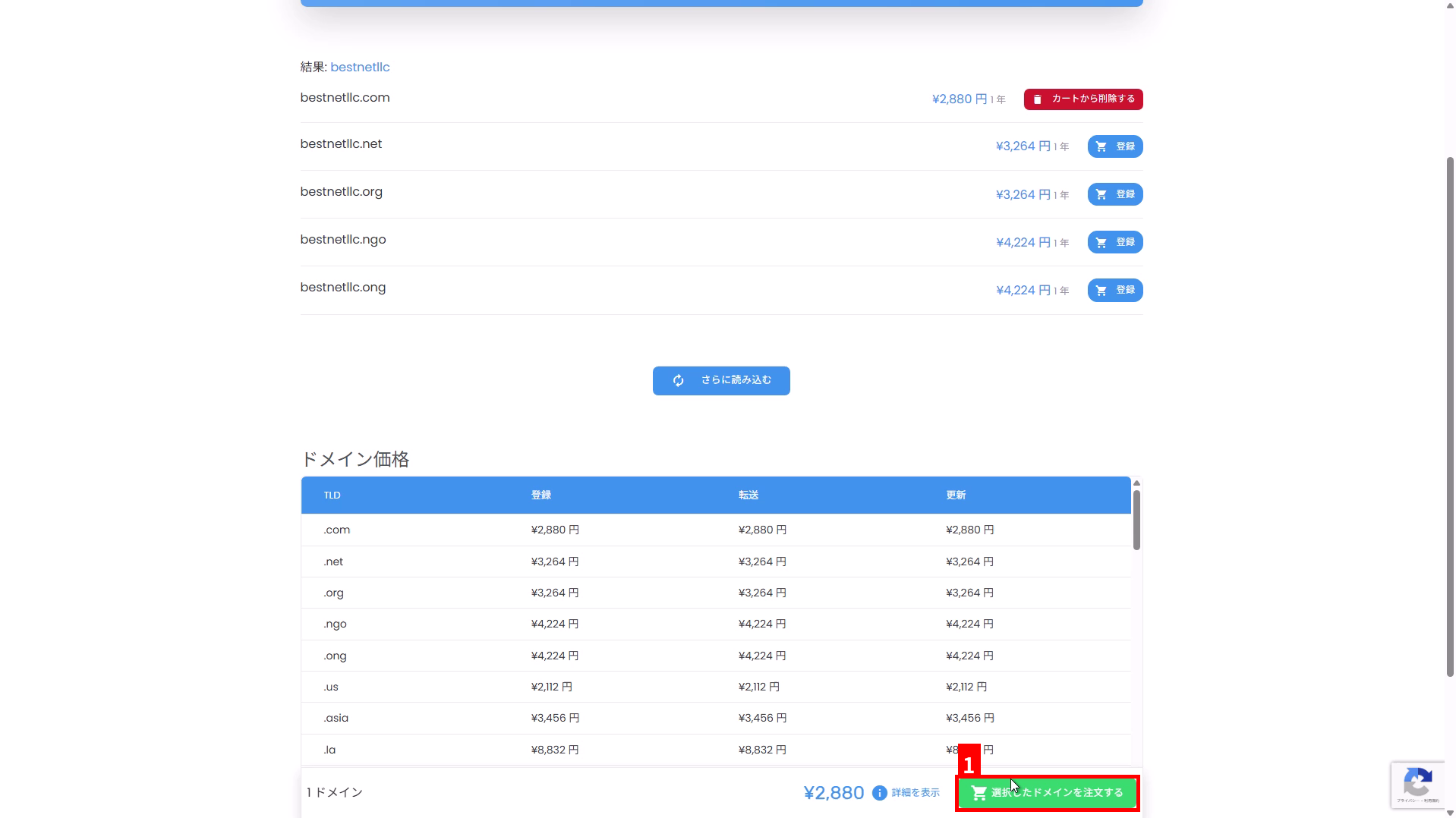
4Click “Order Selected Domain” #
Click “Order Selected Domain” displayed at the bottom right of the screen (①).
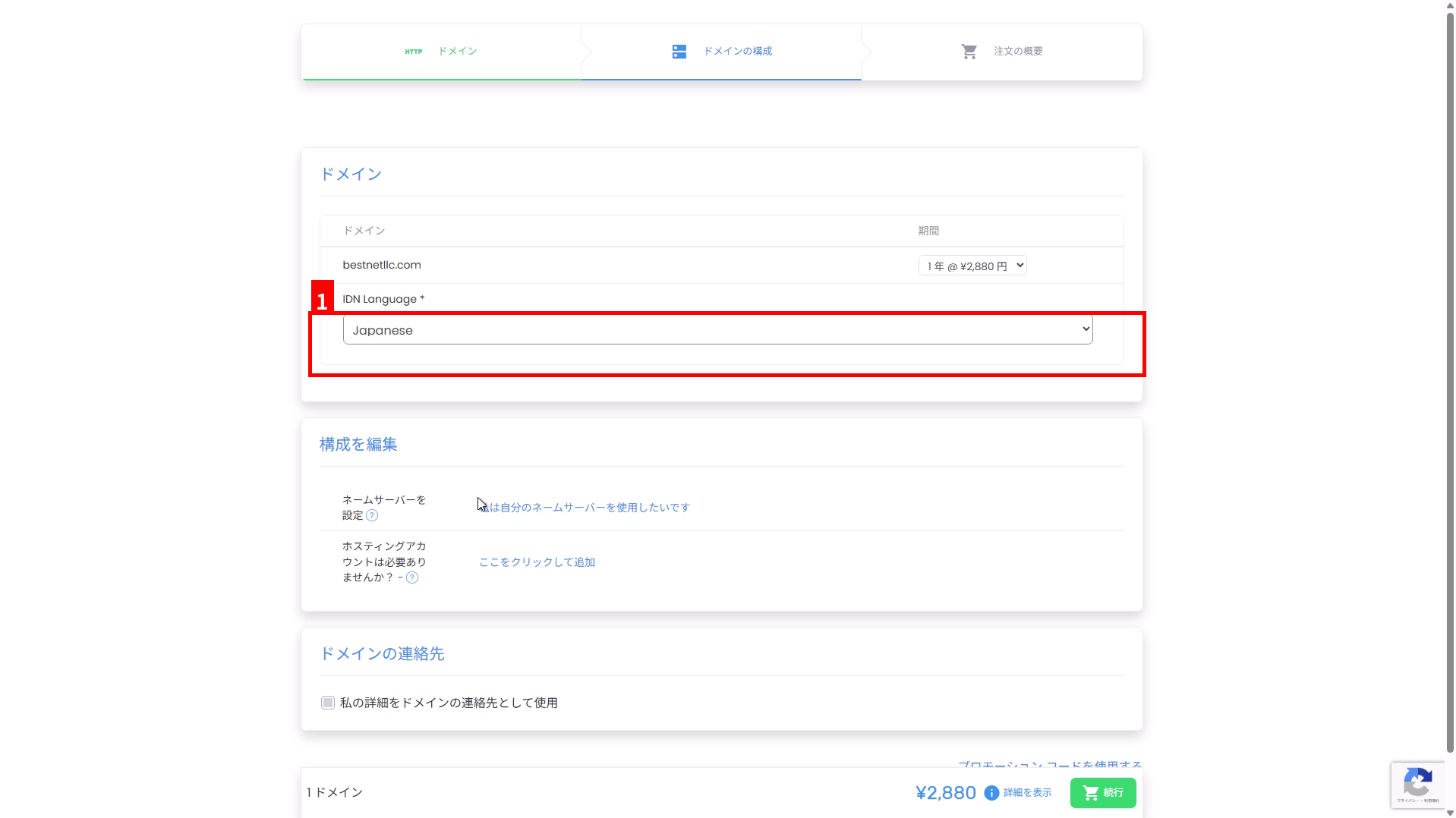
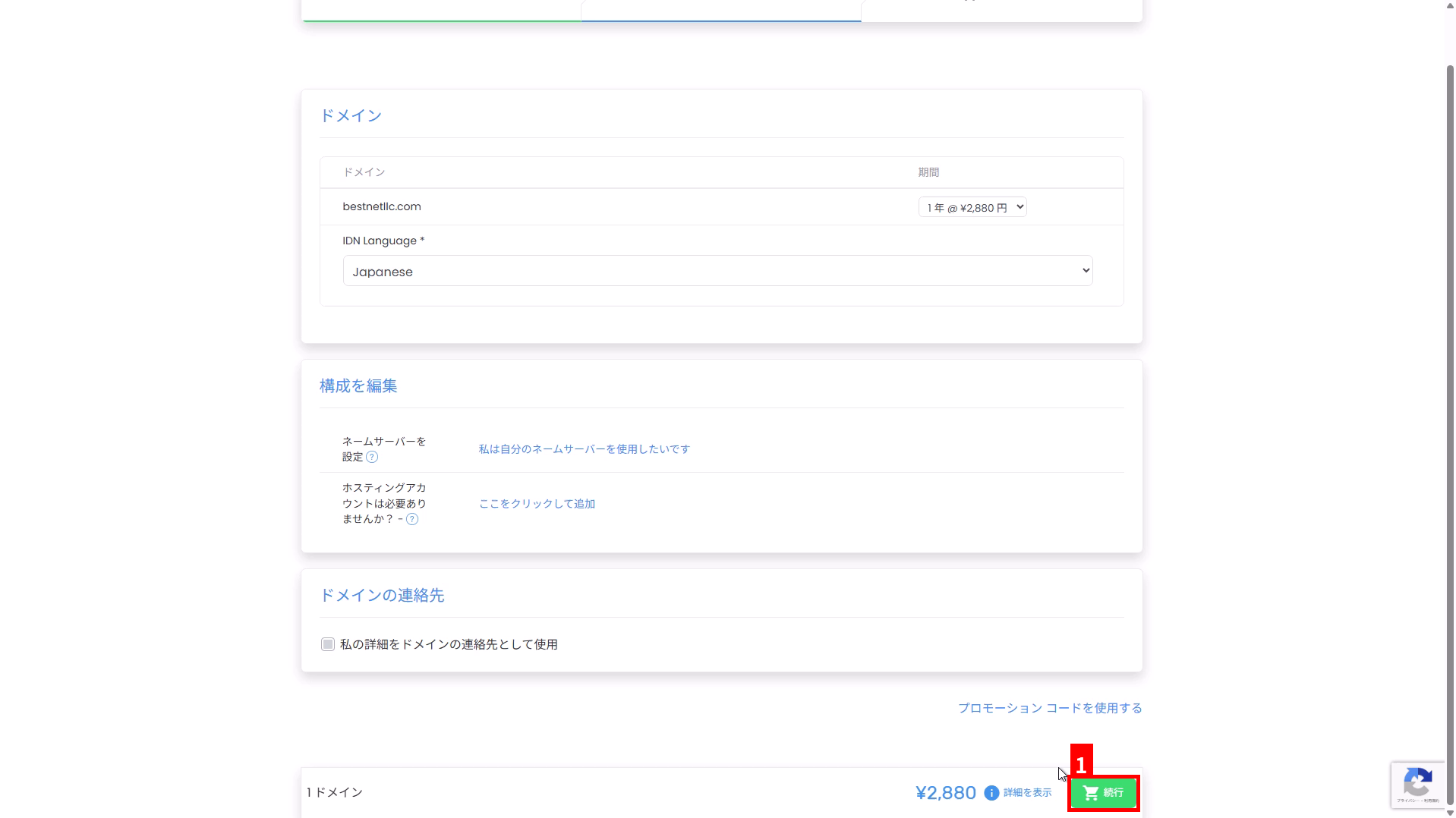
5驗證並配置網域設定 #
在「網域配置」畫面上,驗證註冊期限、IDN 設定、名稱伺服器、聯絡資訊及其他設定。
- 期限:選擇您想要的註冊期限,例如 1 年。
- IDN 語言:如果您要註冊 IDN,例如日文網域(例如
例え.テスト),請選擇目標語言(①)。如果您僅註冊英數字網域,通常無需更改。 - 名稱伺服器:如果您想使用自己的名稱伺服器,請從「我想使用自己的名稱伺服器」進行配置。
- 網域聯絡人:即使您使用「使用我的詳細資訊作為網域聯絡人」,也請驗證作為註冊資訊使用的姓名、地址、公司名稱及其他資訊是否為英文(英數字元)。
6點擊「繼續」前往訂單摘要 #
配置完成後,點擊畫面右下角的「繼續」(①)。
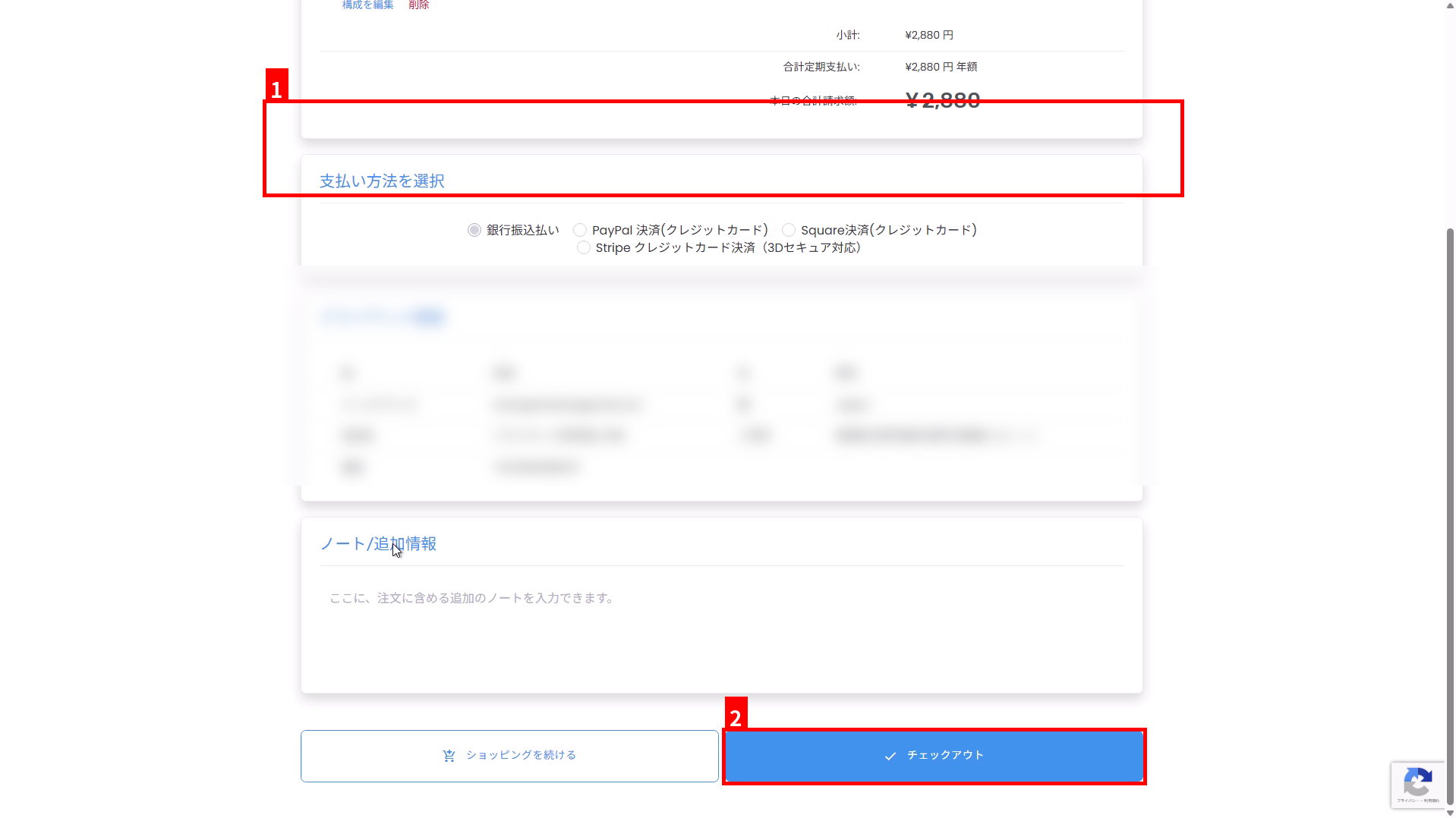
7驗證付款方式及客戶資訊,然後前往結帳 #
- 在「選擇付款方式」中選擇您偏好的付款方式(①)。
- 驗證「客戶資訊」中顯示的姓名、地址及其他資訊是否為英文(英數字元)。如果資訊為日文,請在結帳前將您的帳戶資訊(聯絡資訊)更新為英文。
- 點擊畫面底部的「結帳」(②)。
付款(發票)確認 #
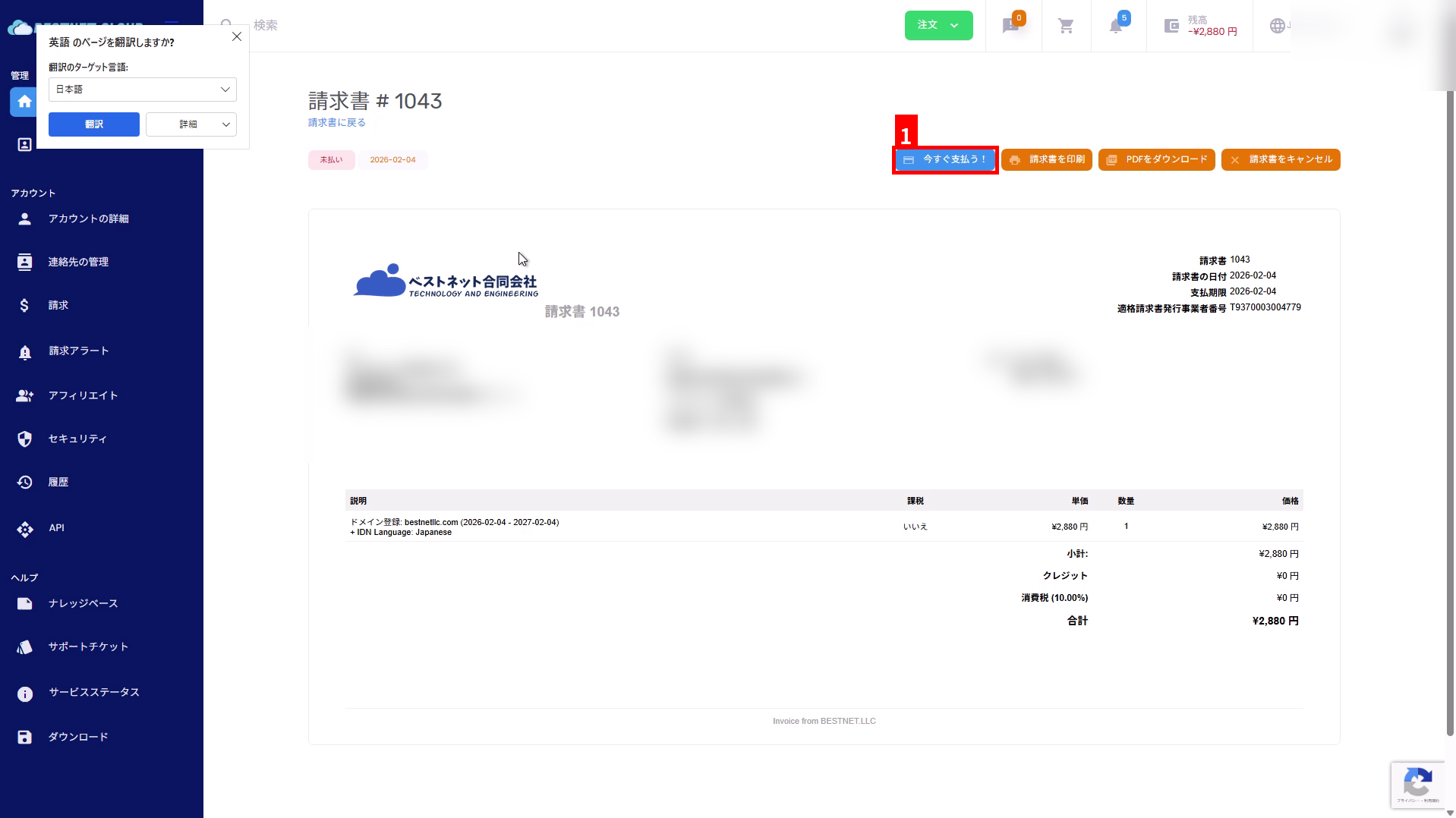
8驗證發票並點擊「立即付款!」 #
結帳後,將會開立發票。 在發票畫面上,點擊「立即付款!」(①)。
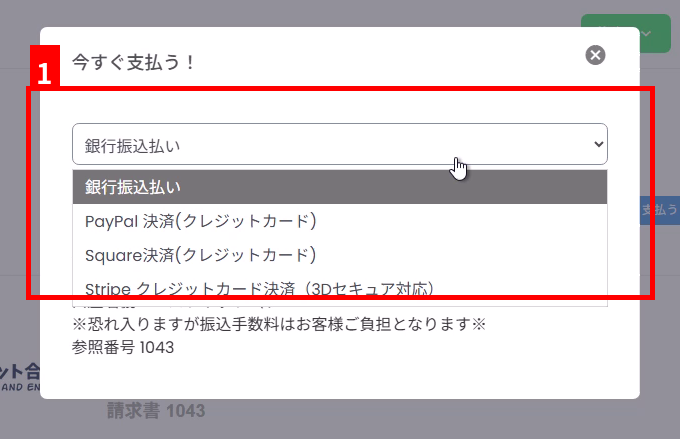
9選擇付款方式並依照指示完成付款 #
在顯示的對話視窗中選擇付款方式(①)。 若選擇銀行轉帳,請確認畫面上顯示的銀行帳戶資訊及參考編號,並將款項匯至指定帳戶。
申請後確認 #
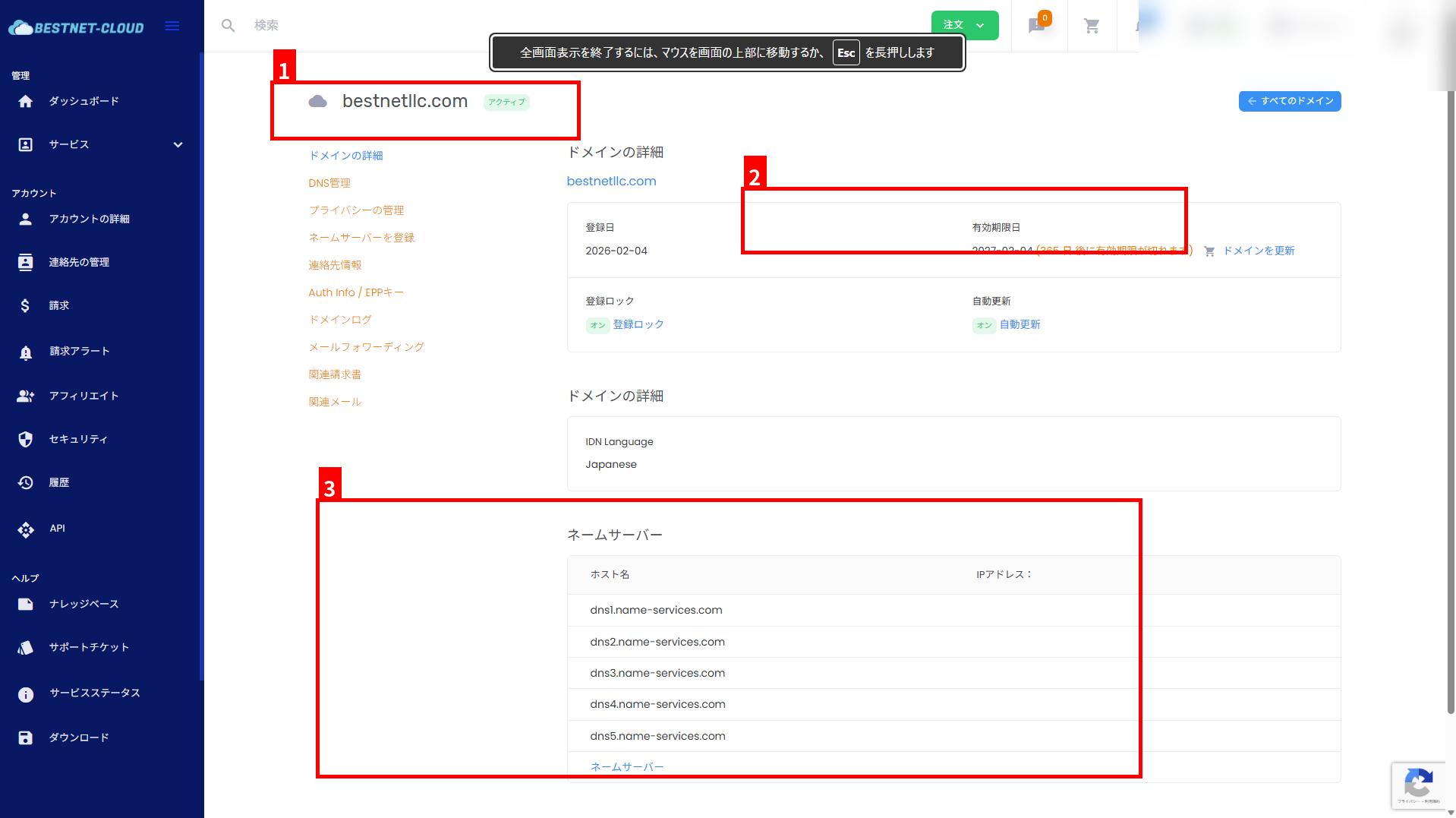
10驗證網域是否已啟用 #
付款及處理完成後,請在網域管理畫面中驗證狀態、到期日期及名稱伺服器設定。
- 驗證網域名稱及狀態(例如啟用)(①)。
- 驗證到期日期(續約期限)(②)。
- Verify that the name server settings are as expected (③).
Common Points to Note #
- Contact information must be in English: If the registrant information contains Japanese characters, registration may fail due to registrar requirements. Always verify English spelling before ordering.
- Status not updated until payment is complete: For bank transfers, the status may take time to update because it is processed after deposit confirmation.
- Domain already acquired: Domains that have already been registered cannot be registered again. Please consider a different TLD or domain name.


