Prerequisites: #
When using BESTNET Cloud, you can install an OPNsense virtual router from the standard provided ISO file.
This procedure describes the flow from virtual machine creation to ISO boot installation and initial configuration.
STEP1. Virtual Machine Creation #
You can create an OPNsense virtual machine by proceeding in the following order.
1. Create a new server
2. Enter any hostname
3. Enter the password you plan to configure (OPNsense does not support automatic password configuration, so you will need to log in to the OS and configure it manually)
4. SSH key management (OPNsense does not support automatic SSH key management, so you will need to configure it manually)
5. OS template selection – Please select OPNsense-25.1-dvd-amd64.iso
6. Allocate computing resources
7. Assign interface net0 Public IP(s).
8. Click “Create new virtual machine”.
STEP2. Create an Additional Interface for LAN #
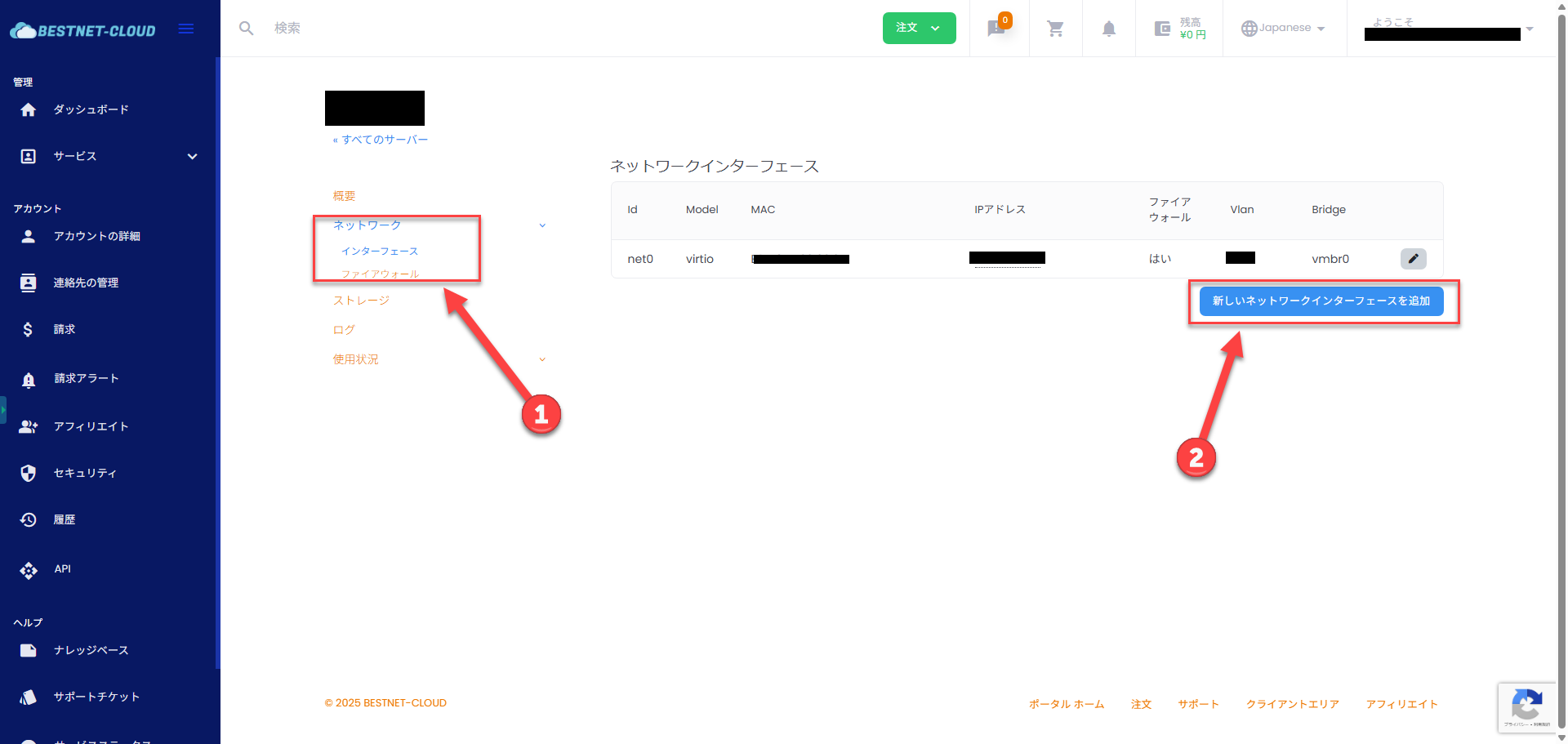
On the overview page of the created virtual machine, navigate to “Network” → “Interfaces” and click “Add new network interface”.
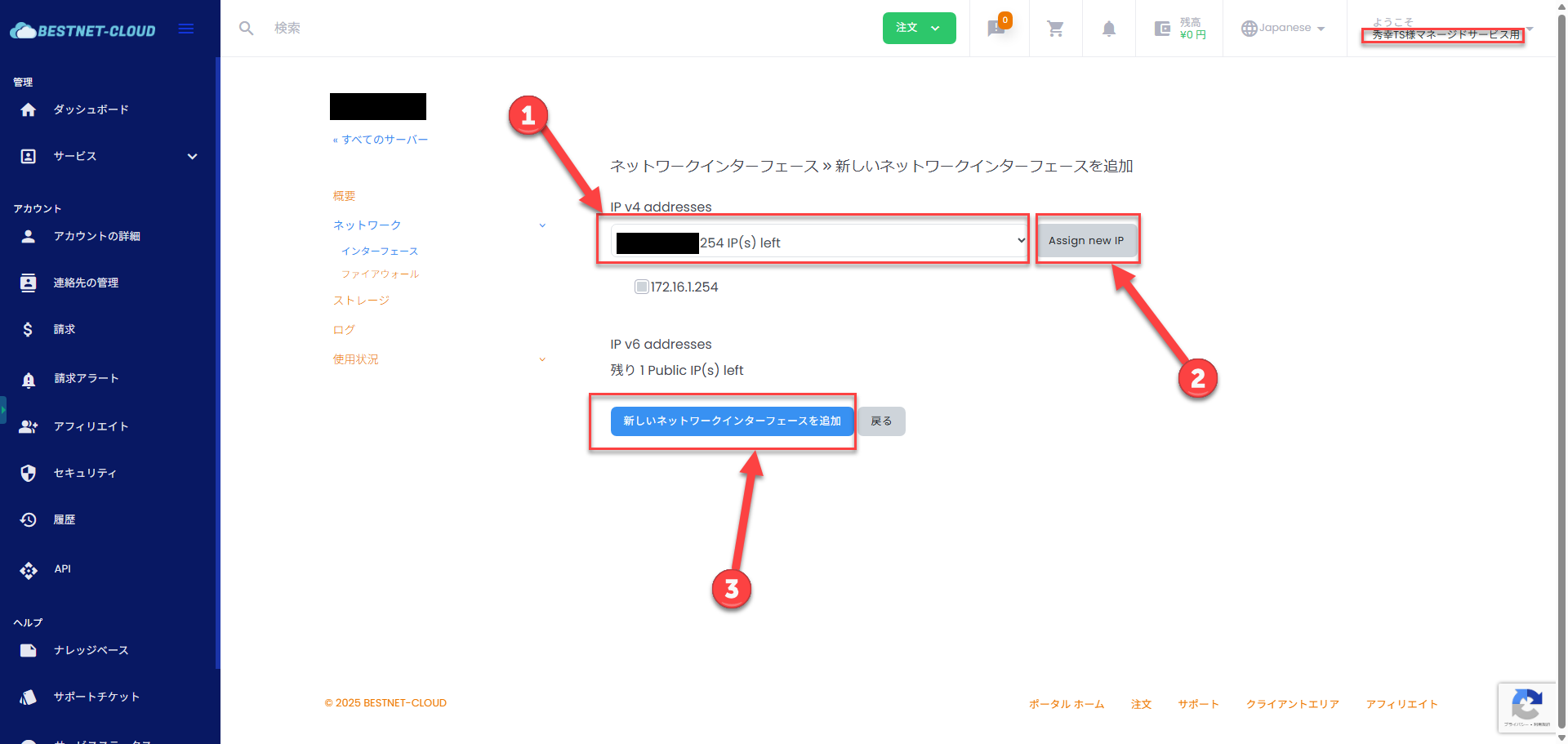
Next, select the private network assigned to your contracted cloud instance from Public IP(s) as the address to assign, and click “Assign new IP”.
Finally, click “Add new network interface” to complete.
STEP3. OS Installation #
When you start the virtual machine, it will boot from the ISO file.
After booting, various processes will start and eventually a login screen should be displayed.
Here, log in with the following user and start the installation process.
Default user: installer
Default password: opnsense
After login is complete, it becomes an interactive setup.
Please proceed with the configuration referring to the following.
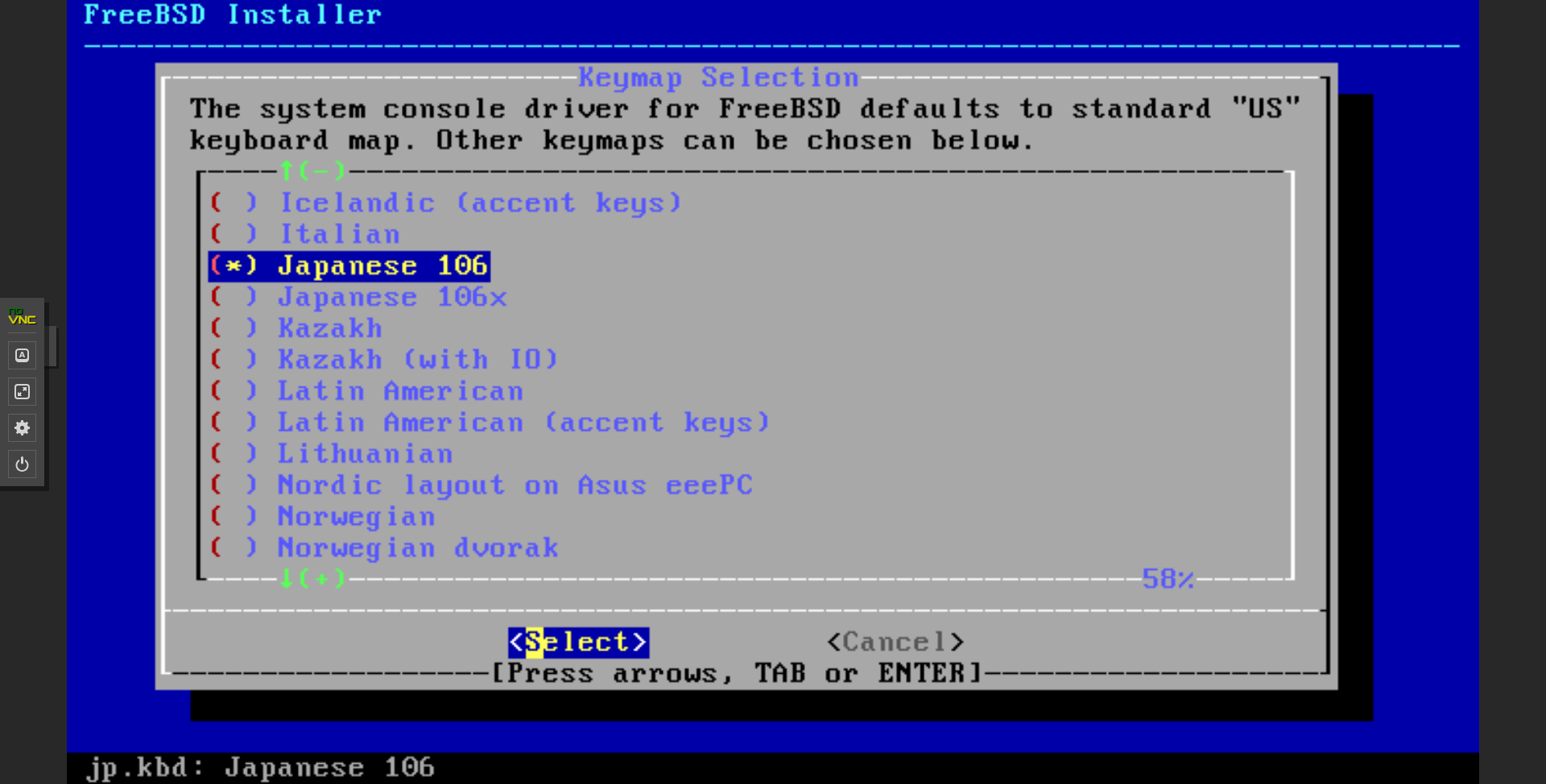
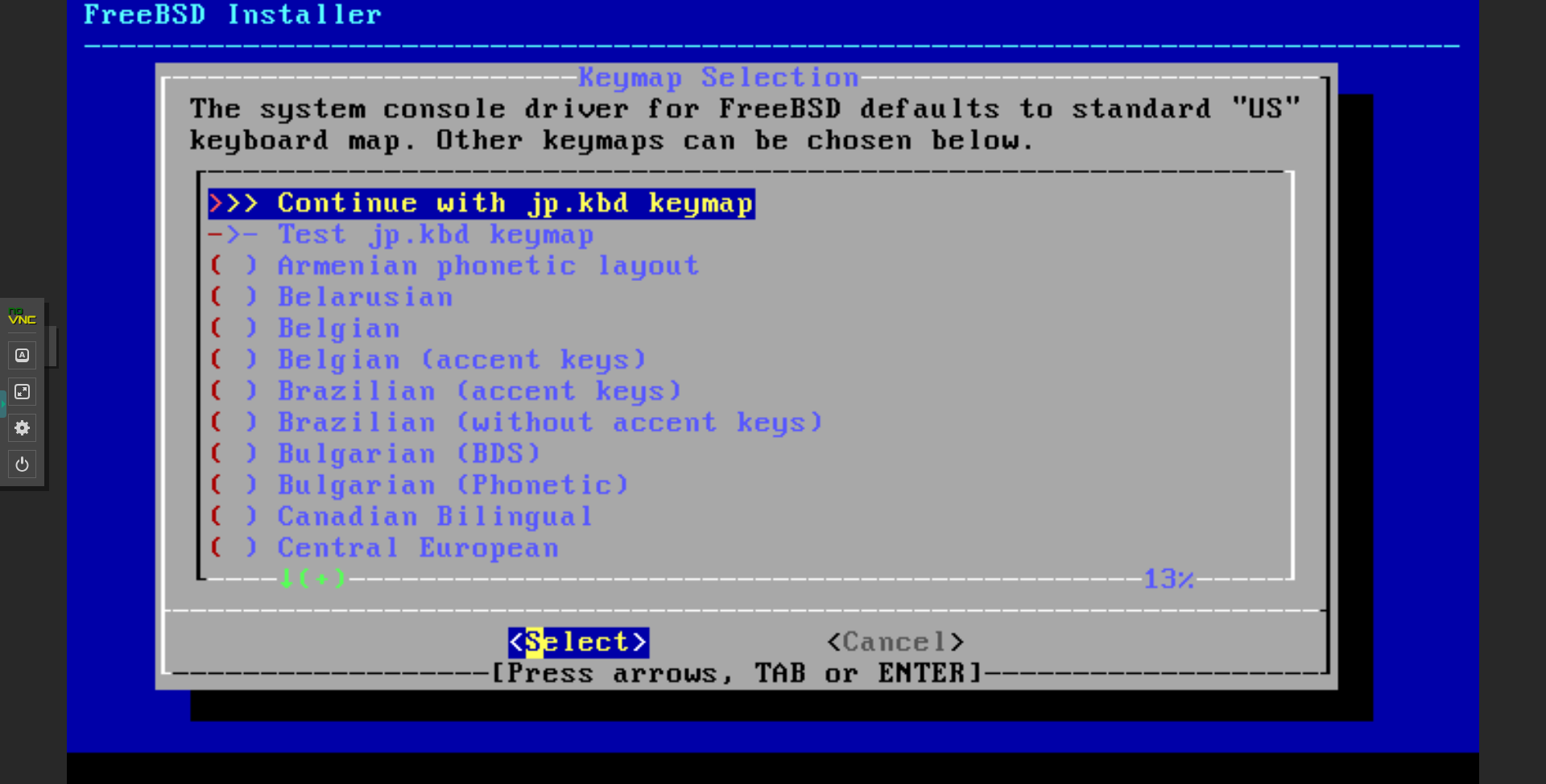
1. Select keyboard KeyMap and Continue
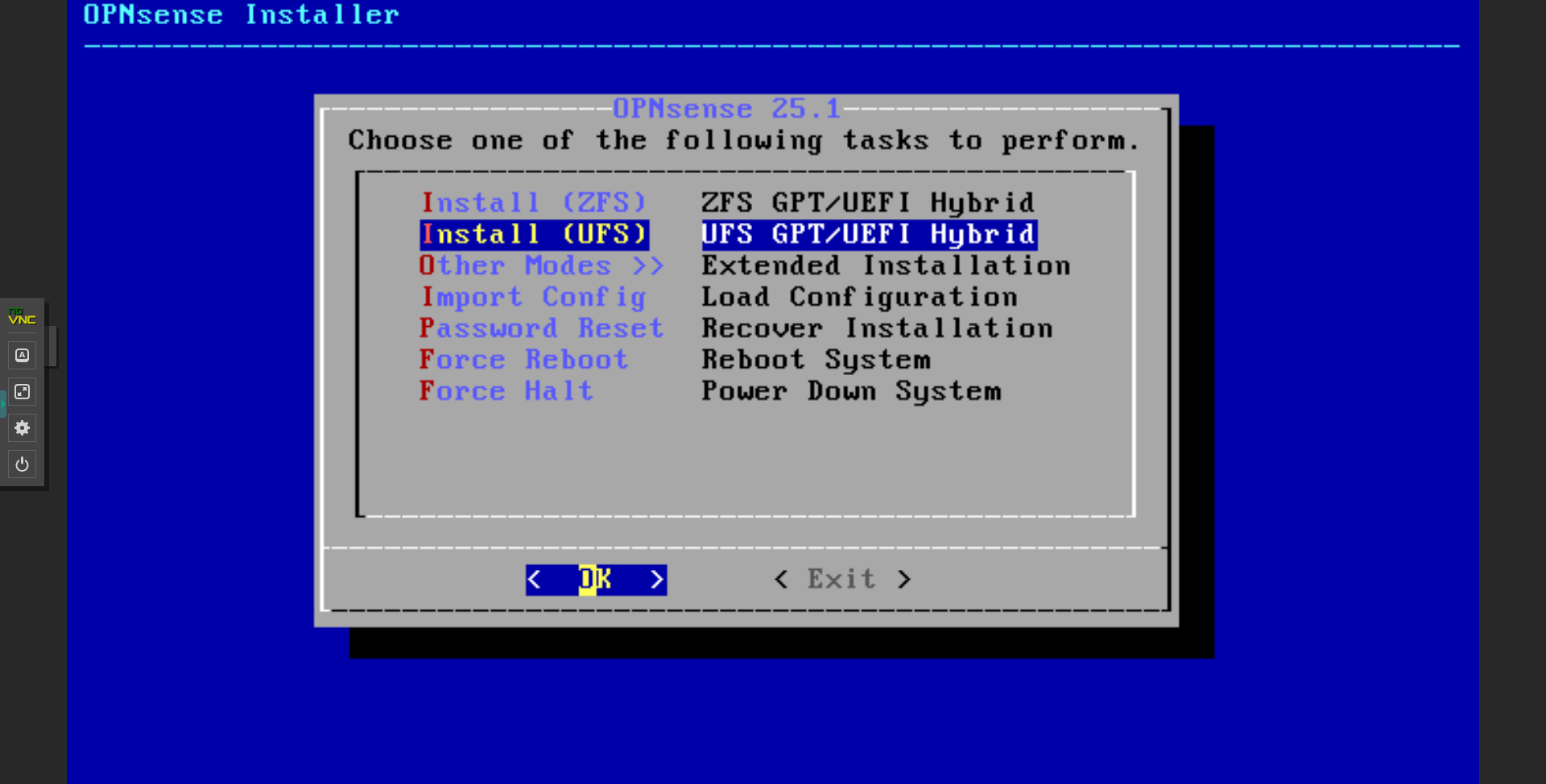
2. Select Install format (UFS)
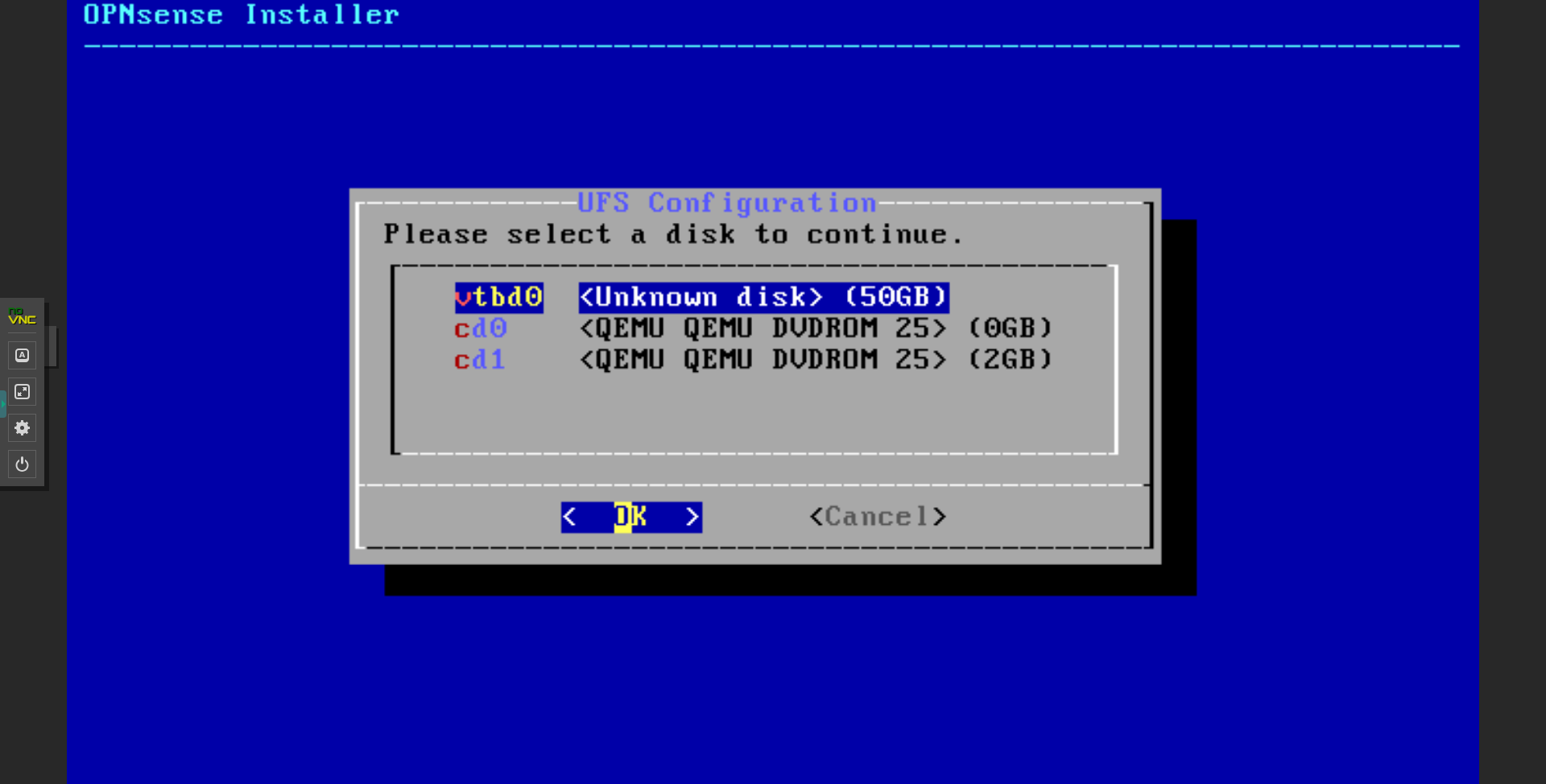
3. Select installation destination disk (vtbd0)
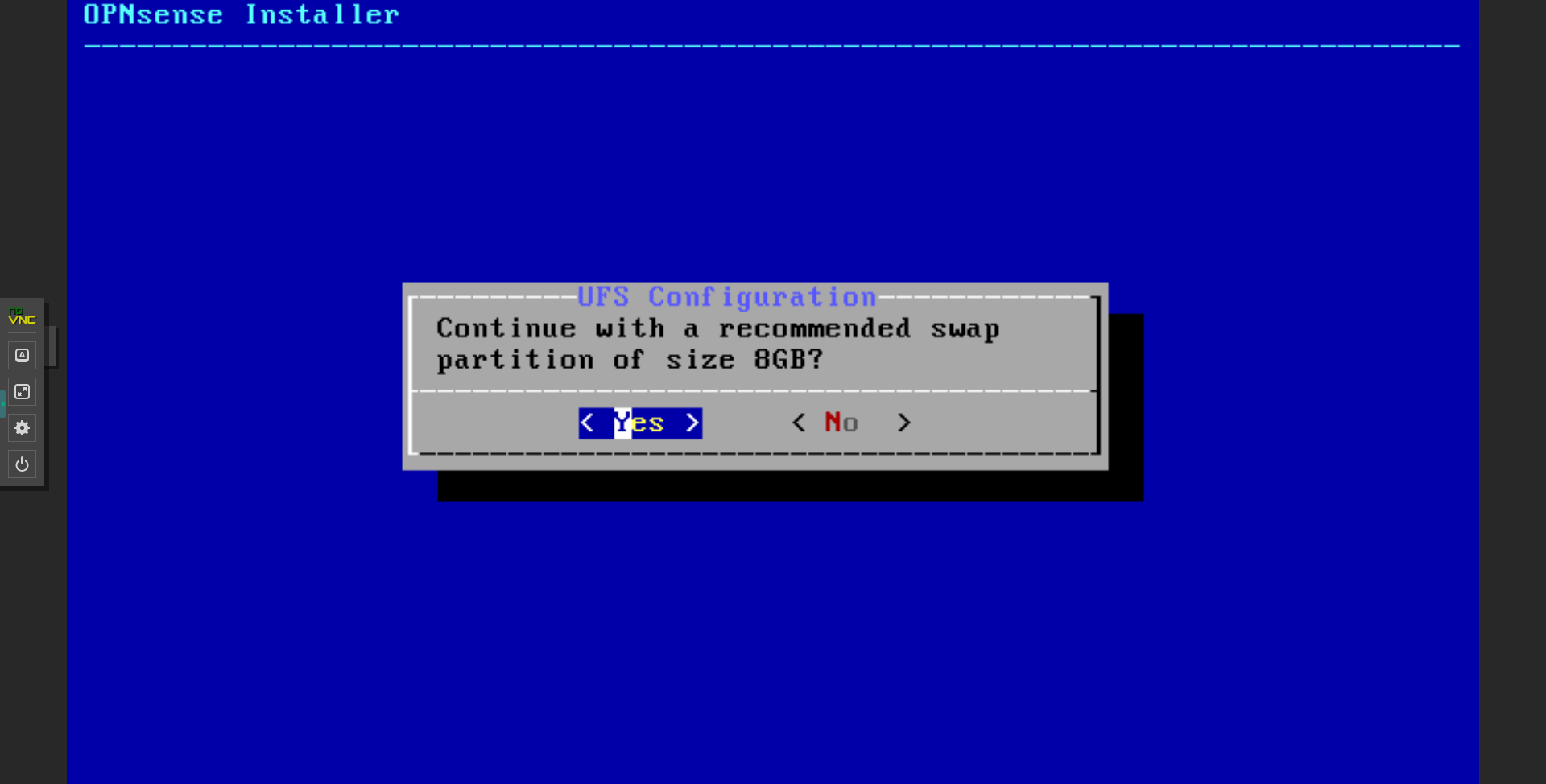
4. Confirm swap partition size (YES)
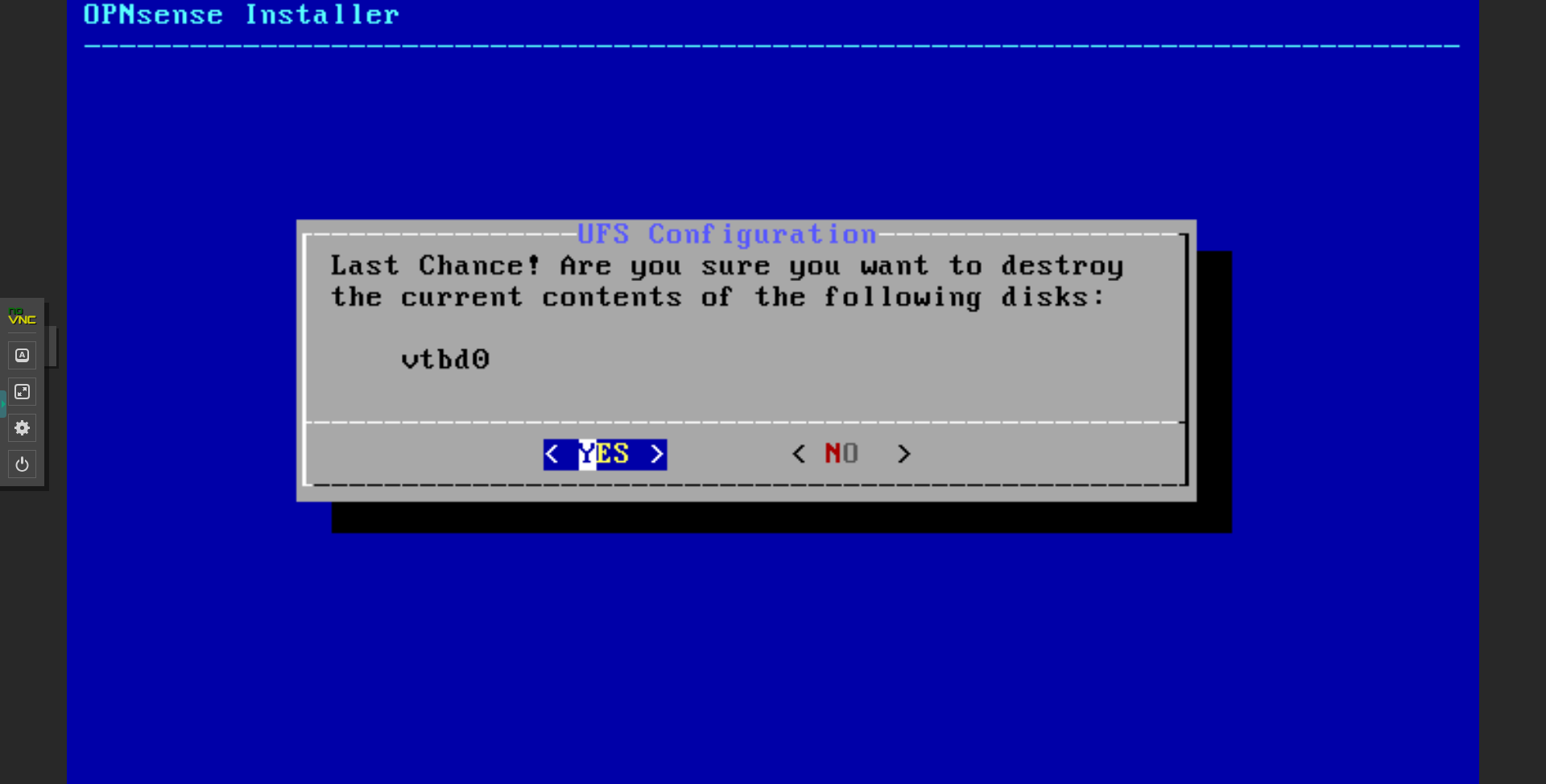
5. Confirm that it is okay to delete existing data on the installation destination disk (YES)
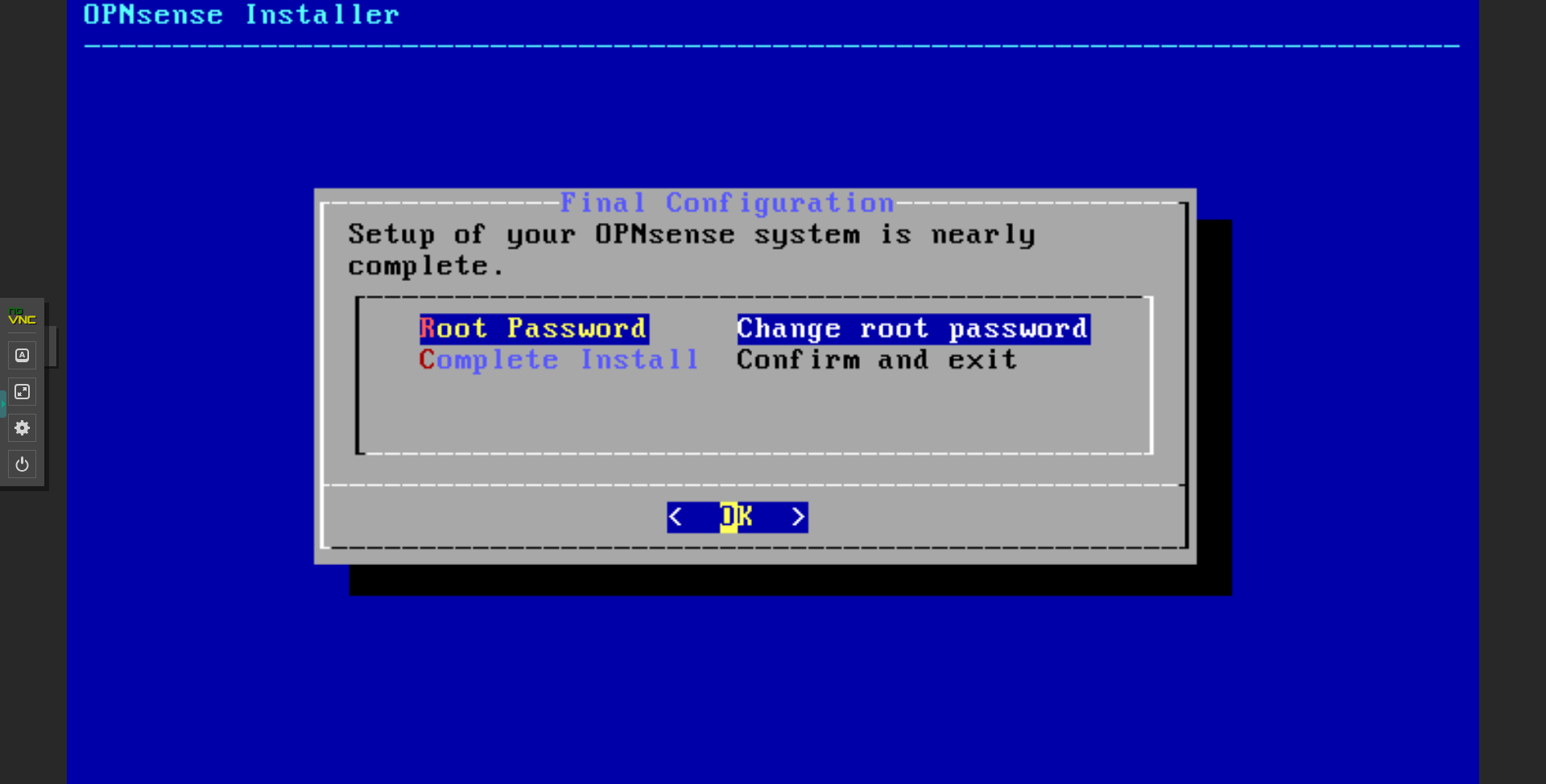
6. Change root password (any value)
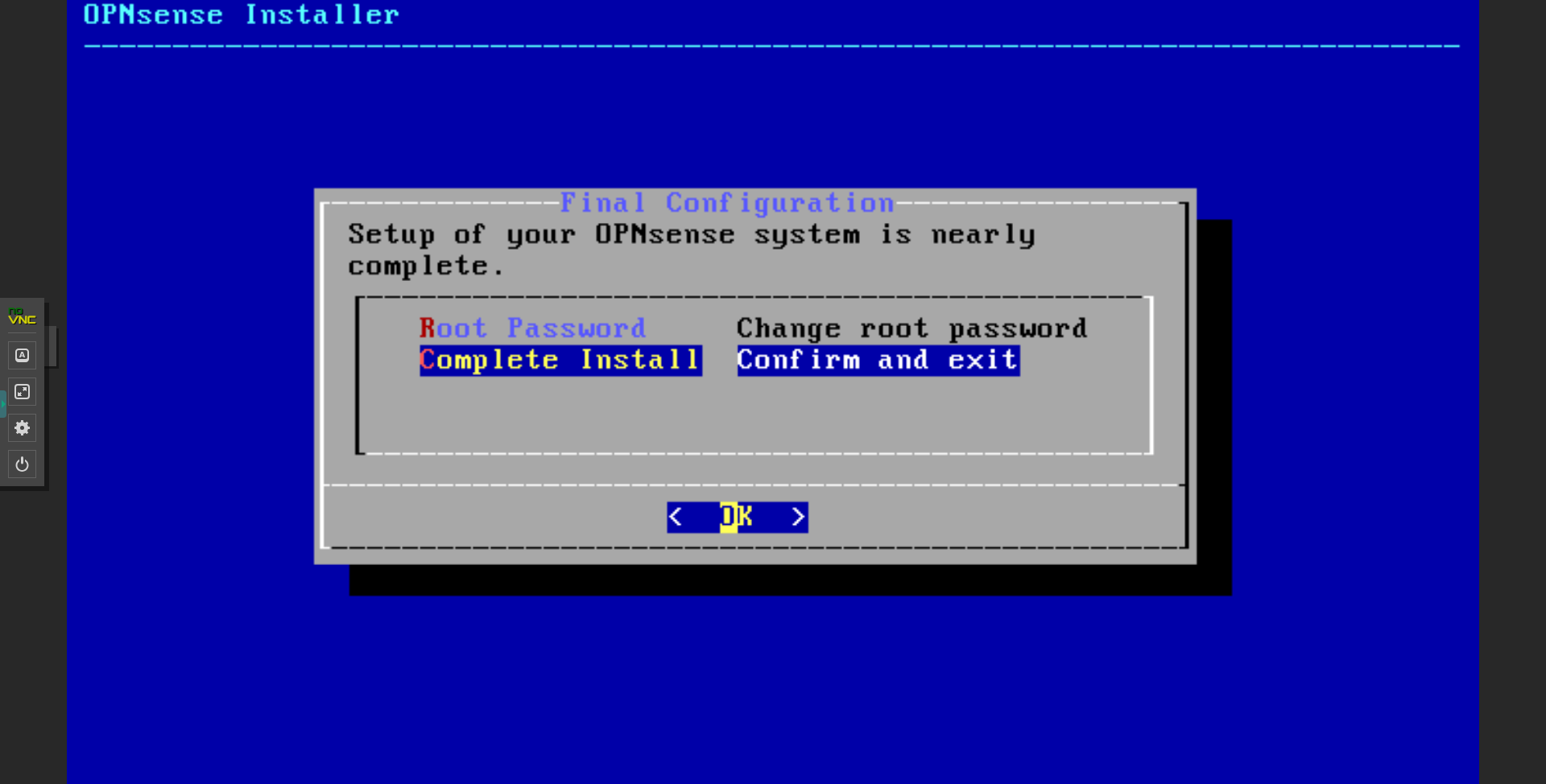
7. Installation complete (Complete Install)
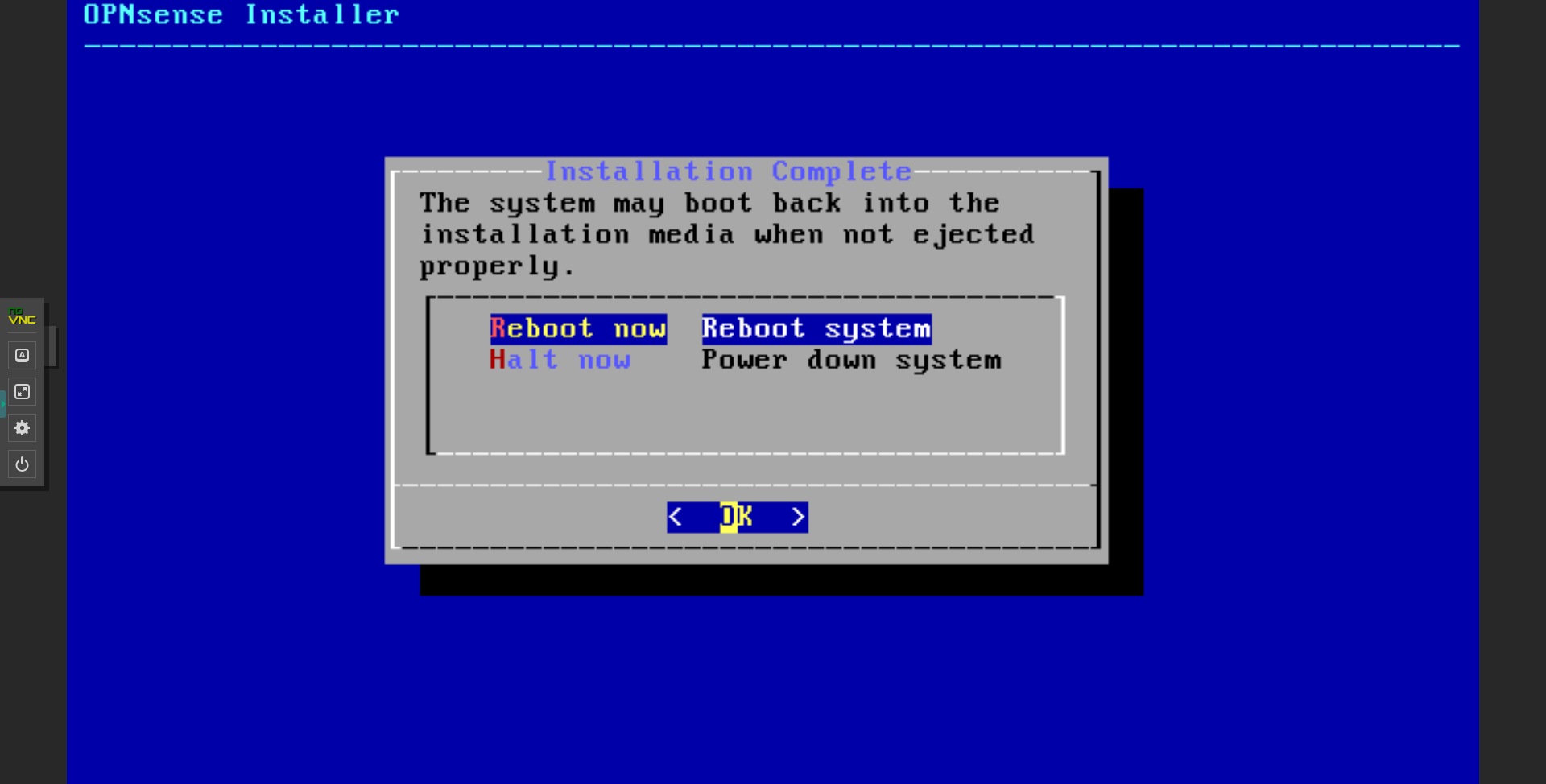
8. Reboot now
STEP4. WAN Interface Assignment #
After the reboot is complete, the login screen will appear. Log in and proceed to assign the WAN interface.
Default user: root
Default password: root password set in STEP3
After logging in, you can configure settings in an interactive format.
Enter 1 in “Enter an option:” and press Enter
Then proceed in the following order:
・Do you want to configure LAGGs now ? [y/N] = N
・Do you want to configure VLANs now ? [y/N] = N
・Enter the WAN interface name or a for auto-detection = vtnet0
・NOTE: this enables full Firewalling/NAT mode. = Enter
・Enter the Optional interface 1 name or a for auto-detection = Enter
・Do you want to proceed?[y/N] = Y
Upon completion, you will return to the initial interactive selection screen.
In the next step, proceed to assign the WAN interface IP address.
STEP5. WAN Interface IP Address Assignment #
Enter 2 in “Enter an option:” and press Enter
Execute option 2 on the selection screen.
Then proceed in the following order:
・Configure IPv4 address WAN interface via HDCP? [Y/n] = N
・Enter the new WAN IPv4 address . press <ENTER> for none:
→Enter the global IP address displayed on the virtual machine overview screen.
・Enter the new WAN IPv4 Subnet bit counts (1 to 32).
・For a WAN, enter the new WAN IPv4 upstream gateway address.
→For the subnet and gateway, place your mouse icon on the corresponding IP address location to display the information.
Example: For /27, enter 27 in the interactive prompt and press Enter
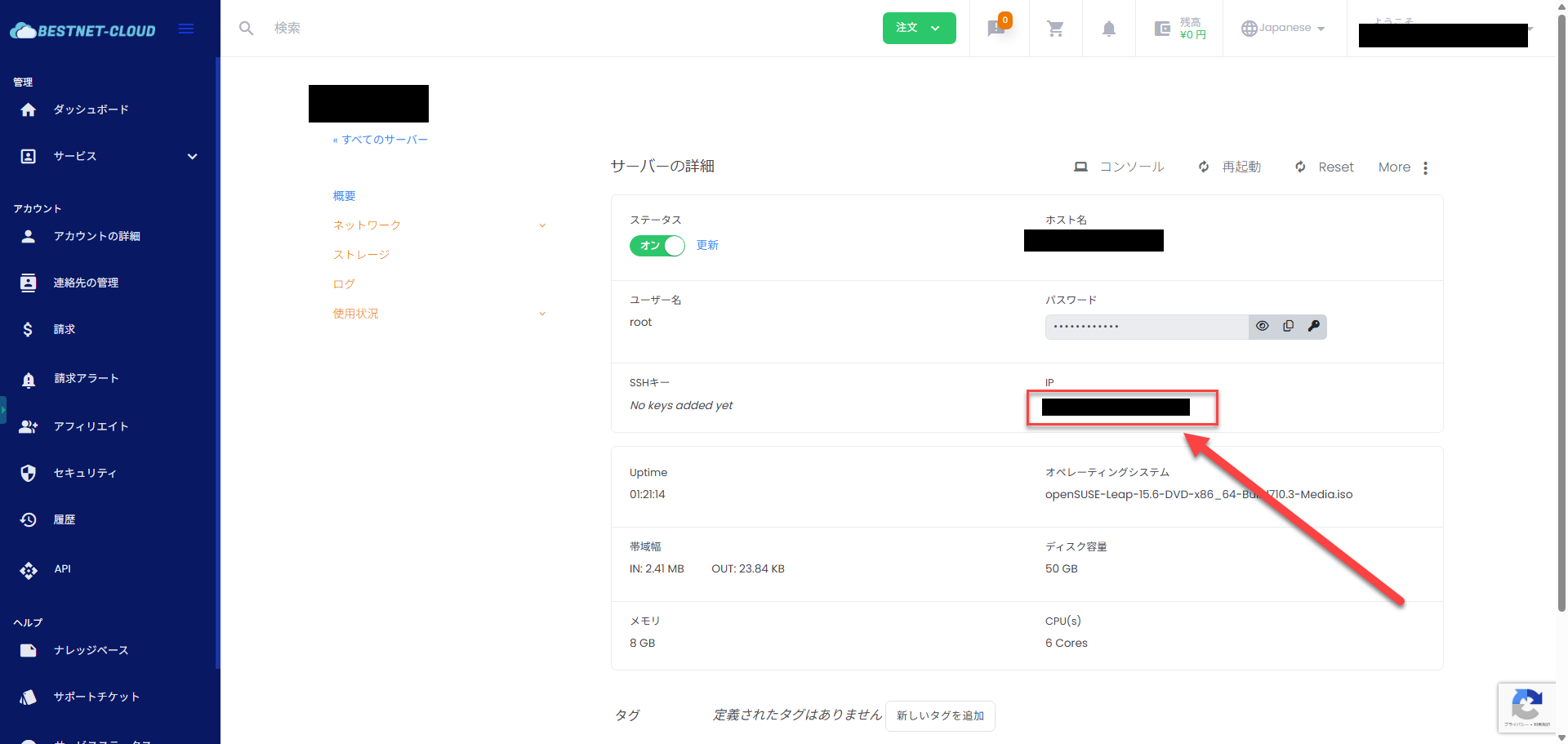
・Do you want to use the gateway as the IPv4 name server too? [Y/n] = Y
・Configure IPv6 address WAN Interface via DHCP6? [Y/n] = N
・Enter the new WAN IPv6 address . Press <ENTER> for none: = Press Enter as is.
・Do you want to enable the DHCP server on WAN? [y/N] = N
・Do you want to chage the web GUI protocol from HTTPS to HTTP? [y/N] = N
・Do you want to generate a new self-signed web GUI certificate? [y/N] = Y
・Restore web GUI access defaults? [y?N] = N
After completing these steps, the self-signed certificate generation process will begin. Once completed, port 443 will listen on the configured WAN IP address. However, you need to allow port 443 in the virtual machine firewall settings, which will be described in the next step.
STEP6. Allow External HTTPS (Port 443) Access to the WAN IP Address #
On the Opensense virtual machine overview page, click “Network” → “Firewall” in order.
In the initial state, no firewall rules are configured, and the setting denies all access from the internet to the virtual machine.
Click “Add new rule”.
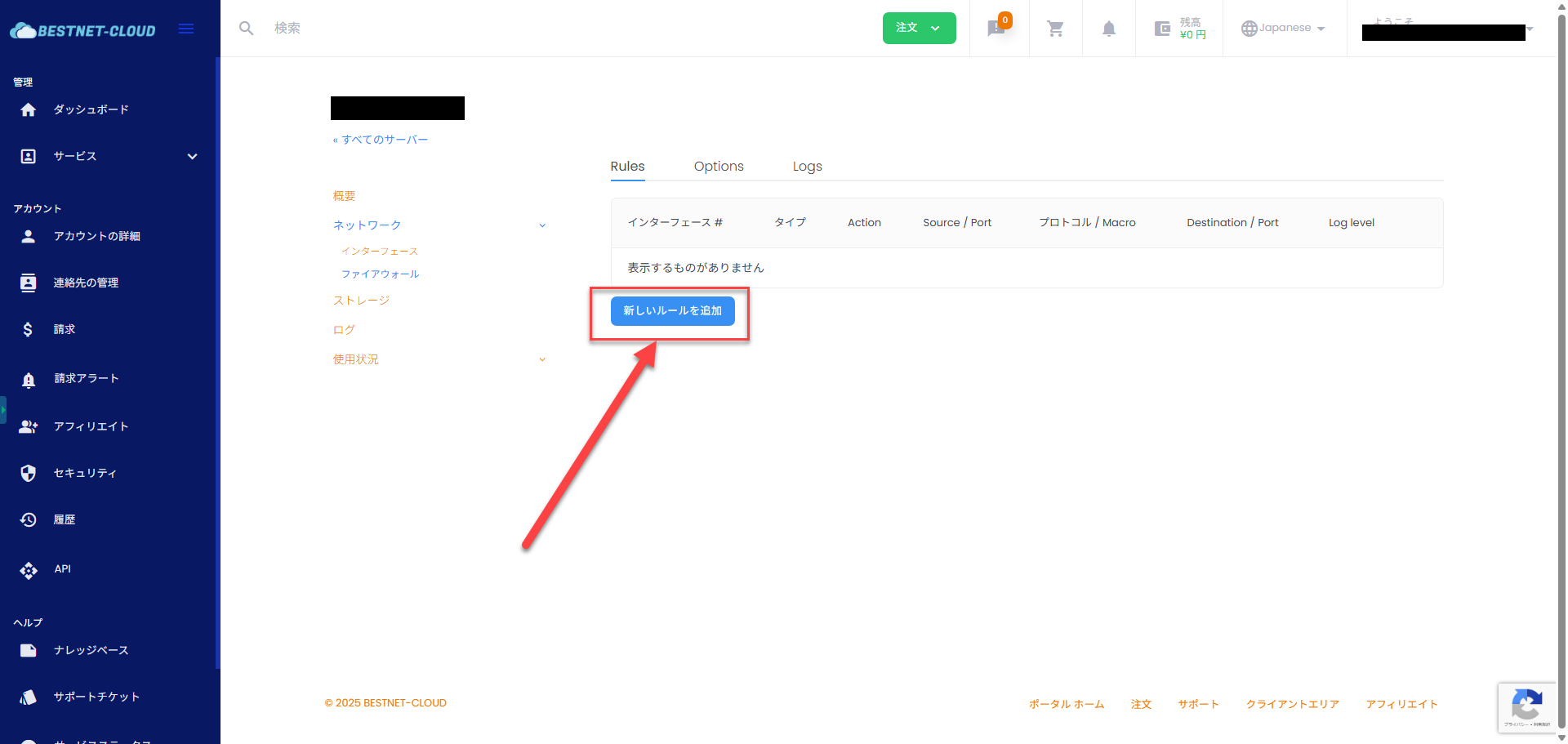
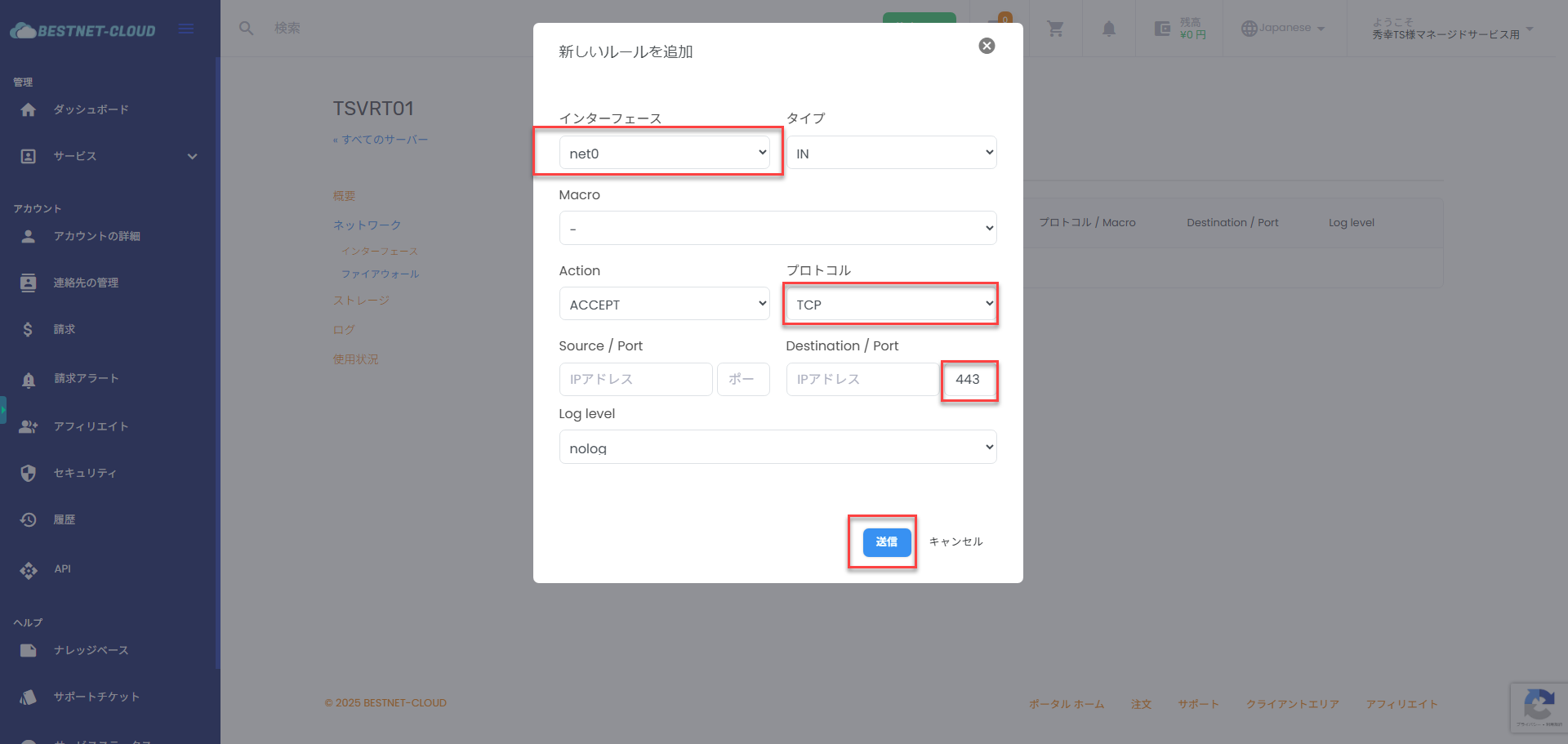
Confirm that the interface net0 to which the WAN IP is assigned is selected, set the protocol to TCP, enter 443 in the Destination/port port input field, and click the “Submit” button to allow access from the Internet to port 443 of the WAN interface of the Opnsense virtual machine.
※We recommend limiting the source IP address※
※Please select the Log level according to your requirements※
STEP7. Change Language (Optional) #
Please access the WAN IP of the Opnsense virtual machine via https from your local device. https://Opnsense virtual machine WAN IP address
A login screen will be displayed, so please log in by entering the user and password you set in STEP3.
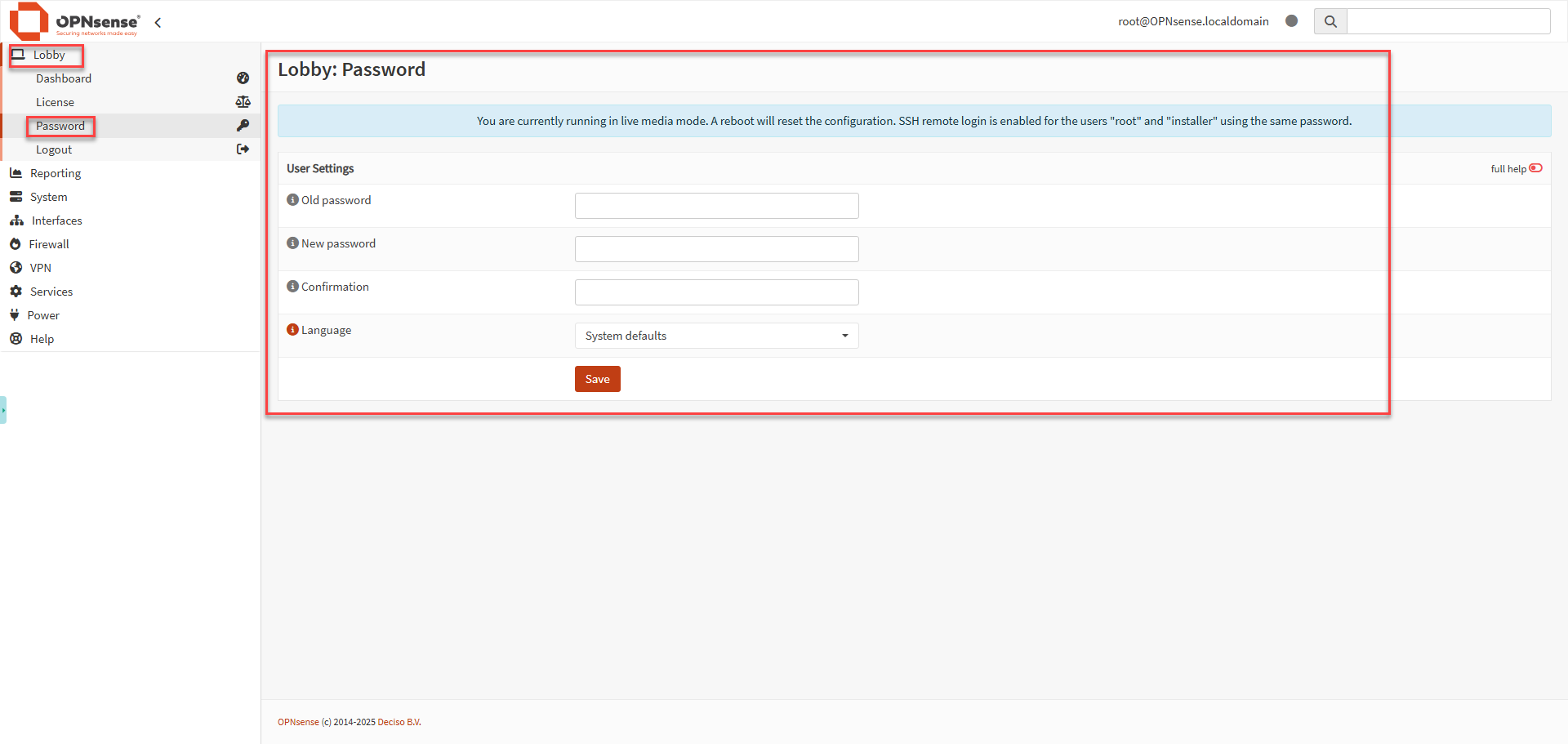
Click Lobby→Password in order, and you can change the GUI language to your preferred language.
STEP8. LAN Interface Assignment #
To create a LAN interface within the cloud environment, it is necessary to have Opnsense recognize the network adapter assigned to the Opnsense virtual machine.
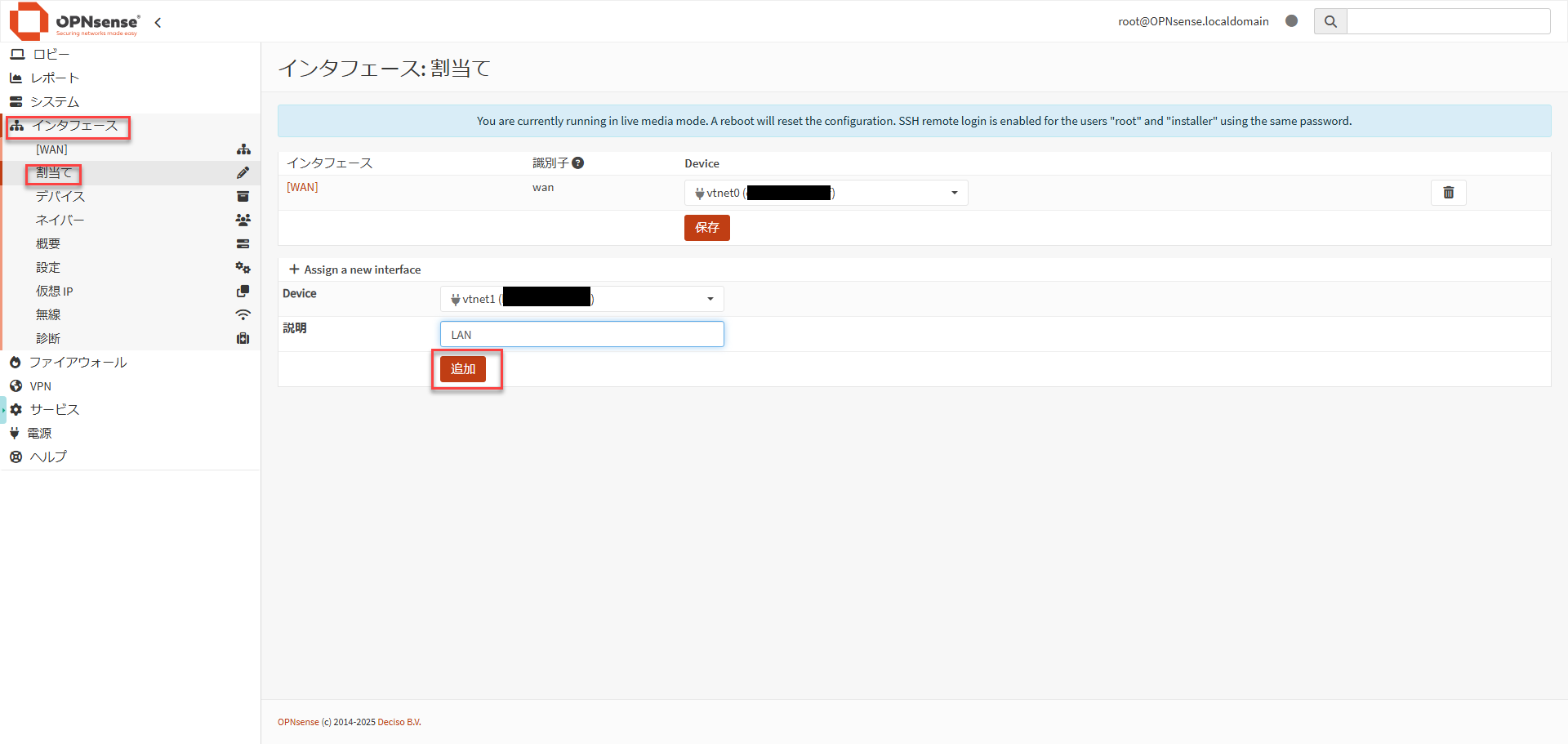
Navigate the tree by clicking Interface→Assignments, select “vtnet1” in “Assign a new interface”, and click the “Add” button to complete the assignment.
※When assigning multiple LAN interfaces, the number in vtnetX will increase in the order added, so you can identify the association with the interface information listed on the virtual machine overview page.※
STEP9. Configure IP Address for LAN Interface #
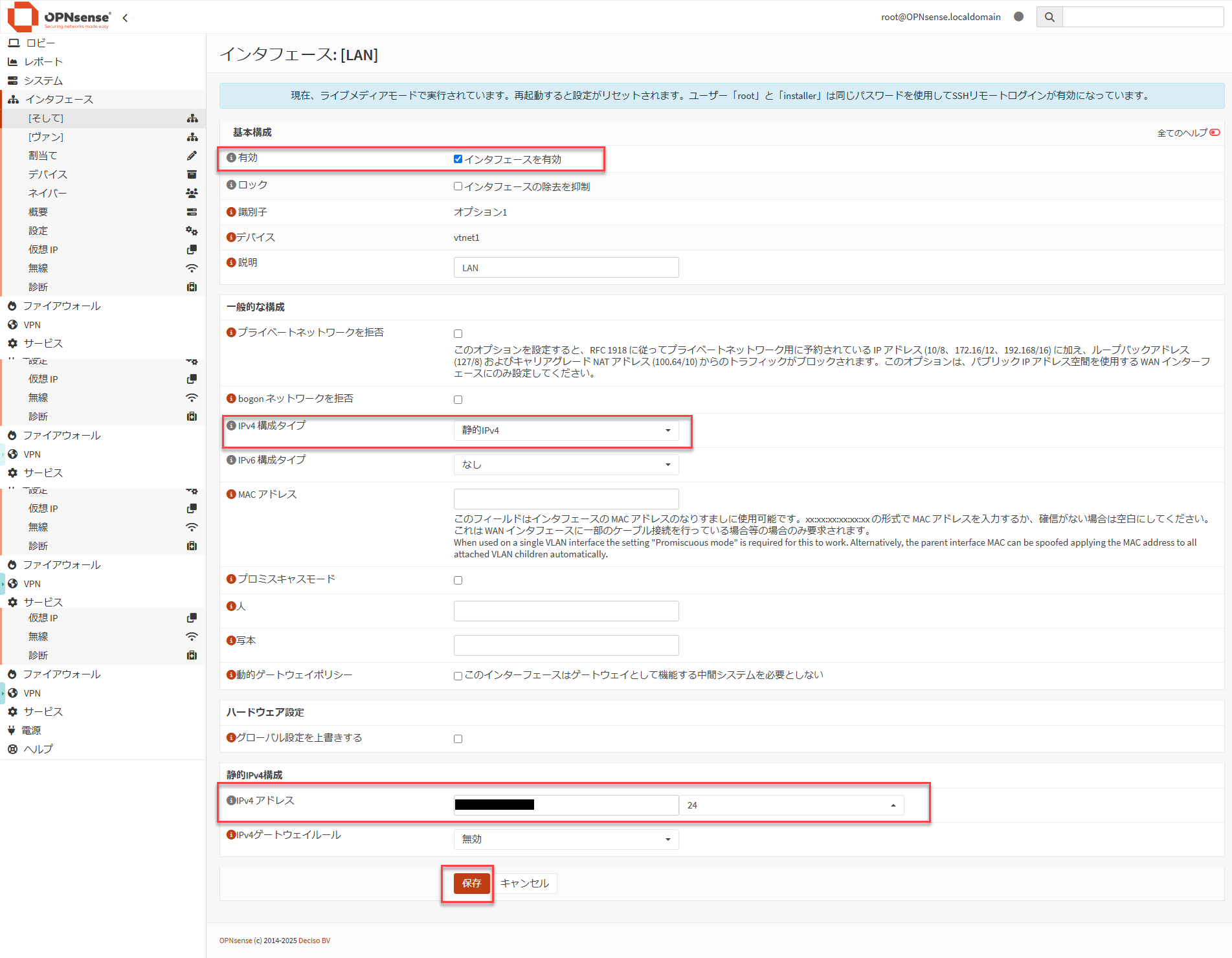
It is necessary to configure an IP address for the LAN interface assigned in STEP8.
・Check “Enable interface”
・Set “ IPv4 Configuration Type” to “Static IPv4”
・”IPv4 address” (Please enter the LAN IP address displayed on the virtual machine overview page)