
Client Portal Guide
Client Portal: Console (noVNC) Operation Guide #
This guide provides step-by-step instructions on how to launch the server’s console (noVNC) from the client portal and access the OS login screen.
Prerequisites #
- You are logged into the client portal
- You can access the Service Details screen for the target VPS
Procedures #
1. Open the Service Details Screen #
- Open Services from the left menu and select the target server.
- Verify that the service name (e.g., NVPS663) and Server Details are displayed.
2. Launch the Console #
Click Console at the top of the Service Details screen.
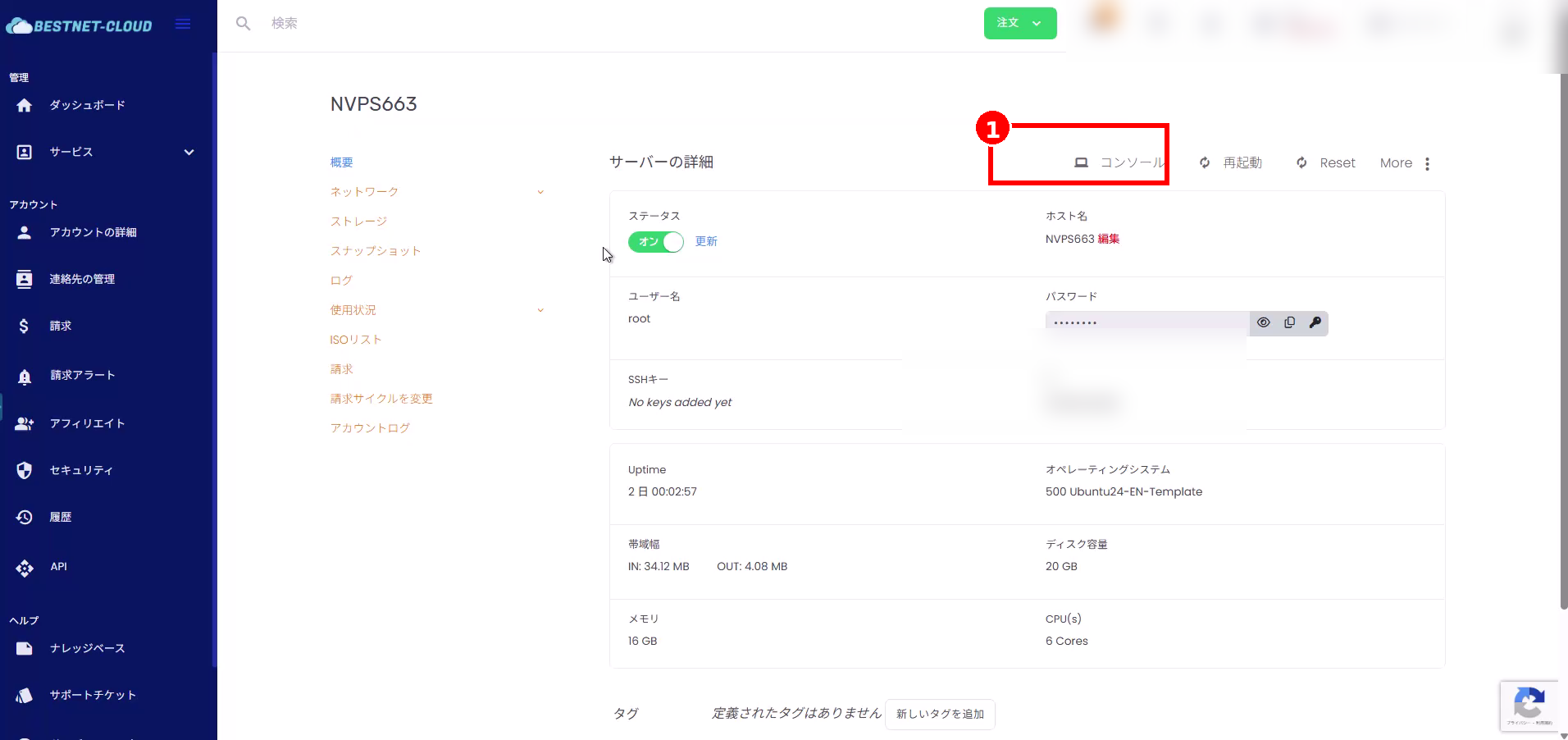
After clicking, the noVNC console will open in a separate window (or tab). If the popup does not open, allow popups from the notification that appears near the browser address bar.
3. Check Login Information (Username and Password) #
The username and password used to log in to the console can be found on the Service Details screen.
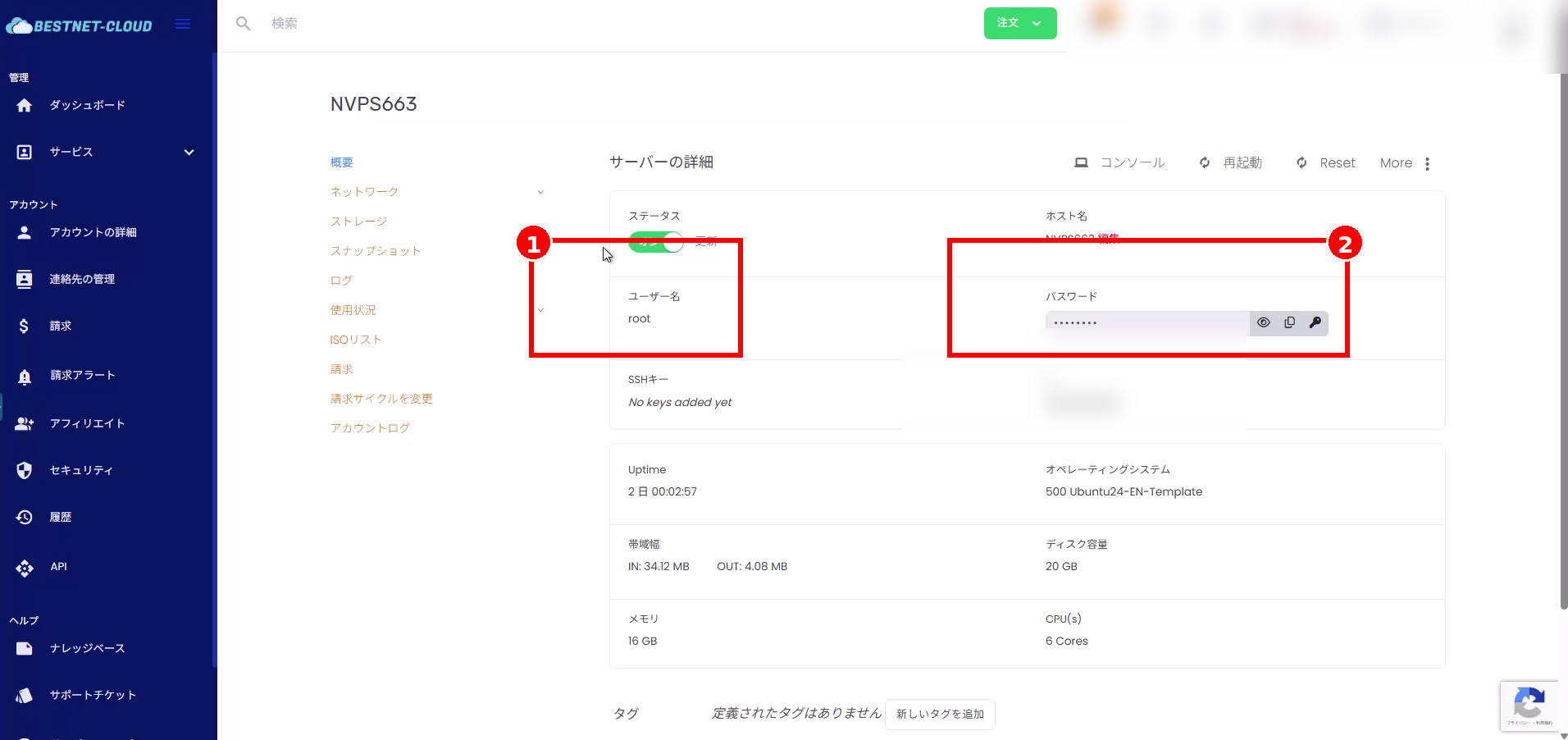
- Username: Displayed in the “Username” field on the screen (e.g., root).
- Password: You can display or copy it using the icon on the right side of the password field.
4. Wait for Connection to Complete #
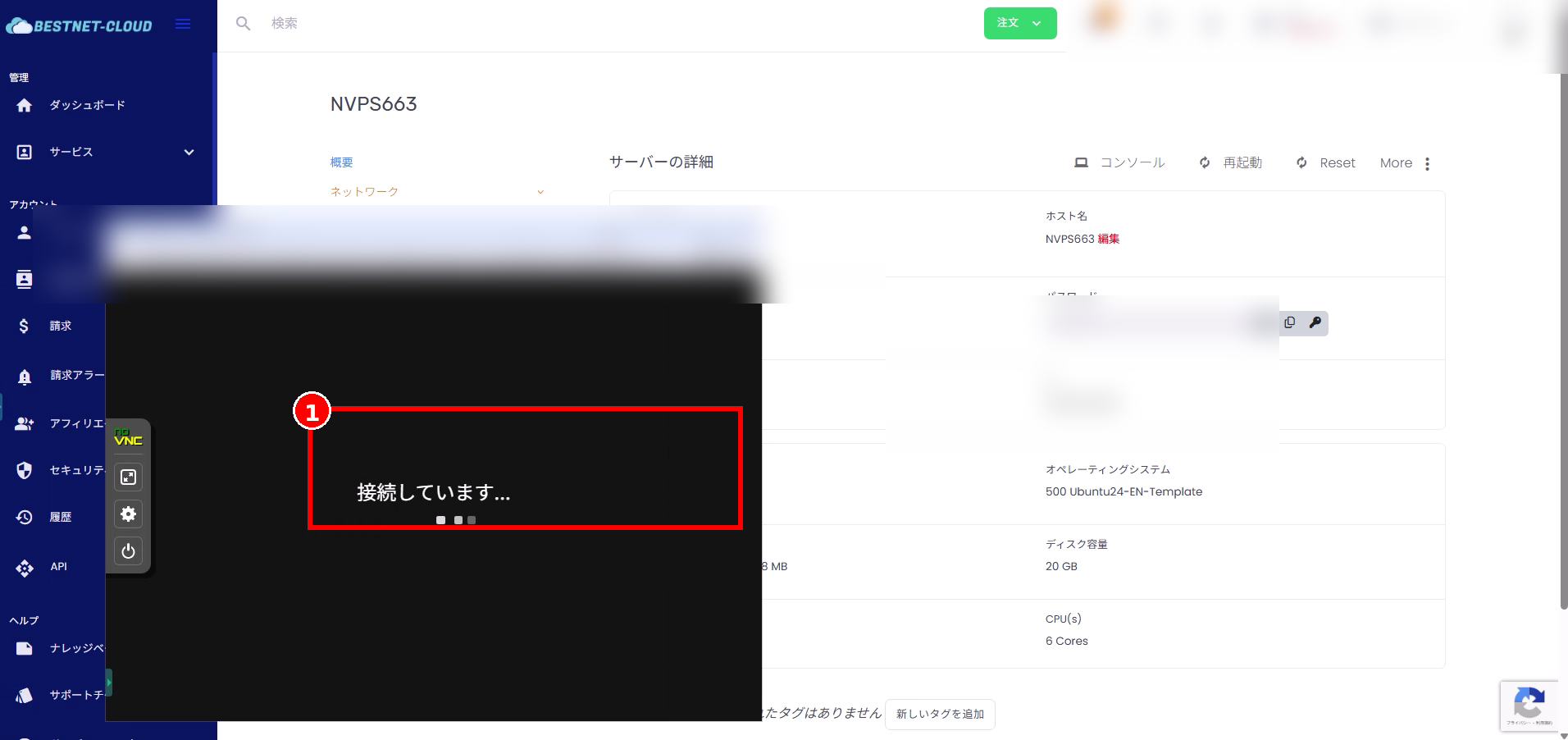
Shortly after launching the console, “Connecting…” may be displayed in the center of the screen. You cannot perform operations during this display, so please wait.
5. Log In to the Console #
Once the connection is complete, a login: prompt will appear on the console.
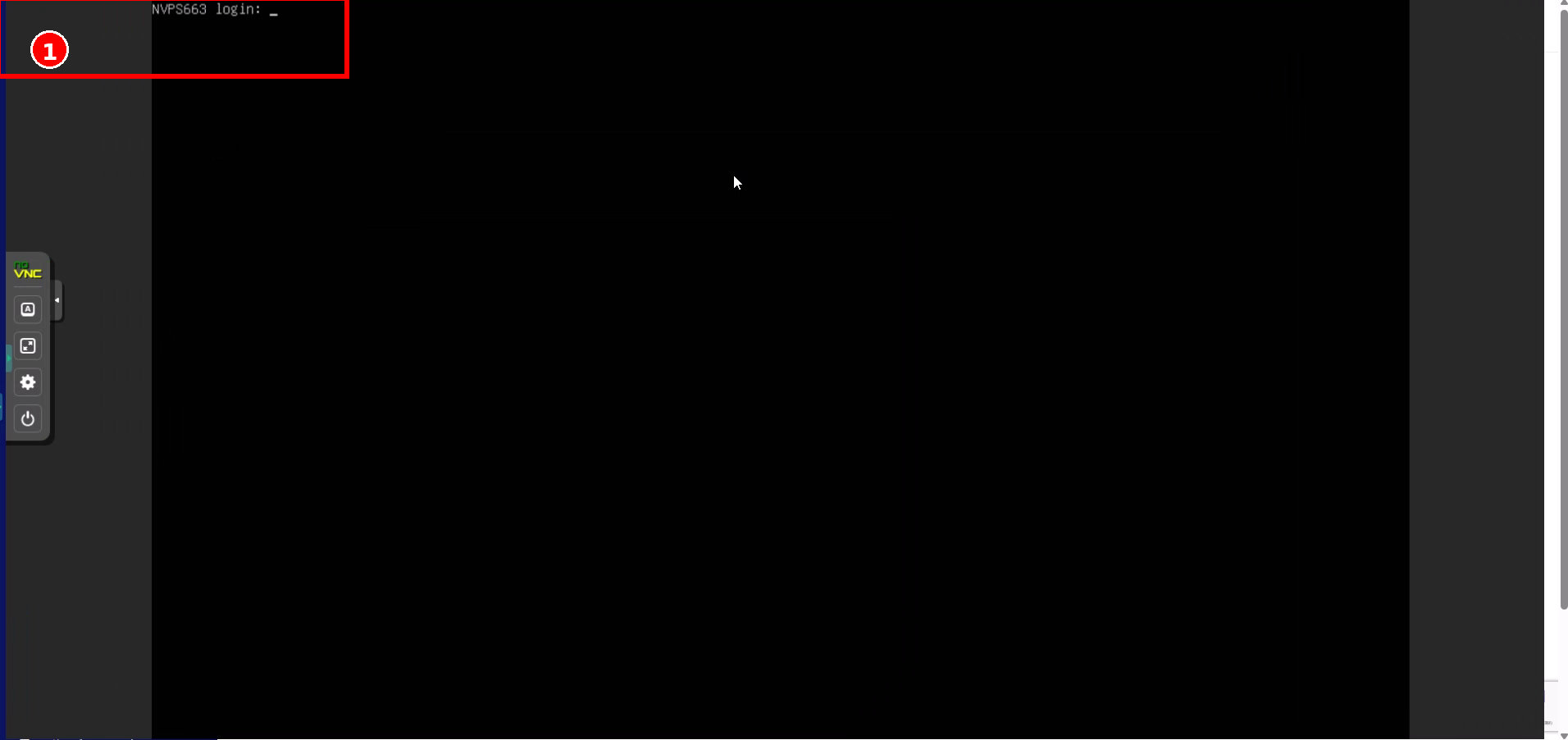
- Click on the black console area to set keyboard input focus.
- Enter the username at the login: prompt and press Enter.
- When Password: appears, enter the password and press Enter.
6. Close the Console #
- If it opened in a separate window: Close the console window (or tab).
- If you wish to continue working: You may leave the Service Details screen open as is.
How to Use the noVNC Toolbar #
The noVNC toolbar appears on the left side of the console screen. From here, you can assist with keyboard operations and make setting changes.
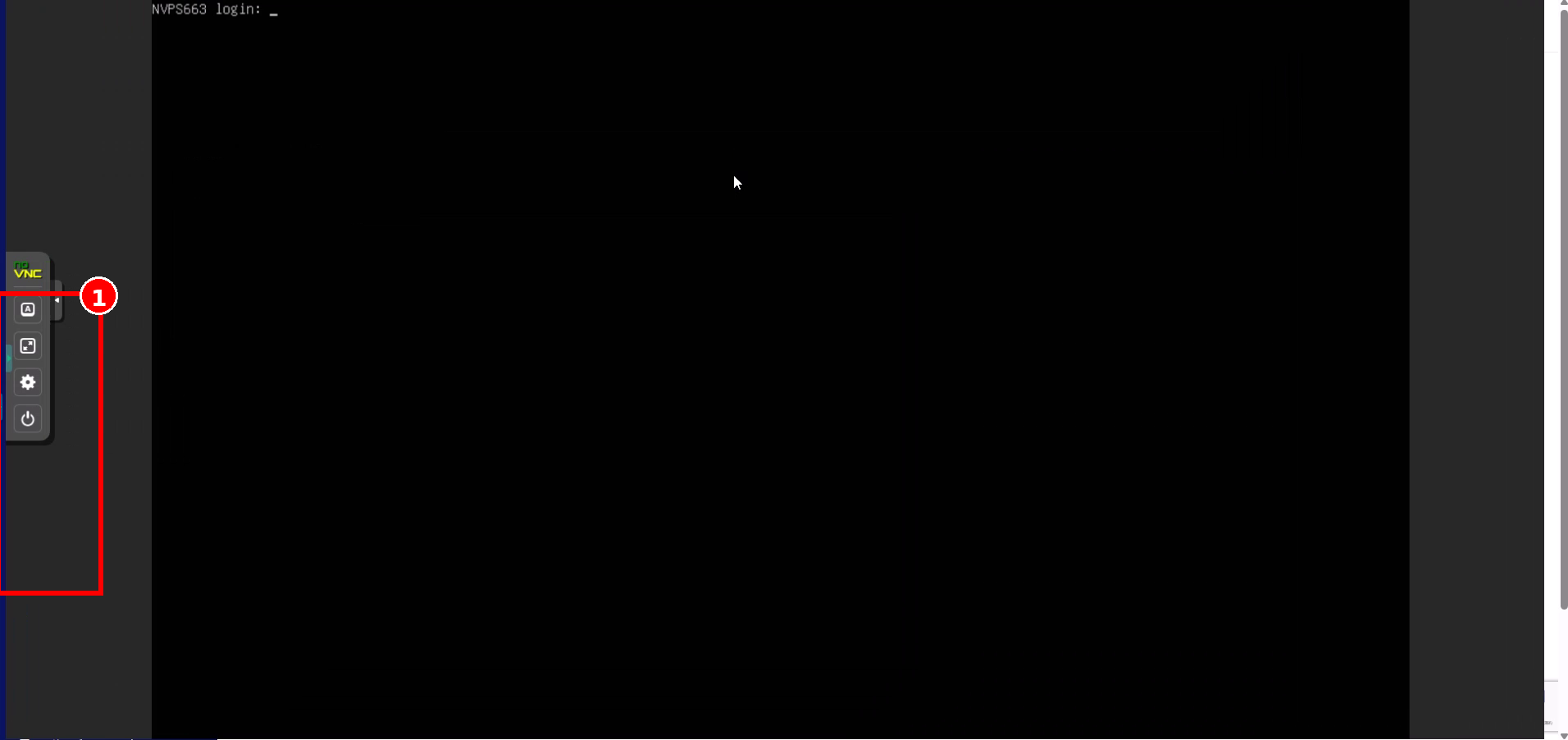
Clipboard
Used to assist with copy and paste operations. Depending on the browser, it may be required when pasting.
Settings
You can change settings related to console operability, such as display zoom and input options.
Power
You can execute sent keys (equivalent to Ctrl+Alt+Del) or disconnect. Available options vary by environment.
Common Troubleshooting #
Popup does not open #
- Disable the browser’s popup blocker and allow popups for the relevant site.
- After allowing, click Console again.
Keyboard input is not working #
- Click on the console (black screen) once to set the input focus.
- If pasting does not work, use the noVNC clipboard feature.
Screen is black / “Connecting…” remains displayed #
- First, wait for 10-30 seconds.
- If the issue persists, close the console window and open it again.
- If still not resolved, check that the status on the Service Details screen is “On,” and perform a restart if necessary.


