
Overview #
This guide explains how to perform power operations on your server from the client portal (Server Details screen).
Target Screen (Server Details Screen) #
Select the target VPS/cloud from Services in the left menu and open the Server Details screen (e.g., NVPS663).
Preparation and Important Notes #
- Before shutdown or restart, stop any running processes in the OS and save your data.
- Force Off cuts power without completing OS shutdown, which risks data corruption. Normally, use Shutdown first.
- Changes may take time to reflect after the operation. Click the Refresh button on the screen to update the status.
- While “Server is executing a task” is displayed in the upper right, do not perform another power operation simultaneously.
Shutdown #
Normal power off with proper OS shutdown procedure.
Steps #
- Click More in the upper right of the Server Details screen.
- Click Shutdown from the displayed menu.
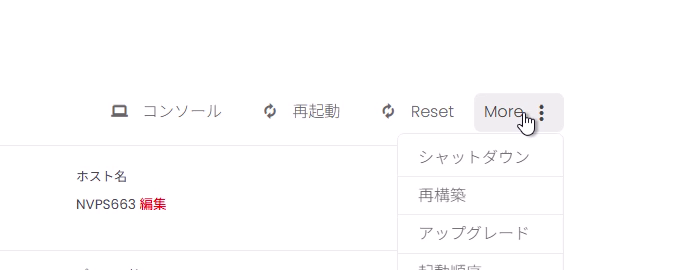
- When the confirmation dialog appears, click OK.

Verification Points #
- The status changes to SHUTDOWN or similar, and a task execution message is displayed.

- When complete, the status changes to Off.

Startup #
Power on the server from the off state.
Steps #
- Confirm that the status is Off.
- Click Startup in the upper right.

Verification Points #
- The status changes to STARTING or similar.

- When complete, the status changes to On.

Restart #
Restart the OS (VM restart operation).
Steps #
- Confirm that the status is On.
- Click Restart in the upper right.

- When the confirmation dialog appears, click OK.

Verification Points #
- The status changes to REBOOTING or similar.

- After completion, the status returns to On.
Force Off #
Cut power without completing OS shutdown. Use this only when normal shutdown cannot stop the server.
Important: Force Off may cause data corruption or file system inconsistency. Normally, use Shutdown first.
Steps #
- Click the power toggle in the status field (the switch showing On).

- When the confirmation dialog appears, click OK.
Verification Points #
- A message such as “VM will be powered off shortly” is displayed in the upper right.

- When complete, the status changes to Off, and the upper right button switches to Startup.
Additional Information (Common Messages) #
-
Server is executing a task
The power operation is in progress. Wait for completion and click Refresh if needed. -
Status does not change
Try refreshing the browser or wait a moment and click Refresh again.


