Client Portal Guide
Client Portal: VPS Password Reset Guide #
This guide explains how to reset the VPS (server) root password in the client portal.
Prerequisites #
- You are logged into the client portal
- You have the Server Details screen open for the target service (VPS)
Important Notes #
- Password reset may involve a server restart (follow the confirmation message on the screen).
- After reset is complete, the old password will no longer be usable. Note the new password before connecting.
- SSH / console connections may be disconnected during the operation.
Password Reset Procedure #
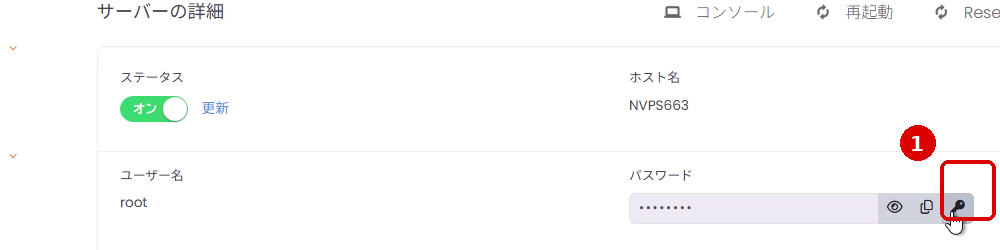
1. Click the “Reset Password” (lock icon) #
In the “Server Details” screen, click the lock icon (Reset Password) in the “Password” field.
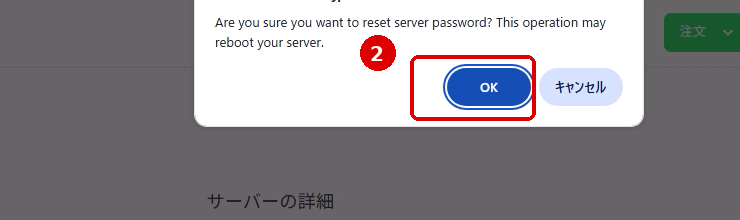
2. Click “OK” in the confirmation dialog #
When a confirmation message appears, review it and click OK.
3. Wait until the task execution message disappears #
During processing, a message such as “Server is executing a task” will appear. If necessary, click Refresh to update the status and wait until the task is complete.
4. Display and copy the new password #
After processing is complete, the new password will be set in the “Password” field. Review and retrieve it with the following steps.
- Click the eye icon to display the password.
- Click the copy icon to copy the password to your clipboard.
Post-Reset Verification #
Connection Verification
When connecting via SSH or other methods, confirm that you can log in with the username (e.g., root) and new password.
If You Cannot Log In
Perform the password reset again and try logging in with the copied password.
Troubleshooting #
“Server is executing a task” does not progress #
- Click “Refresh” to reload the screen.
- If the task does not complete after waiting a while, wait a bit longer and refresh again, or contact support.
Cannot log in with the new password #
- Check that the copied password does not contain extra spaces.
- The server may be restarting immediately after the reset. Wait a few minutes and try again.